Sales and Purchasing
Selling and Buying are the order-to-cash and procure-to-pay chains in GARP ERP. Sales staff use Selling to quote, take orders and deliver; purchasing staff use Buying to request, order and receive. Both update Inventory and Accounting automatically. Find them under Selling (/app/selling) and Buying (/app/buying) in the desk sidebar.
Key concepts
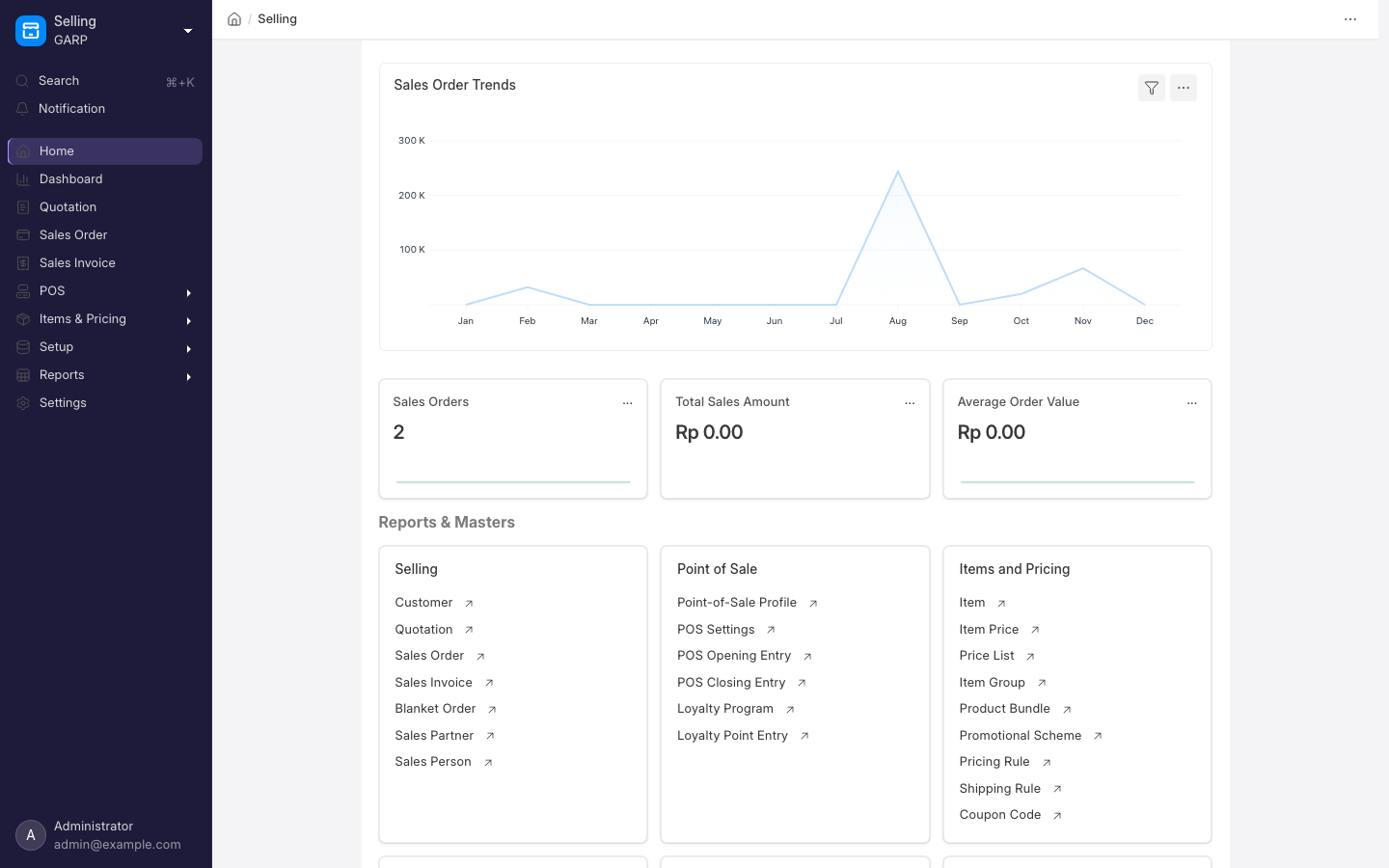
- Customer and Supplier — the parties you trade with, grouped by Customer Group, Supplier Group and Territory for reporting and pricing.
- Item — anything you sell or buy, shared with Inventory.
- Price List and Item Price — selling and buying prices per item. Pricing Rules apply discounts by customer, group, quantity or date.
- Quotation → Sales Order → Delivery Note → Sales Invoice — the selling chain.
- Material Request → Purchase Order → Purchase Receipt → Purchase Invoice — the buying chain, optionally with a Request for Quotation and Supplier Quotation in between.
- Payment Entry — closes either chain. See Accounting.
- Returns — a Delivery Note or Purchase Receipt marked as a return, with a credit note or debit note to reverse the invoice.
Typical flow
Selling:  Quotation ─▶ Sales Order ─▶ Delivery Note ─▶ Sales Invoice ─▶ Payment Entry

Buying:   Material Request ─▶ (Request for Quotation ─▶ Supplier Quotation)
                           ─▶ Purchase Order ─▶ Purchase Receipt ─▶ Purchase Invoice ─▶ Payment Entry
Each step is created from the previous one with the Create button, so quantities, prices and taxes carry forward and the earlier document shows how much has been delivered or billed. You can skip steps: a Sales Invoice can be made straight from a Sales Order, and with Update Stock ticked it delivers and bills in one document.
Common tasks
Quote a customer and convert to an order
- Go to
/app/quotation, click Add Quotation, pick the customer and add items. - Submit, then use Print or Email to send it.
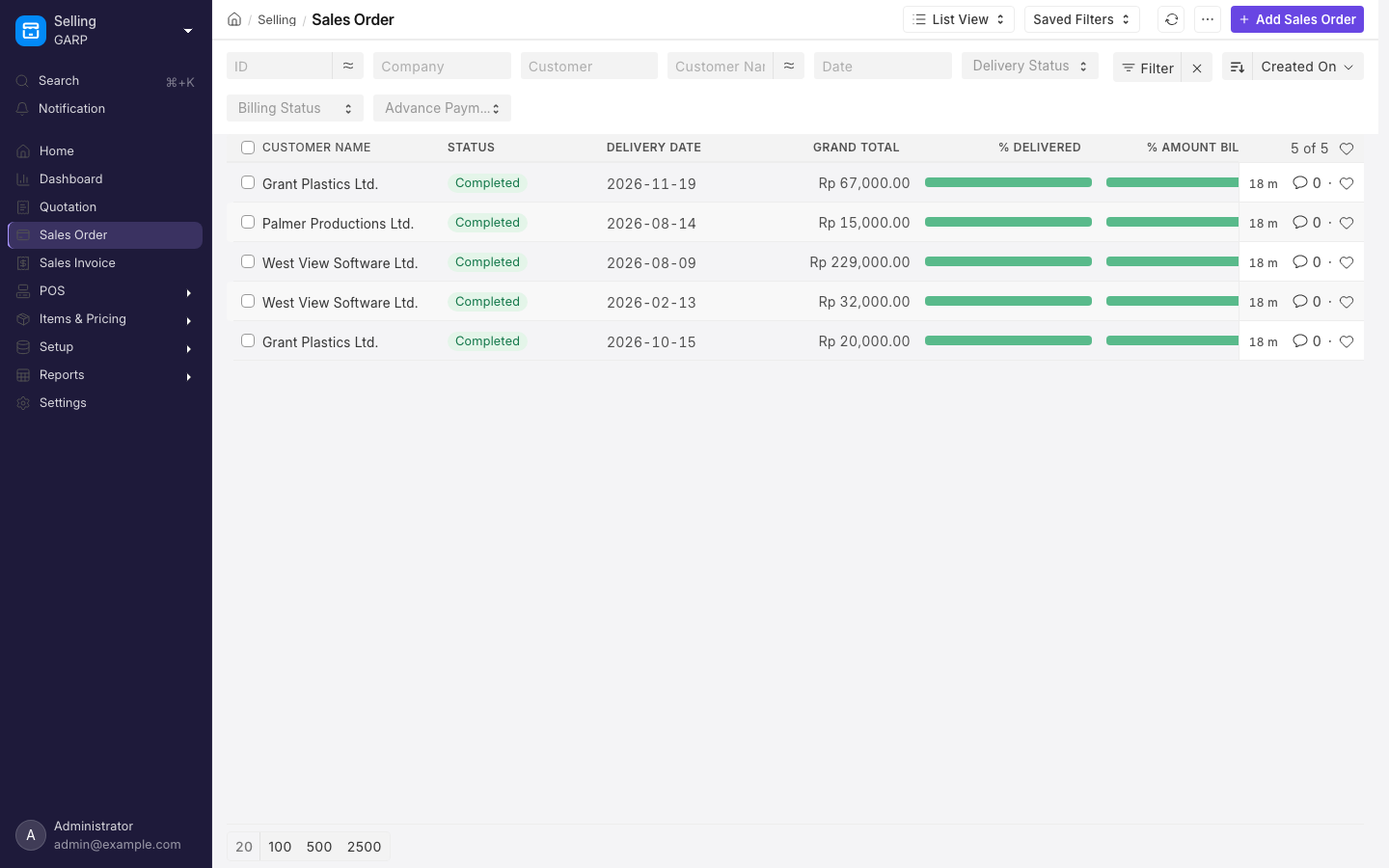
- When the customer accepts, open the quotation and choose Create > Sales Order. Check the delivery date and Submit.
Deliver and invoice a sales order
- Open the Sales Order and choose Create > Delivery Note. Adjust quantities if you are shipping in parts, select the warehouse, then Submit. Stock is reduced.
- From the Delivery Note choose Create > Sales Invoice and Submit. The customer's receivable balance increases.
- Record the payment as described in Accounting.
Buy from a supplier
- Go to
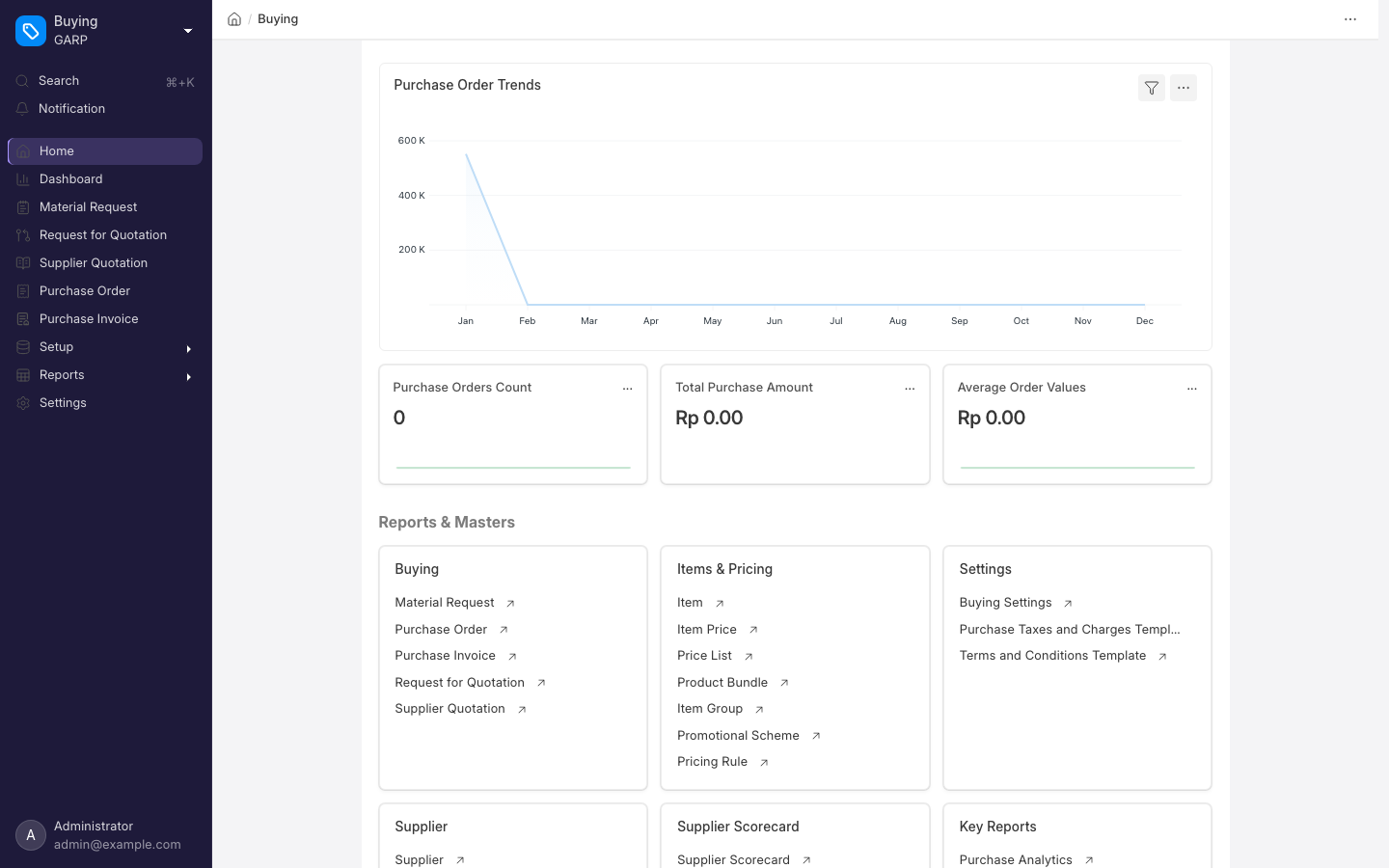
/app/purchase-order, click Add Purchase Order, choose the supplier, items, rates and required-by date. Submit and send it to the supplier.
 2. When goods arrive, open the Purchase Order and choose Create > Purchase Receipt. Enter accepted and rejected quantities and the receiving warehouse. Submit. Stock is increased.
3. When the supplier's invoice arrives, choose Create > Purchase Invoice from the receipt, check the amounts against the paper invoice, and Submit.
2. When goods arrive, open the Purchase Order and choose Create > Purchase Receipt. Enter accepted and rejected quantities and the receiving warehouse. Submit. Stock is increased.
3. When the supplier's invoice arrives, choose Create > Purchase Invoice from the receipt, check the amounts against the paper invoice, and Submit.
Handle a customer return
- Open the original Delivery Note and choose Create > Sales Return. Quantities come in as negatives; remove the lines that are not coming back.
- Submit the return to bring stock back in.
- Open the original Sales Invoice and choose Create > Return / Credit Note to reverse the receivable.
E-commerce connectors
On plans that include e-commerce integrations, you can connect an online shop (Shopify, WooCommerce and similar) so that web orders arrive as Sales Orders and stock levels sync back to the shop. Configuration lives under Integrations in the desk.
Setup checklist
- Customers and suppliers, with groups and territories.
- Items with a selling price list and a buying price list.
- Sales taxes and purchase taxes templates.
- Payment terms and default warehouses.
- Selling Settings and Buying Settings for naming, validation and whether a Sales Order is required before invoicing.
Related
- Inventory
- Accounting
- CRM — for the pipeline before a quotation exists.