Projects
Projects lets you group work into a project, break it into tasks, log the hours people spend and see what the project has cost and earned. It suits consultancies, contractors, agencies and internal teams that bill time or track delivery against a budget. Any transaction in GARP ERP (invoice, expense claim, purchase, stock entry) can be tagged with a project, so costing is a matter of filtering. Find it under Projects in the desk sidebar, or at /app/projects.
Key concepts
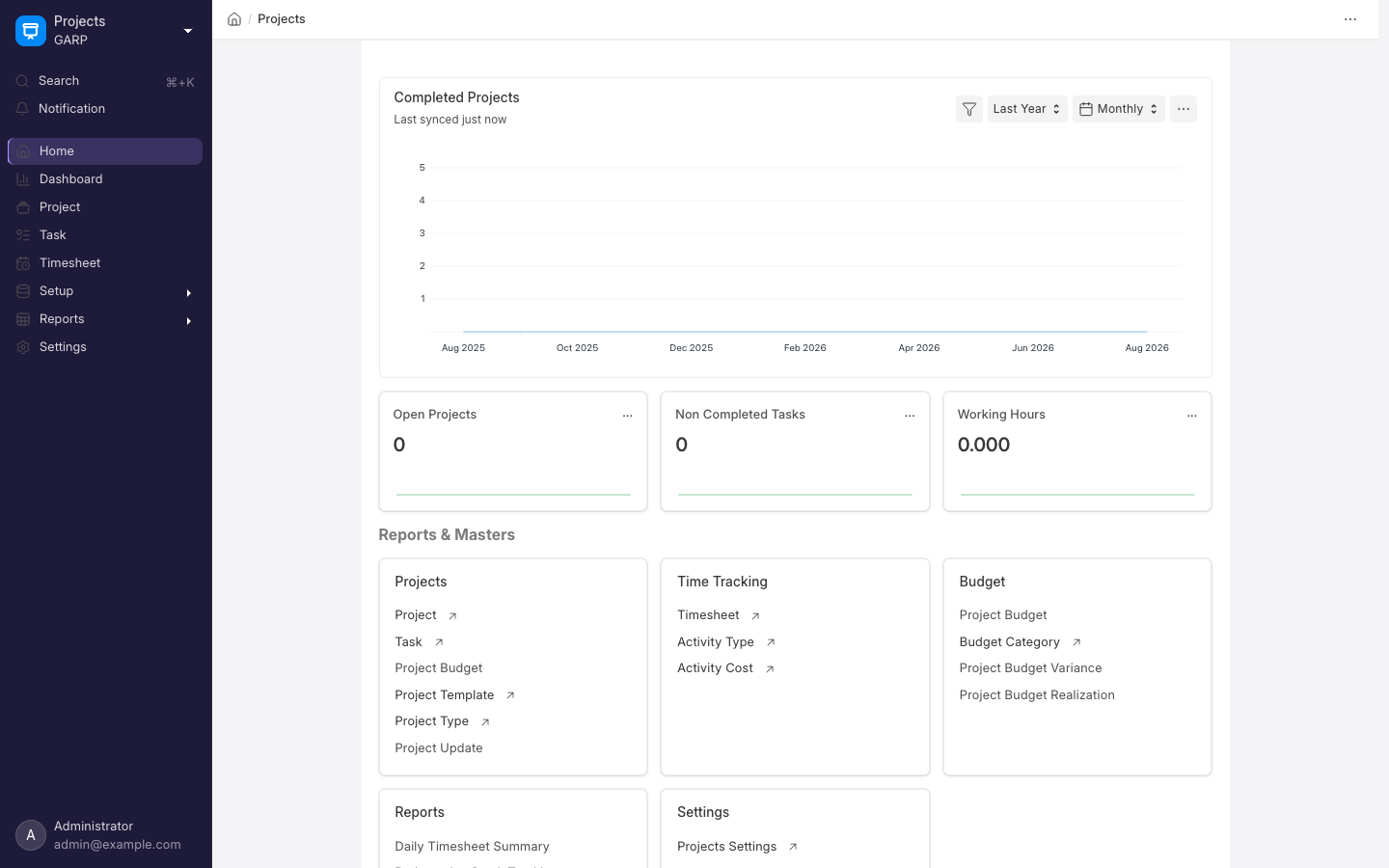
- Project — the container: customer, dates, status, percent complete, and a summary of costs, billing and margin pulled from linked transactions.
- Task — a unit of work within a project, with assignee, dates, priority, dependencies and a parent task for sub-tasks.
- Project Template — a saved set of tasks to create a new project from.
- Timesheet — hours logged by an employee against a project, task and Activity Type. Timesheets can be billed to the customer and paid through payroll.
- Activity Type and Activity Cost — what kind of work, and the billing and costing rate per hour per employee.
- Project Update — a periodic status note that can be emailed to stakeholders.
How it fits together
Project ─▶ Tasks ─▶ Timesheets ─▶ Sales Invoice (billable hours)
   │
   └─ Purchase Invoices, Expense Claims, Stock Entries tagged with the project ─▶ project cost
The project form shows total costing amount, total billed amount and gross margin, updated as linked documents are submitted.
Common tasks
Create a project with tasks
- Go to
/app/projectand click Add Project. Enter the name, customer, expected start and end dates. Choose a Project Template if you have one. - Save. Add tasks at
/app/task, setting the project, assignee and dates on each. - Switch the task list to Gantt or Kanban view (view selector at the top of the list) to schedule tasks or move them between statuses.
Log and bill time
- Go to
/app/timesheetand click Add Timesheet. Pick the employee and add rows with activity type, project, task, start time and hours. Tick Is Billable on rows the customer pays for. - Submit.
- To invoice, go to
/app/sales-invoice, click Add Sales Invoice, choose the customer and use Get Items From > Timesheet. Select the submitted timesheets and Submit the invoice.
See project profitability
- Open the project and read the Costing and Billing section.
- For detail, search for the Project Profitability report, or filter General Ledger and Profit and Loss Statement by the project.
Send a status update
- Turn on Collect Progress on the project and pick a Frequency To Collect Progress. The system then creates a draft Project Update on that schedule and asks each user in the project's Users table for their status. Review the collected notes and Submit the Project Update to send the summary. You can also open an existing update from the project's Connections tab.
- Turn on Collect Progress on the project with a frequency to have the system prompt the team for updates on a schedule.
Setup checklist
- Activity types, and activity costs per employee if you bill time.
- Project templates for recurring engagement types.
- Employees (from HR and Payroll) for timesheet entry.
- Projects Settings for whether overlapping timesheet entries are allowed.
Gameplan, available at /g on plans that include it, is a separate app for team discussions and lightweight project spaces. Use Projects for costed, billable work; use Gameplan for conversation and coordination.
Related
- HR and Payroll — employees, and salary from timesheets.
- Accounting — project as a dimension on the ledger.
- Sales and Purchasing — project on orders and invoices.