Manufacturing
Manufacturing turns raw materials into finished goods and records the cost of doing so. It is for production planners, shop-floor supervisors and anyone who needs to know what to make, what to buy for it and what it cost. It relies on Inventory for stock and feeds Accounting with the value of work in progress and finished goods. Find it under Manufacturing in the desk sidebar, or at /app/manufacturing.
Key concepts
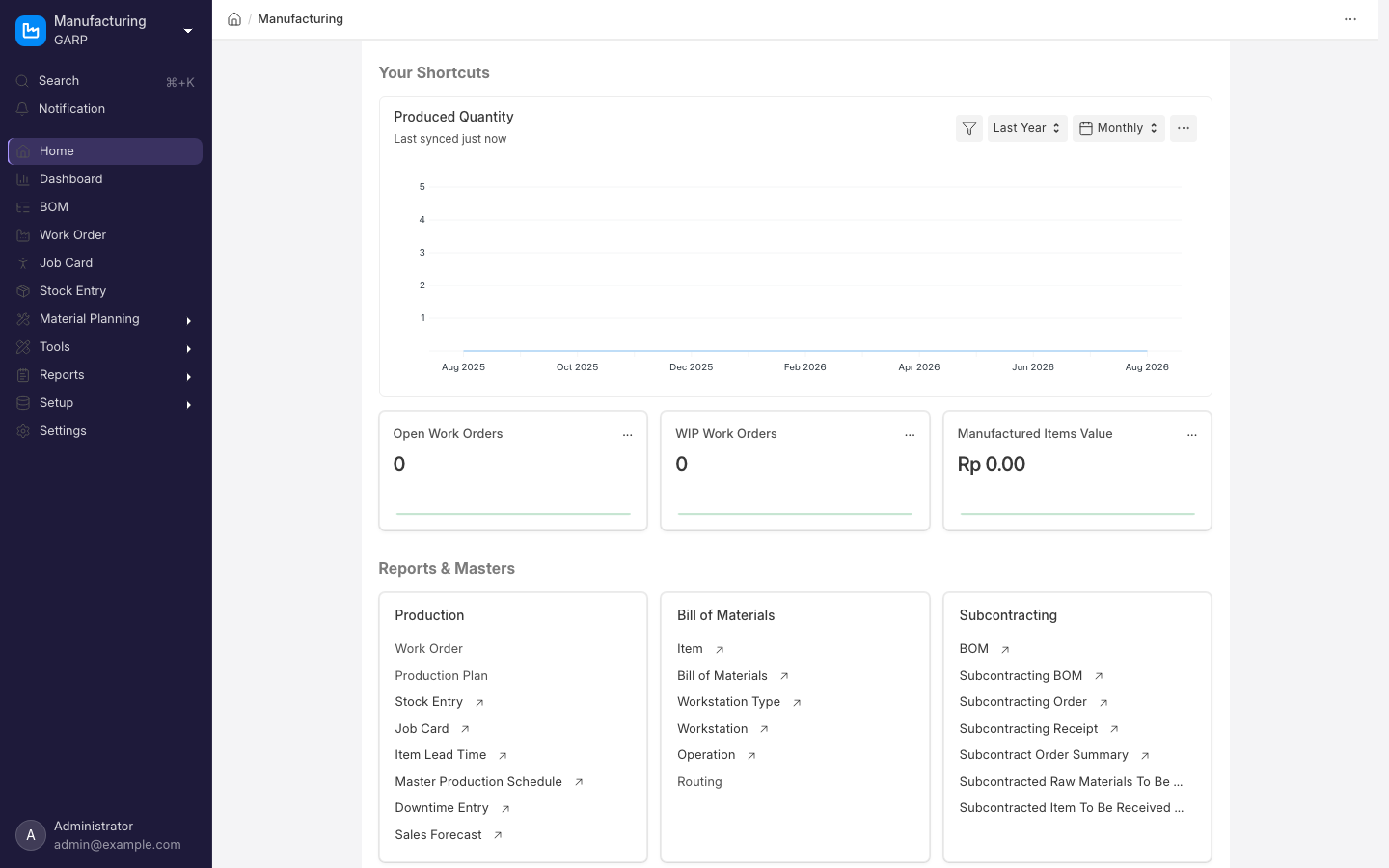
- Bill of Materials (BOM) — the recipe: one finished item, its raw materials with quantities, and optionally the operations needed. BOMs are submitted documents; an item can have several, with one marked as default.
- Workstation and Operation — where and what work is done, with hourly rates so operations carry a cost.
- Routing — a reusable sequence of operations you can pull into a BOM.
- Work Order — an instruction to produce a quantity of an item against a BOM. It tracks material transferred, quantity produced and status.
- Job Card — one operation of one Work Order, with time logs and the employee who did it.
- Production Plan — collects demand from Sales Orders or Material Requests and generates Work Orders, plus Material Requests for what is short.
- Stock Entry — Manufacturing uses two purposes: Material Transfer for Manufacture (raw materials into the work-in-progress warehouse) and Manufacture (consume them, produce the finished item).
Typical flow
BOM ─▶ Production Plan (optional) ─▶ Work Order ─▶ Job Cards
                                         │
                    Material Transfer for Manufacture (Stock Entry)
                                         │
                             Manufacture (Stock Entry) ─▶ finished goods in stock
The Work Order form has buttons for each step, so you rarely create the Stock Entries by hand.
Common tasks
Create a bill of materials
- Go to
/app/bomand click Add BOM. Choose the finished item and the quantity the BOM produces. - Add raw material rows with quantities. Rates are pulled from valuation or a price list according to Rate Of Materials Based On.
- If you cost labour, add operations with workstations and times.
- Submit. Tick Is Default so Work Orders pick it up automatically.
Run a work order
- Go to
/app/work-order, click Add Work Order, pick the item and quantity. The default BOM and the source and work-in-progress warehouses fill in. - Submit. Click Start to create the Material Transfer for Manufacture entry; check quantities and Submit it.
- When production is done, click Finish on the Work Order, enter the quantity produced, and Submit the Manufacture entry. Finished goods appear in the target warehouse and raw materials are consumed.
Plan production from sales orders
- Go to
/app/production-planand click Add Production Plan. - Under Get Items From, choose Sales Order, set filters and click Get Sales Orders, then Get Finished Goods.
- Click Get Items for Purchase / Transfer (or Get Items for Purchase Only) to see shortages. Submit, then use Create > Work Order and Create > Material Request to generate the documents.
Log time on the shop floor
- Open a Work Order and go to its Job Cards (created automatically when the BOM has operations).
- Open a Job Card, click Start Job, and Complete Job when done, entering the quantity completed.
- Submitted Job Cards update the Work Order's operation status and actual time.
Setup checklist
- Items for finished goods and raw materials, with Maintain Stock ticked.
- Warehouses: raw materials, work in progress, finished goods.
- Workstations and operations, if you cost labour or track job cards.
- A default BOM per finished item.
- Manufacturing Settings (
/app/manufacturing-settings): overproduction allowance, whether to back-flush materials from the BOM, and capacity planning.
Related
- Inventory
- Sales and Purchasing — demand comes from Sales Orders; shortages become Purchase Orders.
- Projects — link Work Orders to a project to collect cost.