Inventory
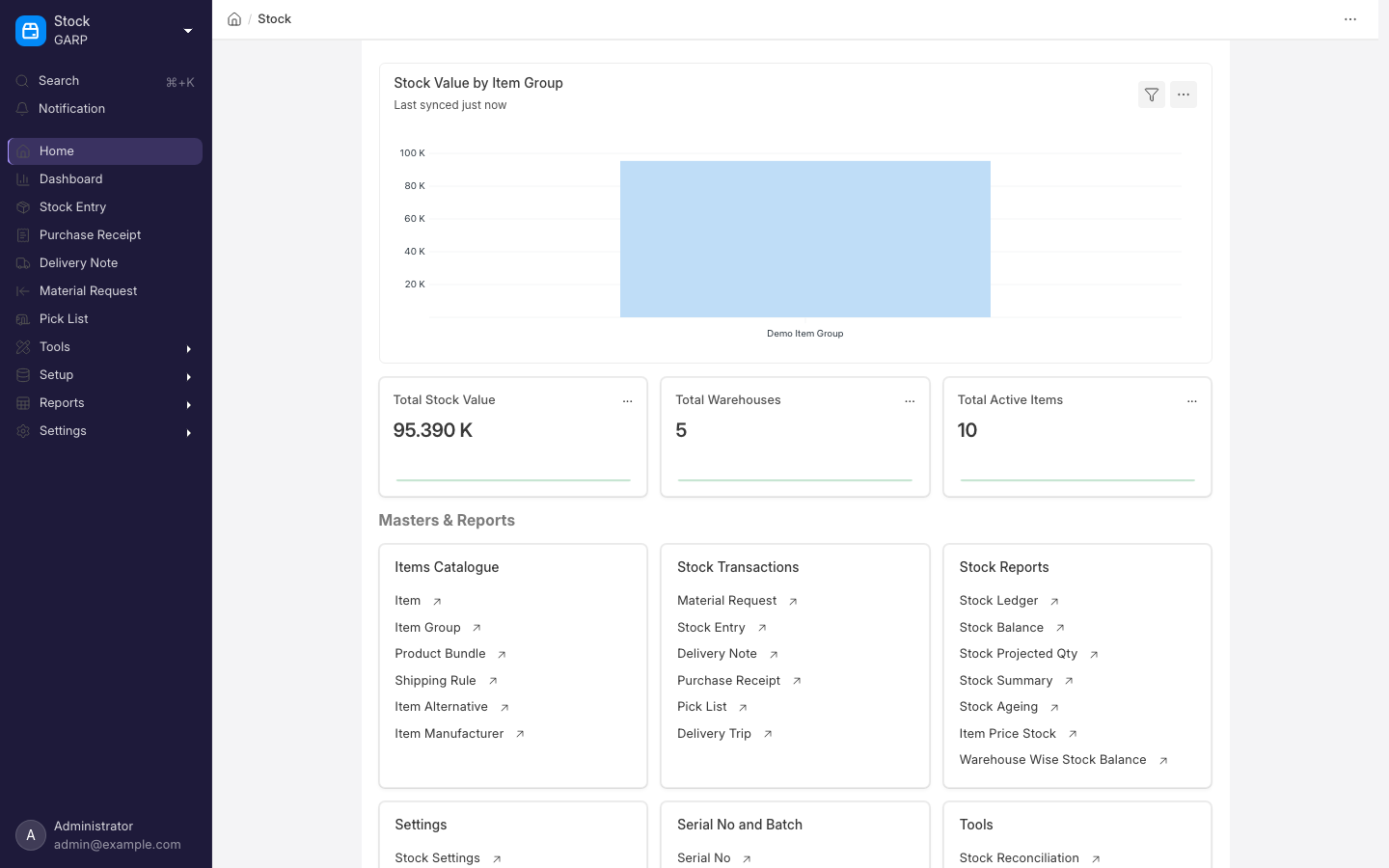
Inventory (the Stock module) tracks what you have, where it is and what it is worth. Every receipt, delivery, transfer and adjustment writes to a stock ledger that is the single source of truth for quantity and value; Accounting reads the value, Manufacturing reads the quantity. Warehouse staff, purchasing and finance all work from it. Find it under Stock in the desk sidebar, or at /app/stock.
Key concepts
- Item — the master for anything you stock, sell, buy or make. Key flags: Maintain Stock, Has Batch No, Has Serial No, default warehouse and unit of measure. Services are items too, just without stock tracking.
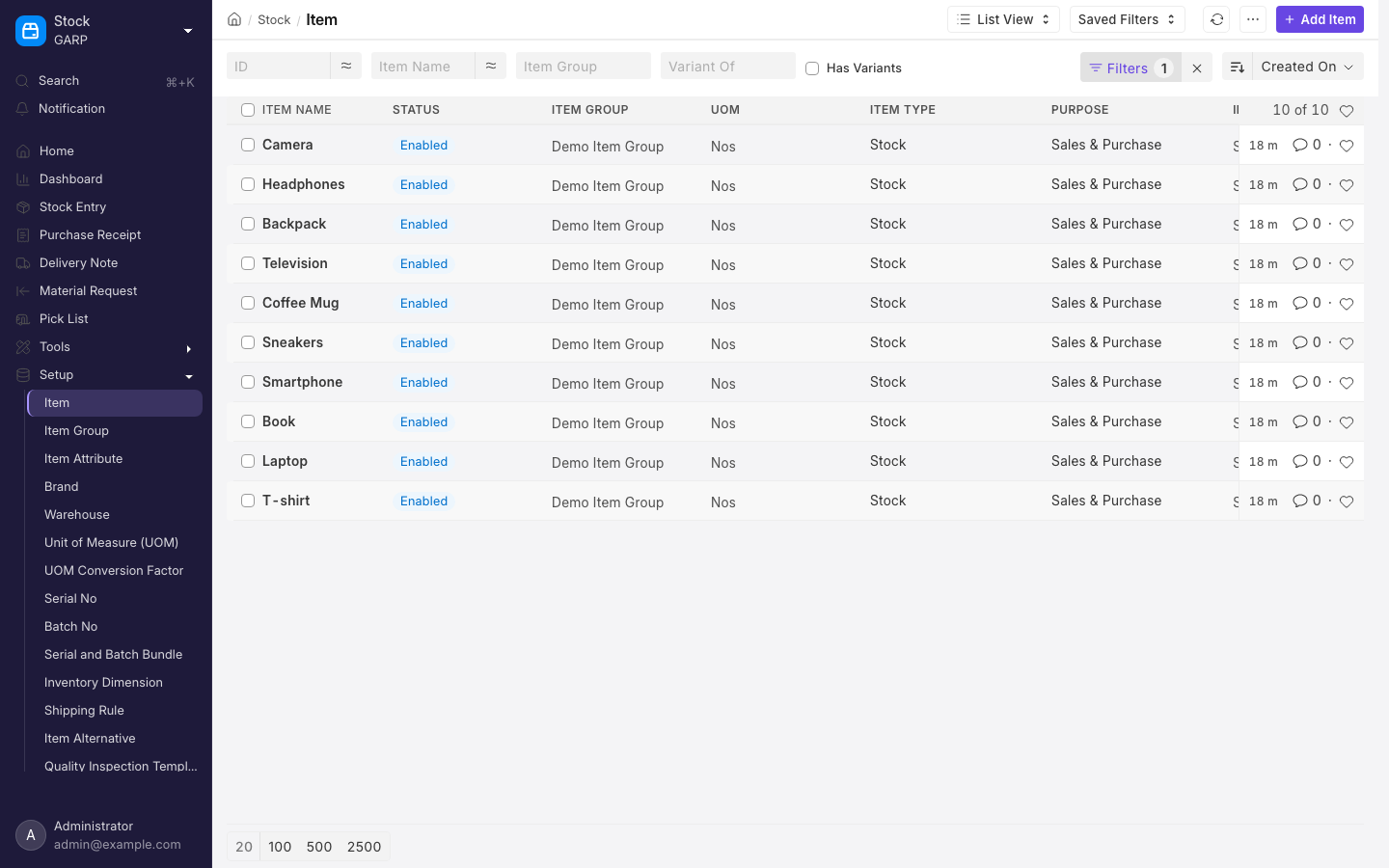
- Item Group — a tree for classification and defaults.
- Unit of Measure (UOM) and UOM conversion — buy in cartons, sell in pieces.
- Warehouse — a physical or logical location. Warehouses form a tree, so a store can hold sub-locations.
- Stock Entry — the general-purpose movement document. Its purpose can be Material Receipt, Material Issue, Material Transfer, Manufacture and others.
- Stock Reconciliation — set the counted quantity and value of items in a warehouse; the difference is posted for you.
- Batch and Serial No — lot-level and unit-level tracking, with expiry dates on batches.
- Valuation — FIFO or Moving Average, set per item or globally in Stock Settings.
- Stock Ledger and Stock Balance — the two reports you will use most.
How it fits together
In:   Purchase Receipt, Material Receipt, Manufacture, Stock Reconciliation
                        │
                        ▼
              Stock Ledger Entry  (quantity and value, per item per warehouse)
                        │
                        ▼
Out:  Delivery Note, Material Issue, materials consumed by a Work Order
Stock documents are submitted, like invoices. Backdated entries are allowed but re-run later valuations, so post in date order when you can.
Common tasks
Add a new stock item
- Go to
/app/itemand click Add Item. Enter code, name, item group and default UOM. - Tick Maintain Stock. Set Has Batch No or Has Serial No if you track lots or individual units.
- Under Accounting, add a row to Item Defaults for the company and set the default warehouse there. Under Inventory > Auto re-order, add a Reorder level based on Warehouse row with a re-order level and quantity if you want automatic reordering.
- Save. Add selling and buying prices at
/app/item-price.
Record an opening stock count
- Go to
/app/stock-reconciliationand click Add Stock Reconciliation. Set the purpose to Opening Stock. - Add a row per item and warehouse with the counted quantity and valuation rate. Use Fetch Items from Warehouse for a long list.
- Submit. Quantities and values are created against the opening balance account.
Move stock between warehouses
- Go to
/app/stock-entry, click Add Stock Entry, and set the purpose to Material Transfer. - Set source and target warehouses and add items with quantities.
- Submit. Both warehouses update immediately.
Check stock levels and history
- Search for Stock Balance to see quantity and value per item and warehouse for a date range.
- Search for Stock Ledger to see every movement of an item, with the document that caused it.
- On any Item form, the Stock Levels section shows the current quantity per warehouse.
Setup checklist
- Warehouses, including a rejected-goods warehouse if you inspect receipts.
- Item groups and units of measure.
- Items, with stock flags and default warehouses.
- Stock Settings (
/app/stock-settings): valuation method, whether negative stock is allowed, and automatic reorder emails. - Opening stock via Stock Reconciliation.
warning
An item's valuation method and its batch and serial flags are hard to change once it has stock ledger entries. Decide them before the first transaction.
Related
- Sales and Purchasing — the documents that move most stock.
- Manufacturing — consuming raw materials and producing finished goods.
- Accounting — how stock value reaches the balance sheet.