Accounting
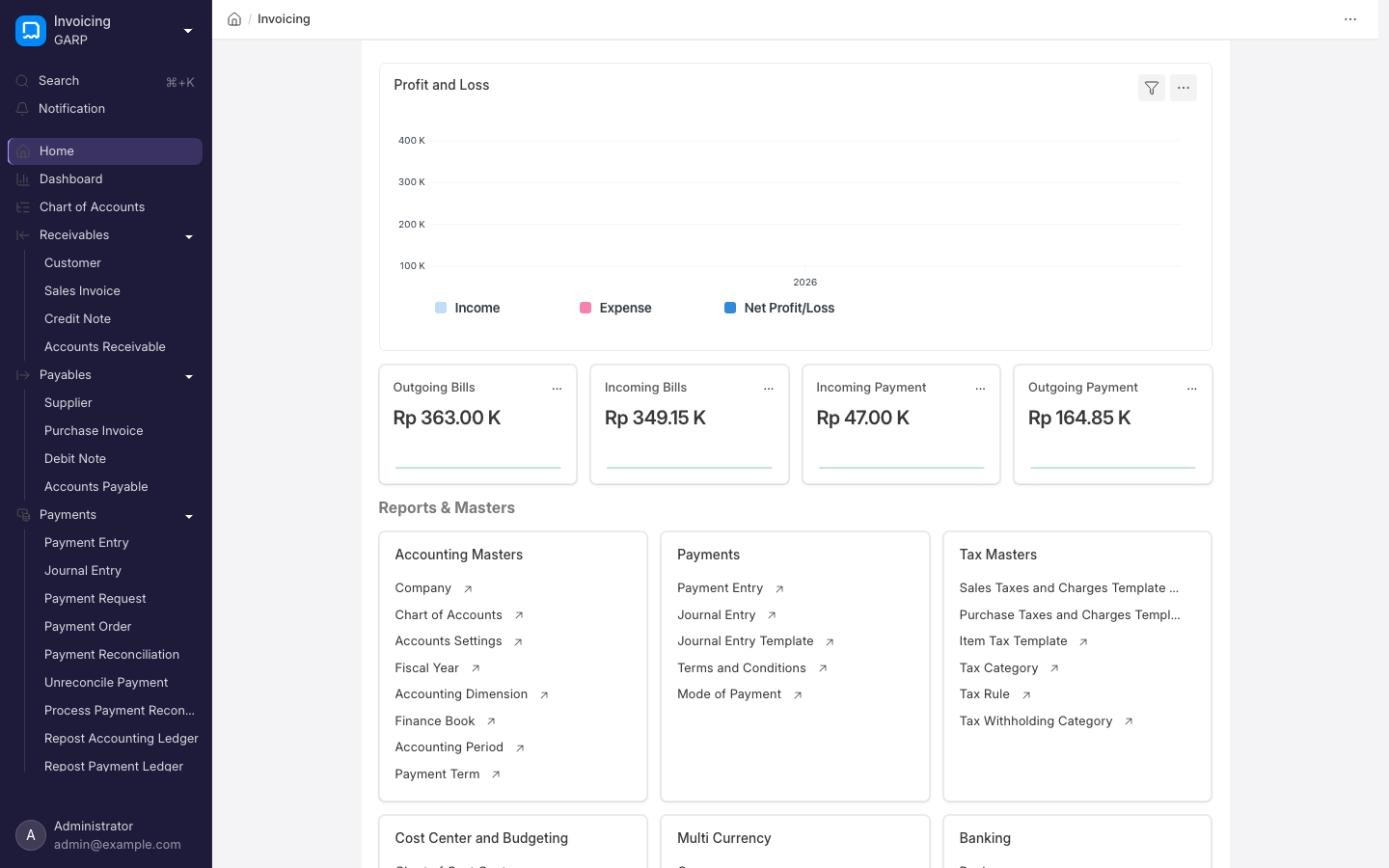
Accounting is the ledger behind every other module. Sales and purchase invoices, stock movements, payroll and asset depreciation all post General Ledger entries here, so the books stay in step with operations without re-keying. It is split across two workspaces in the desk sidebar: Invoicing (/app/invoicing) for masters, receivables, payables and payments, and Financial Reports (/app/financial-reports) for the statements.
Key concepts
- Company — the legal entity you keep books for. A workspace can hold several companies, each with its own chart of accounts and fiscal years.
- Chart of Accounts — the tree of ledger accounts (assets, liabilities, income, expenses, equity). The setup wizard creates a standard chart; edit it at
/app/account. - Fiscal Year — the accounting period. Transactions must fall inside an open fiscal year.
- Cost Center — a dimension for splitting income and expenses by department, branch or outlet.
- Sales Invoice and Purchase Invoice — what you bill customers and what suppliers bill you. Submitting one posts to the ledger and to the party's receivable or payable balance.
- Payment Entry — money received or paid, matched against invoices. Also used for advances and internal transfers.
- Journal Entry — a manual posting for accruals, corrections and opening balances.
- Taxes and Charges Templates — reusable tax lines (for example PPN) applied to invoices. Item Tax Templates override them per item.
- Mode of Payment and Bank Account — how money moves, and which ledger account each channel hits.
How it fits together
Sales Invoice    ─┐
Purchase Invoice ─┤
Payment Entry    ─┼─▶ General Ledger ─▶ Trial Balance ─▶ Balance Sheet, Profit and Loss, Cash Flow
Journal Entry    ─┤
Stock, Payroll, Assets ─┘
Transactional documents are submitted, not just saved. A submitted document is locked; to change it, Cancel it and Amend the copy. This keeps the audit trail intact.
Common tasks
Record a customer invoice and its payment
- Go to
/app/sales-invoiceand click Add Sales Invoice. - Pick the customer, add item rows with quantity and rate, and choose a taxes and charges template.
- Submit. The invoice now appears in the Accounts Receivable report.
- When the money arrives, open the invoice and choose Create > Payment. Confirm the amount and bank account, then Submit the Payment Entry.
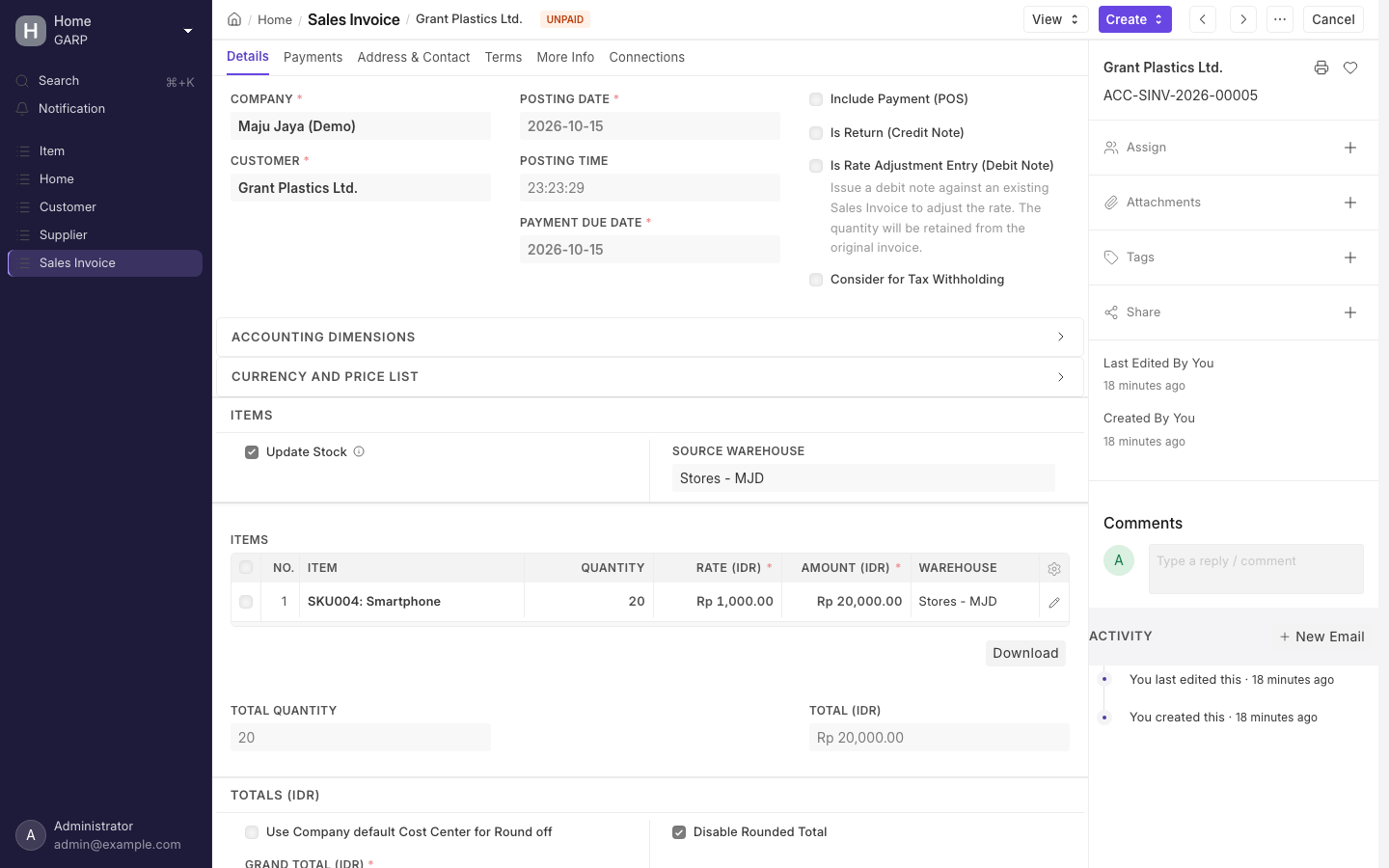
A submitted Sales Invoice. The status badge by the title tracks it from Unpaid to Paid or Overdue.
Record an expense with a Journal Entry
- Go to
/app/journal-entryand click Add Journal Entry. - Add one row debiting the expense account and one crediting the bank or cash account. Debits and credits must balance.
- Attach the receipt, add a remark, and Submit.
Reconcile a bank statement
- Go to
/app/bank-reconciliation-tooland select the bank account and period. - Import the statement with Bank Statement Import, or enter the closing balance from the statement.
- Match each statement line to an existing Payment Entry or Journal Entry, or create one on the spot. The difference should reach zero.
Read your financial statements
- Open Financial Reports (
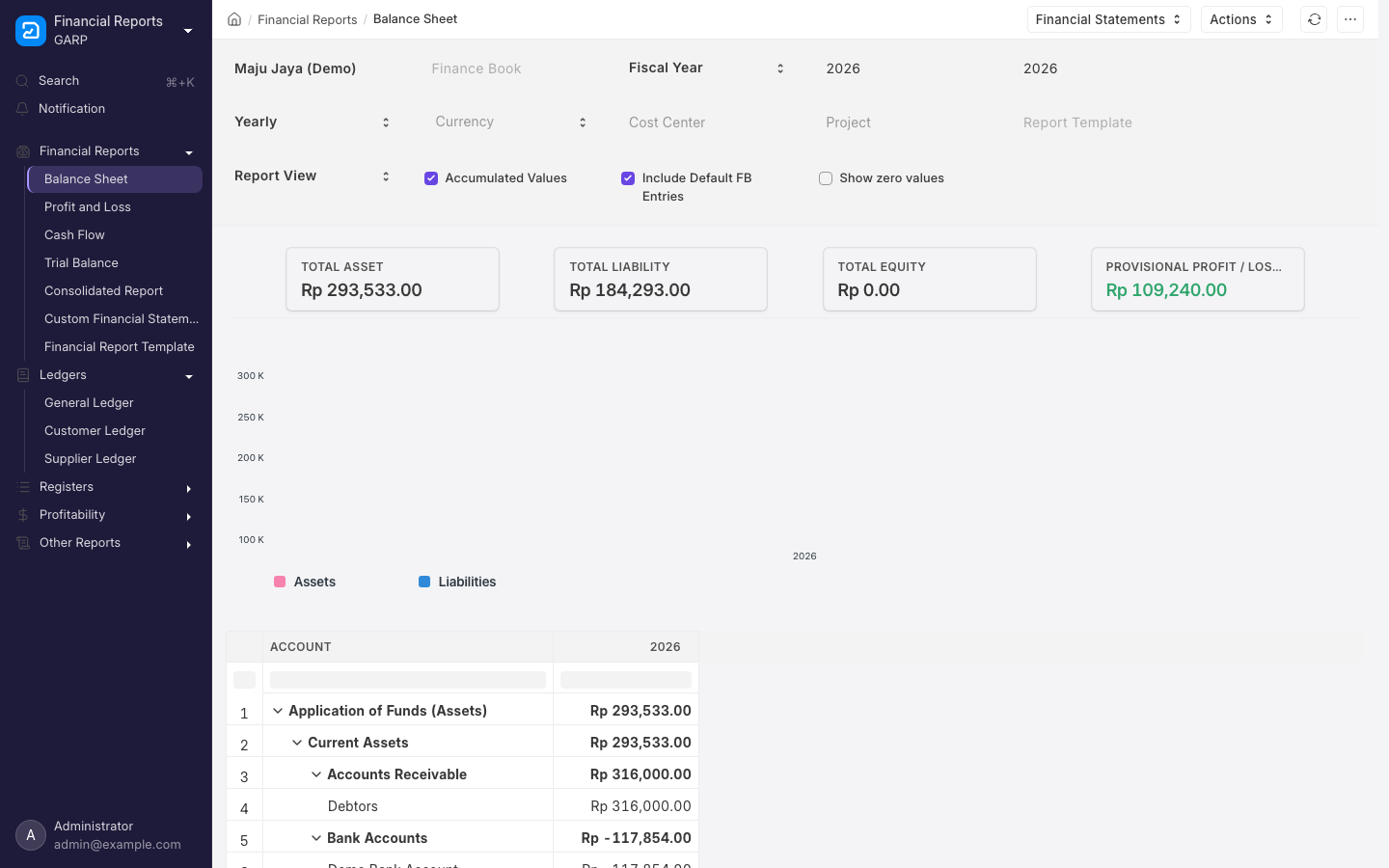
/app/financial-reports) in the sidebar and use the Financial Statements card, or search for Balance Sheet, Profit and Loss Statement or Cash Flow. - Set the company, fiscal year and periodicity, then add a cost center or project filter if you need a breakdown.
- Use Export to send it to a spreadsheet.
Setup checklist
- Company, default currency and fiscal year (done in the setup wizard).
- Review the chart of accounts and add the accounts you need.
- Taxes and charges templates for the taxes you collect and pay.
- Bank accounts and modes of payment.
- Cost centers, if you report by department or branch.
- Payment terms templates, if you offer credit.
Review Accounts Settings (/app/accounts-settings) before your first month closes — it controls invoice cancellation behaviour, over-billing allowance, deferred accounting and the role allowed to bypass credit limits. Period freezing (Accounts Frozen Till Date) and Enable Perpetual Inventory, which decides whether stock valuation posts to the ledger, are set on the Company record (/app/company).
Related
- Sales and Purchasing — where most invoices originate.
- Inventory — stock valuation and its effect on the ledger.
- Insights — build custom finance dashboards.