Settings and reports
GARP HR reads its rules from a small set of screens you set up once and rarely touch again: where your offices and departments are, who approves what, which days the office is closed, and how salary is counted. This page covers those screens, the roles that decide who is allowed to open them, and the reports GARP gives you out of the box.
HR Setup (/app/hr-setup) is the workspace an HR Manager works from. Get these settings right once and the daily work in the other workspaces behaves the way you expect.
What you probably came here to do
- Set up HR for a company that has just been created
- Give a colleague HR access — or hold some of it back
- Say who approves leave, expenses, shifts and overtime
- Work out what a day of unpaid leave actually costs
- Start the daily "what did you work on" email
- Find a report and open it
- Check what GARP does and does not handle for Indonesian rules — read this before you assume anything about BPJS, PPh 21 or THR
Where to find these screens
The HR Setup workspace body has eight cards: Employee, Key Reports, Setup, Leaves, Attendance, Expense Claim, Settings and Other Reports.
The left sidebar is shorter. It holds:
- Home
- a Dashboard link to the Human Resource dashboard
- Employee
- Organizational Chart (
/app/organizational-chart) - a Setup group: Company, Branch, Department, Designation, Employee Group and Employee Grade
- a single Settings link, which opens HR Settings
Five screens are not in the sidebar at all: Payroll Settings, Employment Type, Holiday List, Holiday List Assignment and Daily Work Summary Group. Reach them with Cmd/Ctrl + K and the name, or type the address shown for each one further down this page.
Set up HR for a new company
- Create the Company, then its Branch, Department tree, Designation, Employment Type and Employee Grade records. Set the HR accounts on the Company's HR & Payroll tab — Default Payroll Payable Account, Default Expense Claim Payable Account and Default Employee Advance Account. The payroll payable account must belong to that company and match its default currency, or the save is refused.
- Build the year's Holiday List and submit a Holiday List Assignment for the company. Holidays are read from the assignment, not from the Employee's own field.
- Open
/app/hr-settingsand work through the six tabs. At minimum set Employee Naming By, the reminder switches, a Sender email account and, if anyone will run the timesheet reports, Standard Working Hours. - Open
/app/payroll-settingsand set the working-days basis, Consider Unmarked Attendance As and the slip email options. Do this before the first payroll entry, because the basis changes what every slip computes. - Fill Leave Approver and Expense Approver on each department so new employees inherit them. Add Shift Request Approver and Overtime Request Approver if those flows are in use.
- Review the seeded Employee Exit Reason and Severance Rule records against your PP or PKB.
There is a fuller setup checklist at the foot of this page.
Give someone HR access
- Create the user as described in Invite your team. This needs the System Manager role.
- Add HR to Role Profiles for a full HR administrator, or tick HR User alone for someone who should not run payroll. Remember that the bare HR Manager role does not reach Overtime Slip, Shift Assignment Tool or Employee Advance.
- To let them approve requests, name them as an approver on an Employee or Department. The Leave Approver and Expense Approver roles are then added for you.
For what each role can actually open, see Roles and who can do what in the reference part of this page.
Choose who approves leave, expenses, shifts and overtime
An approver can be set in two places, and GARP consults both:
- On the Employee, under Approvers: Expense Approver, Leave Approver, Shift Request Approver and Overtime Request Approver. Each one names a user.
- On the Department, four tables of Department Approver rows with the same four names.
Department approvers are inherited up the tree. GARP takes every non-disabled department from the employee's own department up to the root, and gathers the approvers from all of them. The first row in a table is the default.
When someone raises a request, the approver field offers:
- the employee's own approver for that request type first, then
- everyone named on their department and its parent departments.
If neither exists, the form stops you before you can pick anything. You will see a dialog titled Leave Approver Missing (or the matching name for the other three) reading Please set Leave Approver for the Employee: <name> or for the Employee's Department: <department>. If you open the approver list before choosing an employee you get Please select Employee first.
Saving an Employee grants the Leave Approver and Expense Approver roles to the named users automatically. It does not grant anything for Shift Request Approver or Overtime Request Approver — those two people still need the roles that let them see and act on the documents, normally HR User.
Decide how unpaid days are counted
One checkbox in Payroll Settings changes what a day of unpaid leave costs. Here is the same month worked twice.
PT Maju Jaya runs monthly payroll for September 2026: 30 days, four Sundays as weekly offs plus one national holiday on a Thursday, so five holidays. Sari Dewi's Salary Structure Assignment has Base of Rp 6,000,000 and her structure has one earning, Gaji Pokok, with Depends on Payment Days ticked. She takes two days of unpaid leave.
With Include holidays in Total no. of Working Days off, which is the default:
total_working_days = 30 - 5            = 25
payment_days       = 25 - 2 (LWP)      = 23
Gaji Pokok         = 6,000,000 x 23/25 = Rp 5,520,000
deduction for 2 days                   = Rp   480,000
Tick the same box on and nothing else changes:
total_working_days = 30                = 30
payment_days       = 30 - 2 (LWP)      = 28
Gaji Pokok         = 6,000,000 x 28/30 = Rp 5,600,000
deduction for 2 days                   = Rp   400,000
One checkbox moves the same two days by Rp 80,000, because the divisor is the number of days the setting counts as workable.
An Indonesian practitioner asked for the same figure will usually apply the company PP's fixed divisor — commonly 25, sometimes 21 — and answer Rp 480,000 every month of the year. The product does not use a fixed divisor: it counts the real calendar, so the deduction for two unpaid days changes month to month. If you need the fixed divisor, write it into the salary component formula, as the shipped Potongan component does with GP / 25 * (HS + HI + HMK).
When holidays are excluded and a month contains more holidays than days — which only happens with a badly built Holiday List — the slip refuses to save and you see the message There are more holidays than working days this month.
Set up the daily work summary email
- Configure an incoming Email Account and mark it default incoming. Without one, saving a Daily Work Summary Group with any user in it fails with the message
Please enable default incoming account before creating Daily Work Summary Group— the replies are read from that mailbox. - Create the group at
/app/daily-work-summary-group, add users, pick Send Emails At, and link a Holiday List so it stays quiet on holidays. - Leave Subject and Message at their defaults or rewrite them. Check who replied in the Daily Work Summary Replies report.
Only an HR Manager can create or edit a Daily Work Summary Group.
Find a report
Press Cmd/Ctrl + K, type part of the name and pick it from the list. Reports are also grouped under Reports in each workspace sidebar, and the main ones sit on the Key Reports and Other Reports cards on HR Setup.
Workspaces whose name contains an ampersand — Shift & Attendance, Tax & Benefits — are easiest to reach by name from the sidebar rather than by URL.
The full list of what ships, with the filters each one needs, is in Every report that ships below.
What is and is not Indonesian
GARP ships country-specific payroll content for India and the United Arab Emirates only. There is nothing for Indonesia, and changing a Company's country to Indonesia adds no Indonesian payroll content at all.
So the product ships:
- no BPJS Kesehatan or Ketenagakerjaan components
- no PPh 21 rates or PTKP bands
- no THR calculation
- no statutory report
Setting a company's country to Indonesia creates only the four generic salary components — Basic, Arrear, Leave Encashment and Income Tax. Everything statutory is a consultant's configuration job, built from Salary Component formulas, an Income Tax Slab and Additional Salary. Never assume compliance you have not checked on the site in front of you.
What GARP HR does add on top of the upstream product:
- Salary Components for an Indonesian retail payroll: Gaji Pokok (GP), Masa Kerja (TMK), Kehadiran (KH), BPJS TK (BPJSTK, formula
(2 * (GP + TMK)) / 100) and Potongan (POT, formulaGP / 25 * (HS + HI + HMK)). These are one customer's starting point, not a statutory rate table — that 2% is a single employee-side contribution, not the full JHT, JP, JKK and JKM set. - Attendance day-count fields on Salary Slip — Hari Masuk (HM), Hari Sakit (HS), Hari Izin (HI), Hari Mangkir (HMK) and Hari Terlambat (HD) — filled from submitted Attendance before each slip is checked, and usable in formulas by field name or abbreviation.
- An Overtime Type named Lembur GARP implementing the Kepmenaker pattern: divisor 173, 1.5x for the first hour and 2x after on a working day, 3x and 4x on a holiday, a one-hour daily threshold and half-hour rounding, paying through a Upah Lembur component. See Overtime.
- Termination masters: a Severance Rule called Pesangon PP 35/2021 carrying the Uang Pesangon and UPMK slab tables, and fourteen Employee Exit Reason records — Mengundurkan Diri, Pensiun, Meninggal Dunia, Kontrak Berakhir (PKWT) and ten PHK grounds — each with its UP and UPMK multipliers, its Uang Pisah and Uang Kompensasi flags, which letters to issue and a regulation reference. Multipliers and slabs live on those two masters, so a change in regulation is a data edit.
- Three Indonesian print formats on Employee Separation: Surat Keterangan Kerja, Surat Keterangan Pensiun and Surat Keterangan Perhitungan Pesangon.
- Employee profile fields for Indonesian HR: Nickname, Place of Birth, Religion, Citizenship, Nationality Status, Marriage Code, Work Period Type, Work Hours Type, the Identity Document group, two driving licences, and residential and origin addresses.
The Pesangon PP 35/2021 rule is created with Gaji Pokok and Masa Kerja as its basis components. If your company uses Basic instead, GARP skips it and creates no Severance Rule at all. Open /app/severance-rule after setup and check the Applicable Earnings Component table against the components your salary structures actually use.
Reference — field tables, rules and edge cases
You can stop here for everyday work. The rest of the page is the detail behind the screens above: every field, the rules that block a save, who may open what, what runs overnight, and every report in the box. Come back when you need a specific answer.
HR Settings field by field
HR Settings (/app/hr-settings) is one document for the whole site, in six tabs. System Manager and HR Manager can change it; HR User and the Employee role can only read it.
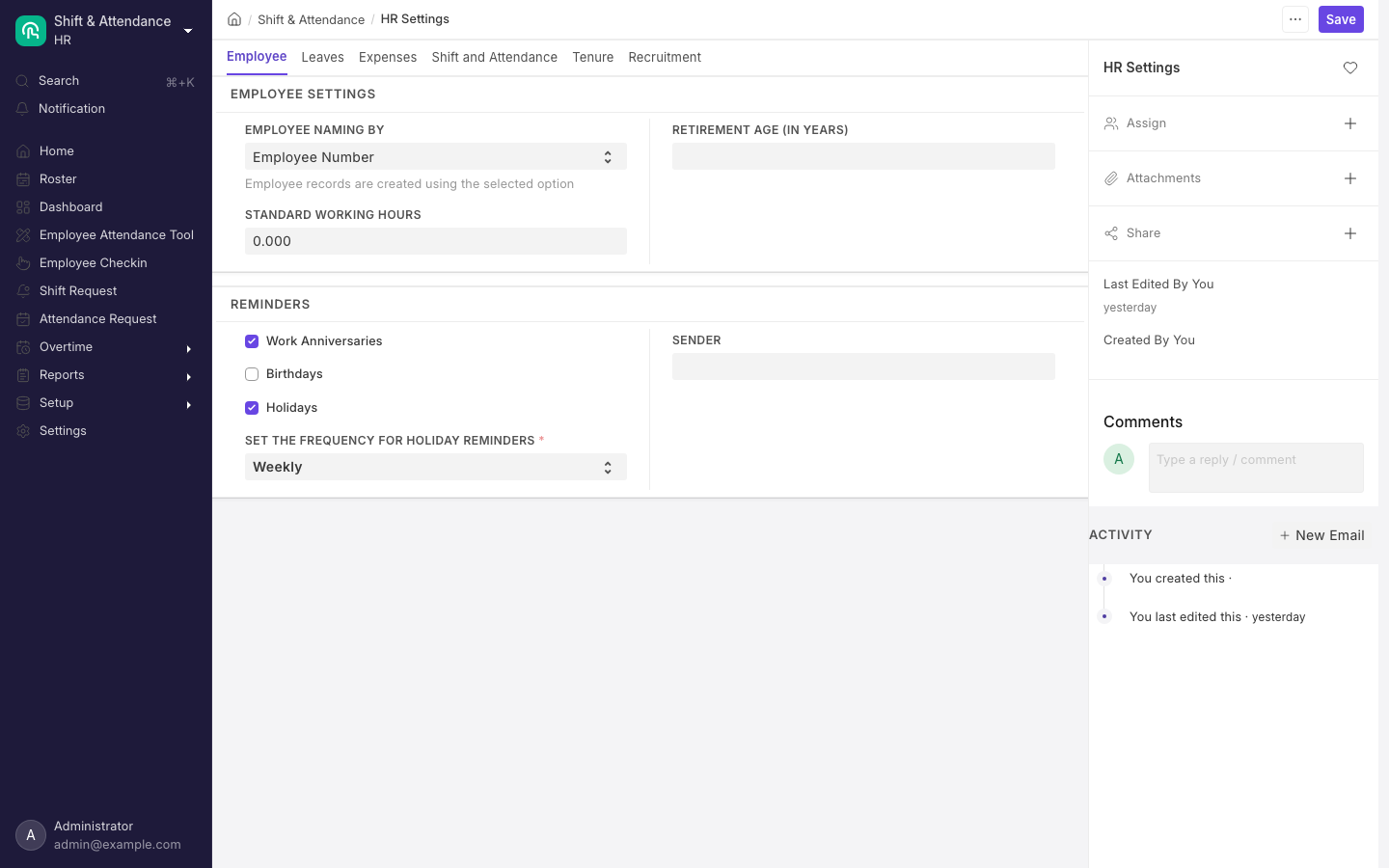
HR Settings. One document for the whole site, grouped into tabs.
Employee tab
| Field | Accepts | Default | What depends on it |
|---|---|---|---|
| Employee Naming By | Naming Series, Employee Number, Full Name | Employee Number | How new Employee records are named. Naming Series unhides and makes the Series field (HR-EMP-) mandatory on Employee and hides Employee Number; Employee Number names the record from that field, so it must be filled and unique. Left blank, you see the message Please setup Employee Naming System in Human Resource > HR Settings. |
| Standard Working Hours | Float | blank | Read only by Project Profitability and Employee Hours Utilization Based On Timesheet. Both refuse to run while it is blank, with The metrics for this report are calculated based on Standard Working Hours. Please set Standard Working Hours in HR Settings. (Project Profitability words it as "based on the Standard Working Hours"). Payroll and attendance ignore it. |
| Retirement Age (In Years) | Data | blank | The retirement date derived from date of birth on the Employee form. Blank falls back to 60. |
| Birthdays, Work Anniversaries, Holidays | Check | all on | The three reminder emails. See What GARP runs automatically below for who receives them. |
| Set the frequency for holiday reminders | Weekly, Monthly | Weekly | Which of the two advance-holiday jobs actually sends. Mandatory while Holidays is ticked. |
| Sender | Email Account link | blank | The account the three reminders are sent from. Sender Email is fetched from it and read-only. |
Changing the holiday frequency does not save silently. GARP compares the next run of the weekly and monthly scheduled jobs and, if the change opens a gap, raises a confirmation dialog titled Confirm change in Frequency: Employees will miss holiday reminders from <date> until <date>. Do you want to proceed with this change? Choosing Yes, Proceed saves anyway.
Leaves tab
| Field | Default | Effect |
|---|---|---|
| Auto Leave Encashment | off | Lets the nightly encashment job create draft Leave Encashments for allocations of encashable leave types that expired yesterday. |
| Leave Approver Mandatory In Leave Application | on | Makes Leave Approver required on the Leave Application form. |
| Prevent self approval for leaves even if user has permissions | off | Blocks a user setting their own application to Approved, unless a Workflow is attached to Leave Application. Message: Self-approval for leaves is not allowed. |
| Show Leaves Of All Department Members In Calendar | off | Widens the Leave Application calendar beyond the viewer's own leave. |
| Send Leave Notification | on | Turns on the creation, submission and cancellation emails. |
| Leave Approval Notification Template, Leave Status Notification Template | set up for you at install | Both become mandatory once Send Leave Notification is on. Install creates Email Templates named Leave Approval Notification and Leave Status Notification and points these fields at them. |
| Restrict Backdated Leave Application | off | Refuses a from-date earlier than today. |
| Role Allowed to Create Backdated Leave Application | blank | Mandatory once the restriction is on. With the restriction on and this blank, every backdated application fails with Backdated Leave Application is restricted. Please set the Role Allowed to Create Backdated Leave Application in HR Settings. With it set, a user without that role gets Only users with the <role> role can create backdated leave applications. |
Leave Approver Mandatory In Leave Application and Expense Approver Mandatory In Expense Claim are enforced only in the browser, as you type on the form. Neither field is marked required on the record itself, and nothing checks it when the record is saved another way, so a data import or an integration can create a request with no approver. Treat these as guidance for people typing into the screens, not as a data guarantee.
Expenses tab
- Expense Approver Mandatory In Expense Claim — on by default.
- Prevent self approval for expense claims even if user has permissions — off. Message:
Self-approval for Expense Claims is not allowed, again bypassed when a Workflow exists on Expense Claim. - Unlink Payment on Cancellation of Employee Advance — off. When on, cancelling an Employee Advance strips its reference from the Payment Entry and reposts the ledgers instead of blocking the cancel.
Shift and Attendance tab
- Allow Multiple Shift Assignments for Same Date — off. On, one employee can hold overlapping Shift Assignments.
- Allow Employee Checkin from Mobile App — on. Shows the check-in button in the
/hrmsapp. - Allow Geolocation Tracking — off. On, the app captures coordinates with each check-in and draws them on the record.
Turning Allow Geolocation Tracking on adds a hard check to every Employee Checkin, not just app ones: Latitude and longitude values are required for checking in. Logs pushed from a fingerprint or face machine carry no coordinates, so they will all be rejected. Leave it off if any of your check-ins come from hardware. When it is on and the employee's Shift Assignment names a Shift Location with a positive Checkin Radius, a check-in outside the radius is refused with You must be within <n> meters of your shift location to check in.
Tenure tab
Exit Questionnaire Web Form and Exit Questionnaire Notification Template. Both must be set before you can send a leaver their questionnaire from an Exit Interview; otherwise the action stops with a Settings Missing dialog: Please set Exit Questionnaire Web Form and Notification Template in HR Settings. Install creates an Email Template named Exit Questionnaire Notification and fills the second field, but never creates the Web Form — you build that yourself.
Recruitment tab
- Check Vacancies On Job Offer Creation — off. On, it compares submitted offers for the designation against the matching Staffing Plan and stops with
There are no vacancies under staffing plan <plan>when the plan is exhausted. With no Staffing Plan covering the offer date, the check is skipped entirely. - Send Interview Reminder — turned on at install, with Interview Reminder Notification Template and Remind Before (
00:15:00; the job falls back to one hour if the field is empty). - Send Interview Feedback Reminder — also on at install, with Feedback Reminder Notification Template.
- Sender — a second Email Account, separate from the Employee tab's, and it is the one the interview jobs use.
Payroll Settings field by field
Payroll Settings (/app/payroll-settings) is one document, editable by HR Manager and System Manager only. HR User has no permission on it at all, so the form does not open for them.
Working Days and Hours
| Field | Accepts | Default | Effect |
|---|---|---|---|
| Calculate Payroll Working Days Based On | Leave, Attendance | Leave | Whether unpaid days come from submitted Leave Applications on LWP leave types, or from Attendance records. |
| Consider Unmarked Attendance As | Present, Absent | blank | Only visible when the basis is Attendance. Blank behaves as Present. Absent subtracts every day in the period with no Attendance record from payment days. |
| Include holidays in Total no. of Working Days | Check | off | Off, total working days is the period length minus the employee's holidays, which raises salary per day. On, it is the full period length. |
| Consider Marked Attendance on Holidays | Check | off | Only has effect while the previous box is on. Deducts for Absent attendance dated on a holiday; otherwise holidays are always paid. |
| Max working hours against Timesheet | Float | blank | A yellow alert only — Total working hours should not be greater than max working hours <n> — on timesheet-based slips. It never blocks a save. |
| Fraction of Daily Salary for Half Day | Float | 0.5 | The share of a day paid for Half Day attendance. Setting it to 0 is silently reset to 0.5 on save. |
See Decide how unpaid days are counted above for what the first three actually do to a slip.
Salary Slip
- Disable Rounded Total hides Rounded Total on Salary Slip and removes it from print. Saving Payroll Settings also clears the whole site cache.
- Show Leave Balances in Salary Slip fills the slip's Leave Details table with allocated, expired, used, pending and available days per leave type as at the slip's end date.
Email
Email Salary Slip to Employee is on by default. When you submit a slip, GARP mails a PDF of it to the employee's Preferred Email — a read-only field driven by Preferred Contact Email (Company Email, Personal Email or User ID) on the Employee. With no preferred email you get <name>: Employee email not found, hence email not sent and no mail. If the slip's posting date is in the future, the mail is queued with a send-after date.
Encrypt Salary Slips in Emails password-protects the PDF using Password Policy, a pattern filled in from fields on the Employee record. The on-screen example is SAL-{first_name}-{date_of_birth.year}, producing SAL-Jane-1972. Saving with encryption on and no policy fails with Password policy for Salary Slips is not set.
Sender and Email Template control the from address and the subject and body, both filled in from the salary slip.
GARP builds the password by substituting the named fields straight from the employee's record. Name a field that does not exist, or one that is empty for a given person, and the salary slip submission itself fails for that employee — not just the email. Test the policy on one slip before running a payroll entry.
Other Settings
- Process Payroll Accounting Entry based on Employee books Payroll Payable against each employee rather than in one lump.
- Mandatory Benefit Application makes flexible benefits count only where a submitted Employee Benefit Application exists. With it off, GARP falls back to the amounts on the Salary Structure Assignment.
- Create Overtime Slip For Eligible Employee(s) makes a Payroll Entry offer Create Overtime Slips and then Submit Overtime Slips as buttons before Create Salary Slips. The GARP Indonesian overtime setup turns this on.
Payroll Settings also has a Sender Copy field. Nothing reads it, so setting it does nothing.
The masters, one by one
Each of these is a list you fill in once and then pick from elsewhere.
- Department (
/app/department) — a tree, per company, with Is Group and Disabled flags. GARP HR adds Payroll Cost Center, Leave Block List and four approver tables. - Designation (
/app/designation) — job titles, with an Appraisal Template and a Skills table added by GARP HR. - Employee Grade (
/app/employee-grade) — Default Salary Structure and Default Base Pay, named by prompt. Bulk Salary Structure Assignment prefills Base from the grade's Default Base Pay; a single Salary Structure Assignment also prefills its Salary Structure from the grade's Default Salary Structure. - Employment Type (
/app/employment-type) — a single name field. Installing GARP HR creates Full-time, Part-time, Probation, Contract, Commission, Piecework, Intern and Apprentice; rename or replace them to match your PKWT and PKWTT contract types. - Branch (
/app/branch) and Employee Group (/app/employee-group) — a one-field location master and an ad hoc grouping. - Holiday List (
/app/holiday-list) and Holiday List Assignment (/app/holiday-list-assignment) — non-working days, and who they apply to. - Employee Exit Reason (
/app/employee-exit-reason) and Severance Rule (/app/severance-rule) — the Indonesian termination masters GARP HR creates for you. See What is and is not Indonesian above. - Daily Work Summary Group (
/app/daily-work-summary-group) — the daily "what did you work on" email, sent at a chosen hour to a list of users and skipped on its Holiday List. HR Manager only. - Identification Document Type (
/app/identification-document-type) — a list of ID document names.
Identification Document Type is used by exactly one form, Travel Request, and only System Manager has permission on it — neither HR Manager nor HR User can open it. It is not where you record a KTP or NPWP. GARP HR instead adds an Identity Document section to the Employee record with Identity Type (KTP, E-KTP, KTP (Seasonal), Passport, Other), Identity Number and Identity Valid Until. There is still no NPWP field; add a custom field if you need one.
Department
Department is a tree keyed on Parent Department, scoped by a mandatory Company. Is Group makes it a branch node. Disabled removes it from approver lookups, which walk only non-disabled parent departments.
GARP HR adds:
- Payroll Cost Center — copied onto the Employee's own Payroll Cost Center when that is empty.
- Leave Block List.
- four Department Approver tables: Shift Request Approver, Overtime Request Approver, Leave Approver and Expense Approver. The field description says it plainly — the first row in a table becomes the default approver.
Designation
One name plus a description, extended by GARP HR with Appraisal Template and a Skills table of Designation Skill rows used by Job Opening and the skill match on Job Applicant.
Employee Grade
Named by prompt. Default Base Pay is the only field with behaviour: Bulk Salary Structure Assignment reads it as the starting Base for every employee on that grade.
Default Salary Structure is copied into the Salary Structure field of a new Salary Structure Assignment whenever that field is left empty, and it draws the link on the Salary Structure dashboard. No bulk process applies it. The Currency field is hidden and taken from the default structure.
The form is also wired for a Default Leave Policy field that does not exist on the form at all. Leave policies are assigned through Leave Policy Assignment, not the grade.
Employee Group
Employee Group holds its own table of employees inside the form. Nothing on the Employee record links to it, and none of the bulk tools filter by it — Bulk Salary Structure Assignment, Leave Control Panel and Shift Assignment Tool filter on Company, Branch, Department, Designation, Employment Type and Grade. Its one working use in HR is as a Grievance Against Party option on Employee Grievance.
Holiday List
Holiday List carries From Date, To Date, the Holidays table and two builders:
- Weekly Off plus Add to Holidays appends every matching weekday in the range, marked as a weekly off.
- Country and Subdivision plus the second Add to Holidays appends that country's public holidays for the years the list spans, from a built-in public-holiday library. Indonesia is supported.
Review what it produces against the year's joint-ministerial decree before you rely on it, and add cuti bersama days by hand. Duplicate dates are refused (Holiday Date <date> added multiple times), as are dates outside the range.
Only HR Manager can create or edit a Holiday List. HR User can only pick an existing one in a link field, nothing more. The same is true of Holiday List Assignment, which HR User cannot open at all.
Holiday List Assignment
Holiday List Assignment is submitted, not just saved, and is named HR-HLA-.YYYY.-.
- Applicable For is Employee or Company and drives the Assigned To link.
- Assignment Starts From must fall inside the linked list's own from and to dates, or you get
Assignment start date cannot be outside holiday list dates. - A second submitted assignment for the same target and the same start date is refused as a Duplicate Assignment.
Submitting writes nothing back to any other record. GARP reads the assignments directly, taking the most recent submitted assignment whose start date is on or before the date being asked about, employee-level first, then company-level.
Once GARP HR is installed, the Holiday List field on Employee and Default Holiday List on Company are no longer read for HR purposes. Every holiday lookup goes through Holiday List Assignment. With none in place you get No Holiday List was found for Employee <name> or their company <company> for date <date>. Please assign through Holiday List Assignment, and attendance, leave and payroll all stop. Upgrading an existing site backfills assignments from the old fields, but new companies and new employees need one created by hand.
Roles and who can do what
| Role | What it can do |
|---|---|
| HR Manager | Everything HR User can, plus Payroll Entry, Payroll Settings, Arrear, Salary Withholding, Holiday List Assignment, Daily Work Summary Group, Employee Attendance Tool, Appointment Letter and Appointment Letter Template. It is the only HR role that can cancel or amend a Salary Slip. |
| HR User | Day-to-day HR: employees, attendance, leave, shifts, expense claims, salary structures and slips. It can create and submit a Salary Slip but not cancel or amend one, and it cannot run a payroll entry or open Payroll Settings. It is read-only on Job Requisition, Exit Interview, Employee Exit Reason, Severance Rule, Employee Health Insurance, Employee Separation Template, Interview Feedback, Skill, Employee Performance Feedback and HR Settings, and on KRA, Offer Term and Overtime Type it can only pick an existing record in a link field, not open one. |
| Employee | Read own records, and create but not submit Leave Application, Expense Claim, Employee Advance, Attendance Request, Compensatory Leave Request, Shift Request, Overtime Request, Overtime Slip, Leave Encashment, Employee Grievance, Goal, Payroll Correction and Employee Checkin. It can submit Employee Tax Exemption Declaration, Employee Tax Exemption Proof Submission, Employee Other Income, Employee Performance Feedback, Employee Referral and Training Feedback. |
| Leave Approver / Expense Approver | Granted automatically to any user named as Leave Approver or Expense Approver on an Employee. Leave Approver can write, submit and cancel a Leave Application but not create one; Expense Approver has full rights on Expense Claim and on Employee Advance. |
| Employee Self Service | The user type behind the /hrms app, restricted so the person sees only their own Employee record. It grants a fixed list of rights on particular records, independent of the normal permission rows. |
Installing GARP HR creates a Role Profile named HR holding HR User, HR Manager, Leave Approver and Expense Approver. Four more were added later for a multi-branch retail rollout:
- GTHR - HO — HR Manager, HR User, Leave Approver, Expense Approver
- GTHR - SM — HR User, Leave Approver
- GTHR - MR — HR User
- GTHR - KG — Employee
Install also grants HR User read on Role and Currency, and HR Manager read on Role, Currency and Email Account — without that last one an HR Manager cannot pick a Sender in HR Settings.
The Employee and Employee Self Service roles are removed automatically from any user with no Employee record pointing at them, with the message User <user>: Removed Employee role as there is no mapped employee. The reverse also holds: saving a User re-adds Leave Approver or Expense Approver if any Employee still names them, so you cannot strip those roles while the approver assignment stands.
Three permission gaps catch people out. Overtime Slip has no permission for HR Manager — only System Manager, HR User, Leave Approver and Employee. Shift Assignment Tool allows HR User only. Employee Advance allows only Employee and Expense Approver. A user holding the HR role profile has all of these because the profile bundles HR User and Expense Approver, but someone given the bare HR Manager role will find those three documents closed to them.
Creating users and assigning roles needs System Manager. On the User form the visible field is Role Profiles, a multi-select that takes more than one profile; the older single Role Profile link is hidden. Both are protected so that only System Manager can change them. Neither HR Manager nor HR User can create a user or change anyone's roles. Change shipped permissions in Role Permissions Manager (/app/permission-manager) rather than by editing the underlying forms.
What GARP runs automatically
Everything below runs on its own, on the server's clock, with no one pressing a button. The cadences are: All every four minutes on a default install, Hourly on the hour, Daily and Daily Long at midnight, Weekly at midnight on Sunday, Monthly at midnight on the first. You can see and pause each one in Scheduled Job Type (/app/scheduled-job-type).
| Job | Cadence | What it does |
|---|---|---|
send_interview_reminder | All | Mails interviewers about Interviews starting within Remind Before, from the Recruitment tab's Sender, once per interview. Skipped unless Send Interview Reminder is on. |
daily_work_summary_group.trigger_emails | Hourly | For each enabled Daily Work Summary Group whose Send Emails At matches the current hour and whose Holiday List has no holiday today, creates a Daily Work Summary and mails the group's users. |
shift_type.update_last_sync_of_checkin | Hourly Long | Advances Last Sync of Checkin on Shift Types with auto attendance and Automatically update Last Sync of Checkin enabled. |
shift_type.process_auto_attendance_for_all_shifts | Hourly Long | Turns Employee Checkins into Attendance for every Shift Type with auto attendance enabled. |
shift_schedule_assignment.process_auto_shift_creation | Hourly Long | Creates Shift Assignments from Shift Schedule Assignments. |
employee_reminders.send_birthday_reminders | Daily | Emails every active employee in the company about today's birthdays, excluding the birthday people themselves. Where several share a birthday, each also gets a note about the others. |
employee_reminders.send_work_anniversary_reminders | Daily | The same, for date of joining, with the number of completed years. |
daily_work_summary_group.send_summary | Daily | Sends the digest of replies for every Daily Work Summary still Open. |
interview.send_daily_feedback_reminder | Daily | Chases interviewers whose Interview is Under Review and whose slot has passed. |
shift_assignment.mark_expired_shift_assignments_as_inactive | Daily | Marks Active assignments whose end date is before yesterday as Inactive. |
job_opening.close_expired_job_openings | Daily | Sets Open Job Openings whose Closes On is past to Closed. |
leave_ledger_entry.process_expired_allocation | Daily Long | Writes expiry ledger entries for carry-forwarded allocations that have run out. |
hr.utils.generate_leave_encashment | Daily Long | Only when Auto Leave Encashment is on. Creates draft encashments for encashable allocations that ended yesterday. |
hr.utils.allocate_earned_leaves | Daily Long | Tops up earned-leave allocations on their schedule. |
employee_reminders.send_reminders_in_advance_weekly | Weekly | Only when Holidays is on and frequency is Weekly. Mails each active employee the non-weekly-off holidays in the next seven days. |
employee_reminders.send_reminders_in_advance_monthly | Monthly | The same for the next month. Runs on the first. |
Four Notification records also ship, all switched on:
- Training Scheduled and Training Feedback fire when a Training Event or Training Result is submitted.
- Exit Interview Scheduled goes to the interviewee one day before a Scheduled exit interview.
- Retention Bonus warns everyone holding the HR Manager role 14 days before a submitted bonus payment date.
Edit them at /app/notification.
Every report that ships
Open these with Cmd/Ctrl + K and the report name, or from the Key Reports and Other Reports cards on HR Setup. Filters marked required must be filled before the report runs.
HR reports:
| Report | Required filters | What it shows |
|---|---|---|
| Monthly Attendance Sheet | Filter Based On, Company | Day-by-day attendance grid per employee |
| Shift Attendance | From Date, To Date, Company | Attendance with shift times, working hours, late entry, early exit |
| Employees working on a holiday | From Date, To Date, Company | Attendance marked on a holiday date |
| Employee Leave Balance | From Date, To Date, Company | Opening, allocated, taken, expired and closing per leave type |
| Employee Leave Balance Summary | Date, Company | One row per employee, one column per leave type |
| Leave Ledger | From Date, To Date | Raw ledger entries with transaction type and source document |
| Employee Information | none (Report Builder view) | A saved list view of Employee |
| Employee Analytics | Company, Parameter | Active employees counted by Branch, Grade, Department, Designation or Employment Type |
| Employee Birthday | none | Birthdays in a chosen month |
| Employee Exits | none | Resignations with relieving date, interview status, final decision, FnF status |
| Appraisal Overview | Company | Feedback count and average, goal, self and final score per cycle |
| Recruitment Analytics | Company, On Date | Staffing plan through opening, applicant and offer, with each status |
| Employee Advance Summary | Company | Advance, paid, claimed and returned amounts with status |
| Unpaid Expense Claim | none | Submitted unpaid claims with sanctioned, paid and outstanding |
| Daily Work Summary Replies | Group, Date Range | Who answered the daily summary email and who did not |
| Employee Hours Utilization Based On Timesheet | Company, From Date, To Date | Total, billed, non-billed and untracked hours with utilisation |
| Project Profitability | Company, Start Date, End Date | Timesheet cost against billing per project |
| Fingerprint Machine Export | Company | Active employees with their machine PIN and registration status |
| Vehicle Expenses | Filter Based On | Fuel and service cost per vehicle |
Most of these are open to HR User and HR Manager. The exceptions matter:
- Vehicle Expenses is Fleet Manager only.
- Employee Advance Summary is Employee and Expense Approver only, so an HR administrator sees it through the HR role profile's Expense Approver and not through HR Manager.
- Unpaid Expense Claim adds Expense Approver.
- Employee Leave Balance Summary adds Leave Approver.
- Shift Attendance, Appraisal Overview and Project Profitability are also open to Employee Self Service.
Tick Summarized View on Monthly Attendance Sheet for per-employee totals of present, leave, absent, holiday, unmarked, late entries and early exits instead of the grid. Employee Exits carries fourteen optional filters, three of them "pending" checkboxes for exit interview, questionnaire and full and final.
Fingerprint Machine Export reads two extra Employee fields, PIN Fingerprint and Status Mesin Absensi, that are created by an upgrade step GARP does not run for you. On a site where nobody has run it by hand, the report cannot build its columns. GARP does separately give every new Employee a sequential Attendance Device ID per company, which is a different field.
Payroll reports:
| Report | Required filters | What it shows |
|---|---|---|
| Salary Register | From, To, Company | One row per slip, every earning and deduction as a column |
| Bank Remittance | Company | Payment date, employee, bank name and account number per payroll entry. HR Manager only |
| Accrued Earnings Report | Company, Payroll Period | Benefit accruals per employee and salary component |
| Income Tax Computation | Company, Payroll Period | Projected tax per employee against the assigned Income Tax Slab |
| Income Tax Deductions | Company, Month, Year | The income tax component taken from each slip |
| Salary Payments Based On Payment Mode | Company, Month, Year | Totals per branch and payment mode |
| Salary Payments via ECS | Company, Month, Year | A per-employee bank listing |
| Professional Tax Deductions | Company, Month, Year | Nothing outside India; defines no roles of its own |
| Provident Fund Deductions | Company, Month, Year | Nothing outside India; defines no roles of its own |
Bank Remittance lists only rows where the employee has both a bank name and an account number, the payroll entry has a debit account, and the slip is Submitted or Paid. Anyone missing bank details disappears from the file with no warning, and the Payment Date column shows the slip's last-modified date, not its posting date.
Several payroll reports assume Indian payroll. Professional Tax Deductions and Provident Fund Deductions read a Component Type field that is only added to Salary Component when a company's country is India, so on an Indonesian site they return nothing and there is no field to configure. Income Tax Deductions and Salary Payments via ECS do work outside India — they simply drop their PAN, IFSC and MICR columns — but Income Tax Deductions returns nothing unless some Salary Component has Is Income Tax Component ticked, and ECS is an Indian bank clearing scheme, so treat it as a generic bank listing. The last five payroll reports in the table share one filter set — Company, Month and Year, all required, plus optional Department and Branch — so each covers a single month of one company; Salary Payments via ECS adds an optional Type filter (Bank, Cash, Cheque). No Indonesian statutory report — no BPJS file, no PPh 21 form, no 1721-A1 — ships with the product.
Six Dashboard records also ship: Human Resource, Attendance, Employee Lifecycle, Expense Claims, Recruitment and Payroll. Human Resource is the one linked from the HR Setup sidebar. It has number cards for total employees, this year's hires and exits and this quarter's joiners and leavers, over charts for hiring versus attrition, age, gender, employment type, grade, branch, designation and department.
Setup checklist
- Masters: Company with its HR accounts, Branch, Department, Designation, Employment Type, Employee Grade.
- Holiday List plus a submitted Holiday List Assignment per company, and per employee wherever someone follows a different calendar.
- HR Settings tab by tab, with a Sender on the Employee tab and a second on the Recruitment tab.
- Payroll Settings before the first payroll entry — working-days basis, half-day fraction, slip emails, password policy tested on one slip.
- Approvers on every department, and the HR role profile on every HR user.
- Salary Components and a Severance Rule that match the components your structures actually use.
Related
- HR and Payroll overview — the ten workspaces and how they connect.
- Employees — the record these masters describe.
- Payroll — where the Payroll Settings choices show up.
- Leave and Expense claims — what the approver settings govern.
- Attendance and shifts — what the geolocation and multiple-assignment settings change.
- Overtime — the Lembur GARP overtime type and the Payroll Entry overtime step.
- Employee lifecycle — where the exit reasons and severance rule are used.
- Plans and limits — which modules your plan installs.