Recruitment
Recruitment is how you get from "we need another person" to a new row in your employee list. A manager asks for a position, you publish the opening, candidates apply, the panel interviews them, someone accepts an offer, and one button turns that offer into an employee. HR runs the whole chain; the people who sit on interview panels only ever see the interview part.
What you probably came here to do
- Get recruitment ready to use for the first time
- Budget next year's headcount
- Turn a manager's request for a person into a vacancy
- Put a job on the public careers page
- Move a candidate along — shortlist, hold, reject
- Book an interview and collect the panel's verdict
- Send an offer and hire the person who accepts
- Print an appointment letter for a new hire
- Pay someone the bonus for referring a friend
- Find out what GARP will not do for you
- Check what is missing for Indonesian hiring
- Look up a field, a rule or an error message
How recruitment fits together
Staffing Plan ──▶ Job Requisition ──▶ Job Opening ──▶ /jobs (public)
   caps openings                           │                │
   and offers                              │            Apply Now
                                           │                ▼
                                           │      /job_application/new
                       Employee Referral ──┼──▶ Job Applicant
                                           │          │
                                           │          ├─▶ Interview ─▶ Interview Feedback
                                           │          │
                                           │          └─▶ Job Offer ─▶ Employee
                                           │                              │
                                  closing the opening            Employee Onboarding
                                  marks the requisition Filled
Nothing upstream is mandatory. You can add a Job Applicant by hand and go straight to an offer. But the two vacancy checks only work downwards from a Staffing Plan, and Recruitment Analytics starts at Staffing Plan, so an opening with no plan behind it will never appear in that report.
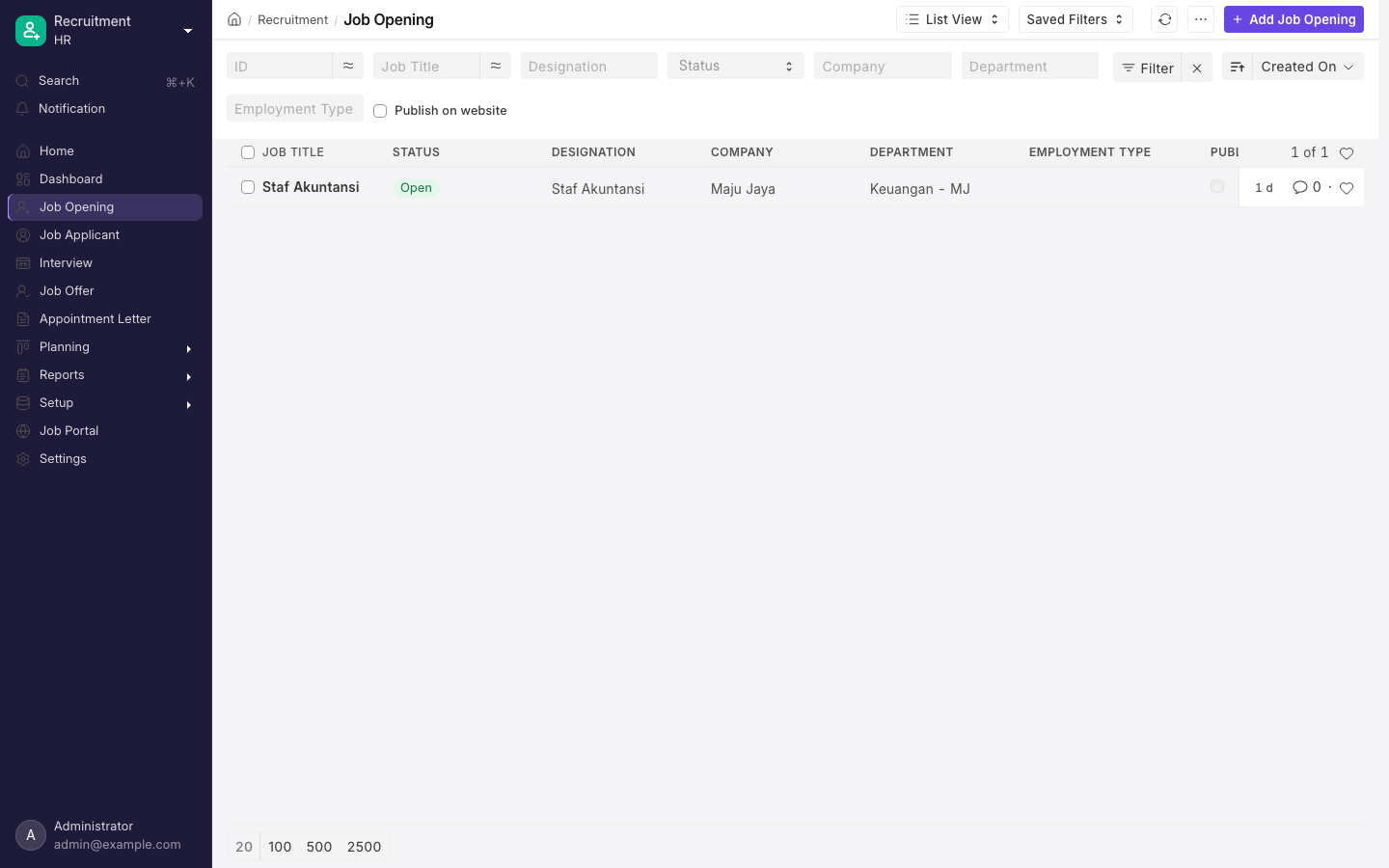
The Job Opening list.
Where things live
The workspace is Recruitment (/app/recruitment). Its home page holds only one chart and one quick list, so navigate from the sidebar:
- At the top: Job Opening, Job Applicant, Interview, Job Offer and Appointment Letter.
- Planning: Job Requisition, Staffing Plan, Employee Referral.
- Reports: Recruitment Analytics.
- Setup: Interview Type, Job Opening Template, Appointment Letter Template, Job Offer Term Template.
- Job Portal: opens the public listing at
/jobs.
Who runs which part
- HR Manager owns the chain end to end.
- HR User can run most of it, but can only read a Job Requisition and cannot open an Appointment Letter at all.
- Interviewer is a separate role, and it works the opposite way round from what most people expect: interviewers are the only people who can create or submit Interview Feedback, while HR Manager and HR User can only read it. The role also grants access to every Interview, not just the ones that person sits on.
The full table is in Who can do what.
Set up recruitment before your first opening
Work down this list in order — each step reads from the one above it.
- Skill records, then Designation records with their Skills table filled in. Setting a Designation on an Interview Type copies those skills into the Expected Skillset. HR Users can read Skills but not create them.
- An Interview Type per round (Screening, Technical, HR), with interviewers and an expected average rating.
- The Interviewer role on everyone who will sit on a panel, and on anyone in HR who needs to record feedback on someone else's behalf.
- Employment Type records that match your contracts, since the public portal filters on them.
- Offer Term records in your own wording, then Job Opening Template, Job Offer Term Template and Appointment Letter Template if you hire the same roles repeatedly. Job Opening Template and Job Offer Term Template are on the sidebar under Setup; Offer Term and Job Applicant Source are not, so reach them from the search bar at the top of the screen.
- An Email Account for hiring, then HR Settings (
/app/hr-settings), Recruitment tab. Every box on that tab arrives switched off and every template link arrives blank: Check Vacancies On Job Offer Creation, Send Interview Reminder with Remind Before and its template, Send Interview Feedback Reminder with its template, and the Sender account, whose Sender Email is filled in for you and read-only. - A Staffing Plan per company and year, if you want the vacancy caps and Recruitment Analytics to work at all.
Plan headcount and budget for the year
A Staffing Plan is a budget, not a schedule. It exists to cap two later actions: how many Job Openings you may leave open for a designation, and (optionally) how many Job Offers you may submit.
- Open Staffing Plan (
/app/staffing-plan) and type a name for it. There is no automatic numbering — you name the record yourself. - Set Company, then the From Date and To Date window that an opening or an offer has to fall inside.
- Add one row per designation to Staffing Details, with Designation, Vacancies and Estimated Cost Per Position.
- Or press Get Job Requisitions, pick from that company's Pending and Open & Approved requisitions, and let GARP build the rows for you. It replaces the whole table, so use it before you hand-edit anything.
- Save, then submit. The duplicate check only looks at submitted plans.
GARP works out the rest of each row for you: Current Count (active employees holding that designation across the company tree), Current Openings (Job Openings with status Open) and Number Of Positions, which is Vacancies + Current Count. Total Estimated Cost is Vacancies × Estimated Cost Per Position — the existing headcount is deliberately left out, so the budget figure is the cost of the new hires only.
Fields, limits and the exact refusal messages are under Staffing Plan fields and rules.
Raise a requisition and turn it into an opening
- Open Job Requisition (
/app/job-requisition) and enter Designation, No of. Positions, Expected Compensation (in the company's default currency, so IDR for PT Maju Jaya), Requested By and the Job Description. Leave the description blank and GARP fills it from the Designation's own description. - Set Status to Open & Approved once the request is agreed. That is what makes the two Actions buttons appear.
- Press Create Job Opening for a fresh opening, or Associate Job Opening to attach one you already made. Associating asks for an existing Open opening with the same company and designation (and department, if you set one), then tells you
Job Requisition {0} has been associated with Job Opening {1}. - Close the opening when the seat is filled. The requisition flips to Filled on its own, stamps Completed On with today's date and works out Time to Fill from Posting Date.
If a colleague has already referred someone for that designation, opening a live requisition headlines the pending Employee Referral records in yellow, with a link into that filtered list.
There is no approval step. Status is a plain drop-down that anyone with write access changes by hand. Build a Workflow yourself if you need real approval steps — and note that HR Users cannot write to a Job Requisition at all.
Expected Compensation carries no period. GARP copies it straight into the opening's Lower Range, and Salary Paid Per defaults to Month. If a manager types an annual figure of 195.000.000 into a requisition and you tick Publish Salary Range, the public job page advertises "Rp 195.000.000 / month". Agree a convention — monthly gross, IDR — before you let managers raise requisitions.
Publish an opening on the job portal
- Open Job Opening and pick a Job Opening Template if you have one. Selecting one overwrites designation, department, employment type, location, description, currency, both ranges, salary period and Publish Salary Range in one go.
- Set Location (which is a Branch), Employment Type and Closes On.
- Tick Publish on website, check the Route that appears, and decide on Publish Salary Range and Publish Applications Received (that one arrives ticked on).
- Save, then open
/jobsand confirm the card and the Apply Now button behave the way you expect.
About the route. Tick Publish on website and your browser fills Route as jobs/ plus the scrubbed company and job title — jobs/pt_maju_jaya/software_engineer for a Software Engineer opening at PT Maju Jaya. Clear the field and save, and GARP fills it instead, this time hyphenating the job title: jobs/pt_maju_jaya/software-engineer. Either is valid; pick one and be consistent, because the route has to be unique and changing it later breaks any link already circulating.
There is no CV upload on the shipped application form. Attachments are switched off and the only résumé field is Resume Link, a text box. The form warns Resume link not valid if what the candidate types is not a web address, but it does not block the submission. If you need file uploads, build your own web form against Job Applicant, enable attachments on it, and put its route in Application Web Form Route.
What the public pages show, and what the application form collects, is under The public job portal and the application form.
Closing an opening
Setting Status to Closed clears Closes On, stamps Closed On with today's date if it is blank, and flips any linked Job Requisition to Filled. Setting it back to Open clears Closed On again.
GARP also closes openings for you overnight: every night at midnight it closes every Open opening whose Closes On is strictly earlier than today. An opening therefore stays live for the whole of its Closes On day and shuts at the start of the next.
Once an opening is Closed, GARP blocks any new applicant against it — including one arriving through the web form — with Cannot create a Job Applicant against a closed Job Opening, shown under the heading Not Allowed. Existing applicants are unaffected.
Track applicants through the pipeline
Applicants reach you four ways: through the public form, from a hiring inbox, from an Employee Referral, or typed in by hand.
- Status moves through Open, Replied, Shortlisted, Rejected, Hold and Accepted. While it is Open you get Shortlist and Reject buttons.
- Create Interview appears unless the status is Rejected or Accepted.
- Create Job Offer appears once the status is Accepted and no offer exists yet. Afterwards it is replaced by View Job Offer.
- Fill in Source, naming the referring employee in Source Name.
- Nothing emails the candidate when the status changes. Use the form's email button, which is already wired to the applicant's address.
If Link ends in .pdf, the résumé is embedded in the form as a preview; any other web address gets an Open Resume in New Tab button instead. An Interview Summary panel below the form lists that applicant's non-cancelled interviews with Interview Type, Date, Status and the obtained rating as stars. An applicant with no interviews gets no panel at all.
Job Applicant can be fed from an inbox: set an Email Account's Append To to Job Applicant, and every message arriving at, say, karir@majujaya.co.id creates or replies onto an applicant record, with the sender's address as the email and the subject stored in Notes. Nothing else in this chain listens to email.
Schedule an interview and record feedback
- From the applicant, click Create Interview and choose an Interview Type. Its interviewers are copied into the Interview's Interviewers table, and its Expected Skillset is the list of skills the panel will rate.
- Set Scheduled On, From Time and To Time, then save. Those three are locked once saved — try to edit them and you will see
Value cannot be changed for {0}. Use Actions > Reschedule Interview instead. - Each interviewer opens the interview and clicks Submit Feedback, rates every skill out of five stars, chooses a Result of Cleared or Rejected, and adds free-text Feedback. Confirming the dialog creates and submits the feedback in one step.
- Set the interview's own Status to Cleared or Rejected, then submit it. Nothing else can be submitted: you will see
Only Interviews with Cleared or Rejected status can be submitted.under the heading Not Allowed. - GARP then asks
Do you want to update the Job Applicant {0} as {1} based on this interview result?with a single button, Mark as Accepted or Mark as Rejected. Pressing it saves the new status onto the Job Applicant. Dismiss the dialog and nothing is written — the applicant keeps its old status. Nothing else happens: no email, no ledger entry, no task.
Only the users listed under Interviewers get a working Submit Feedback button. Everybody else sees the same button greyed out with the tooltip Only interviewers can submit feedback. The dialog shows the Interview Type's Expected Skillset as an editable table, and rows can be added, so a panel member may rate a skill nobody planned for.
Obtained Average Rating on the interview is the average of every submitted feedback's own average, and GARP recalculates it whenever a feedback is submitted or cancelled, refreshing the form on screen as it does.
Interviewers need the Interviewer role, which is not granted automatically. The Interviewers field accepts any user: GARP ships a helper that would restrict the list to role-holders, but it is not wired to any form. Someone without the role can therefore sit on the panel yet cannot open the Interview or submit feedback.
Expected Average Rating is decoration. Nothing compares it to the obtained rating, and no validation, status change or notification depends on it. Treat it as a note to the panel.
Rescheduling an interview
Actions > Reschedule Interview appears while the status is Pending. It takes a new date and times, writes them in even though those fields are otherwise locked, and emails the whole panel and the applicant: Your Interview session is rescheduled from … to …. If mail is not configured you get Failed to send the Interview Reschedule notification. Please configure your email account. and the reschedule still stands. Submitting the dialog unchanged gives No changes found in timings.
Make an offer and turn it into an employee
- From an applicant whose status is Accepted, click Create Job Offer and set Offer Date, Designation and Company.
- Load a Job Offer Term Template, or add Job Offer Terms rows by hand — each row is an Offer Term plus a required Value / Description. Add a Letter Head and print.
- Submit the offer. Submitting sends no email, creates no document and posts nothing to the ledger. All it does is make Create Employee reachable.
- Set Status to Accepted or Rejected when the candidate replies.
- Press Create Employee. Fill in Gender, Date of Birth, Date of Joining and Status, then save. The button becomes Show Employee.
The status on an offer pushes back immediately. It is copied onto the Job Applicant on every save — draft, submit, update-after-submit and cancel. Setting a draft offer's status to Accepted therefore marks the Job Applicant Accepted straight away, before anyone has submitted anything. Cancelling the offer does not undo it: the applicant stays Accepted.
Job Offer Terms are text, not data. Value / Description is a free-text box. No amount is parsed, converted or carried anywhere: nothing reaches Salary Structure Assignment, and the salary you promise here has to be typed again when you build the employee's salary structure. See Payroll.
What Create Employee brings across
The button appears on a submitted offer whose status is Accepted and for which no Employee record already links back to the applicant; otherwise you get Show Employee. It opens an unsaved Employee carrying:
- Job Applicant, Company and Designation, copied straight across because they are the same fields on both forms
- Employee Name and First Name, both from the applicant's full name
- Personal Email, from the applicant's email
- Offer Date on the Employee — the same box GARP uses for the scheduled confirmation date — from the offer's Offer Date
Everything else is yours to fill in: Gender, Date of Birth, Date of Joining and Status are mandatory, and Date of Joining is not derived from the offer even if you typed one into the terms.
The applicant's whole name lands in First Name, so "Sari Dewi" is stored as first name "Sari Dewi" with an empty last name. Employee Name is then rebuilt from the name parts, so it still reads correctly — but split the name by hand if reports or letters need a surname.
For a structured first week, add an Employee Onboarding (/app/employee-onboarding) against the same Job Applicant. It requires both a Job Applicant and a Job Offer, and refuses a second one for the same applicant with Employee Onboarding: {0} already exists for Job Applicant: {1}. See Employees.
Print an appointment letter
- Open Appointment Letter (
/app/appointment-letter) and pick the Job Applicant. Applicant Name fills in for you and is read-only. - Set Company and Appointment Date.
- Pick an Appointment Letter Template. Selecting it copies the template's Introduction, Closing Notes and the whole Terms table of title-and-description rows into the letter, where you can edit them for this hire.
- Print it. There is nothing to submit — the record exists to be printed.
HR Users have no access to this at all; it is HR Manager and System Manager only.
Pay a referral bonus
Employee Referral is genuinely self-service: the Employee role can create, submit and amend one. It lives only in the main GARP app, though — the mobile app at /hrms does not carry it. See Employee self-service.
- The referrer fills First Name, Last Name, Date, For Designation, Email and Referrer — all required, with Full Name composed for them — leaves Is Applicable for Referral Bonus ticked, and submits. Status is forced to
Pendingon every draft save. - Press Create Job Applicant. It builds an applicant with Source
Employee Referral, the referral linked back, and the designation, name, email, phone, attachment and résumé link carried across, at statusOpen. It reportsJob Applicant {0} created successfully.and moves the referral to In Process. - From then on the applicant drives the referral. Saving the applicant as Open, Replied or Hold keeps the referral In Process; Accepted or Rejected copies straight onto it. Reject Employee Referral is the manual alternative, offered while the referral is still Pending, behind a confirmation.
- Once the referral reads Accepted, the bonus box is ticked and no submitted Additional Salary exists against it, Create Additional Salary appears. It opens an unsaved Additional Salary for the referrer, with the company filled in and the referral recorded as the reference. You enter the amount, the salary component and the payroll date.
- Referral Bonus Payment Status is read-only and maintained for you. It reads
Unpaidfrom the moment the bonus box is ticked, flips toPaidwhen that Additional Salary is submitted, and back toUnpaidif it is cancelled.
Additional Salary refuses the bonus in three ways:
Employee Referral {0} is not applicable for referral bonus.— the bonus box is unticked.Earning Salary Component is required for Employee Referral Bonus.— you chose a Deduction component.Additional Salary for referral bonus can only be created against Employee Referral with status Accepted— anything else.
See Payroll.
Do not press Create Additional Salary twice. The button only checks for submitted Additional Salaries, but GARP refuses when any record already references the referral — including the draft you left open a minute ago — and fails with a server error rather than a readable message. Find the existing draft through the referral's Connections instead.
What is not automatic
- Applicants are not emailed when their status changes.
- Submitting a Job Offer sends nothing. Use the form's email button, which replies to the applicant's address.
- The only recruitment emails at all are the two reminders described in What runs automatically overnight, plus the reschedule notice.
- No document in this chain posts to the general ledger, creates a task, or notifies a manager.
Indonesian practice
GARP's regional content covers India and the United Arab Emirates only. Recruitment ships no Indonesian content whatsoever, so everything below is configuration you do yourself.
- PKWT and PKWTT. The Employment Type master ships as Full-time, Part-time, Probation, Contract, Commission, Piecework, Intern and Apprentice. Add
PKWTandPKWTTas Employment Types and use them on the Job Opening and on the Employee; the portal filters by employment type, so candidates see the distinction. Nothing in recruitment enforces the PKWT maximum term or renewal limits — the contract end date lives on the Employee (Contract End Date), not on the offer. See Employee lifecycle. - Probation.
Probationary Periodis one of the shipped Offer Terms, and the Employee record has an Offer Date and a Confirmation Date. Both are dates you maintain by hand; no reminder or automatic job watches them. - BPJS Kesehatan and Ketenagakerjaan. Nothing in recruitment collects a BPJS number, a KTP number or a KK. Add them as custom fields on Job Applicant if you want them captured at application time, or collect them on the Employee after the hire. See Tax and benefits.
- PPh 21 and THR. No offer figure is ever used in a calculation, so gross-versus-net, the 13th-month payment and any tax gross-up must be written as prose in the offer terms and then configured properly in the salary structure. See Payroll.
- Wording and language. Offer Term names, Appointment Letter Template text and the Job Opening description are all free text, so an entirely Indonesian-language offer pack is straightforward — create Offer Terms called
Gaji Pokok,Tunjangan Transport,Masa Percobaanand build a template around them. - Statutory postings. There is no wajib lapor ketenagakerjaan export, no Disnaker integration and no equal-opportunity reporting. Recruitment Analytics and the dashboard charts are your only built-in reporting.
Worked example: PT Maju Jaya hires a Software Engineer
PT Maju Jaya already employs four Software Engineers and wants two more in 2026.
The plan. A Staffing Plan named Rencana Tenaga Kerja 2026, from 1 January to 31 December 2026, with one row: Software Engineer, Vacancies 2, Estimated Cost Per Position Rp 180.000.000. GARP fills Current Count 4 and Current Openings 0, computes Number Of Positions as 2 + 4 = 6, and Total Estimated Cost as 2 × 180.000.000 = Rp 360.000.000. Total Estimated Budget is the same Rp 360.000.000 — the four people already on the payroll are counted in the headcount but never in the money.
The requisition. Budi Santoso raises HR-HIREQ-00001 on 2 February 2026: 2 positions, Expected Compensation Rp 15.000.000, Expected By 1 April 2026. He sets it to Open & Approved and presses Create Job Opening.
The opening. The new opening arrives with Job Title "Software Engineer", Status Open, Currency IDR, Lower Range Rp 15.000.000, Upper Range blank and Salary Paid Per Month; on save, Vacancies fetches 2 and Staffing Plan attaches itself. The vacancy check compares the plan's Number Of Positions, 6, against 4 existing employees plus 0 other open openings: 6 is greater than 4, so it passes. A second opening also passes, 6 against 4 + 1. A third is refused, 6 against 4 + 2, with Job Openings for the designation Software Engineer are already open or the hiring is complete as per the Staffing Plan Rencana Tenaga Kerja 2026. Two budgeted vacancies buys exactly two simultaneous openings.
The applicants. Sari Dewi applies through /jobs and becomes Job Applicant sari.dewi@example.com. Rina Halim applies for the same opening and, a month later, for a second one — that record is named rina.halim@example.com-1.
The interview. Interview Type "Technical Round" carries Designation Software Engineer and an Expected Skillset of Python, SQL and Git pulled from the designation. Sari sits it on 20 February. Two panel members file feedback. The first rates Python 5, SQL 4, Git 3 — stored as 1.0, 0.8 and 0.6, averaging (1.0 + 0.8 + 0.6) / 3 = 0.8. The second rates all three at 4, averaging 0.8. Obtained Average Rating becomes AVG(0.8, 0.8) = 0.8, drawn as four stars out of five. The Expected Average Rating is never checked against it.
The offer. HR-OFF-2026-00001, Offer Date 1 March 2026, with terms typed as text: Date of Joining 1 April 2026; Annual Salary Rp 195.000.000 (13 × Rp 15.000.000, termasuk THR); Probationary Period 3 bulan; Notice Period 30 hari. None of those figures is parsed. Sari accepts, the status is set to Accepted, and the Job Applicant flips to Accepted at the same moment.
The vacancy trap. With Check Vacancies On Job Offer Creation ticked, Sari's offer is the first submitted offer inside the plan window, leaving 2 − 1 = 1. A second goes to Rina Halim, who declines, and you set that offer to Rejected. A third candidate now cannot be offered anything: the count is of submitted offers regardless of status, so 2 − 2 = 0 and GARP throws There are no vacancies under staffing plan …. A recruiter would expect a declined offer to release the seat; the product does not. Cancel or amend the rejected offer, or raise the plan's vacancies, first.
The hire. Create Employee opens an Employee with Job Applicant, Company PT Maju Jaya, Designation Software Engineer, Employee Name and First Name "Sari Dewi", Personal Email sari.dewi@example.com and Offer Date 1 March 2026. You add Gender, Date of Birth and Date of Joining 1 April 2026 — the 1 April in the offer terms is prose and does not travel — and save.
Reports and dashboards
Recruitment Analytics is a built-in report open to HR Manager and HR User. It takes a required Company and On Date and lists, in an indented tree: Staffing Plan, its Job Openings, and under each opening the Job Applicants with Application Status, Job Offer, Designation, Offer Date and Job Offer Status. It only reads plans whose To Date is later than On Date, and only openings that carry a Staffing Plan, so a hand-made opening is invisible to it.
The Recruitment dashboard needs no plan. It carries eight number cards — Job Openings, Total Applicants (This Month), Accepted Job Applicants, Rejected Job Applicants, Job Offers (This Month), Applicant-to-Hire Percentage, Job Offer Acceptance Rate and Time to Fill — and nine charts covering the applicant pipeline, sources, countries, application and offer status, interview status, application frequency, and openings by department and designation.
Three cards are computed rather than counted, and none of them is date-filtered:
- Applicant-to-Hire Percentage is Accepted applicants over all applicants ever.
- Job Offer Acceptance Rate is Accepted over all submitted offers.
- Time to Fill averages every Filled Job Requisition, so it is only meaningful if you close openings through their requisitions.
Details, limits and edge cases
Everything below is reference. Look things up here when a rule bites — you do not need to read it end to end.
The records in the chain
- Staffing Plan (
/app/staffing-plan) — budgeted headcount for a company and date range: a Designation per row with its Vacancies and Estimated Cost Per Position. You name it yourself and submit it when it is final. One submitted plan per designation per overlapping period. - Job Requisition (
/app/job-requisition) — one manager's request, numberedHR-HIREQ-: Designation, No of. Positions, Expected Compensation and a Job Description. There is nothing to submit; Status drives it entirely. - Job Opening (
/app/job-opening) — the vacancy,HR-OPN-.YYYY.-.####, either Open or Closed. A published opening is a real website page. Job Opening Template (/app/job-opening-template) pre-fills it. - Job Applicant (
/app/job-applicant) — one candidate, named after their email address. Job Applicant Source (/app/job-applicant-source) ships with Website Listing, Walk In, Employee Referral and Campaign. - Interview (
/app/interview) — a scheduled round you submit when it is over,HR-INT-.YYYY.-.####, shaped by an Interview Type (/app/interview-type) carrying an Expected Skillset, an Expected Average Rating and default Interviewers. Interview Feedback (/app/interview-feedback) is one submitted verdict per interviewer. - Job Offer (
/app/job-offer) — the offer letter you submit,HR-OFF-.YYYY.-.#####. Job Offer Term Template (/app/job-offer-term-template) fills its Job Offer Terms table from Offer Term entries (/app/offer-term). - Employee Referral (
/app/employee-referral) — a staff referral you submit, which becomes a Job Applicant and then an Additional Salary bonus. The Employee role can raise and submit these. - Appointment Letter (
/app/appointment-letter) and Appointment Letter Template — a printable letter for the hire, built from an Introduction, a Terms table of title-and-description rows, and Closing Notes.
Who can do what
| Document | HR Manager | HR User | Other |
|---|---|---|---|
| Staffing Plan | create, submit, cancel, amend, delete | create, submit — no cancel, amend or delete | no System Manager row at all |
| Job Requisition | create, write, delete | read only | System Manager: create, write, delete |
| Job Opening | create, write, delete | create, write — no delete or export | System Manager: full |
| Job Applicant | create, write, delete | create, write — no delete or export | System Manager: full |
| Interview | create, submit, cancel, delete | create, submit, cancel, delete | Interviewer: identical rights on every Interview |
| Interview Feedback | read only | read only | Interviewer: create, submit, cancel, delete |
| Job Offer | create, submit, cancel, amend, delete | create, submit — no cancel, amend or delete | System Manager: create, submit, cancel, amend |
| Employee Referral | create, submit, amend, delete | create, submit, amend, delete | Employee: create, submit, amend. System Manager cannot submit |
| Appointment Letter | create, write, delete | no access | System Manager: create, write, delete |
| Interview Type | create, write, delete | create, write, delete | Interviewer: create, write, delete. No System Manager row |
| Offer Term | create, write — no delete | select only (usable in a link field, not browsable) | System Manager: full |
No role at all may amend an Interview or an Interview Feedback, so a cancelled interview or a cancelled feedback can never be amended — you create a fresh document instead.
Employee Referral's Status sits behind a higher permission level: HR Manager and HR User can write it; the referring employee can only read it. Referral Bonus Payment Status is a plain read-only field that only GARP itself ever writes.
Staffing Plan fields and rules
| Field | Type | Notes |
|---|---|---|
| Document name | prompt | You type the name when you create the plan; there is no numbering series |
| Company | Link, required | Counts include this company and every company below it in the tree |
| Department | Link | Filtered to the company. No rule reads it, but when it is set Get Job Requisitions only offers requisitions from that department |
| From Date, To Date | Date, required | Define the window an opening or offer must fall inside |
| Staffing Details | Table, required | One row per designation in the table inside the form |
| Total Estimated Budget | Currency, read-only | Sum of the rows' Total Estimated Cost, in the company's default currency |
Each row carries Designation, Vacancies and Estimated Cost Per Position, plus three read-only numbers computed for you: Current Count (active employees holding that designation across the company tree), Current Openings (Job Openings with status Open) and Number Of Positions, which is Vacancies + Current Count. Total Estimated Cost is Vacancies × Estimated Cost Per Position — the existing headcount is deliberately excluded, so the budget figure is the cost of the new hires only.
Get Job Requisitions opens a multi-select of that company's Pending and Open & Approved requisitions and rebuilds the rows from them, mapping No of. Positions to Vacancies and Expected Compensation to Estimated Cost Per Position. It replaces the whole table, so use it before hand-editing.
GARP refuses to save a plan in these cases:
| Message you see | Cause |
|---|---|
From Date cannot be greater than To Date | Reversed period |
Staffing Plan {0} already exist for designation {1} | Another submitted plan for the same company and designation overlaps these dates |
Vacancies cannot be lower than the current openings | Raised in the browser as you type: you cannot budget fewer vacancies than the openings already standing |
You can only plan for upto {0} vacancies and budget {1} for {2} as per staffing plan {3} for parent company {4}. | A group company's plan caps its subsidiaries |
Subsidiary companies have already planned for {1} vacancies at a budget of {2}. Staffing Plan for {0} should allocate more vacancies and budget for {3} than planned for its subsidiary companies | The reverse check, when you shrink a parent plan below what children already hold |
The designation list inside the table hides designations already used in the plan, so a designation cannot appear twice in one document.
Job Requisition fields and rules
| Field | Type | Notes |
|---|---|---|
| Naming Series | Select | HR-HIREQ- is the only option |
| Designation | Link, required | The record's title |
| Department | Link | Part of the duplicate key |
| No of. Positions | Int, required | Becomes the opening's Vacancies |
| Expected Compensation | Currency, required | Company default currency, so IDR for PT Maju Jaya. No period is attached to this number |
| Company | Link, required | |
| Status | Select, required | Pending (the default), Open & Approved, Rejected, Filled, On Hold, Cancelled |
| Requested By | Link to Employee, required | Department and Designation are fetched from them, read-only |
| Posting Date | Date, required | Defaults to today. The start of the Time to Fill clock |
| Expected By | Date | Shown in the list as a red or green "in 2 months" pill until the status reaches Filled, Cancelled or On Hold |
| Completed On | Date | Hidden until Status is Filled, then mandatory |
| Time to Fill | Duration, read-only | Completed On − Posting Date, in seconds, displayed without seconds |
| Job Description | Text Editor, required | Fetched from the Designation's own description if you leave it blank |
| Reason for Requesting | Text | Free text, read by nothing |
A second live requisition with the same Designation, Department and Requested By is refused with A Job Requisition for {0} requested by {1} already exists: {2}, shown under the heading Duplicate Job Requisition. Only Cancelled and Filled requisitions are excluded from that check, so a Rejected or On Hold requisition still blocks a replacement — reopen it or cancel it rather than raising a second.
What the two Actions buttons do. Both appear only when Status is Open & Approved.
Create Job Opening copies the requisition into a new Job Opening. What actually crosses over is: Designation, Department and Company, because they are the same fields on both forms; Job Requisition, as a link back to the source; Job Title, set to the designation; Status, forced to Open; Currency, set to the company's default currency; Lower Range, set to Expected Compensation; and the description. Vacancies comes across in the same step: once Job Requisition is set, GARP follows that link and fills No of. Positions in before the new opening is shown. Upper Range is left empty.
Associate Job Opening prompts for an existing Open opening with the same company and designation (and department, if set), then writes Job Requisition and Vacancies onto it directly and tells you Job Requisition {0} has been associated with Job Opening {1}.
When that opening is later Closed, GARP sets the requisition to Filled with Completed On = today, ignoring permissions and mandatory fields, and Time to Fill is computed from Posting Date.
Job Opening fields and rules
| Field | Type | Notes |
|---|---|---|
| Job Opening Template | Link | Selecting one overwrites designation, department, employment type, location, description, currency, both ranges, salary period and Publish Salary Range in one go |
| Job Title | Data, required | Auto-set to the Designation when you pick one. Feeds the route and the page heading |
| Designation | Link, required | Changing Company clears it |
| Status | Select | Open (default) or Closed |
| Posted On | Datetime | Defaults to now. Rendered on the public page as "3 days ago" |
| Closes On | Date | Only shown while Open. If set, the opening is closed automatically after this date |
| Closed On | Date | Only shown while Closed. Set to today automatically on the Open-to-Closed transition |
| Company, Department, Employment Type, Location | Links | Location is a Branch. Department is filtered to the company. These four are the filters offered on /jobs |
| Staffing Plan, Planned number of Positions | read-only | Filled automatically from the active plan for this company and designation |
| Job Requisition, Vacancies | read-only | Vacancies is fetched from the requisition's No of. Positions |
| Publish on website | Check, default off | The setting that makes the page live |
| Route | Data, unique | Only shown when publishing. Editable |
| Publish Applications Received | Check, default on | Adds a live application count to the public page |
| Application Web Form Route | Data | Your own web form's route, used instead of the standard one |
| Description | Text Editor | Rendered as the body of the public page |
| Currency, Lower Range, Upper Range, Salary Paid Per, Publish Salary Range | Pay Details tab | Ranges are shown with zero decimals. Salary Paid Per is Month or Year, default Month |
GARP refuses to save an opening in these cases:
| Message you see | Cause |
|---|---|
Job Openings for the designation {0} are already open or the hiring is complete as per the Staffing Plan {1} | Shown under the heading Vacancies fulfilled. Raised when the plan's Number Of Positions is less than or equal to active employees plus other open openings for that designation |
Closes On must be after Posted On | Raised while the status is Open. The Closed variant, Closed On must be after Posted On, is checked while the status is Closed |
| A duplicate-value error on Route | The route has to be unique, so no two openings may share one |
The public job portal and the application form
/jobs lists every opening that is both Open and Published, twenty per page, newest first, with a keyword search across Job Title and Description and checkbox filters for company, department, employment type and location — built only from values that occur on live openings. Guests may browse it without logging in.
An opening's own page shows Location, Department, Salary Range (only if Publish Salary Range is ticked), Employment Type, Applications Received and either Closes On or Closed On, then the description. When the status is Open it carries an Apply Now button; when Closed it shows Opening closed. instead.
Apply Now points at /job_application/new?job_title= plus the opening's ID, unless Application Web Form Route is filled, in which case your route is used with the same query string. The shipped Job Application web form needs no login, allows multiple submissions and collects:
- Job Opening (read-only, pre-filled from the link the candidate arrived on)
- Applicant Name and Email Address, both required
- Phone Number, Country of Residence, Cover Letter, Resume Link
- An Expected Salary Range per month section with Currency, Lower Range and Upper Range
On success it shows Thank you for applying. and returns the candidate to /jobs.
Job Applicant fields and rules
| Field | Type | Notes |
|---|---|---|
| Full Name | Data, required | The record title. If left blank on an emailed application, it is guessed from the address: sari.dewi@… becomes "Sari Dewi" |
| Email Address | Data, required | Checked as a valid address, and used as the record's name |
| Phone Number, Country | Data / Link | Country drives the Job Applicants by Country chart |
| Job Opening | Link | The list only offers openings with status Open |
| Designation | Link | Fetched from the opening if blank. Gates which Interview Types you may run |
| Status | Select, required | Open (default), Replied, Shortlisted, Rejected, Hold, Accepted |
| Applicant Rating | Rating | A free-hand star rating stored as a fraction of five. Nothing computes it and nothing reads it |
| Link | Data | Résumé URL |
| Attachment | Attach | A file, used only if you fill it yourself in the main GARP app |
| Cover Letter | Text | |
| Notes | Data, read-only | The subject line of an incoming email when the record is fed from an inbox |
| Source, Source Name | Links | Source Name only appears when Source is exactly Employee Referral, and links to an Employee |
| Employee Referral | Link, read-only | Set when the applicant was created from a referral |
| Currency, Lower Range, Upper Range | Salary Expectation tab | What the candidate asked for |
Despite a declared numbering series of HR-APP-.YYYY.-.#####, the record is named after the email address. A second application from the same address becomes sari.dewi@example.com-1, then -2. That is deliberate: one person may apply for several openings.
Which buttons you see depends on status: Shortlist and Reject appear only while the status is Open; Create Interview appears unless the status is Rejected or Accepted; Create Job Offer appears once the status is Accepted and no offer exists yet, replaced by View Job Offer afterwards.
Interview Type, Interview and feedback fields and rules
An Interview Type is named by its Interview Type Name and carries Interviewers (a multi-select of users), an Expected Average Rating, an optional Designation and a required Expected Skillset table of Skill links. Setting Designation clears the skillset and refills it from that designation's Skills table — the Required Skills section GARP HR adds to the standard Designation record — so populate designations first.
| Field on the Interview | Type | Notes |
|---|---|---|
| Interview Type | Link, required | Changing it clears the applicant and reloads the panel |
| Job Applicant | Link, required | The list only offers applicants that are not Rejected, and — once a designation is known — only that designation |
| Job Opening, Designation | read-only | Fetched from the applicant and the type |
| Status | Select, required | Pending (default), Under Review, Cleared, Rejected, Cancelled |
| Scheduled On, From Time, To Time | required, set once | After the first save these cannot be edited — Value cannot be changed for {0}. Use Reschedule Interview |
| Interviewers | Table, editable after submit | Copied from the Interview Type |
| Expected Average Rating | Rating, read-only | Fetched from the type |
| Obtained Average Rating | Rating, read-only | The average of every submitted feedback's own average |
| Resume link | Data | Fetched from the applicant if blank |
| Interview Summary | Text, editable after submit | Free notes |
The list has a Calendar view colour-coded by status, and the Recruitment workspace shows an Interviews (This Week) quick list.
GARP refuses an interview in these cases:
| Message you see | Cause |
|---|---|
Job Applicants are not allowed to appear twice for the same Interview Type. Interview {0} already scheduled for Job Applicant {1} | An already submitted interview of that type exists for that applicant. Drafts do not block, so an aborted first attempt must be cancelled or deleted |
Interview Type {0} is only for Designation {1}. Job Applicant has applied for the role {2} | The type is tied to a designation that is not the applicant's |
Interview Type {0} is only applicable for the Designation {1} | The same clash, raised by the Create Interview button before the form opens |
Select Interview Type First | You picked a Job Applicant before an Interview Type |
Only Interviews with Cleared or Rejected status can be submitted. | Shown under the heading Not Allowed. Pending, Under Review and Cancelled cannot be submitted |
And it refuses feedback in these cases:
| Message you see | Cause |
|---|---|
Only Interviewer Are allowed to submit Interview Feedback | The signed-in user is not the interviewer named in the request |
{0} is not allowed to submit Interview Feedback for the Interview: {1} | The interviewer is not on that Interview's panel |
Submission of {0} before {1} is not allowed | Today is earlier than Scheduled On |
Feedback already submitted for the Interview {0}. Please cancel the previous Interview Feedback {1} to continue. | One submitted feedback per interviewer per interview |
Each skill is rated out of five stars and stored as a fraction: four stars is 0.8. Average Rating on the feedback is the plain mean of its rows. Both when a feedback is submitted and when one is cancelled, the parent Interview's Obtained Average Rating is recalculated as the average across all submitted feedbacks and the form on screen is refreshed.
Job Offer fields and rules
| Field | Type | Notes |
|---|---|---|
| Job Applicant | Link, required | The list filters out Rejected applicants |
| Applicant Name, Applicant Email Address | fetched, read-only | |
| Status | Select, editable after submit | Awaiting Response (default), Accepted, Rejected, Cancelled. Never copied forward, so an amended offer starts fresh |
| Offer Date | Date, required | Used for the staffing-plan window and copied to the Employee |
| Designation | Link, required | Fetched from the applicant if blank |
| Company | Link, required | Remembers your last choice |
| Job Offer Term Template | Link | Selecting one clears and refills Job Offer Terms |
| Job Offer Terms | Table | Each row in the table inside the form is an Offer Term link plus a required Value / Description (a small text box) |
| Select Terms and Conditions | Link | Only offers Terms and Conditions with HR ticked — a checkbox GARP HR adds to that record, on by default |
| Terms and Conditions | Text Editor | The rendered legal text |
| Letter Head, Print Heading | Links, editable after submit | Letter Head defaults to the company's |
Offer Term ships as a master list: Date of Joining, Annual Salary, Probationary Period, Employee Benefits, Working Hours, Stock Options, Department, Job Description, Responsibilities, Leaves per Year, Notice Period and Incentives. Add your own — Gaji Pokok, Tunjangan Transport, THR — as new Offer Term records.
GARP refuses an offer in these cases:
| Message you see | Cause |
|---|---|
Job Offer: {0} is already for Job Applicant: {1} | One non-cancelled offer per applicant |
There are no vacancies under staffing plan {0} | Only when Check Vacancies On Job Offer Creation is ticked in HR Settings. The plan's vacancies for that designation, minus the count of submitted offers with an Offer Date inside the plan window, has reached zero |
Employee Referral fields and rules
First Name, Last Name, Date, For Designation, Email and Referrer are required; Full Name is composed for you. Is Applicable for Referral Bonus is ticked by default. Status is forced to Pending on every draft save and is read-only behind a higher permission level after that.
Department never fills in. It is wired to read from a field that this form does not have, and the field is read-only, so it stays empty.
Two messages block a referral:
Employee Referral {0} already exists for email: {1}— two live referrals for the same email address.Transactions cannot be created for an Inactive Employee {0}.— the referrer is Inactive.
What runs automatically overnight
Three automatic jobs touch recruitment.
| What it is | When it runs | What it does |
|---|---|---|
| Closing expired openings | every night at midnight | Closes every Open opening whose Closes On is earlier than today, ignoring permissions |
| Interview reminder | every four minutes | Emails the panel and the applicant about Pending interviews, once each, and ticks a hidden Reminded flag |
| Daily feedback reminder | every night at midnight | Emails interviewers who have not yet filed feedback on interviews whose status is Under Review |
Both reminders arrive switched off. The installer ticks Send Interview Reminder and Send Interview Feedback Reminder and links their templates, but a later step in the same install resets every HR Settings field to its default — unticked for both checkboxes, blank for both template links. The Email Templates themselves are created and waiting; you tick the boxes and select them. Neither will do what you expect once you do.
Remind Before is measured from midnight, not from From Time. The reminder looks at Scheduled On, which is a date and so counts as 00:00, and compares it against the window from now to now plus Remind Before. With the default 00:15:00, the email goes out in the last quarter-hour before midnight on the day before the interview, and an interview created later than that never gets one at all. Raise Remind Before and you simply send the same night-before email earlier. There is no way to get "fifteen minutes before the meeting" out of this field.
The feedback reminder is effectively dormant. It only looks at interviews whose status is Under Review, and nothing in the product ever sets that status — a human has to. It also requires the interview's To Time to be earlier than the moment the job runs, and the job runs at midnight, so even a correctly flagged interview only qualifies if its To Time is 00:00. Chase feedback by hand, or write your own Notification.
The reminder body is the shipped Email Template: Interview: {{name}} is scheduled on {{scheduled_on}} from {{from_time}} to {{to_time}}, with the subject Interview Reminder. {{name}} renders the document ID, so candidates receive a line reading "Interview: HR-INT-2026-0001 is scheduled…". Rewrite that template before you turn the feature loose on candidates.
Edge cases and gotchas
- Ordering matters. Skills before Designations, Designations before Interview Types, Staffing Plan before Job Openings if you want the vacancy checks, Job Requisition before an opening if you want Vacancies filled, an Accepted applicant before an offer, a submitted Job Offer before Employee Onboarding.
- The duplicate-interview check only counts submitted interviews. Two drafts of the same round for the same candidate both save; the second refuses only at submit.
- Correcting an interview time means rescheduling, which emails the candidate. Cancel and recreate if you do not want that email to go out.
- Cancelling a Job Offer does not reset the applicant. They stay Accepted, and Create Job Offer stays hidden because an offer record still exists.
- A Staffing Plan cannot be amended by HR Users, who also cannot cancel one. Only HR Manager can correct a submitted plan.
- The route has to be unique, so no two openings can share one, and editing it after you have circulated the link breaks that link. The generated route already includes the company; leave it alone unless you have a reason.
- Applicant Rating on the Job Applicant is inert. No report, chart or validation reads it. The rating that matters is Obtained Average Rating on the Interview.
- Interview Feedback cannot be created by HR. If a panel member leaves mid-process, someone holding the Interviewer role must be added to the panel to record the verdict.
- Notes on the Job Applicant is read-only and exists for the email-append integration. Put commentary in the form's comment box or in Cover Letter.
Related
- Employees — the Employee master and onboarding
- Employee lifecycle — after the hire
- Payroll — Additional Salary for referral bonuses
- Tax and benefits — BPJS and PPh 21 setup after the hire
- Settings and reports — HR Settings and the report index
- Plans and limits — what your plan includes