Payroll
Payroll is where employee records turn into pay. You describe what each person earns and what is deducted from it, and then once a month you run the payroll: GARP produces a salary slip for every employee, plus two accounting entries that put the cost into your books. HR owns all of the setup and runs the monthly cycle; Accounting only sees the entries that come out at the end.
Everything starts from the Payroll workspace at /app/payroll. Nothing here will produce a slip until an employee has a submitted Salary Structure Assignment, so on a new site get that right first.
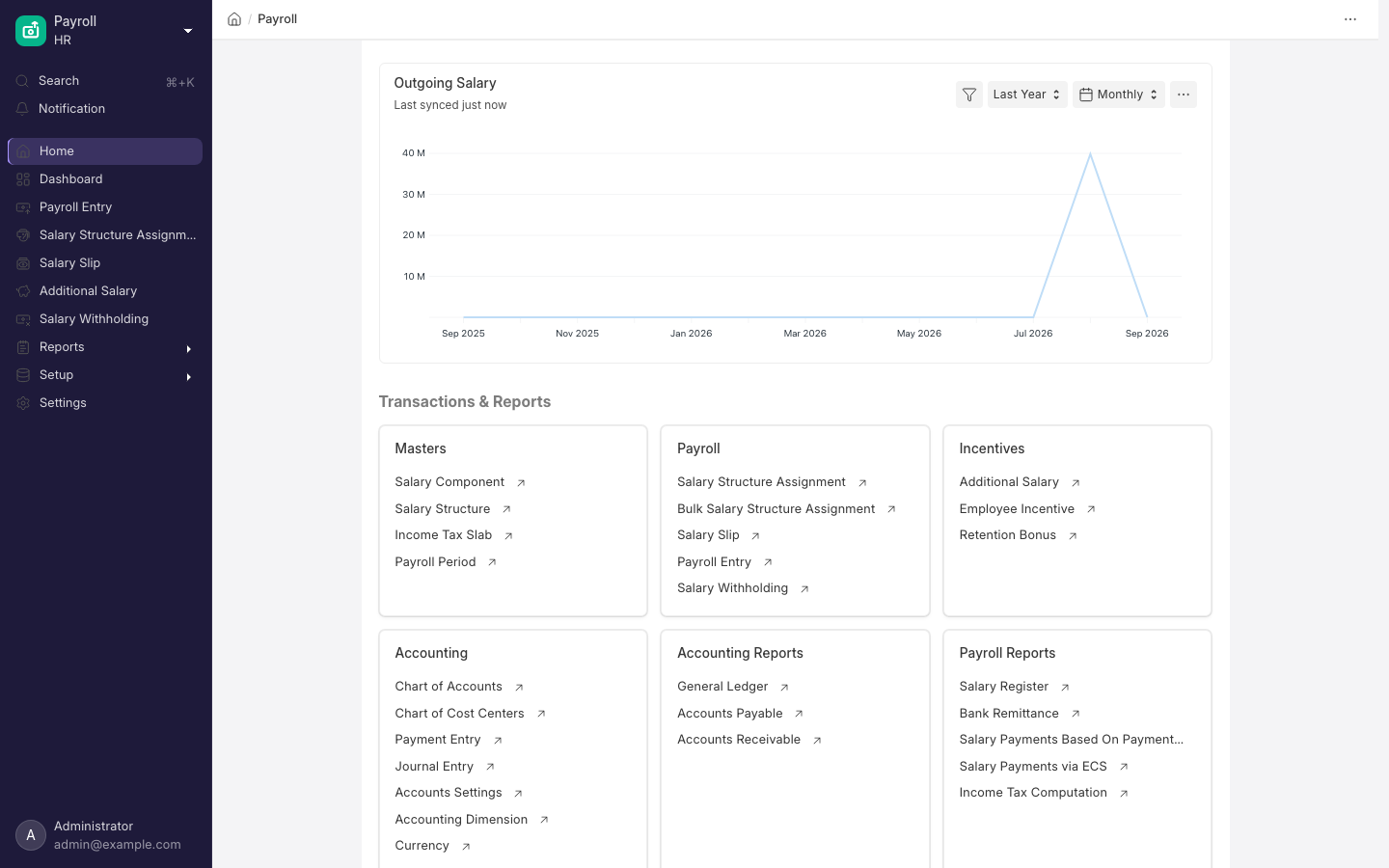
The Payroll workspace.
What you probably came here to do
- Run payroll for this month
- Set payroll up on a brand-new site
- Build or change a salary structure
- Put an employee, or a whole department, on a salary structure
- Pay THR, a bonus or any other one-off amount
- Fix a slip that came out wrong, or give back unpaid leave deducted by mistake
- Hold someone's pay back for a few months
- Check whether GARP handles BPJS, PPh 21 and THR for you
- Look up a field, a rule or an error message
How the pieces fit together
Four things have to exist before anyone can be paid, in this order:
- Salary Component — one line on a payslip, such as
Gaji PokokorBPJS TK. - Salary Structure — the set of earnings and deductions for one pay pattern.
- Salary Structure Assignment — puts one employee on one structure from a date, and supplies their Base.
- Payroll Entry — the monthly run that creates and submits everyone's slips and produces the bank entry.
Anything paid outside that pattern — an incentive, a retention bonus, overtime, THR, an arrear or a correction — reaches the slip as an Additional Salary line.
Salary Component ─▶ Salary Structure ─▶ Salary Structure Assignment (Base, From Date)
                                                      │
Additional Salary ──────────────────┐                 │
  from Employee Incentive,          ▼                 ▼
  Retention Bonus, Overtime   ──▶  Salary Slip  ◀──  Payroll Entry
  Slip, Arrear, Payroll                 │                  │
  Correction                            │                  ├─▶ Journal Entry (accrual)
                                        │                  └─▶ Journal Entry (Bank Entry)
                             Timesheet, Loan repayment
Set up payroll for the first time
Work through this list once per company, before the first live run:
- A Payroll Period per company at
/app/payroll-period. Periods for one company may not overlap. The Payroll Periods table inside that form is not read by anything — leave it empty. - Payroll Settings — working days basis, Consider Unmarked Attendance As, Include holidays in Total no. of Working Days, Fraction of Daily Salary for Half Day, Disable Rounded Total, Show Leave Balances in Salary Slip, email options.
- Salary Components, each with an Accounts row for the company, and Depends on Payment Days reviewed on every one of them.
- One submitted Salary Structure per pay pattern, and an assignment with a Base for every employee.
- A Holiday List on each employee, since working days derive from it.
- A Default Payroll Payable Account on the Company, matching what you will select on the Payroll Entry.
A new site is not empty: GARP already ships five Indonesian components plus an overtime component, and creating the Company adds four more. See What GARP already ships before you create anything by hand.
Build a salary structure
- At
/app/salary-component, create each earning and deduction, or open the ones that already ship. Set Type and Abbr, then decide Depends on Payment Days, Round to the Nearest Integer and Remove if Zero Valued. Tick Statistical Component for a value that only feeds other formulas and never shows on the slip. - Add a row to its Accounts table per company with the ledger account. Without it the run stops with
Please set account in Salary Component. See Accounting. - Put the maths on the Condition & Formula tab.
- At
/app/salary-structure, create a structure, type its name (PT Maju Jaya - Staf Bulanan), and set Company, Currency, Payroll Frequency and Is Active = Yes. - Fill the Earnings & Deductions tab, save, submit.
- Assign the structure to one employee, then use Actions → Preview Salary Slip to check the maths before assigning it to the rest.
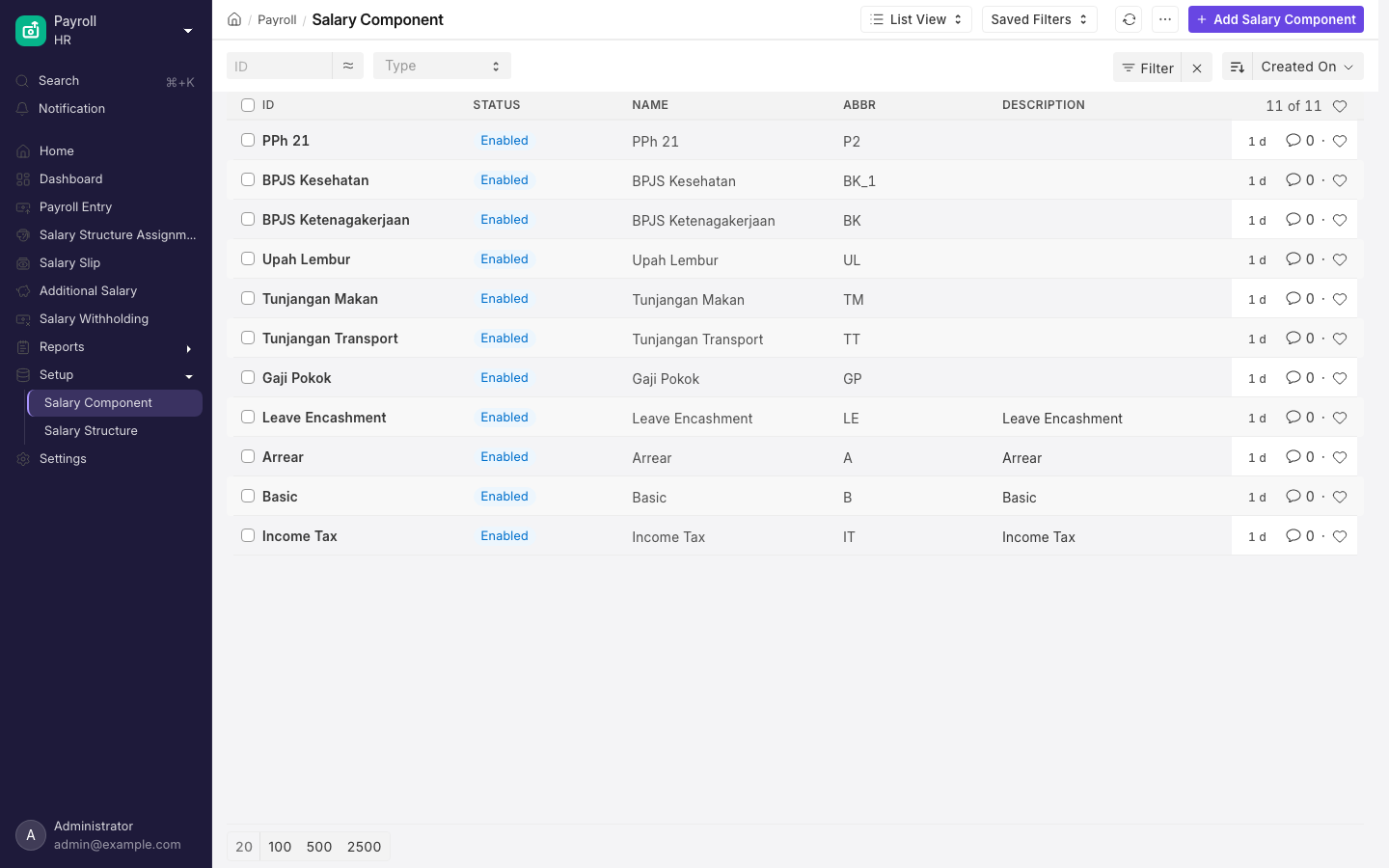
Salary Components for an Indonesian company: earnings, and BPJS deductions.
Two things commonly bite at step 5:
- A row that both uses a formula and has Depends on Payment Days ticked is refused, to stop the same reduction being applied twice. Both shipped deductions do this. See Pay a bonus or THR outside the monthly run for the message and the fix.
- Rows are calculated top to bottom, so a formula that reads a component further down the table reads
0.
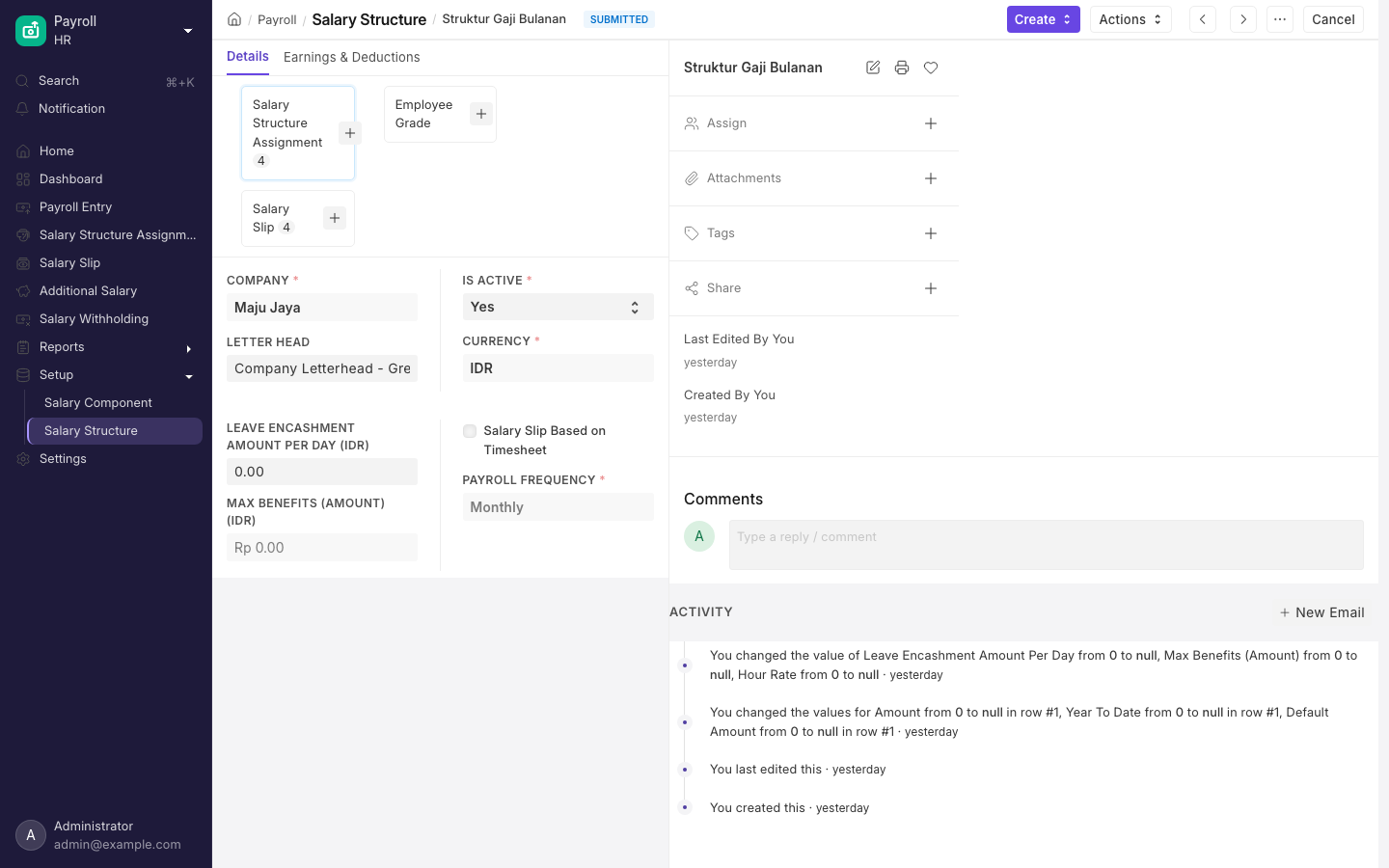
A Salary Structure with formula-driven earnings and deductions.
Assign a structure to employees
For one person, use Create → Single Assignment on the structure, or go to /app/salary-structure-assignment. Set Employee, From Date and Base, plus Income Tax Slab if the structure has a tax component, and submit.
For a group, open /app/bulk-salary-structure-assignment:
- Choose the Salary Structure and From Date.
- Narrow the list by Company, Branch, Department, Designation, Employment Type or Employee Grade.
- Tick the employees you want.
- Use Update to set Base and Variable across the whole selection.
- Click Assign Structure.
What the tool does for you:
- The list only offers Active employees who joined on or before the From Date, whose relieving date is empty or later, and who have no submitted assignment already dated that day.
- Base is pre-filled from each employee's grade.
- It asks you to confirm before assigning anyone still on zero.
- Above 30 employees the work runs in the background. Failures land in the Error Log against Salary Structure Assignment.
Run payroll for a month
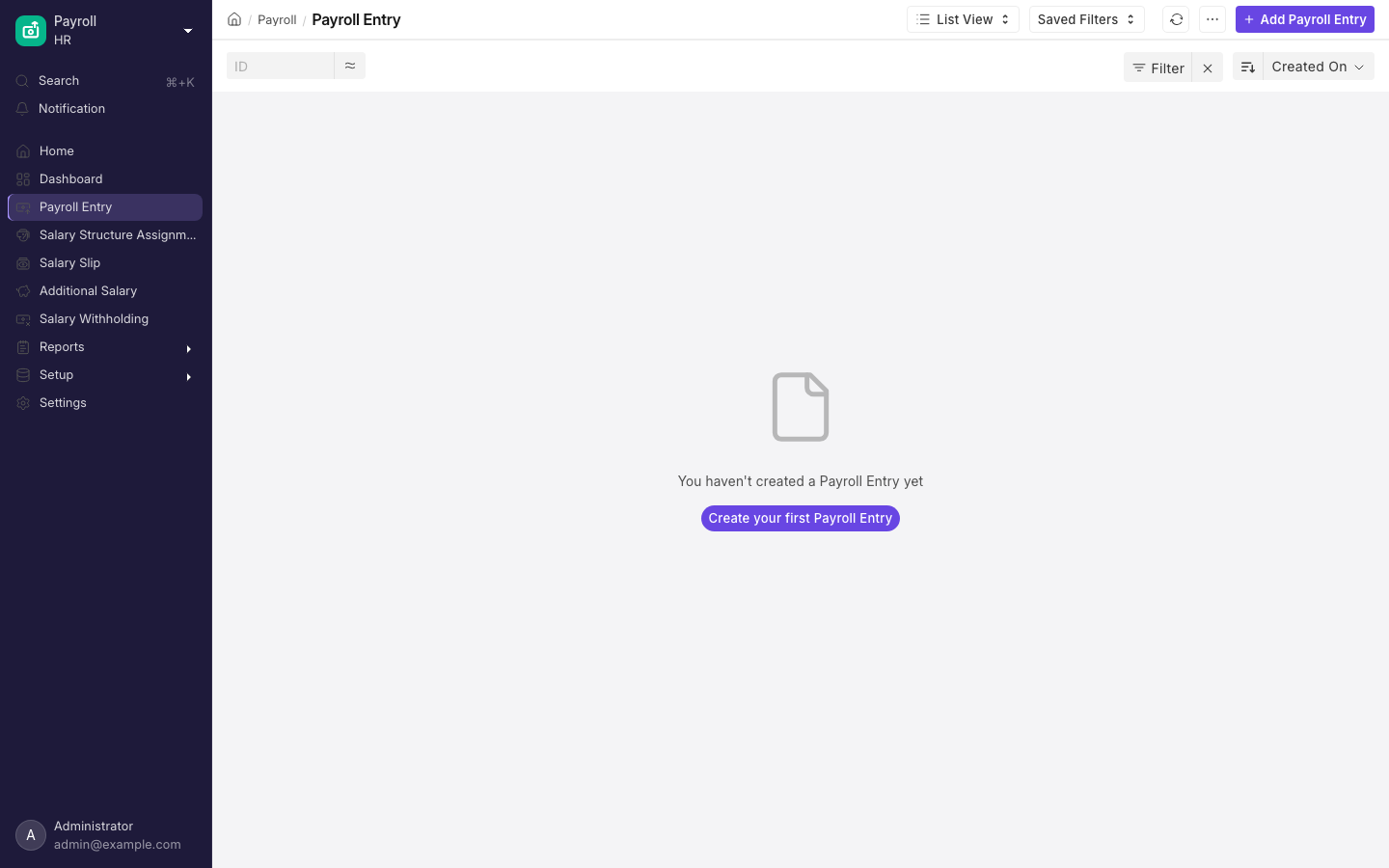
Payroll Entry, which drives a pay run for a whole company or department at once.
- At
/app/payroll-entry, set Posting Date, Company, Payroll Frequency, Start Date and End Date. - Filter by Branch, Department, Designation or Grade if you want. Tick Validate Attendance and the entry refuses to submit while anyone is unmarked.
- Set Payroll Payable Account (a non-group liability account whose Account Type is Payable) on the Overview tab, then set Payment Account and Cost Center on the Accounting & Payment tab.
- Click Get Employees. GARP matches employees of the company whose Status is anything but Inactive, whose submitted assignment points at an active structure with the same currency, frequency and payroll payable account, and whose joining and relieving dates overlap the period. Anyone who already has a submitted slip for these dates is excluded. A leftover draft slip is not excluded here — it blocks the entry later with a Duplicate Entry error.
- If Create Overtime Slip For Eligible Employee(s) is on in Payroll Settings — the Indonesian overtime setup turns it on — Create Overtime Slips appears before anything else, then Submit Overtime Slips. Clear both before payroll, or overtime does not reach the slips. See Overtime.
- Click Create Salary Slips. This submits the entry and drafts the slips. Above 30 employees the work runs in the background and Status becomes Queued. A failure sets Status to Failed and writes the error message, plus a link to the Error Log entry holding the technical detail, into Error Message on the Failure Details tab; a dashboard headline appears whose issue link jumps straight to that field.
- Click Submit Salary Slip. Slips whose net pay is below zero are skipped and reported as
Could not submit some Salary Slips:with links. Once at least one slip submits, the accrual Journal Entry is created and submitted, its name is written back to each slip's Journal Entry field, and slips are emailed. - Click Make Bank Entry for a second Journal Entry, voucher type Bank Entry or Cash Entry, covering net pay less loan repayments. The button disappears once such an entry exists.
How the emailing works:
- Slips are emailed if Email Salary Slip to Employee is on in Payroll Settings, which it is by default.
- The mail goes to the employee's Preferred Email. Without one you will see the message
Sari Dewi: Employee email not found, hence email not sent. - Encrypt Salary Slips in Emails with a Password Policy adds a PDF password. The policy is a template filled from Employee fields, so
{date_of_birth}produces a different password per employee. - If the Posting Date is in the future the mail is queued to send on that date.
- You can also select slips in the list view and use Menu → Email Salary Slips.
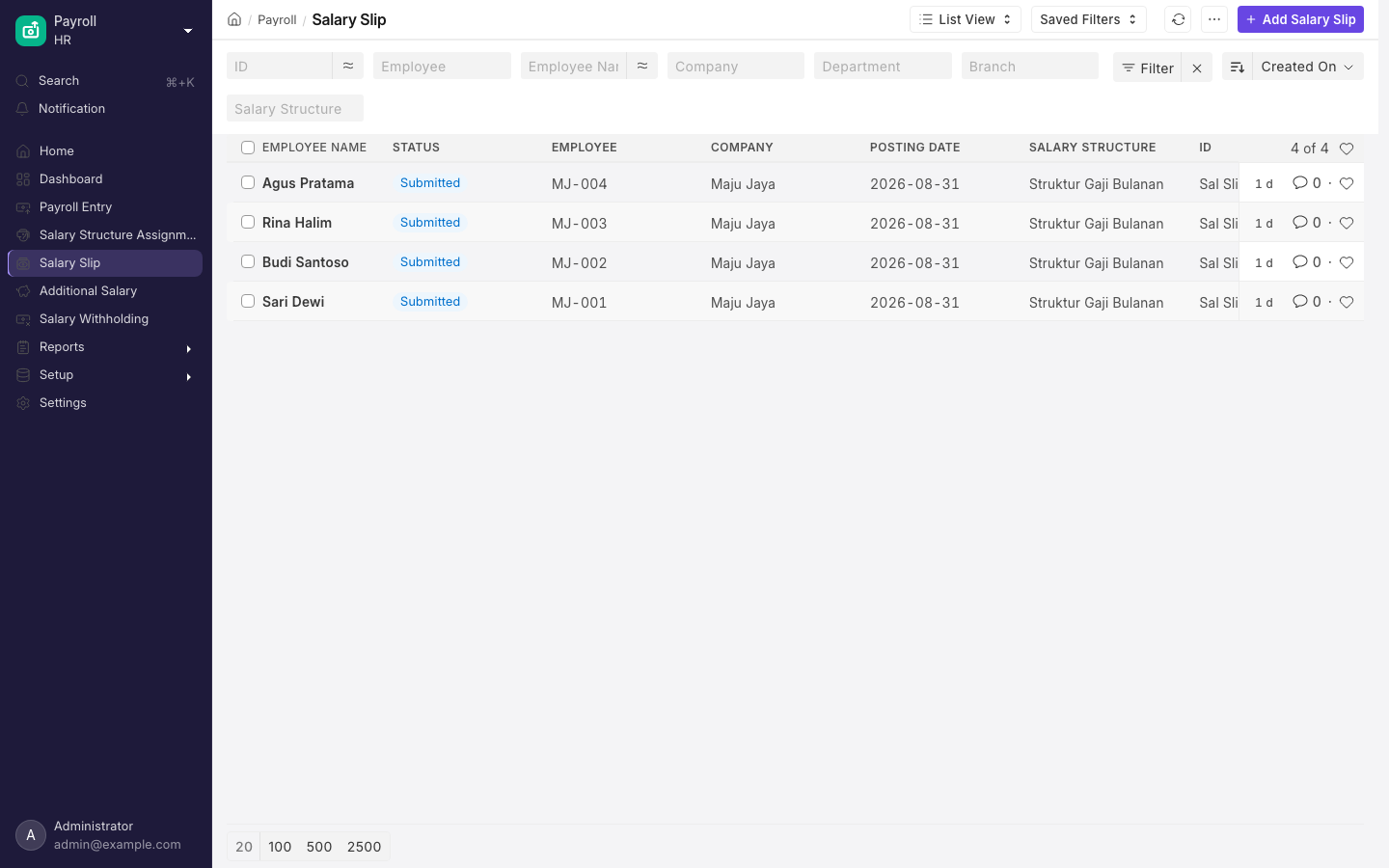
Salary Slips for one payroll period.
What submitting a slip does
Submitting a Salary Slip:
- sets its status,
- marks any linked Timesheets Payrolled,
- creates Loan Repayment entries where the Lending app is installed,
- writes Employee Benefit Ledger rows for accrual components,
- flips linked Gratuity and Leave Encashment records to Paid,
- and emails the slip, unless a Payroll Entry is the one submitting it.
The accrual Journal Entry covers the whole run: each earning account debited, each deduction account credited, split by the cost centres on each assignment, with the balance credited to the payroll payable account. Components marked Do Not Include in Total are excluded unless Do Not Include in Accounting Entries is unticked; statistical components never appear.
If you have to undo a run
Cancelling the Payroll Entry cancels and then deletes every linked salary slip, cancels the journal entries and payment ledger entries behind them, clears Salary Slips Created, Salary Slips Submitted and Error Message, and sets Status to Cancelled. Above 50 slips the cancellation runs in the background.
No role is allowed to Amend a Payroll Entry, so a cancelled run has to be created again from scratch.
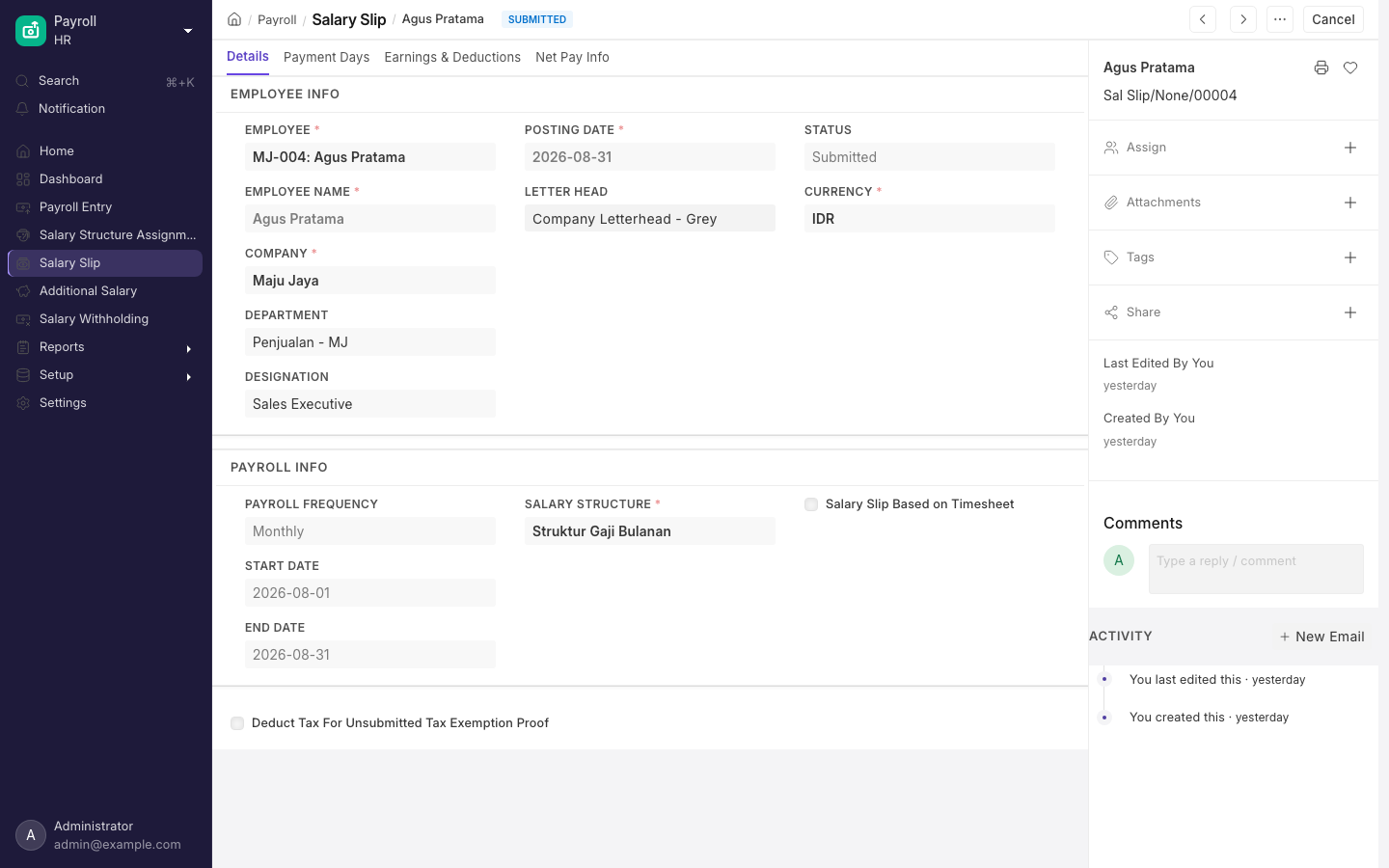
A submitted Salary Slip.
Pay a bonus or THR outside the monthly run
- Create an earning component such as
Tunjangan Hari Rayawith Depends on Payment Days off, so it is not prorated. - Use
/app/employee-incentivefor a discretionary payment,/app/retention-bonusfor a committed one (its Bonus Payment Date cannot be in the past), or/app/additional-salarydirectly. - Submit. Each of these creates a submitted Additional Salary at that payroll date, and the next slip covering the date shows it as a named earnings line.
On an Additional Salary you create by hand:
- Overwrite Salary Structure Amount is on by default. The amount then replaces the structure's figure for that component instead of adding to it.
- It switches itself off, with a message, when the component is not in the employee's structure.
- Two submitted overwriting rows for the same component and date are refused as Duplicate Overwritten Salary.
- Tick Is Recurring with From Date and To Date to repeat it. The row is picked up by any slip whose end date falls inside that range, and overlapping recurring rows for the same component are refused.
- Disabled can be ticked after submission to stop a recurring row without cancelling it — which matters, because only System Manager can cancel, amend or delete here.
Depends on Payment Days defaults to on for every new Salary Component. Create a THR component with the defaults and a bonus of Rp 4,500,000 paid to someone with 24 of 25 payment days arrives as Rp 4,320,000. Untick it on the component master, not the structure row.
Fix a slip that came out wrong
Payroll Correction (/app/payroll-correction) does one job: reversing leave without pay deducted in error. Documents are named PAYCORR-2026-00001.
- Set Employee, Company, Payroll Period and Payroll Date (when the money should reach the employee).
- Select Month for LWP Reversal lists only submitted slips in that period with leave without pay above zero. Nothing to list gives
No Salary Slips with Leave Without Pay found for employee HR-EMP-00001 for payroll period 2026. - Enter Days to Reverse. Zero or less gives
Days to Reverse must be greater than zero.More days than the slip lost, counting corrections already submitted, givesYou cannot reverse more than the total LWP days 3. You have already reversed 1 days for this employee. - On save, the arrear tables fill from that slip, using components with Arrear Component ticked in the Salary Component master, at
default amount ÷ working days × days to reverse, oramount ÷ payment days × days to reversefor accrual rows. Tick none and you getNo arrear components found in the salary slip. Ensure Arrear Component is checked in the Salary Component master.and no rows. - Submit. Each earning and deduction row becomes a submitted Additional Salary on the payroll date with Overwrite Salary Structure Amount off, which the next slip picks up without prorating it again. Accrual rows become Employee Benefit Ledger entries instead.
The other kinds of fix
- A wrong amount, rather than wrong days — cancel and amend the Salary Slip, or add an Additional Salary.
- A backdated raise — use Arrear (
/app/arrear). It rebuilds every submitted slip from the Arrear Start Date against a new structure and books the positive difference per component. It needs a submitted assignment for that structure dated on or after the arrear start date, allows one Arrear per employee, structure and period, and refuses when there is nothing to pay:There are no arrear differences between existing and new salary structure components.Only HR Manager and System Manager can see Arrear at all.
Typing over an amount on a submitted-structure component in a draft slip does not stick. Saving re-evaluates every structure row and overwrites it. Use an Additional Salary to change a figure for one month.
Hold back pay for a few months
Create a Salary Withholding (/app/salary-withholding, named SAL-WTH-00001) with the employee, From Date and Number of Withholding Cycles. Payroll Frequency is read from the employee's current assignment, and the Cycles table and To Date are calculated from it.
- No assignment on or before the from date gives
No Salary Structure Assignment found for employee HR-EMP-00002 on or before 01-03-2026. - Overlapping withholdings for one employee are refused as Duplicate Salary Withholding.
Once you submit it, the status becomes Withheld. From then on:
- Slips inside a cycle are still created and submitted, but marked Withheld and left out of the ordinary bank entry. The Payroll Entry's employee table shows them with Is Salary Withheld ticked.
- Once the ordinary bank entry is made, Release Withheld Salaries appears on the Payroll Entry. Submitting the bank entry it creates flips those slips to Submitted, stamps the journal entry on the cycles, and turns the withholding Released when all cycles are done.
- Cancelling that bank entry puts the slips back to Withheld.
Pay from timesheets and handle loan repayments
Tick Salary Slip Based on Timesheet on the Salary Structure and set a Salary Component and Hour Rate. Slips then pull every Timesheet for the employee starting in the period with status Submitted, Billed or Partially Billed, total the hours into Total Working Hours, and post hours times hour rate under that component — overriding whatever the structure row for that component would have produced. Max working hours against Timesheet in Payroll Settings does not cap the hours; exceeding it only raises the alert Total working hours should not be greater than max working hours 200. A timesheet-based structure is the only place where a negative net pay is rejected at structure level, with Net pay cannot be negative.
Loan repayment appears on a slip only when the Lending app is installed on your site. Where it is, the slip lists outstanding repayments, submission creates the Loan Repayment, and Make Bank Entry subtracts them from the cash paid out. Without that app there is no loan section.
What GARP does and does not do for Indonesian payroll
What the product ships, read from the code:
- Five Indonesian salary components plus
Upah Lembur, created on migration with the formulas shown in What GARP already ships and no ledger accounts. - Attendance-driven formula variables
HM,HS,HI,HMK,HD, so absence-based allowances and deductions can be written without custom code. - Kepmenaker-style overtime, as an
Overtime TypenamedLembur GARP: hourly rate from monthly components divided by 173, first hour at 1.5, later hours at 2, holidays at 3 and 4, half-hour rounding, one-hour daily threshold. See Overtime.
What is not there:
- BPJS Kesehatan has no component at all. The shipped
BPJS TKis a flat 2% ofGaji Pokok + Masa Kerjawith no wage ceiling, no employer share, and no split between JHT, JP, JKK and JKM. A real BPJS Ketenagakerjaan setup needs one component per programme, and the employer share modelled as a Statistical Component or a Do Not Include in Total line if you want it visible without touching net pay. - PPh 21 has no shipped component, no TER tables and no PTKP logic. The generic Income Tax Slab machinery works — slabs, conditions, standard exemption, other charges — and is documented in Tax and benefits, but every rate, band and allowance is yours to enter. Nothing in the product knows about
NPWP,PTKPstatus codes or the December gross-up. - THR has no document type of its own. It is an Additional Salary, or a Salary Component with a Condition on the month. There is no pro-rata rule for employees under twelve months of service.
- PKWT and PKWTT are not read by payroll — they appear there only as whatever you name your Employment Type records. Termination does model PKWT: migration ships an Employee Exit Reason
Kontrak Berakhir (PKWT)and aPesangon PP 35/2021Severance Rule with Uang Kompensasi, but none of it reaches a salary slip. - The only region-specific payroll code in the product is India (a Component Type field for provident fund and professional tax, HRA exemption, marginal relief, and a gratuity rule) and the UAE (three gratuity rules). Neither is enabled for an Indonesian company.
Do not treat the shipped BPJS TK and Potongan components as compliant. They were built as a demonstration of the formula engine. Review both with your payroll consultant before the first live run, and check whether your structure should prorate them at all.
Details, limits and edge cases
Everything below is reference. You do not need it to run an ordinary month — come here when a message stops you, when you need to know exactly what a field does, or when the numbers do not look right.
The main records, in one line each
- Salary Component — one payslip line. Type is Earning or Deduction. Carries an Abbr, an Amount or Formula, an optional Condition, and the ledger Accounts it posts to, one row per company.
- Salary Structure — you fill it in and submit it. You name it yourself; there is no automatic numbering. Holds the Earnings and Deductions tables, Payroll Frequency, Currency and Is Active. It also carries an Is Default field, which is hidden and read-only and no longer does anything.
- Salary Structure Assignment — submitted, numbered
HR-SSA-.YY.-.MM.-.#####. Ties one employee to one structure from a From Date, and supplies the Base and Variable that formulas read. - Bulk Salary Structure Assignment — a single-page tool for assigning one structure to many employees.
- Salary Slip — submitted, named
Sal Slip/HR-EMP-00001/00007unless the numbering has been changed for your site. One employee, one period. Draft, Submitted, Cancelled or Withheld. - Payroll Entry — submitted, numbered
HR-PRUN-.YYYY.-.#####. The bulk run: picks employees, creates and submits slips, produces the bank entry. Its own Status adds Queued and Failed to the usual three. - Payroll Period — the tax year for a company. Needed by income tax slabs, Payroll Correction and Arrear.
- Payroll Settings (
/app/payroll-settings) — how working days are counted and slips emailed. - Additional Salary — the universal off-cycle line. Incentives, retention bonuses, overtime, arrears and corrections all become one.
- Salary Withholding — holds an employee's pay for a number of cycles without stopping the run.
What GARP already ships
GARP HR installs five Indonesian salary components and one overtime component during migration, so a fresh site is not empty. Creating the Company seeds four more generic components that nothing here uses — Basic, Arrear, Income Tax and Leave Encashment:
| Component | Abbr | Type | Amount or formula as shipped |
|---|---|---|---|
| Gaji Pokok | GP | Earning | none — you set it on the structure row |
| Masa Kerja | TMK | Earning | none — you set it on the structure row |
| Kehadiran | KH | Earning | 50000 if (HS == 0 and HI == 0 and HMK == 0 and HD == 0) else 0 |
| BPJS TK | BPJSTK | Deduction | (2 * (GP + TMK)) / 100 |
| Potongan | POT | Deduction | GP / 25 * (HS + HI + HMK) |
| Upah Lembur | LMB | Earning | none — the amount arrives from an Overtime Slip |
All five of the first group ship with Depends on Payment Days ticked; Upah Lembur ships with it unticked. None of them has an Accounts row, so you must add one per company before a payroll run will post. The components named Lembur, Lembur HR and Lembur Rutin are disabled on migration because their formulas referenced fields that never existed — overtime is now paid only through the Overtime Slip route described in Overtime.
Abbreviations are unique across the whole site. If you create Tunjangan Makan and type TMK, the shipped Masa Kerja already owns it and yours is silently saved as TMK_1 — which is then the name your formulas must use. Check the Abbr field after saving a new component.
Salary Component field by field
The fields that change behaviour:
| Field | What it does when ticked or set |
|---|---|
| Type | Earning or Deduction. Decides which table on the structure can hold it and whether it is debited or credited in the accrual entry. |
| Abbr | The name formulas use. Left blank, it is built from the initials of the component name. |
| Depends on Payment Days | Default on. Prorates the line by payment days. Turn it off for anything paid whole. |
| Is Tax Applicable | Default on for earnings. Includes the line in taxable earnings. |
| Do Not Include in Total | Keeps the line off gross pay and net pay. |
| Do Not Include in Accounting Entries | Only visible once the line is excluded from the total. Also keeps it out of the accrual and bank entries. |
| Statistical Component | The line never appears on the slip, but its value is available to other formulas by abbreviation. Hides the Accounts table. |
| Remove if Zero Valued | Default on. A line that evaluates to zero is dropped from the slip instead of printed as 0. |
| Round to the Nearest Integer | Rounds the final amount after payment-days proration. |
| Disabled | Hides the component from the picker on new Salary Structure rows. It does not stop structures that already reference it from computing the line. |
| Arrear Component | Makes the component eligible for Payroll Correction and Arrear. Cannot be combined with Variable Based On Taxable Salary. |
| Accrual Component | Earnings only. The line is booked to the Employee Benefit Ledger instead of appearing as a normal earning row. |
| Variable Based On Taxable Salary | Deductions only. Marks the component as the income tax line — see Tax and benefits. |
Checking is thin. Saving without an Accounts row only warns, in orange: Accounts not set for Salary Component Gaji Pokok. The hard stop comes later, when the payroll run tries to post: Please set account in Salary Component Gaji Pokok. Four things block the save outright. Two you will meet without flexible benefits — Accrual Component can only be set for Earning Salary Components. and Arrear Component cannot be set for Salary Components based on taxable salary. — and two more police Accrual Component against the flexible-benefit Payout Method.
Changing a Condition or Formula on the component does not reach structures that already use it. Use Update Salary Structures → Sync Condition and Sync Formula; each lists the structures it will rewrite and asks you to confirm, or tells you Salary Component Gaji Pokok is currently not used in any Salary Structure.
Writing a formula
Condition and Formula are short Python expressions. GARP works them out as each slip is built, in a walled garden where only the names below exist:
| Source | Examples |
|---|---|
| The assignment | base, variable |
| Every Employee field | designation, branch, employment_type, grade, date_of_joining |
| The slip's own fields | payment_days, total_working_days, leave_without_pay, absent_days, start_date, end_date |
| Every Salary Component Abbr | seeded to 0, then filled as rows evaluate |
| Attendance day counts | HM, HS, HI, HMK, HD (also spellable as custom_hari_masuk and friends) |
| Helpers | int, float, round, rounded, ceil, floor, date, getdate, get_first_day, get_last_day |
Nothing else, and nothing can be imported. An unknown name gives a Name error naming the document and row: Error while evaluating the Salary Structure PT Maju Jaya - Staf Bulanan at row 3. Unsafe attribute access, any __ in the text, and the walrus operator are rejected as a Syntax error before anything is calculated.
The attendance day counts
Every salary slip carries a collapsible Hari Kehadiran section with five whole-number fields. They are recalculated from submitted Attendance records for the slip period every time the slip is saved:
| Field | Abbr | Counts |
|---|---|---|
| Hari Masuk (HM) | HM | Attendance status Present, Half Day or Work From Home — a half day counts as 1, not 0.5 |
| Hari Sakit (HS) | HS | Status On Leave where the Leave Type name contains the letters sick |
| Hari Izin (HI) | HI | Status On Leave for any other leave type |
| Hari Mangkir (HMK) | HMK | Status Absent |
| Hari Terlambat (HD) | HD | Any of the above with Late Entry ticked |
The sick bucket matches the English word sick in the Leave Type name. A leave type called Cuti Sakit lands in HI, not HS. Rename the leave type to something like Cuti Sakit (Sick Leave) if your formulas distinguish them.
Typing over these fields on the slip has no effect. The formula engine re-reads Attendance itself and ignores whatever is stored on the document.
Ordering and proration
Rows are calculated top to bottom, earnings before deductions. A formula referencing an abbreviation defined lower in the table reads 0. Order the Earnings table so derived lines come after what they derive from. When a row is prorated, the abbreviation seen by later rows holds the prorated figure, not the structure amount — so a deduction computed from GP is already working against a reduced base.
Depends on Payment Days makes a line prorate: paid for 23 of 25 working days, it becomes default amount * payment_days / total_working_days. This is why GARP refuses to save a structure with a formula-driven line that both prorates itself and reads a prorated abbreviation:
Row #4: The BPJS TK Component has the options Amount based on formula and
Depends On Payment Days enabled.

Disable Depends On Payment Days for the BPJS TK component, to prevent the
amount from being deducted twice, as its formula already uses a
payment-days-based component.
Both shipped deductions trip this. Before you can put Gaji Pokok, Masa Kerja, BPJS TK and Potongan in one structure, untick Depends on Payment Days on the BPJS TK and Potongan masters. You cannot fix it on the structure row: that column is read-only and is copied from the master on every save, along with Is Tax Applicable, Is Flexible Benefit and Variable Based On Taxable Salary.
Salary Structure rules and messages
You are asked for the name, so type something you will recognise: PT Maju Jaya - Staf Bulanan. Company, Currency and Is Active are required. Payroll Frequency defaults to Monthly and is hidden when Salary Slip Based on Timesheet is ticked. Is Active, Letter Head, Leave Encashment Amount Per Day and every row's Condition and Formula can still be edited after submission.
Beyond the payment-days check, saving is refused when a deduction marked Variable Based On Taxable Salary also carries an amount or formula: Row #3: Cannot set amount or formula for Salary Component PPh 21 with Variable Based On Taxable Salary. It warns without blocking when a row has a Formula but Amount based on formula unticked: the formula is ignored and the Amount is used instead.
Actions → Preview Salary Slip renders a print view for one employee, but only offers employees who already have a submitted assignment against this structure. With none you get There's no Employee with Salary Structure: PT Maju Jaya - Staf Bulanan. Assign PT Maju Jaya - Staf Bulanan to an Employee to preview Salary Slip. Preview also uses the raw calendar day count and sets payment days equal to it, so read its Working Days as indicative and its component amounts as the real test.
Salary Structure Assignment fields and messages
| Field | Notes |
|---|---|
| Employee, From Date | The pair must be unique among submitted assignments. |
| Salary Structure | Defaults from the employee's Employee Grade → Default Salary Structure. |
| Base, Variable | Feed the base and variable names in formulas. Base defaults from Employee Grade → Default Base Pay. |
| Income Tax Slab | Mandatory as soon as the structure contains a tax component. |
| Payroll Payable Account | Filled from Company → Default Payroll Payable Account, else from an account literally named Payroll Payable in the company's default currency. |
| Cost Centers | Defaults to one row at 100% from the employee's or the department's Payroll Cost Center. Editable after submission. |
| Taxable Earnings Till Date, Tax Deducted Till Date | Opening balances for a mid-year start. Editable after submission. |
The messages that will stop you:
Salary Structure Assignment for Employee already exists— same employee, same From Date, already submitted.From Date 2026-03-01 cannot be before employee's joining Date 2026-03-16, and the mirror-image message for a relieving date.Salary Structure PT Maju Jaya - Staf Bulanan does not belong to company PT Sinar Abadi.Income Tax Slab is mandatory since the Salary Structure ... has a tax component PPh 21, andCurrency of selected Income Tax Slab should be IDR instead of INR.Total percentage against cost centers should be 100, andRow 1: Cost Center Toko Solo does not belong to Company PT Maju Jaya.Please set "Default Payroll Payable Account" in Company Defaults— from the bulk and single-assignment helpers, which cannot guess it.
If the structure has a tax component and the From Date is after the payroll period start, saving warns Missing Opening Entries: Please specify Taxable Earnings Till Date and Tax Deducted Till Date (if any), for the correct tax calculation in future salary slips.
The Payroll Payable Account on the assignment is not decoration. Get Employees on a Payroll Entry matches employees whose assignment carries exactly the account chosen on that entry. Assign structures with one payable account and run payroll with another, and you get No employees found for the mentioned criteria with no hint about which field disagrees.
Working days and payment days
Every slip has a Payment Days tab that shows which Payroll Settings produced its numbers, with a link to change them and re-save. The arithmetic:
- Working Days starts as the number of calendar days in the period.
- Unless Include holidays in Total no. of Working Days is ticked, the employee's Holiday List dates are subtracted. More holidays than days gives
There are more holidays than working days this month. - Payment Days starts as the days between the later of period start and joining date, and the earlier of period end and relieving date — again minus holidays.
- Leave Without Pay is subtracted. With Calculate Payroll Working Days Based On set to Leave it comes from approved leave applications on unpaid leave types; set to Attendance it comes from Attendance records, and Absent Days is deducted as well.
- On Attendance basis only, Consider Unmarked Attendance As = Absent subtracts days with no Attendance record at all, and half days marked absent are subtracted at Fraction of Daily Salary for Half Day (default
0.5).
Two messages you may meet here:
Please set Payroll based on in Payroll settings— field 1 of Payroll Settings is empty.Employee HR-EMP-00003 relieved on 15-03-2026 must be set as 'Left'— the employee has a relieving date before the period but an Employee Status that is still Active.
A day of approved unpaid leave produces both a reduction in payment days and a submitted Attendance row with status On Leave. The shipped Potongan formula counts that same day again through HI. Unless you remove one of the two, an unpaid day costs the employee roughly twice.
Worked examples
PT Maju Jaya pays monthly in IDR. The Holiday List for March 2026 marks six days — five Sundays and one company holiday on 19 March — so Working Days is 31 − 6 = 25. Payroll Settings are left at their defaults: basis Leave, holidays excluded from working days, half day at 0.5. The structure PT Maju Jaya - Staf Bulanan uses the shipped components, with Depends on Payment Days unticked on BPJS TK and Potongan so the structure will save.
Sari Dewi — GP 4,200,000, TMK 300,000, two days of approved unpaid leave.
Payment days      25 − 2                       = 23
Gaji Pokok        4,200,000 × 23/25            = 3,864,000
Masa Kerja          300,000 × 23/25            =   276,000
Kehadiran         HI = 2, so formula gives 0   →  row removed
Gross pay                                      = 4,140,000
BPJS TK           2 × (3,864,000 + 276,000)/100=    82,800
Potongan          3,864,000 / 25 × 2           =   309,120
Net pay                                        = 3,748,080
An Indonesian payroll clerk would expect the two unpaid days to cost 360,000 once, giving a net of 4,057,200. The product charges them twice — 360,000 through proration and 309,120 through Potongan — and pays 3,748,080. Note also that Potongan divides by the literal 25 in its formula, not by Working Days, so the per-day rate drifts in any month that is not 25 working days.
Budi Santoso — GP 5,000,000, TMK 500,000, one day of unpaid leave, plus a THR of 4,500,000 entered as an Additional Salary on 20 March against a component left at the default Depends on Payment Days.
Payment days      25 − 1                       = 24
Gaji Pokok        5,000,000 × 24/25            = 4,800,000
Masa Kerja          500,000 × 24/25            =   480,000
Kehadiran         HI = 1, so formula gives 0   →  row removed
THR               4,500,000 × 24/25            = 4,320,000   ← expected 4,500,000
Gross pay                                      = 9,600,000
BPJS TK           2 × (4,800,000 + 480,000)/100=   105,600
Potongan          4,800,000 / 25 × 1           =   192,000
Net pay                                        = 9,302,400
Unticking Depends on Payment Days on the THR component raises gross to 9,780,000 and net to 9,482,400.
Rina Halim joins on 16 March, GP 4,200,000, TMK 300,000, perfect attendance.
Working days      still 25 (whole period)
Payment days      16 calendar days − 3 holidays in 16–31 March = 13
Gaji Pokok        4,200,000 × 13/25            = 2,184,000
Masa Kerja          300,000 × 13/25            =   156,000
Kehadiran            50,000 × 13/25            =    26,000   ← expected 50,000
Gross pay                                      = 2,366,000
BPJS TK           2 × (2,184,000 + 156,000)/100=    46,800
Net pay                                        = 2,319,200
The attendance bonus is prorated even though Rina attended every day she could, because Kehadiran ships with Depends on Payment Days ticked.
The accrual Journal Entry for a run containing Sari and Budi, posted against the payroll payable account:
Dr  Gaji Pokok - PMJ                8,664,000
Dr  Masa Kerja - PMJ                  756,000
Dr  Tunjangan Hari Raya - PMJ       4,320,000
    Cr  BPJS TK Payable - PMJ                     188,400
    Cr  Potongan - PMJ                            501,120
    Cr  Payroll Payable - PMJ                  13,050,480
Make Bank Entry then debits Payroll Payable 13,050,480 and credits the Payment Account.
Reports
Open these from the Payroll workspace or its sidebar; all read from Salary Slip except where noted.
| Report | Visible to | What it gives |
|---|---|---|
| Salary Register | HR User, HR Manager | One row per slip with every component as a column. Filters: date range, currency, employee, company, Document Status (default Submitted), department, branch, designation. |
| Bank Remittance | HR Manager | Payroll Entry based. Lists net pay per employee with bank name and account number, skipping anyone missing either, or missing a company debit account. |
| Salary Payments Based On Payment Mode | HR User, HR Manager, Employee | Net pay by branch, one column per Mode of Payment in use, with gross pay and total deduction rows at the foot. |
| Salary Payments via ECS | HR User, HR Manager | Branch, employee, gross pay, net pay, bank and account number — the list to hand a bank. |
| Income Tax Computation, Income Tax Deductions | HR User, HR Manager, Employee | See Tax and benefits. |
| Accrued Earnings Report | HR User, HR Manager, System Manager | Employee Benefit Ledger based. The only view of accrual components. Not linked from the workspace — search for it by name. |
| Provident Fund Deductions, Professional Tax Deductions | no roles assigned | India-specific; they rely on the Component Type field that only the India regional setup adds. Leave them alone. |
The workspace also omits Payroll Correction and Arrear from its link cards. Reach them by name from the search bar or the routes above.
Who can do what
| Document | Create and edit | Submit | Cancel, amend, delete |
|---|---|---|---|
| Salary Component | HR User, HR Manager | cannot be submitted | HR Manager (delete) |
| Salary Structure | HR User, HR Manager | HR User, HR Manager | HR User, HR Manager |
| Salary Structure Assignment | HR User, HR Manager, System Manager | HR User, HR Manager | cancel and amend: HR Manager; delete: HR Manager, System Manager |
| Salary Slip | HR User, HR Manager | HR User, HR Manager | HR Manager only; the Employee role gets read and print |
| Payroll Entry | HR Manager only | HR Manager | cancel and delete only — no amend for anyone |
| Additional Salary | HR User, HR Manager, System Manager | all three | System Manager only |
| Employee Incentive | HR User (draft only), HR Manager | HR Manager only | HR Manager |
| Retention Bonus | HR User, HR Manager, System Manager | all three | cancel and delete: all three; no amend for anyone |
| Salary Withholding | HR Manager, System Manager | both | cancel: HR Manager; delete: both; no amend for anyone |
| Payroll Correction | HR User, HR Manager, System Manager, Employee | all but Employee | delete only, for those three; no cancel or amend for anyone |
| Arrear | HR Manager, System Manager | both | cancel: HR Manager; delete: both; no amend for anyone |
| Payroll Period | HR User, HR Manager, System Manager | cannot be submitted | same three |
| Payroll Settings | System Manager, HR Manager | — | — |
Employees can read their own Salary Slip, Payroll Period, Employee Incentive, Retention Bonus and Salary Withholding records. There is no payroll-specific visibility rule in the app, so who sees what follows the standard Employee user-permission rules described in Employees.
The Employee role can create and edit Payroll Correction, though not submit it. If that is not what you want, remove the Employee row from the Payroll Correction permissions before go-live.
Four role profiles are created on migration: GTHR - HO holds HR Manager, HR User, Leave Approver and Expense Approver; GTHR - SM holds HR User and Leave Approver; GTHR - MR holds HR User; GTHR - KG holds Employee. Only GTHR - HO carries HR Manager, so only it can run a Payroll Entry, cancel a slip or submit an Arrear.
What runs automatically
Nothing in payroll runs on a timer. The app's scheduled tasks cover attendance, shifts, leave, interviews and reminders only — the nearest neighbours are the nightly generate_leave_encashment and allocate_earned_leaves, both described in Leave. Payroll advances only when someone presses a button. The background work you will see — slip creation and submission above 30 employees, Payroll Entry cancellation above 50, bulk assignment above 30, overtime slips above 30 — is queued on demand, not scheduled.
Related
- Tax and benefits — income tax slabs, exemption declarations, flexible benefits.
- Accounting — where the accrual and bank journal entries land.
- Overtime — how overtime hours reach a slip.
- Attendance and shifts — the source of payment days and of
HM,HS,HI,HMKandHD. - Leave — where leave without pay comes from.
- Settings and reports — Payroll Settings in full, and the Salary Register.
- Plans and limits — whether payroll is on your plan.