HR and Payroll
GARP HR is where your people records live, and everything that follows from them: hiring, onboarding, shifts and attendance, leave balances, overtime, expense claims, monthly payroll, appraisals, grievances and exits.
Three groups use it. An HR Manager or HR User works here in the desk and owns the master records. Line managers approve their team's leave, shift and expense requests. Everyone else only ever needs the self-service app on their phone.
There are two ways in. Administrators use the desk — the screens you are looking at now. Everyone else uses the employee self-service app at /hrms.
The employee record itself belongs to GARP ERP core, so a person you hire here is the same person who appears on a timesheet in Projects and in the payroll journal entry in Accounting.
Your home page is the People workspace at /app/people.
GARP serves the desk from /desk, and /app/... redirects there. Both addresses work; after the redirect your browser will show /desk/people.
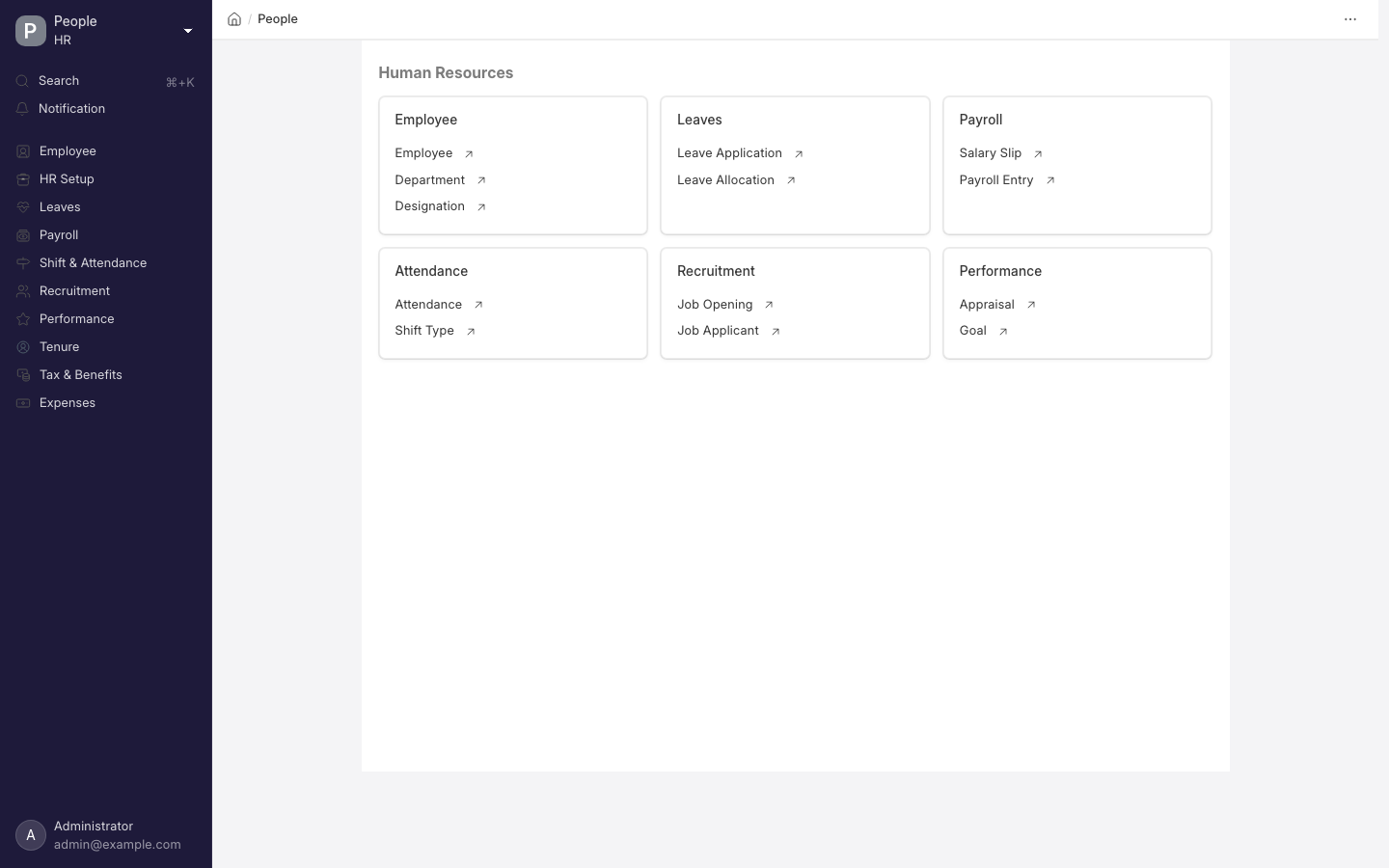
The People workspace, the HR home page.
What you probably came here to do
- Go straight to the page for the job I am doing
- Set HR up from scratch, in an order that works
- Find out what GARP does not do for Indonesian payroll
- Get my employees onto the phone app
- Fix someone who cannot log in to the app
- Find a form I cannot see on any menu
- Work out who is allowed to approve and submit what
- Work out why attendance or leave is not updating
Pages in this section
| Page | What it covers |
|---|---|
| Employees | The Employee master, org structure, grades and the linked login |
| Employee lifecycle | Onboarding, transfers, promotions, grievances, separation and exit |
| Attendance and shifts | Shift types, the roster, check-ins and automatic attendance marking |
| Overtime | Overtime Type multipliers and how Overtime Slips reach a salary slip |
| Leave | Leave types, policies, allocations, applications and encashment |
| Payroll | Salary components and structures, the payroll run and the bank entry |
| Tax and benefits | Income tax slabs, exemption declarations and flexible benefits |
| Expense claims | Claims, advances, travel requests and how they are paid |
| Performance | Goals, KRAs, appraisal cycles and feedback |
| Recruitment | Requisitions, openings, applicants, interviews, offers and the job portal |
| Employee self-service | The /hrms app for employees and approvers |
| Settings and reports | HR Settings, Payroll Settings and the standard HR reports |
Whether HR and Payroll are switched on at all depends on your plan; see Plans and limits.
Set HR up in the right order
Order matters more than usual here. Attendance depends on shifts, shifts depend on holiday lists, and payroll refuses to run without a salary structure assignment. Work through these eight steps in sequence.
-
The organisation. In HR Setup, create your company, branches, departments, designations and employee grades. Then open HR Settings and set:
- Retirement Age (In Years) — leave it blank and GARP silently falls back to 60.
- Employee Naming By —
Employee Numberby default. The alternatives areNaming SeriesandFull Name. - The approver rules.
Saving the Company also fills in its Default Payroll Payable Account and Default Employee Advance Account, but only if accounts named Payroll Payable and Employee Advances already exist for that company. It links accounts that are already there rather than creating them.
-
Holiday lists and shifts. Create a Holiday List for the year, then a Holiday List Assignment, then a Shift Type for each working pattern. Attendance depends on all three, and the holiday list is what decides whether a day pays holiday overtime rates.
-
Employees. Create them one at a time, or import. Set each person's holiday list, default shift, reporting manager, leave approver, expense approver, shift request approver and overtime request approver. Naming someone as a leave or expense approver grants them that role automatically.
-
Leave. Create your Leave Type records, a Leave Period and a Leave Policy, then assign the policy so balances exist before anyone applies.
-
Expenses. Create your Expense Claim Type records and the accounts they post to, so claims can be approved and paid.
-
Pay. Create your Salary Component records and a Salary Structure, then a Salary Structure Assignment for each employee. Payroll will not run without one.
-
Payroll Settings. Set Calculate Payroll Working Days Based On (
Leaveby default, orAttendanceif you want unmarked days to matter), Consider Unmarked Attendance As, Fraction of Daily Salary for Half Day (0.5), and whether slips are emailed (Email Salary Slip to Employee is on by default). -
Employees' logins. Invite employees as users and point them at
/hrms. See Invite your team.
Run one payroll for a single employee before you run it for everyone.
Two traps to avoid on day one. Ticking Create User Automatically on an Employee with no email throws Company or Personal Email is mandatory when 'Create User Automatically' is enabled; the user it creates gets the Employee role only. And any transaction against an Employee whose status is Inactive is refused with Transactions cannot be created for an Inactive Employee, which is the usual reason an import of historical leave or attendance fails halfway through.
What ships built in, and what you must build
Be clear-eyed about this before you plan a go-live.
Pay is calculated from Salary Component records. A component can carry a fixed Amount, or you tick Amount based on formula and write an expression in the Formula field, optionally guarded by a Condition.
Income tax is calculated by a component with Variable Based On Taxable Salary ticked, against the Income Tax Slab linked on the employee's Salary Structure Assignment. The slab is a table of From Amount, To Amount and Percent Deduction rows that you enter.
What is already Indonesian
More than the generic engine. GARP ships four pieces of Indonesian configuration that arrive as data, not code, so you can edit any of them without a developer.
Overtime under Kepmenaker rules. An Overtime Type named Lembur GARP with:
- the calculation method
Salary Component Based (Monthly Divisor)and Monthly Hours Divisor173 - a tiered multiplier scheme at 1.5 for the first hour and 2 thereafter on workdays, 3 and 4 on holidays and weekly offs
- a one-hour minimum threshold on a Daily Total basis, half-hour rounding past the first tier, and no daily cap
Its payout goes to a Upah Lembur earning component. Every Shift Type with auto attendance enabled is wired to it. Three legacy components — Lembur, Lembur HR and Lembur Rutin — are disabled rather than deleted, so overtime cannot be paid twice.
Severance under PP 35/2021. A Severance Rule named Pesangon PP 35/2021 carrying the Uang Pesangon slabs (1 through 9 months of wage by masa kerja) and the UPMK slabs (2 months from three years, stepping to 10 above 24, with no 9-month band, exactly as the regulation reads).
Alongside it, fourteen Employee Exit Reason records — resignation, retirement, death, PKWT contract expiry and ten grounds for PHK. Each one carries its own Uang Pesangon (UP) Multiplier, UPMK Multiplier, whether UPH, Uang Pisah or Uang Kompensasi apply, which letters may be printed, whether to pre-tick blacklisting, and a Regulation Reference naming the article.
An Indonesian employee profile. An Additional Details tab on the Employee holding:
- Nickname, Place of Birth, Religion (Islam, Christian, Catholic, Hindu, Buddhist, Confucian, Other), Citizenship
- Nationality Status (Local or Expat), Marriage Code
- Work Period Type (Shift or Regular) and Work Hours Type (7 Hours or 8 Hours)
- an Identity Document section whose Identity Type offers KTP, E-KTP, KTP (Seasonal), Passport and Other
- two driving licence blocks
- separate residential and origin addresses down to village level
- an internship (Prakerin) block
The Blacklist section that an Employee Separation fills in is not on this tab — it sits on the Employee's Exit tab, just after Encashment Date.
Attendance day counts inside payroll formulas. Every Salary Slip carries a Hari Kehadiran section — Hari Masuk (HM), Hari Sakit (HS), Hari Izin (HI), Hari Mangkir (HMK) and Hari Terlambat (HD) — filled in from submitted Attendance for the slip period before any formula runs. You can use either the full field name or the abbreviation directly in a Salary Component formula.
A migrated site also already has five worked components on this pattern: Gaji Pokok (GP), Masa Kerja (TMK), Kehadiran (KH), BPJS TK (BPJSTK, formula (2 * (GP + TMK)) / 100) and Potongan (POT, formula GP / 25 * (HS + HI + HMK)).
HS is counted as Attendance with status On Leave where the leave type name contains "sick"; every other On Leave day becomes HI. Name your leave types accordingly — an Indonesian type called Cuti Sakit will be counted as izin, not sakit, because the match is on the English word.
What you still have to build
- BPJS Kesehatan. Nothing ships. Only
BPJS TKexists, and only on a migrated site, as a flat 2% employee deduction. Employer shares, the wage ceiling, and the split between JHT, JP, JKK and JKM are all yours to write as components. - PPh 21. The tax engine annualises earnings over the Payroll Period, applies the Income Tax Slab, subtracts tax already withheld in the period, and divides the difference by the remaining months. That is the year-end true-up shape, not the monthly TER of PMK 168/2023. A TER deduction has to be modelled as a formula-based component instead, and PTKP has to be entered as Standard Tax Exemption Amount or built from exemption categories.
- THR. No document, no field, no scheduled job. Pay it as an Additional Salary on a dedicated component, or as an Employee Incentive.
- PKWT and PKWTT. The Employee has Contract End Date and Notice (days), and Employment Type ships with Full-time, Part-time, Probation, Contract, Commission, Piecework, Intern and Apprentice. Nothing enforces a PKWT term limit or warns you before one expires.
- Statutory reports. None. The Provident Fund and Professional Tax reports are Indian and read a Component Type field that only exists on an Indian company.
- Statutory leave. The install fixtures create Casual Leave, Sick Leave, Privilege Leave, Compensatory Off and Leave Without Pay — not the twelve days of cuti tahunan or cuti melahirkan. Create those yourself.
When you set a Company's country to Indonesia, the only salary components created automatically are Income Tax, Basic, Arrear and Leave Encashment. Purpose-built regional payroll behaviour exists only for India and the United Arab Emirates; Indonesia is handled by the data described above.
Worked example: overtime for Sari Dewi
Sari Dewi at PT Maju Jaya is on Gaji Pokok 5,000,000 and Masa Kerja 500,000, both listed as applicable components on Lembur GARP. She works three approved overtime hours on a Tuesday.
Hourly rate     (5,000,000 + 500,000) / 173      = 31,791.91
Paid hours      3.0 raw, above the 1-hour threshold
                first tier 1.0 + floor(2.0 / 0.5) x 0.5 = 3.0
Amount          31,791.91 x (1.0 x 1.5 + 2.0 x 2.0)
                = 31,791.91 x 5.5                = IDR 174,855
That is the Kepmenaker answer. But if Sari works exactly one hour, raw_hours <= threshold and she is paid nothing — a practitioner would expect 1.5 times the hourly rate. Lower Minimum Overtime Threshold (Hours) to zero on the Overtime Type if your company pays from the first minute.
Worked example: severance for Budi Santoso
Budi Santoso joined 1 January 2019 and is relieved on 31 December 2025 under PHK - Efisiensi Mencegah Kerugian (PP 35/2021 Ps. 43), which carries a UP multiplier of 1 and a UPMK multiplier of 1. His basis wage is Gaji Pokok 6,000,000 plus Masa Kerja 400,000. Five days of annual leave are unused, typed into Unused Leave Encashment as 1,280,000.
Service years   (date_diff + 1) / 365.25 = 2557 / 365.25 = 7.001
UP slab         7 <= 7.001 < 8   -> 8 months
UPMK slab       6 <= 7.001 < 9   -> 3 months
Uang Pesangon   6,400,000 x 8 x 1.0        = 51,200,000
UPMK            6,400,000 x 3 x 1.0        = 19,200,000
UPH             leave encashment only      =  1,280,000
Total Severance                            = IDR 71,680,000
Three things to know about that arithmetic.
- The basis wage, if you leave it blank, is read from the employee's last submitted Salary Slip using the components listed on the Severance Rule, at their full-month amount before payment-day proration.
- Housing & Medical Percentage ships at
0, because PP 35/2021 dropped the old statutory 15% — raise it only if your PP or PKB still promises it. - Service Years Calculation defaults to
Exact (Fractional), so an extra week either side of a slab boundary is worth a full month of wage. Switch it toCompleted Yearsif your policy truncates.
Severance is calculated on every save and reset to zero first, so changing the exit reason never leaves a stale figure behind — but the numbers are read-only display fields on the separation. They do not post an accounting entry and they do not create a payment. Settle the money through the Full and Final Statement.
Get employees onto the self-service app
The employee self-service app lives at /hrms. It is an installable mobile web app covering check-in and check-out, leave applications and balances, expense claims, employee advances, attendance and shift requests, shift assignments, holidays, notifications and salary slips.
Requests appear under My Requests. An approver also gets a Team Requests tab with Approve and Reject buttons, so a manager never has to open the desk.
Two settings in HR Settings control phone check-in: Allow Employee Checkin from Mobile App, and Allow Geolocation Tracking for whether location is recorded with it.
There is also a User Type called Employee Self Service, applied with a user permission on Employee, for people who should reach only their own records. It grants exactly this and nothing else:
| Access | Documents |
|---|---|
| Read only | Holiday List, Company, Leave Type, Expense Claim Type, Training Program, Employee Checkin, Salary Slip |
| Read and write own record | Employee |
| Create, write, delete | Leave Application, Attendance Request, Compensatory Leave Request, Expense Claim, Employee Advance, Employee Benefit Application, Employee Tax Exemption Declaration and Proof Submission, Employee Grievance, Employee Referral, Travel Request |
| Create through amend | Timesheet, Training Feedback, Shift Request |
Two consequences worth planning around:
- A self-service (ESS) user can never submit their own Expense Claim or Leave Application. That is the approver's job by design.
- Overtime Request has no screen in the app at all, so the SPL has to be raised on the desk even though the overtime it authorises is paid through the same payroll run.
When someone cannot log in to the app
The app admits a user only if an Employee record exists whose User ID is that login and whose Status is Active.
Anything else — no Employee record, a mismatched User ID, or a status of Inactive, Suspended or Left — lands on a Login Failed dialog. You will see the message No active employee found associated with the email ID ..., and the person is logged straight back out.
A leaver therefore loses the app the moment their separation is submitted.
Find a form that is not on any menu
Three ways to reach anything.
- Type its address. Any document type is reachable at
/app/followed by its name in lower case with hyphens —/app/leave-application,/app/salary-slip,/app/expense-claim. - Use the command bar. Press Cmd/Ctrl + K and type a name to jump.
- Check the workspace sidebar. A form missing from a workspace body is often still in the sidebar. See The ten workspaces.
Twenty-odd forms ship with no link on any workspace body or sidebar. They are not hidden — they simply have to be reached another way. The most useful of these are:
| Document | What it is | How to reach it |
|---|---|---|
| Full and Final Statement | Settles what each side owes at exit | Employee Connections tab, or /app/full-and-final-statement |
| Exit Interview | The leaver's interview record | Employee Connections, or /app/exit-interview |
| Employee Transfer | Moves a person between departments or companies | Employee Connections, or /app/employee-transfer |
| Overtime Request | The SPL that authorises overtime in advance | /app/overtime-request |
| Employee Exit Reason | Master data driving severance and letters | /app/employee-exit-reason |
| Severance Rule | The PP 35/2021 slab tables | /app/severance-rule |
| Leave Adjustment | Corrects a balance without a new allocation | /app/leave-adjustment |
| Arrear, Payroll Correction | Back-pay and after-the-fact slip corrections | Employee Connections, or /app/arrear and /app/payroll-correction |
| Employment Type, Offer Term, Job Applicant Source, Skill | Small masters used by other forms | Type the name into the command bar |
The Employee form's Connections tab is the practical answer for most of them. It groups Attendance, Leave, Lifecycle, Employee Exit, Shift, Expense, Benefit, Payroll, Training and Evaluation documents against the person you are looking at.
Details, limits and edge cases
Everything below is reference. You can stop reading here unless you are laying the system out, chasing a permission problem, or working out why something did not happen by itself.
The ten workspaces
Every workspace has two halves, and they hold different things.
- The page body is a set of link cards and, on some workspaces, a chart.
- The left sidebar is a shorter list built for daily work: the documents you open most, a Reports group, a Setup group, and usually a Settings link that jumps to the right tab of HR Settings.
If a form is missing from the body, check the sidebar before concluding it is not there.
People (/app/people) is the hub. Its body carries six cards — Employee, Leaves, Payroll, Attendance, Recruitment and Performance — under a Human Resources header. Its sidebar is the only place that lists all nine other workspaces, so this is where you navigate from.
HR Setup (/app/hr-setup) holds the organisational masters. The body has eight cards:
- Setup — Company, Branch, Department, Designation
- Employee — Employee, Employee Group, Employee Grade
- Leaves
- Attendance
- Expense Claim
- Settings — HR Settings, Payroll Settings, Daily Work Summary Group
- Key Reports
- Other Reports
Its sidebar adds the Organizational Chart page (/app/organizational-chart) and the Human Resource dashboard. That dashboard shows Total Employees, New Hires (This Year), Employee Exits (This Year), Employees Joining (This Quarter) and Employees Relieving (This Quarter), above charts for hiring versus attrition, age, gender, type, grade, branch, designation and department.
Tenure (/app/tenure) covers a person's time with you, from joining to leaving: Employee Onboarding and its template, Employee Separation, Employee Grievance and Grievance Type, Employee Skill Map, the training chain (Training Program, Training Event, Training Result, Training Feedback), Daily Work Summary, and the Employee Exits, Employee Birthday, Employee Information and Employee Analytics reports. Its sidebar dashboard, Employee Lifecycle, counts onboardings, separations, promotions, transfers and trainings this month.
Shift & Attendance contains Shift Type, Shift Location, Shift Schedule, Shift Schedule Assignment, Shift Assignment, Shift Assignment Tool, Shift Request, Employee Checkin, Attendance, Attendance Request, the Employee Attendance Tool for marking a whole group at once, Upload Attendance, Timesheet, Activity Type, and the overtime pair Overtime Type and Overtime Slip. Its Roster link opens a separate month-grid scheduling screen at /hr/roster, and its Attendance dashboard shows Total Present, Total Absent, Late Entry and Early Exit for the month.
Leaves (/app/leaves) is the balance and the requests against it: Leave Type, Leave Period, Leave Policy, Leave Policy Assignment, Leave Allocation, Leave Application, Compensatory Leave Request, Leave Encashment, Leave Block List, Holiday List, Holiday List Assignment, and the Leave Control Panel for allocating in bulk. Three number cards sit on the body: Holidays in this month, Number of Employees on Leave (This Month) and Number of Employees on Leave (Today).
Payroll (/app/payroll) is the pay run: Salary Component, Salary Structure, Salary Structure Assignment and Bulk Salary Structure Assignment, Payroll Period, Payroll Entry, Salary Slip, Additional Salary, Employee Incentive, Retention Bonus and Salary Withholding, with the Salary Register, Bank Remittance and Income Tax Computation reports. The Payroll dashboard adds Total Declaration Submitted, Total Salary Structure, Total Incentive Given (Last month) and Total Outgoing Salary (Last month).
Tax & Benefits holds Income Tax Slab, Employee Tax Exemption Category and Sub Category, Employee Tax Exemption Declaration and Proof Submission, and the flexible-benefit pair Employee Benefit Application and Employee Benefit Claim. Its sidebar also carries the Accrued Earnings Report, which is not on the body.
Expenses (/app/expenses) covers Expense Claim and Expense Claim Type, Employee Advance, travel (Travel Request, Purpose of Travel) and fleet (Vehicle Log, Vehicle, Driver, Vehicle Service Item), plus the Employee Advance Summary, Unpaid Expense Claim and Vehicle Expenses reports and an Expense Claims dashboard.
Performance (/app/performance) is Goal, KRA, Appraisal Template, Appraisal Cycle, Appraisal, Employee Feedback Criteria, Employee Performance Feedback and Employee Promotion. Note that its page body contains nothing but the Appraisal Overview chart — every document link lives in the sidebar.
Recruitment (/app/recruitment) runs from Staffing Plan and Job Requisition through Job Opening, Job Applicant, Interview, Interview Feedback, Job Offer and Appointment Letter, with Employee Referral, Interview Type and the template records for openings, offer terms and letters. Published openings appear on a public job portal at /jobs, linked from the sidebar.
Two workspace names contain an ampersand, which makes their address awkward to type and easy to mistype. Open Shift & Attendance and Tax & Benefits by clicking their names in the sidebar rather than by URL.
Roles, and who can submit what
Seven roles do the work.
- HR Manager and HR User are the two administrative roles.
- Employee is everyone.
- Leave Approver and Expense Approver are granted automatically the moment you name a user in the matching field on an Employee record.
- Interviewer and Fleet Manager are narrow, single-area roles.
Installing GARP HR also creates a Role Profile named HR, bundling HR User, HR Manager, Leave Approver and Expense Approver. It creates four store-operations profiles as well — GTHR - HO, GTHR - SM, GTHR - MR and GTHR - KG — running from full HR Manager access down to the Employee role alone.
Read rights are broad and rarely the problem. The right to Submit — the button that makes a document final — is where implementations get stuck, because it is uneven:
| Document | Who can submit | Who can cancel | Notable gap |
|---|---|---|---|
| Payroll Entry | HR Manager | HR Manager | HR User has no access at all, not even read |
| Salary Slip | HR User, HR Manager | HR Manager | HR User cannot cancel or amend a slip they submitted |
| Salary Structure Assignment | HR User, HR Manager | HR Manager | — |
| Leave Application | HR User, HR Manager, Leave Approver | same | Leave Approver cannot create one |
| Expense Claim | HR User, HR Manager, Expense Approver | same | Employee can create and edit but never submit |
| Employee Separation | System Manager only | System Manager | HR Manager can fill it in and then cannot submit it |
| Full and Final Statement | HR Manager | HR Manager | System Manager can create but not submit |
| Overtime Slip | HR User, Leave Approver, System Manager | HR User, Leave Approver | HR Manager has no permission row at all |
| Overtime Request | HR User, HR Manager | HR Manager | HR User cannot cancel or amend |
| Overtime Type | not submittable | — | HR User has select only: enough to pick one from a dropdown on another form, not enough to open it |
| Attendance | HR User, HR Manager | both | — |
| Payroll Correction, Arrear | HR Manager and System Manager (Arrear); HR User, HR Manager and System Manager (Correction) | HR Manager, on Arrear only | No role has cancel rights on Payroll Correction — a submitted one cannot be cancelled |
HR Settings is writable by HR Manager and System Manager; HR User can read it but not change it. Payroll Settings is writable by HR Manager and System Manager and is invisible to HR User.
Check the Employee Separation and Overtime Slip rows before go-live. As shipped, an HR Manager who is not also a System Manager cannot submit a separation, and an HR Manager who is not also an HR User cannot even open an Overtime Slip. Fix both in Role Permissions Manager (/app/permission-manager) rather than by editing the form itself.
Two settings tighten approvals further. Prevent self approval for leaves even if user has permissions and its expense twin are both off by default. Turn them on and a self-approver sees Self-approval for leaves is not allowed or Self-approval for Expense Claims is not allowed. Both checks are skipped entirely when a Workflow exists on that form, so if you build a workflow you must enforce the rule inside it.
How the documents connect
Job Opening ─▶ Job Applicant ─▶ Job Offer ─▶ Employee Onboarding ─▶ Employee
                                                │
      Employee Checkin ─▶ Attendance ─▶ Overtime Slip ─▶ Additional Salary
      Overtime Request (approved) ────────────┘
      Leave Allocation ─▶ Leave Application
      Expense Claim / Employee Advance
                                                │
Salary Structure Assignment ─▶ Payroll Entry ─▶ Salary Slip ─▶ Journal Entry ─▶ bank payment
                                                │
        at exit: Employee Separation, then Full and Final Statement
                     (both raised against the Employee, not against each other)
Two joins in that picture are worth spelling out, because they happen on their own and surprise people.
Creating an Employee from a Job Applicant. Creating an Employee with a Job Applicant link flips that applicant to Accepted, and flips and saves the linked Job Offer to Accepted too, with a message telling you it happened. This runs only the first time the Employee is created, so linking an applicant to an Employee that already exists changes nothing.
Creating an Employee also writes an Attendance Device ID (Biometric/RF tag ID) if the field is blank. GARP takes the highest numeric device ID already in use for that company and adds one, so imported staff keep their existing fingerprint PINs while new hires get the next free number.
Submitting an Employee Separation. With Set Employee as Left on Submit ticked — it is ticked by default — submitting it sets the Employee to Left, writes the relieving date and the exit reason back, and, if Mark as Blacklisted is ticked, stamps the blacklist flag, reason, date and user. Cancelling reverses all of it, but only if the Employee is still Left with the same relieving date the separation wrote.
What runs on a schedule
Nothing in HR waits for a nightly batch to become correct, but fourteen background jobs keep derived data moving. If attendance is not appearing or leave is not accruing, this is the first table to check. The jobs marked (long) run on GARP's background queue for slower work.
| Cadence | Job | What it does |
|---|---|---|
| Every tick | Interview reminder | Emails interviewers ahead of a scheduled interview, by Remind Before (default 00:15:00), if Send Interview Reminder is on |
| Hourly | Daily Work Summary trigger | Sends the check-in prompt for each enabled Daily Work Summary Group at its configured hour |
| Hourly (long) | Update Last Sync of Checkin | For Shift Types with both Enable Auto Attendance and Automatically update Last Sync of Checkin ticked, advances the marker to one minute past the shift end |
| Hourly (long) | Auto attendance | Marks attendance automatically for every Shift Type with Enable Auto Attendance ticked |
| Hourly (long) | Auto shift creation | Extends Shift Schedule Assignment rows forward, logging a comment on each one it extends |
| Daily | Birthday and work anniversary reminders | Mails the company, gated by Birthdays and Work Anniversaries in HR Settings (both on by default) |
| Daily | Daily Work Summary digest | Mails replies plus a "No replies from" list and marks the summary Sent |
| Daily | Interview feedback reminder | Chases interviewers who have not filed feedback |
| Daily | Expire shift assignments | Marks submitted, Active Shift Assignments whose end date is before yesterday as inactive |
| Daily | Close expired job openings | Sets any Open Job Opening whose Closes On date has passed to Closed |
| Daily (long) | Expire leave allocations | Writes expiry entries in the Leave Ledger for carry-forwarded leave past its window |
| Daily (long) | Generate leave encashment | Creates draft Leave Encashment documents for allocations that ended yesterday, only if Auto Leave Encashment is on |
| Daily (long) | Allocate earned leaves | Tops up allocations for Leave Types marked earned, on the schedule the leave type defines; failures are emailed |
| Weekly / Monthly | Holiday reminders in advance | Whichever matches the Set the frequency for holiday reminders value, default Weekly |
Related
- Employees — the record everything else hangs off.
- Payroll — the monthly run in full.
- Overtime — the Indonesian lembur setup in detail.
- Settings and reports — HR Settings tab by tab, and every report that ships.
- Accounting — where salary slips and expense claims post.
- Projects — timesheets that can feed a salary slip.