Overtime
Overtime is how GARP pays people for the hours they work outside their normal shift. HR sets the rules up once, a supervisor approves each stint of overtime, and whoever runs payroll turns the approved hours into a line on the payslip.
Five things are involved. An Overtime Request authorises a window in advance. An Overtime Type decides what an hour is worth. An Attendance record carries the day's check-ins. An Overtime Slip collects one employee's overtime for one payroll period. And an Additional Salary, which the submitted slip creates for you, is what carries the money onto the Salary Slip.
The rule that drives everything: no approved Overtime Request, no paid overtime. Working late without one produces attendance and check-ins but never a slip row.
Where the pages are. Overtime Type and Overtime Slip sit in the Shift & Attendance workspace
under the Overtime group — open that workspace by name from the sidebar, since its name contains an
ampersand. The list views are /app/overtime-type, /app/overtime-slip and /app/overtime-request.
Overtime Request is not on any workspace or sidebar card. Only Overtime Type and Overtime Slip are
linked from Shift & Attendance. Reach requests through /app/overtime-request or the awesome bar, and
give your supervisors that link directly. It also has no page in the employee self-service app —
requests are raised on the desk only.
What you probably came here to do
- Set overtime up for the first time
- Get this month's overtime paid, in the right order
- Raise and approve one overtime request (SPL)
- Create and submit an Overtime Slip
- Run overtime inside a payroll run
- Add an overtime row by hand
- Work out why a day is missing from a slip
- Check the overtime figures after payroll
- See what Indonesian law expects, and what GARP does not do
- Follow the numbers through a real example
- Look up a field, a rule, a permission or an error message
Set overtime up for the first time
You do this once. Do the steps in order — each one depends on the one before it.
- Salary Component for the payout, of type Earning — for example
Upah Lembur. Additional Salary only reaches the earnings side of a Salary Slip when the component type is Earning. - Salary Structure containing the components the hourly rate is derived from, submitted, with a Salary Structure Assignment for every employee who will claim overtime. Without an assignment the slip cannot work out a rate and refuses to set its period.
- Holiday List, including weekly offs, and a Holiday List Assignment for the company or the employee. This is what decides whether a date is a working day, a weekly off or a public holiday, and therefore which multiplier applies.
- Overtime Type — the rate card: salary component, calculation method, multiplier scheme, counting rules and the daily cap.
- Shift Type with Allow Overtime ticked and the Overtime Type selected, plus Shift Assignment for each employee. The shift's start and end times define the window that separates ordinary hours from overtime. If you pay overtime on weekly offs or public holidays, tick Mark Auto Attendance on Holidays on the Shift Type as well.
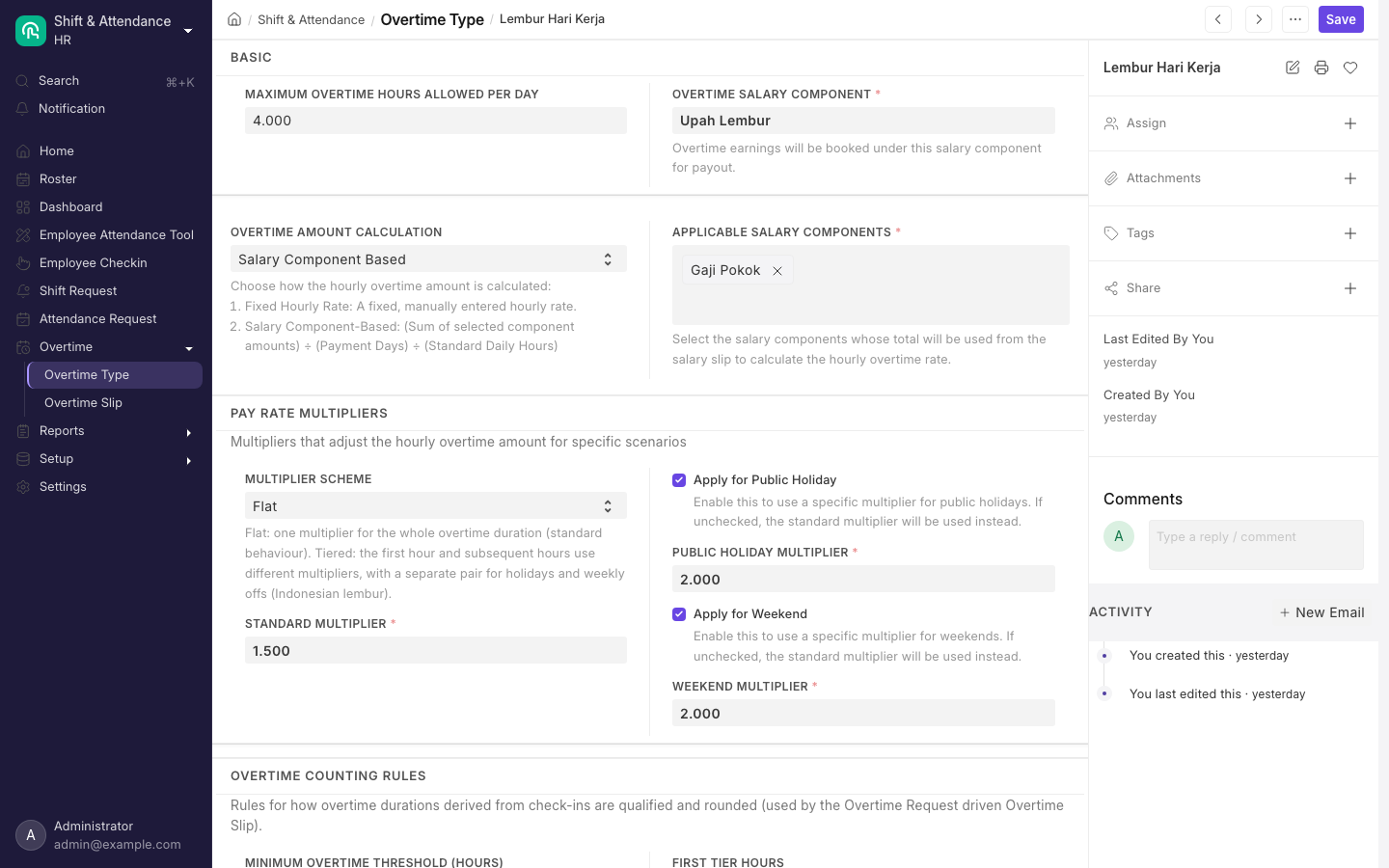
An Overtime Type. Multiplier Scheme selects flat or tiered rates; tiered is the Indonesian lembur pattern.
What the Indonesian setup already did for you
On a GARP install, most of the setup above is done for you by the Indonesian overtime setup. Check what it left you before building anything by hand:
- Custom Overtime Request Approver fields on Employee (a link to a user) and Department (a Department Approver table).
- An Earning Salary Component Upah Lembur, abbreviation
LMB, with Depends on Payment Days off and no formula — the amount always comes from an Additional Salary. - An Overtime Type named Lembur GARP: Monthly Divisor method at 173, Tiered scheme at 1.5 / 2 on workdays and 3 / 4 on holidays, one-hour minimum threshold on Daily Total basis, first tier one hour, half-hour rounding, no daily cap. Applicable components Gaji Pokok and Masa Kerja, where those components exist.
- Allow Overtime, Overtime Type and Mark Auto Attendance on Holidays set on every Shift Type that already had auto attendance enabled. Shift start and end times are never touched.
- Create Overtime Slip For Eligible Employee(s) ticked in Payroll Settings.
A second setup step disables the legacy earnings components Lembur, Lembur HR and Lembur Rutin, which referred to salary slip figures that never existed. They are disabled rather than deleted, and any Salary Structure still naming one is printed while the setup runs, for you to review by hand. Check your structures.
Then fill in the part no automatic setup can do: set Overtime Request Approver on each Employee, or fill in the table on each Department.
Setup checklist
- An Earning Salary Component for overtime, with its tax and payment-days settings decided.
- At least one Overtime Type with a rate method, a multiplier scheme and counting rules.
- Overtime Request Approver set on every Employee, or the equivalent table on their Department.
- Shift Types with Allow Overtime ticked, an Overtime Type selected, and auto attendance running.
- Mark Auto Attendance on Holidays ticked, if you pay holiday overtime.
- Accurate Holiday Lists, including weekly offs.
- A submitted Salary Structure Assignment for every employee who will get a slip.
- Create Overtime Slip For Eligible Employee(s) ticked in Payroll Settings, to drive it from a Payroll Entry.
- At least one person holding HR User or Leave Approver, since System Manager cannot cancel a slip.
What you do every month
This is the answer to the question everyone asks first: an Overtime Request can be raised before or after attendance is uploaded, but the Overtime Slip must come after both.
The slip does not read overtime off Attendance. It starts from approved Overtime Requests, and for each date those cover it looks for submitted Attendance with status Present. Paid hours are then the part of the worked time that falls both outside the shift window and inside an approved request window.
- Overtime Request (SPL) for each stint of overtime, submitted with status Approved. This is the authorisation, and it is what the slip is driven by. Raise it before the work where you can — that is the point of an SPL — but a request entered afterwards still counts, as long as it exists before step 3. See Raise and approve an overtime request (SPL).
- Attendance for those dates: submitted, status Present, with in and out times. Upload or generate it however you normally do — from check-ins with auto attendance, from the Employee Attendance Tool, or by import. Order relative to step 1 does not matter.
- Overtime Slip, once 1 and 2 are both in place. Fetching pulls one row per date that has an approved request and submitted Present attendance. See Create and submit an Overtime Slip.
- Submit the slip. It creates one submitted Additional Salary per salary component.
- Run payroll. The Salary Slip picks up Additional Salary earnings whose payroll date falls inside its period, and overtime appears as a named earnings line. See Run overtime inside a payroll run.
Raise and approve an overtime request (SPL)
The Overtime Request is the SPL, the surat perintah lembur. An employee or HR raises it, the named approver submits it with status Approved, and only then can those hours be paid. Each request covers one employee, one date, one time window, one Overtime Type and one approver.
- At
/app/overtime-request, set Employee. Company, Department and Approver fill in from the employee record. - Set Overtime Date, Overtime Type, From Time and To Time. Keep the window inside 12 hours and start it on the overtime date or just past midnight.
- Save. Every time you save, GARP shares the document with the approver and gives them permission to
submit it, and tells you so:
Shared document with the user {0} with 'Submit' permission. That is how a line manager who holds no HR role can approve. Change the approver and the old share is removed. - The approver sets Status to
Approved(orRejected) and submits. A Draft cannot be submitted.
Employees can raise a request but never approve their own.
The approver list is stricter than the dropdown. The Approver field offers the employee's own
Overtime Request Approver plus anyone listed in the Overtime Request Approver table on the
employee's Department or any of its parent departments. The check that runs when you save looks only
at the employee's own Department. So an approver inherited from a parent department is offered to you by
the dropdown and then rejected on save with the message Only Approvers can Approve this Request. Set
the approver on the employee, or on their own Department, to avoid this.
Both Overtime Request Approver fields are extra fields added to Employee and Department by the Indonesian overtime setup, sitting immediately after Shift Request Approver.
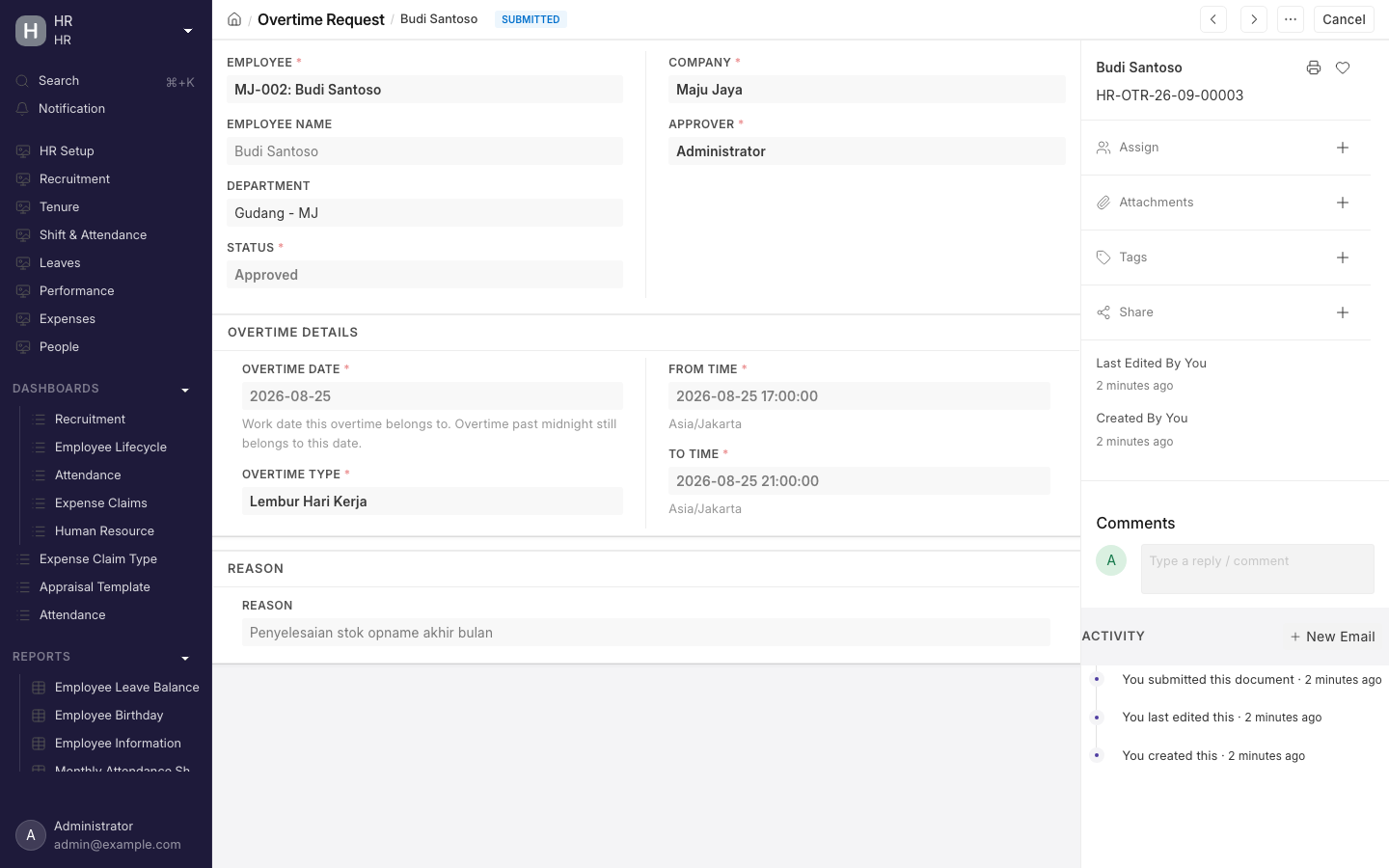
An Overtime Request. The from and to times are the window that authorises the overtime; only worked time inside it is paid.
Create and submit an Overtime Slip
One slip covers one employee for one payroll period.
- At
/app/overtime-slip, create a slip and set Employee, Posting Date and Company. - Start Date and End Date fill from the payroll frequency on the Salary Structure assigned to that employee on the posting date.
- Click Fetch Overtime Details. Read any orange skipped-dates message before going further.
- Add or correct rows by hand, then save.
- Submit.
Generating the slip too early is the mistake to avoid. A date with an approved request but no submitted Attendance yet is skipped silently — it is not an error, and the row simply does not appear. If a day is missing from a slip, check that its Attendance is submitted and marked Present, then fetch again. Fetching empties the table and rebuilds it, so add any hand-entered rows after fetching, never before.
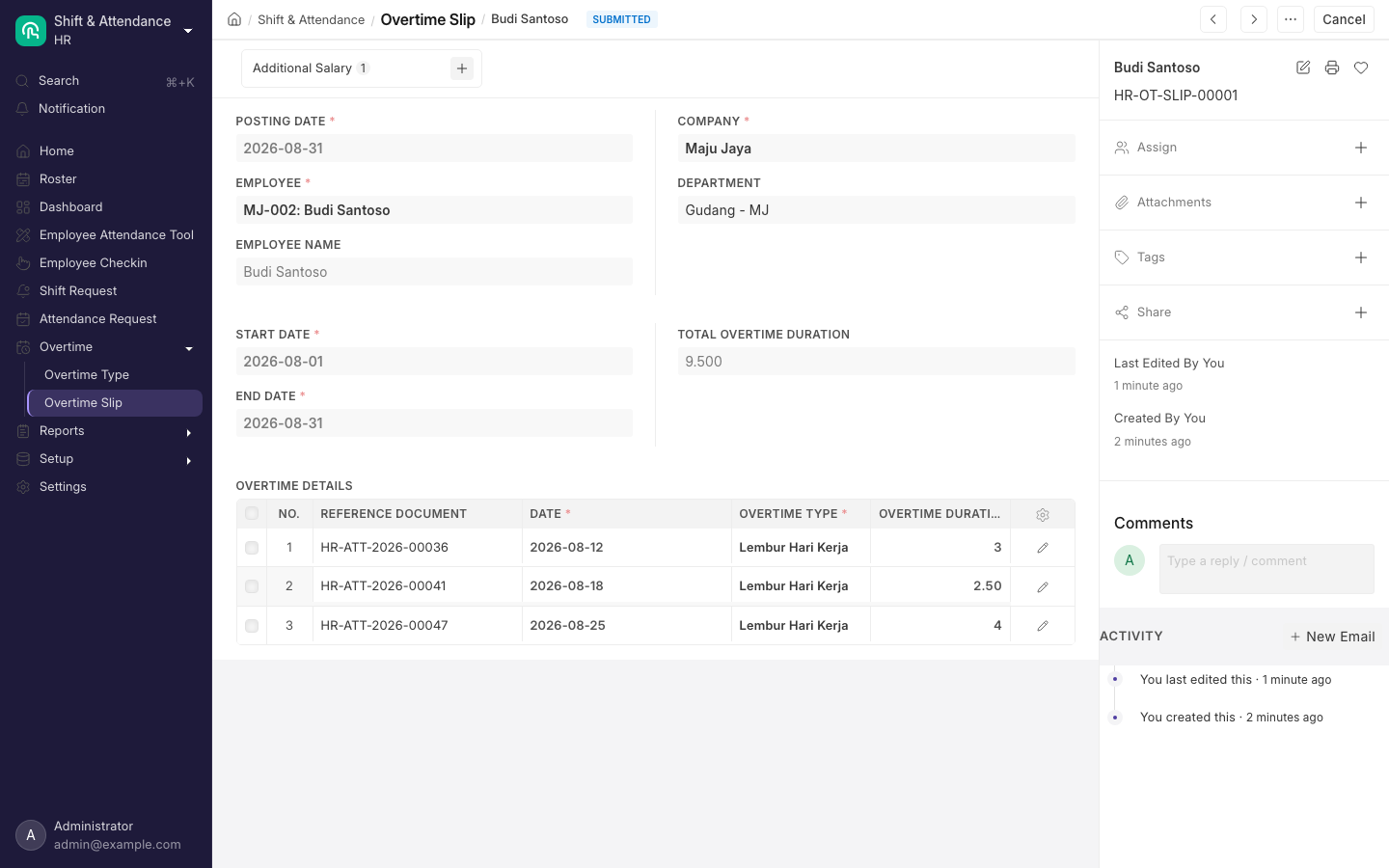
The end of the chain: an Overtime Slip with one row per approved date, each linked back to the Attendance it was measured from.
What happens when you submit
Submitting groups every row by its type's Overtime Salary Component, prices each row and adds up the amounts per component. For each component with a positive total it creates and submits one Additional Salary:
- Amount rounded to the currency precision set in System Settings
- Payroll Date set to the slip's End Date
- Overwrite Salary Structure Amount forced to
0, so overtime adds to the structure rather than replacing a line - Reference Document Type and Reference Document pointing back at the slip
Nothing else is written. No ledger entries, no emails, no fields updated on Attendance or on the
Overtime Requests. The Additional Salary runs its own checks, so a missing Salary Structure Assignment
shows up here as There is no Salary Structure assigned to {0}. First assign a Salary Structure.
Each Salary Slip then picks up submitted Additional Salary earnings whose payroll date falls inside its period, so overtime arrives as a named earnings line.
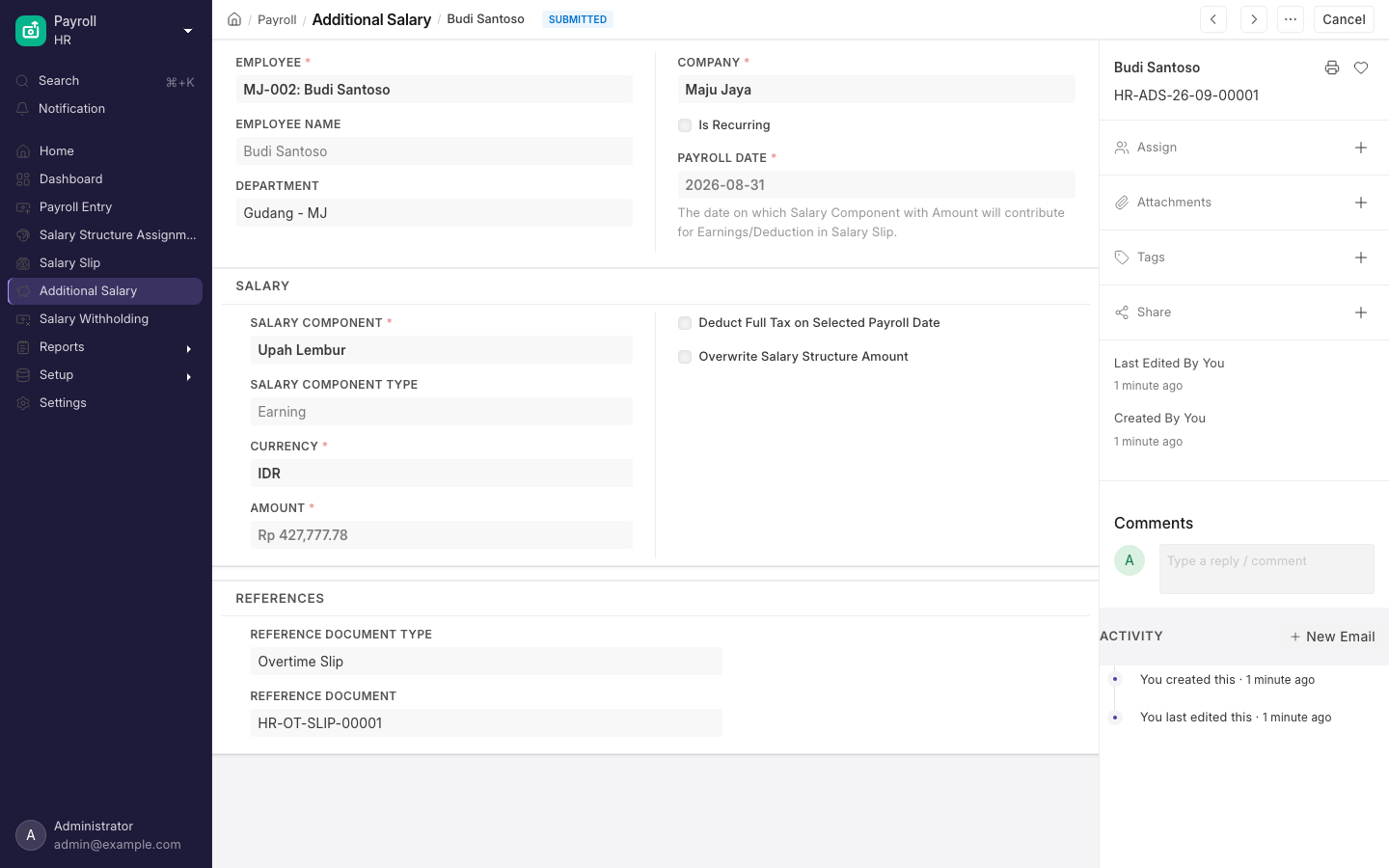
Submitting the slip creates one Additional Salary per salary component. This is what a Salary Slip actually reads.
If you need to undo a slip
Cancelling an Overtime Slip cancels every submitted Additional Salary that references it. A cancelled slip cannot double-pay. Cancel the slip before the Salary Slip is generated, or the earnings line stays on an already-generated slip.
No role can amend an Overtime Slip and System Manager cannot cancel one — see Who can do what with an Overtime Slip before you plan a correction.
Run overtime inside a payroll run
- In Payroll Settings, under Other Settings, tick Create Overtime Slip For Eligible Employee(s).
- Create a Payroll Entry (
/app/payroll-entry) and click Get Employees. - Create Overtime Slips replaces the usual Create Salary Slips action. It drafts slips for
employees who have an approved Overtime Request in the period and no overlapping slip, links them to
the entry and fetches their details. Above 30 employees it runs in the background, sets the entry
status to
Queuedand tells youOvertime Slip creation is queued. It may take a few minutes. Failures set the status toFailedand list each employee's error under Overtime Slip Creation Failed. - The button then becomes Submit Overtime Slips, which submits every draft slip attached to the entry, again in the background above 30.
- Create Salary Slips returns once no overtime step is outstanding.
Which button you see is decided when the form loads: draft slips attached to the entry mean Submit, otherwise eligible employees with no slip yet mean Create, otherwise the normal primary action. Reload the Payroll Entry after a queued job finishes to advance the button.
Add an overtime row by hand
The overtime fields on Attendance are read-only, so you cannot key overtime onto an attendance record. Manual overtime goes in as rows on the Overtime Slip, where Date, Overtime Type, Overtime Duration and Standard Working Hours are required and Reference Document stays blank.
Manual rows are checked against Maximum Overtime Hours Allowed Per Day and rejected with the message
Overtime Duration for {0} is greater than Maximum Overtime Hours Allowed. Fetched rows skip that check
because they were already trimmed to the cap when the table was built.
Fetch Overtime Details empties the table and rebuilds it. Add hand-entered rows after fetching,
never before. If there is no approved request in the period, the fetch stops with the message
No approved Overtime Requests found for employee {0} between {1} and {2} and the table is left alone.
Why a day is missing from a slip
A date with an approved request that produced no row is not treated as an error and does not stop the
slip. GARP tells you in an orange message:
Overtime Requests skipped for date(s) {0}: no submitted Present attendance, checkin data or applicable shift found.
Read it — those are unpaid hours somebody expects to be paid.
Work through these causes:
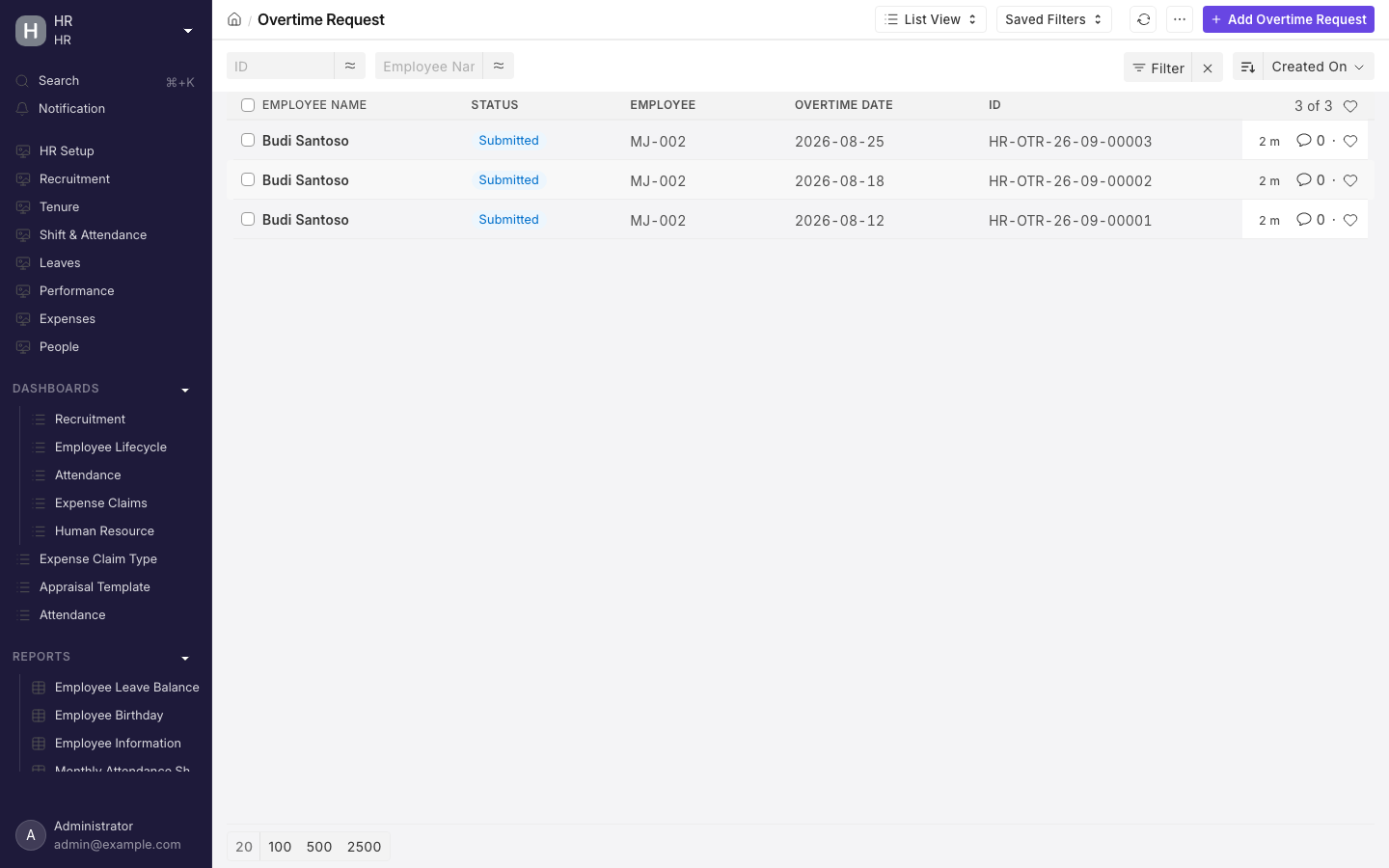
The Overtime Request list. Filter by employee and date to check a request exists for the missing day, and that its status really is Approved.
- The Attendance is not submitted, or is not marked Present. The slip only matches a submitted Attendance with status Present. Fix the attendance record, then fetch again.
- The day was left at Half Day. See the warning below.
- It was a weekly off or public holiday and no Attendance exists at all. Auto attendance skips holidays unless Mark Auto Attendance on Holidays is ticked on the Shift Type. Without it, no Attendance exists on a weekly off or public holiday, so Fetch Overtime Details will skip exactly the days your holiday multipliers were meant for. The Indonesian setup ticks this box on every shift that already had auto attendance enabled.
- It is a working day and the Attendance carries no shift. The fetch drops any non-holiday date whose Attendance carries no shift and names it in the skipped-dates message, so a broken or missing Shift Assignment silently loses the overtime. Only on a Holiday List date does a missing shift fall through to holiday mode.
- The hours fell outside the approved window. Anything worked outside the SPL is unpaid, and on a working day anything inside the shift window is ordinary time, not overtime.
- The hours did not clear the minimum threshold, or were floored away by the rounding increment. See How paid hours are worked out.
- There was no approved request in the period at all, in which case the fetch stops with the message
No approved Overtime Requests found for employee {0} between {1} and {2}and nothing is fetched.
Overtime fields are written only when the attendance record is created. If auto attendance updates an existing Half Day record instead, the overtime block is skipped entirely. The slip skips that date entirely: it only matches a submitted Attendance with status Present, and a record left at Half Day is never found — the date turns up in the orange skipped-dates message and pays nothing.
Reports
No overtime-specific report ships. Use the Monthly Attendance Sheet and Shift Attendance reports, both listed under Reports in the Shift & Attendance workspace, to audit the hours; the Overtime Slip and Overtime Request list views in report view for the documents themselves; and Salary Register to see the Upah Lembur column once payroll has run. Overtime Slip appears under Payroll in the Employee dashboard's connections.
Indonesian statutory overtime: what is and is not built in
Kepmenaker 102/2004, carried forward under PP 35/2021, expects overtime on a normal working day at 1.5x the hourly rate for the first hour and 2x for every hour after, with a separate and steeper escalating scale on weekly rest days and public holidays. The hourly rate is conventionally 1/173 of the monthly wage.
What GARP ships:
- The 1/173 hourly rate, as
Salary Component Based (Monthly Divisor)with the divisor defaulted to 173 and configurable. - The workday 1.5x / 2x escalation, as the Tiered multiplier scheme with First Tier Hours at 1.
- A separate holiday pair, defaulting to 3x and 4x.
- An SPL requirement — no approved Overtime Request means no paid overtime, and the request window caps what can be claimed.
- A minimum threshold and half-hour rounding, both configurable.
What it does not ship:
- A three-band holiday scale. PP 35/2021's rest-day rates step at the eighth and ninth hour. The
Tiered scheme has exactly two bands and one boundary, First Tier Hours, shared by workdays and
holidays. You can approximate the first two bands with a second Overtime Type — say
Lembur Hari Liburwith First Tier Hours 8, holiday multipliers 2 and 3 — and select it on holiday Overtime Requests. The fourth-band 4x rate is then unreachable, and First Tier Hours 8 would be wrong for workdays, which is why it must be a separate type. - Any distinction between a weekly off and a public holiday under the Tiered scheme. Both take the holiday pair. Only the Flat scheme separates them, and Flat has no first-hour escalation. You cannot have both at once on one type.
- The six-day-week variant of the rest-day scale, or the shorter-working-day rule.
- Anything in a regional Indonesian module. GARP's regional folder,
hrms/regional/, containsindiaandunited_arab_emiratesonly. The Indonesian overtime behaviour lives in the standard Overtime forms plus the two setup steps, not in a regional module, so it applies to every company on the install.
There is no built-in PPh 21 treatment specific to overtime. The Upah Lembur component's tax behaviour is whatever you set on the Salary Component, and BPJS bases are unaffected by anything on this page. Check the first run's figures with your payroll advisor.
Details, limits and edge cases
Everything from here down is reference. You do not need it to run a normal month — reach for it when you are building a rate card, chasing a refused save, or explaining a figure to someone.
The documents involved
- Overtime Request — the SPL (surat perintah lembur). Submittable, named
HR-OTR-.YY.-.MM.-.#####, one employee, one date, one time window, one Overtime Type, one approver. Only submitted requests with status Approved count. - Overtime Type — the rate card: which salary component the payout is booked under, how the hourly rate is derived, the multiplier scheme, the counting and rounding rules, and a per-day cap. You type the name yourself.
- Overtime Salary Component — the table inside an Overtime Type listing the earnings components that feed the hourly rate. It has one column: Salary Component.
- Attendance — supplies the day's worked time. Its Overtime Type, Standard Working Hours and Actual Overtime Duration fields are read-only and informational; the slip does not read them.
- Overtime Details — the table inside a slip, one row per date: Reference Document, Date, Overtime Type, Overtime Duration, Standard Working Hours, Maximum Overtime Hours Allowed.
- Overtime Slip — submittable, named
HR-OT-SLIP-.#####, covering a date range for one employee. - Additional Salary — created and submitted automatically from the slip. This is what a Salary Slip actually reads.
How the pieces connect
Overtime Type (rate, multipliers, counting rules)
  -> Overtime Request  (employee + date + from/to time, submitted as Approved)
       |
Shift Type (Allow Overtime + Overtime Type, Enable Auto Attendance)
  -> Shift Assignment (Overtime Type, overridable per employee)
    -> Employee Checkin (stamped with the shift's Overtime Type)
      -> Attendance (Present, in/out times, linked check-ins)
       |
       +--> Overtime Slip: paid hours = worked time INTERSECT approved request window
              -> Additional Salary (one per salary component, submitted)
                -> Salary Slip earnings, inside a Payroll Entry
Ordering matters. Salary Component and Overtime Type before Shift Type; Shift Type and Shift Assignment before check-ins; check-ins and attendance before the Overtime Request is useful; approved requests before the slip; the slip before the Salary Slip.
The Overtime Request form: every field
| Field | Type | Notes |
|---|---|---|
| Employee | Link, required | Must not have status Inactive |
| Employee Name, Department | fetched, read-only | From the Employee record |
| Status | Select, required | Draft (default), Approved, Rejected |
| Company | Link, required | Fetched from the employee if empty |
| Approver | Link to User, required | Fetched from the employee's Overtime Request Approver if empty |
| Overtime Date | Date, required | The work date the overtime belongs to. Overtime past midnight still belongs to this date |
| Overtime Type | Link, required | Decides the rate and counting rules for that day |
| From Time, To Time | Datetime, required | The authorised window, to the minute |
| Reason | Small Text | Free text, not used in any calculation |
What an Overtime Request refuses
GARP refuses to save or submit the request, and shows you one of these messages:
| Message | Cause |
|---|---|
Transactions cannot be created for an Inactive Employee {0}. | Employee status is Inactive |
To Time must be after From Time | Zero-length or reversed window |
From Time must fall on the Overtime Date or the following day | The window may start on the overtime date or just past midnight of the next day, nothing else |
Overtime window cannot exceed 12 hours | Fixed ceiling on a single request |
Employee {0} already has Overtime Request {1} overlapping this time window | Title: Overlapping Overtime Requests. Checked against every request for that employee that is not cancelled and not Rejected |
Only Approvers can Approve this Request. | The approver is not on the employee's own Department |
Only Overtime Request with status 'Approved' and 'Rejected' can be submitted | Shown on submit when Status is still Draft |
A Rejected request does not block a replacement for the same window — the overlap check ignores them. A cancelled one does not block either.
Who can do what with an Overtime Request
| Role | Create | Write | Submit | Cancel | Amend | Delete |
|---|---|---|---|---|---|---|
| Employee | yes | yes | no | no | no | no |
| HR User | yes | yes | yes | no | no | no |
| HR Manager | yes | yes | yes | yes | yes | yes |
The approver gets submit rights on their own documents through the share, not through a role. Employees can raise but never approve their own request.
What an Overtime Type configures
| Field | Default | What it does |
|---|---|---|
| Overtime Salary Component | — | Required. The Salary Component the payout is booked under. Make it an Earning or the money lands in deductions |
| Maximum Overtime Hours Allowed Per Day | blank | Blank or zero means no cap. Trims fetched rows, rejects manual ones |
| Overtime Amount Calculation | Salary Component Based | One of three routes to an hourly rate, below |
| Applicable Salary Components | — | Mandatory for both component-based methods. The earnings summed to form the rate |
| Hourly Rate | — | Mandatory and visible only for Fixed Hourly Rate |
| Monthly Hours Divisor | 173 | Mandatory and visible only for Salary Component Based (Monthly Divisor) |
| Multiplier Scheme | Flat | Flat or Tiered (First Hour / Subsequent) |
| Standard Multiplier | 1 | Required, hidden under the Tiered scheme |
| Apply for Weekend / Weekend Multiplier | off | Flat scheme only. Applies to Holiday List dates flagged as weekly off |
| Apply for Public Holiday / Public Holiday Multiplier | off | Flat scheme only. Applies to Holiday List dates not flagged as weekly off |
| First Hour Multiplier (Workday) | 1.5 | Tiered scheme only |
| Subsequent Hours Multiplier (Workday) | 2 | Tiered scheme only |
| First Hour Multiplier (Holiday / Weekly Off) | 3 | Tiered scheme only. Covers public holidays and weekly offs alike |
| Subsequent Hours Multiplier (Holiday / Weekly Off) | 4 | Tiered scheme only |
| Minimum Overtime Threshold (Hours) | 1 | Workdays only. Duration must exceed it |
| Threshold Basis | Daily Total | Or Per Segment |
| First Tier Hours | 1 | Does double duty: the band paid at the first-hour multiplier, and the block granted whole before rounding starts |
| Rounding Increment (Hours) | 0.5 | Time past the first tier is floored to multiples of this. Zero disables rounding |
The three rate methods
- Salary Component Based (the default on a new Overtime Type). When you submit the slip, GARP builds
a preview salary slip from the employee's assigned Salary Structure at the slip's Start Date, adds up
the chosen components on it while ignoring anything sourced from an Additional Salary, divides by that
preview's payment days (floored at 1), then by the row's Standard Working Hours. Payment days
follow Calculate Payroll Working Days Based On and Include holidays in Total no. of Working
Days in Payroll Settings (
/app/payroll-settings). - Salary Component Based (Monthly Divisor). The same component sum divided by Monthly Hours Divisor — 173 by default, the Indonesian convention. Payment days and Standard Working Hours are ignored entirely, so the rate is stable across months. This is what the Indonesian setup installs.
- Fixed Hourly Rate. One currency amount typed on the type itself, identical for everyone using it.
A preview salary slip is still built for the Monthly Divisor method, so an employee with no submitted Salary Structure Assignment cannot be priced under either component-based method.
The two multiplier schemes
Flat prices a row as duration times hourly rate times exactly one multiplier, chosen from the employee's Holiday List: a weekly off takes the Weekend Multiplier if Apply for Weekend is ticked, a listed date that is not a weekly off takes the Public Holiday Multiplier if Apply for Public Holiday is ticked, everything else takes the Standard Multiplier. Leave a box unticked and that day falls back to the standard multiplier.
Tiered splits the row. Hours up to First Tier Hours take the first-hour multiplier and the rest take the subsequent multiplier. On any Holiday List date — weekly off or public holiday, no distinction — the holiday pair applies instead. Under Tiered, Apply for Weekend, Apply for Public Holiday, Weekend Multiplier, Public Holiday Multiplier and Standard Multiplier are all ignored.
What an Overtime Type refuses
GARP refuses to save the type, and shows you one of these messages:
Select Applicable Components for Overtime Type— a component-based method with an empty Applicable Salary Components table.Monthly Hours Divisor must be greater than 0— Monthly Divisor method with a blank or zero divisor.First Hour Multiplier (Workday) must be greater than 0 for the Tiered multiplier scheme, and the same for the other three tiered multipliers — any of them blank or zero under the Tiered scheme.
Every multiplier, the threshold, the tier size, the increment and the daily cap are marked non-negative, so negative numbers are rejected by the field itself.
Who can do what with an Overtime Type
System Manager has full rights. HR Manager can create, read, write and delete. HR User can
only pick a type in a link field — not enough to open /app/overtime-type or read a rate card. If your
payroll clerk needs to inspect the multipliers, give them HR Manager or add a role permission.
The Overtime Slip form: every field
| Field | Notes |
|---|---|
| Posting Date | Required, defaults to today. Drives which Salary Structure Assignment is looked up |
| Employee, Company | Required. Company is fetched from the employee |
| Employee Name, Department | Fetched from the employee |
| Start Date, End Date | Required. Filled automatically from the payroll frequency of the assigned Salary Structure |
| Total Overtime Duration | Read-only. Recalculated by the fetch only, never by manual edits |
| Salary Slip | Read-only. Nothing ever fills it in |
| Payroll Entry | Read-only, shown only when the slip came from a Payroll Entry |
| Overtime Details | Required. The table inside the form, one row per date |
What the Overtime Slip refuses
GARP refuses to save, fetch or submit, and shows you one of these messages:
| Message | Cause |
|---|---|
Salary Structure not assigned for employee {0} for date {1} | No submitted Salary Structure Assignment on the posting date, so no payroll frequency and no period |
Start date cannot be greater than end date | Dates reversed |
Overtime Slip:{0} has been created between {1} and {2} | Any non-cancelled slip for that employee overlapping the period |
Date {0} is repeated in Overtime Details | The same date twice in one slip |
Overtime Duration for {0} is greater than Maximum Overtime Hours Allowed | A hand-entered row above the type's daily cap |
No approved Overtime Requests found for employee {0} between {1} and {2} | Shown by Fetch Overtime Details |
Overtime Requests for {0} use different Overtime Types; use one type per day | Two approved requests on one date pointing at different types |
Please fill in Employee, Posting Date, and Company before fetching overtime details. | Shown in the browser before the fetch runs, under the title Missing Fields |
Dates with an approved request but no usable attendance are not fatal — they come back as an orange message instead. See Why a day is missing from a slip.
Who can do what with an Overtime Slip
| Role | Create | Write | Submit | Cancel | Delete |
|---|---|---|---|---|---|
| Employee | yes | yes | no | no | no |
| HR User | yes | yes | yes | yes | yes |
| Leave Approver | yes | yes | yes | yes | yes |
| System Manager | yes | yes | yes | no | yes |
No role ships with amend permission on an Overtime Slip, and System Manager cannot cancel one. The
Amended From field exists but is unreachable until someone adds amend (and, for System Manager,
cancel) through Role Permissions Manager. Plan on cancelling and re-creating rather than amending, and
make sure at least one person holds HR User or Leave Approver.
No approval workflow ships, so submitting is approval. Add a Workflow if you need a second signature.
How hours are captured
On the Shift Type (/app/shift-type), tick Allow Overtime and pick an Overtime Type, which
becomes mandatory once the box is ticked. Enable Auto Attendance must also be on. Each Shift
Assignment (/app/shift-assignment) fetches the type and you can override it there per employee or
period. A punch inside the shift window is stamped with that type on the Employee Checkin.
When auto attendance builds the day's record and the status is Present, GARP writes three read-only fields onto the newly created Attendance: Overtime Type, Standard Working Hours and Actual Overtime Duration. The Attendance Overtime section only appears when Overtime Type is filled.
Standard Working Hours is the shift's End Time minus its Start Time, rounded to two decimals. Overnight
shifts are handled, but no break is deducted — an 08:00 to 17:00 shift counts as nine standard
hours, not eight. Actual Overtime Duration is boundary-based: minutes before the shift start plus
minutes after the shift end, so a late arrival cannot manufacture overtime. Only when in/out times are
missing does it fall back to working hours minus standard hours.
Actual Overtime Duration is informational. The Overtime Slip never reads it. Paid hours are recomputed from scratch on the slip against the approved request windows. Treat the Attendance figure as a sanity check when someone disputes a slip, not as the number that pays.
How paid hours are worked out
For each date that has an approved request, the slip does this:
- Find one submitted Present Attendance for that employee and date. No Attendance, no row.
- Rebuild the worked intervals from the Employee Checkins linked to that Attendance, using the shift's Determine Check-in and Check-out and Working Hours Calculation Based On settings. If no usable check-ins exist, fall back to the Attendance in/out times as a single interval.
- Decide holiday mode. A date in the employee's Holiday List — weekly off or public holiday alike — is holiday mode. A Holiday List date whose Attendance carries no shift is also holiday mode; a workday whose Attendance carries no shift is skipped outright and pays nothing.
- On a workday, keep only the parts of the worked intervals lying outside the shift window. In holiday mode, keep everything worked.
- Intersect the result with the approved request windows. Anything outside the SPL is unpaid.
- Apply the minimum threshold and rounding from the Overtime Type.
- Cap at Maximum Overtime Hours Allowed Per Day if that is above zero.
Step 6 is worth spelling out. Raw hours must exceed the threshold, not merely reach it: at a one-hour threshold, exactly 1.00 hours pays nothing and 1.01 hours pays. Once past the threshold, the first tier is granted in full and only the remainder is floored to the rounding increment. Holiday mode uses a threshold of zero, so a short holiday call-out is floored directly.
| Raw hours | Threshold 1, first tier 1, increment 0.5 | Holiday mode (threshold 0) |
|---|---|---|
| 0.30 | 0.0 | 0.0 |
| 0.70 | 0.0 | 0.5 |
| 0.99 | 0.0 | 0.5 |
| 1.00 | 0.0 | 1.0 |
| 1.01 | 1.0 | 1.0 |
| 1.49 | 1.0 | 1.0 |
| 1.50 | 1.5 | 1.5 |
| 2.70 | 2.5 | 2.5 |
Threshold Basis decides whether the threshold is tested once or twice. On Daily Total the day's
whole qualifying duration is tested together. On Per Segment the morning (intervals ending at or
before the shift start) and the evening are tested and rounded separately, then added — which usually
pays less, because a short morning stretch is discarded rather than topped up by the evening. Holiday
mode ignores this setting.
Worked examples
PT Maju Jaya runs the shipped Lembur GARP type: Monthly Divisor 173, Tiered 1.5 / 2 workday and 3 / 4 holiday, threshold 1 hour on Daily Total, first tier 1 hour, rounding 0.5, no cap. Applicable components are Gaji Pokok and Masa Kerja.
Sari Dewi, a long Tuesday
Gaji Pokok IDR 6,000,000 plus Masa Kerja IDR 500,000. Shift 08:00–17:00. She badges in at 07:55
and out at 20:10. Her SPL is approved for 17:00–21:00.
Hourly rate      6,500,000 / 173             = 37,572.25
Outside shift    07:55-08:00 and 17:00-20:10 = 0h05m + 3h10m
Inside the SPL   17:00-20:10 only            = 3.1667h   (the 5 minutes fall outside the SPL)
Threshold        3.1667 exceeds 1            -> qualifies
Rounding         1.0 + floor(2.1667 / 0.5) x 0.5 = 1.0 + 2.0 = 3.0h paid
Amount           37,572.25 x (1 x 1.5 + 2 x 2.0) = 37,572.25 x 5.5 = IDR 206,647.40
An Indonesian payroll clerk pricing 3 hours 10 minutes without rounding would post
37,572.25 x (1.5 + 2.1667 x 2) = IDR 219,171.48. The product pays 206,647.40, because the
half-hour floor discards the last ten minutes. That is a policy choice on the Overtime Type, not a bug:
set Rounding Increment to 0 and you get the unrounded figure.
Budi Santoso, a public holiday
Gaji Pokok IDR 4,500,000, no Masa Kerja. Same 08:00–17:00 shift, but the date is in his Holiday List
as Tanggal Merah. He works 08:30–11:10 and the SPL covers 08:00–12:00.
Hourly rate      4,500,000 / 173                 = 26,011.56
Holiday mode     all worked time counts          = 2h40m = 2.6667h
Threshold        none on a holiday
Rounding         1.0 + floor(1.6667 / 0.5) x 0.5 = 1.0 + 1.5 = 2.5h paid
Amount           26,011.56 x (1 x 3 + 1.5 x 4)   = 26,011.56 x 9 = IDR 234,104.05
Note what holiday mode changes: he worked entirely inside the shift window and would have earned nothing on a workday. This row only exists because Mark Auto Attendance on Holidays is ticked and an Attendance was created.
PP 35/2021's rest-day scale runs at 2x for the first seven or eight hours before escalating. The shipped 3 / 4 pair is more generous from the first hour. If you want the statutory shape, see Indonesian statutory overtime.
Rina Halim, Daily Total against Per Segment
Gaji Pokok IDR 8,000,000. Shift 08:00–16:30. She works 07:15–18:06 with an SPL covering
07:00–20:00, so both stretches are authorised: 45 minutes in the morning and 1 hour 36 minutes in
the evening.
Hourly rate      8,000,000 / 173 = 46,242.77

Daily Total      0.75 + 1.60 = 2.35h -> 1.0 + floor(1.35 / 0.5) x 0.5 = 2.0h
                 46,242.77 x (1 x 1.5 + 1.0 x 2.0) = x 3.5 = IDR 161,849.71

Per Segment      morning 0.75 does not exceed 1  -> 0h
                 evening 1.60 -> 1.0 + floor(0.60 / 0.5) x 0.5 = 1.5h
                 46,242.77 x (1 x 1.5 + 0.5 x 2.0) = x 2.5 = IDR 115,606.94
One dropdown, a difference of IDR 46,242.77 on a single day. Per Segment is the stricter reading, and
it is not the default.
What the rate method costs you
Sari Dewi's 3.0 paid hours, same multipliers, three rate methods:
| Method | Hourly rate | Amount |
|---|---|---|
| Monthly Divisor, 173 | 6,500,000 / 173 = 37,572.25 | IDR 206,647.40 |
| Salary Component Based, 31 payment days, 9 standard hours | 6,500,000 / 31 / 9 = 23,297.49 | IDR 128,136.20 |
| Salary Component Based, 28 payment days, 9 standard hours | 6,500,000 / 28 / 9 = 25,793.65 | IDR 141,865.08 |
The component-based method understates the 1/173 rate by roughly a third, and the rate moves every
month because payment days move. It also divides by the shift span, which includes the unpaid lunch
break. Use Salary Component Based (Monthly Divisor) for Indonesian payroll.
Edge cases and gotchas
- First Tier Hours does two jobs. It is the pricing boundary and the block granted whole before rounding kicks in. Change it for one purpose and you change the other.
- Standard Multiplier stays required even though it is hidden under the Tiered scheme. Its default of 1 keeps saves working; do not clear it.
- Standard Working Hours can be written as zero. When the fetch cannot resolve a shift it records 0.
Under
Salary Component Basedthat is the divisor, so the slip fails on submit. Neither component-based method needs it if you use the Monthly Divisor, which ignores the field. - Overlap is checked on From Time / To Time alone, never on Overtime Date. Two requests on the same date are fine as long as their windows do not overlap, and are then merged into one row — as long as they name the same Overtime Type.
- One row per date, one slip per period. A date cannot repeat in a slip and slips cannot overlap for one employee, so a day cannot be split across two rates.
- Fetch Overtime Details saves the document. It rewrites the table, recalculates Total Overtime Duration and saves, discarding unsaved manual edits.
- The Salary Slip field on an Overtime Slip is never populated. Trace a payout through the slip's Connections to the Additional Salary instead.
- Attendance in/out times are the fallback, not the source. Manual attendance with no check-ins still produces a single worked interval, so hand-marked days can be paid — provided an approved request covers them.
What runs automatically in the background
Nothing on a schedule creates, approves or submits overtime documents. Two jobs run every hour to feed the raw material:
- One advances each Shift Type's marker for how far check-ins have been read.
- The other marks Attendance from check-ins for every shift with Enable Auto Attendance on, and writes the informational overtime fields onto newly created Present records.
The only other background work is the Payroll Entry's own queues: overtime slip creation and submission are queued once more than 30 employees or slips are involved.