Leave
Leave is where you decide what kinds of time off your company gives, hand every employee their days for the year, and approve or reject the requests that come in. HR staff do the setting up; each employee applies for their own leave and can see what is left. Everything lives in the Leaves workspace at /app/leaves.
When a request is approved, GARP marks attendance for those days by itself. The days only affect pay if the leave type is set up as unpaid or partly paid.
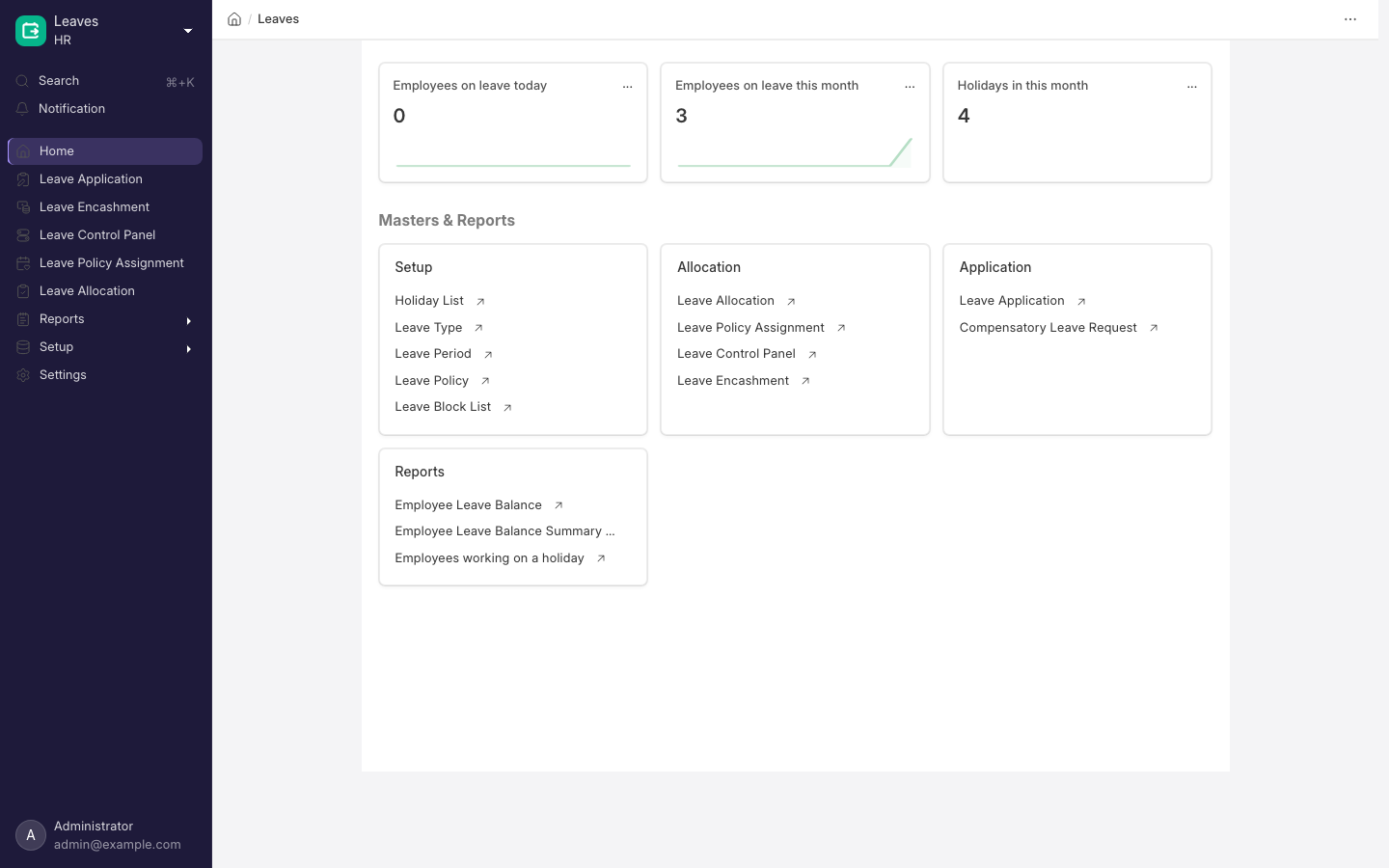
The Leaves workspace.
What you probably came here to do
- Give everyone their leave days for the year
- Approve or reject a leave request
- Add a new kind of leave
- Open next year's leave year
- See how many days someone has left
- Correct a balance that is wrong
- Pay out unused leave
- Give someone a day off for working on a holiday
- Stop leave being taken on certain dates
- Check what Indonesian rules GARP does and does not handle
- Look up a setting, a rule or an error message
Before you start
Have these in place before the first leave request arrives.
- A Holiday List per work pattern, on the Employee or the company. Day counting, compensatory leave validation and attendance skipping all read it.
- Leave types, with Include holidays within leaves as leaves unticked unless you mean it.
- An active Leave Period for the current year, plus an optional holiday list if you use optional leave.
- A submitted Leave Policy, an assignment for every employee, and a Leave Approver on each Employee or Department.
- Leave Encashment Amount Per Day on the Salary Structure or Salary Structure Assignment if you allow encashment.
- HR Settings (
/app/hr-settings, Leaves tab): approver mandatory, prevent self approval, Send Leave Notification and its two templates, Restrict Backdated Leave Application plus the role allowed to override it, Auto Leave Encashment.
Set up your leave types
A leave type is the kind of leave — Annual Leave, Sick Leave, Unpaid Leave. Every rule that governs a leave lives on it.
- Go to
/app/leave-typeand click Add Leave Type. - Name it, then set the options you want. Each one is explained in Leave Type options that change behaviour.
- Repeat for each type PT Maju Jaya offers — Annual Leave with Carry Forward, Sick Leave without, Unpaid Leave with Is Leave Without Pay.
Installing the HR app creates five types for you: Casual Leave (Carry Forward, Allow Encashment, Maximum Consecutive Leaves Allowed 3), Compensatory Off (Is Compensatory), Sick Leave, Privilege Leave and Leave Without Pay (Is Leave Without Pay).
All five ship with Include holidays within leaves as leaves ticked, so a request from Friday to Monday costs four days of balance, not two. Indonesian practice counts working days — untick it on every type you keep. Casual Leave also ships with Allow Encashment on but no Earning Component, so encashing it fails on submit with Please set Earning Component for Leave type: Casual Leave.
Create the leave period for a new year
The leave period is your leave year — usually 1 January to 31 December, one per company.
- Go to
/app/leave-period. - Set From Date 01-01-2026 and To Date 31-12-2026.
- Pick the Company and tick Is Active.
- Set Holiday List for Optional Leave if you use optional-holiday leave. Without it, those applications fail.
To Date must be after From Date, and two periods for one company may not overlap.
Nothing creates next year's leave period for you. Create the 2027 period before the first 2027 compensatory leave request is raised, or it refuses to submit under a No Leave Period Found title. Leave Policy Assignment and the Leave Control Panel also need one when Assignment based on or Dates Based On is Leave Period; a plain Leave Allocation does not.
Give employees their leave balance for the year
A leave policy says how many days each type is worth per year. Assigning that policy to an employee is what actually gives them the days.
Build and assign a leave policy
- At
/app/leave-policy, add a row per leave type with its Annual Allocation, give the policy a Title, and submit. A row above the type's per-period maximum is rejected. - At
/app/leave-policy-assignment, pick the employee (Sari Dewi) and the policy. Only submitted policies are offered. - Set Assignment based on:
- Leave Period fills Effective From and Effective To from the period.
- Joining Date sets them to the Date of Joining and the last day of the month twelve months later.
- Blank means you type both dates yourself.
- Tick Add unused leaves from previous allocations if last year's balance should carry. Types without Carry Forward are skipped, and an alert names each one.
- Submit. Allocations are created for every type except leave-without-pay types, and Leaves Allocated is ticked.
Overlapping assignments for one employee are refused. Re-submitting one that has already allocated gives you Leave already have been assigned for this Leave Policy Assignment.
Allocate for a whole company at once
Open Leave Control Panel, then:
- Filter employees by company, branch, department, designation, grade or employment type.
- Choose Dates Based On — Leave Period, Joining Date or Custom Range.
- Choose either a leave policy, or a single leave type plus New Leaves Allocated (In Days).
- Click Allocate Leave. Carry Forward defaults to ticked.
That list only shows employees who do not already hold a submitted allocation overlapping the chosen dates for the chosen types, so someone missing has usually already been allocated. Failures roll back per employee and are reported with a link to the Error Log.
How many days a mid-year joiner gets
For a type that is not earned leave, the allocation is the annual figure times the fraction of the period worked, rounded to whole days. Sari Dewi joins on 15 July 2026, Annual Leave's annual allocation is 12, the period is calendar 2026.
days from 15 Jul to 31 Dec inclusive = 170
days in the leave period             = 365
12 x 170 / 365                       = 5.589
rounded                              = 6 days
She gets 6 days, not 12 and not 5.5. Joining on or before the period start gives the full figure, and the result is always capped at the annual allocation.
How earned leave is credited
An earned type credits the periods already passed at once and schedules the rest. Budi Santoso, employed since 2025, on Annual Leave set to Monthly, Allocate on Day Last Day, Rounding 0.5, annual allocation 12, assigned 20 June 2026:
per-period accrual       = 12 / 12 = 1.0 day
current period counted?  = no (20 Jun is not the last day of June)
periods passed Jan-May   = 5
credited immediately     = 5.0 days
schedule rows created    = 30 Jun, 31 Jul, 31 Aug, 30 Sep, 31 Oct, 30 Nov, 31 Dec (1.0 each)
total by 31 Dec 2026     = 12 days
A mid-period joiner's first row is pro-rated across that month before rounding: a 10 March joiner earns 22/31 of a day for March, which Rounding 0.5 turns into 0.5.
Apply for leave and approve it
- The employee opens
/app/leave-applicationor the mobile app at/hrms, picks the type and dates, ticks Half Day with a Half Day Date if needed, and writes a Reason. - Leave Balance Before Application and the dashboard table — Total Allocated Leaves, Expired Leaves, Used Leaves, Leaves Pending Approval, Available Leaves — show what is available.
- Leave Approver defaults to the Leave Approver on the Employee record, falling back to the first row of the department's Leave Approver table. Leave Approver Mandatory In Leave Application in HR Settings decides whether it is required, and is on by default.
- The approver sets Status to Approved or Rejected and submits. No other status can be submitted, and Prevent self approval for leaves even if user has permissions in HR Settings blocks an employee approving their own.
- Attendance is written per day as On Leave, or Half Day on the half-day date. Days on the holiday list are skipped unless the type has Include holidays within leaves as leaves.
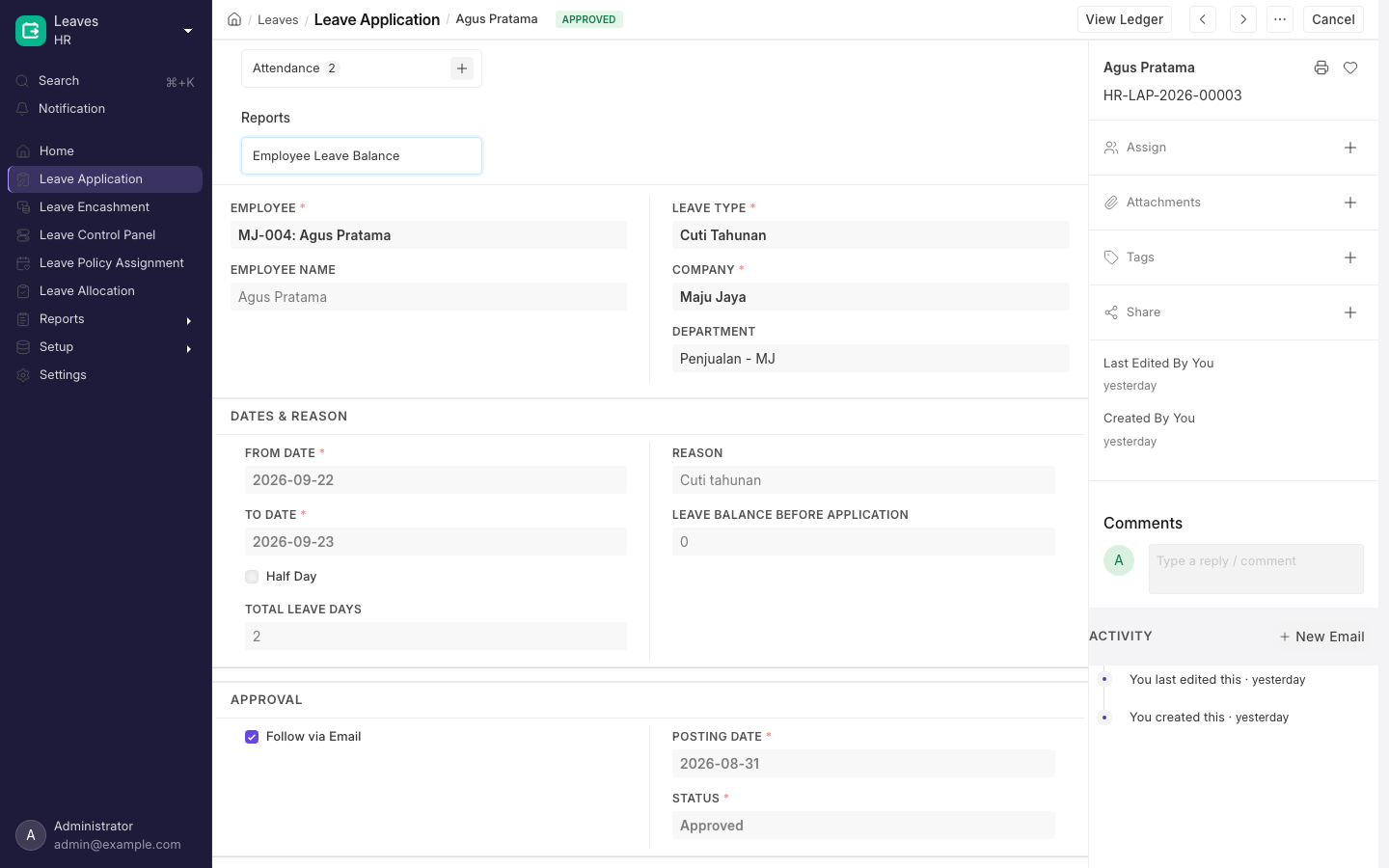
A submitted Leave Application.
Two things about the dropdowns:
- The Leave Type dropdown lists only types the employee holds an allocation for, plus every leave-without-pay type. A missing type means a missing allocation.
- The Leave Approver dropdown adds the Leave Approver tables on their department and every ancestor department.
Saving shares the document with the approver at Submit level if they could not otherwise submit it.
Restrict Backdated Leave Application in HR Settings blocks any From Date before today. Tick it without also setting Role Allowed to Create Backdated Leave Application and nobody can create one at all.
If the form will not save or submit, the exact wording is listed under What the leave application form refuses, and the message. What GARP does behind the scenes on submit and on cancel is under What submitting an approved application does.
Check what leave someone has left
- Employees see their own balance per type on the Leaves tab of the app at
/hrms/dashboard/leaves, and on the Leave Application form itself. - HR sees it in Employee Leave Balance (Opening Balance, New Leave(s) Allocated, Leave(s) Taken, Leave(s) Expired, Closing Balance, with From Date, To Date and Company required).
- Employee Leave Balance Summary is a single-date snapshot, also open to the Leave Approver role.
- Both sit under Reports in the Leaves sidebar, together with Employees working on a holiday.
- Leave Ledger shows the raw entries behind the balance. It is not on the sidebar, so search for it by name.
If a balance looks wrong before you change anything, read Where the balance comes from — the figure is calculated, and expiry dates can make a balance smaller than it looks.
Block leave on certain dates
A Leave Block List is a set of dates on which leave may not be approved. It holds:
- a Company, and an optional Leave Type — name one and the block applies to that type only;
- a required table of Block Date plus Reason. Add Day-wise Dates generates repeating dates from a start date, end date, weekdays and reason;
- an Allow Users table of people who may approve anyway.
It applies company-wide when Applies to Company is ticked, or to one department through the Leave Block List field on that Department. Applying on a blocked date warns on save, and is refused on approval unless the approver appears in Allow Users.
Pay out an unused balance
Encashment pays out unused days instead of taking them.
- On the leave type, set Allow Encashment and an Earning Component. Set Leave Encashment Amount Per Day on the Salary Structure or the employee's Salary Structure Assignment — without it the amount computes to zero and cannot be submitted.
- At
/app/leave-encashment, pick the employee, leave period and leave type. Only encashable types and active periods are offered. - Actual Encashable Days is the balance less Non-Encashable Leaves, capped by Maximum Encashable Leaves, excluding days already carried forward. Enter Encashment Days within that figure; Encashment Amount is that times the per-day rate. Submit.
- An Additional Salary is created and submitted against the earning component, dated Encashment Date, so the payout lands on the next salary slip. Tick Pay Via Payment Entry instead to book it to a Payable Account; a Create > Payment button then appears until the status reaches Paid.
Sari Dewi's 2026 Annual Leave allocation is 12 days; she took 4 and 2 carry into 2027. The type has Non-Encashable Leaves 4 and Maximum Encashable Leaves 6, and her Salary Structure Assignment carries IDR 450,000 per day.
Leave Balance       = 12 allocated - 2 carried forward - 4 taken = 6
less Non-Encashable = 6 - 4 = 2
capped at Maximum   = min(2, 6) = 2   -> Actual Encashable Days
Encashment Amount   = 2 x IDR 450,000 = IDR 900,000
Submitting also adds 2 to Total Leaves Encashed on the allocation and writes a negative ledger entry. Cancelling reverses all of it, including the Additional Salary and any GL entries.
You will see the message You can only submit Leave Encashment for a valid encashment amount when the rate is missing, and Leave Type ... is not encashable or No Leaves Allocated to Employee: ... for Leave Type: ... when the type or the allocation is wrong.
Auto Leave Encashment in HR Settings is meant to raise draft encashments nightly for allocations that expired yesterday. In practice the Leave Period field on a Leave Allocation is read-only and nothing fills it in, while Leave Encashment requires a Leave Period — so the nightly job has nothing to copy and cannot produce the draft. Raise encashments by hand.
Turn a holiday worked into leave
If Budi Santoso works on a public holiday, raise a Compensatory Leave Request to give him the day back as leave.
Every day between Work From Date and Work End Date must be a holiday on his holiday list, and must carry submitted attendance of Present, Work From Home or Half Day.
When you submit the request, the days are added to his existing allocation for that compensatory type. If he has none, a new allocation is created from the day after the work ended to the end of the leave period — so an active leave period covering that date must exist, or submission is refused under a No Leave Period Found title.
Budi works Saturday 15 and Sunday 16 August 2026, both holidays, both with submitted Present attendance:
date difference          = 2 days (less 0.5 if Half Day is ticked)
compensatory leave valid = 17 Aug 2026
new Leave Allocation     = 17 Aug 2026 to 31 Dec 2026, New Leaves Allocated 2
A later request finds that allocation and increases it.
The request is refused when:
- a day in the range is not a holiday;
- any day lacks submitted attendance —
You are not present all day(s) between compensatory leave request days; - only a half day was worked;
- the dates are in the future —
Future dates not allowed; - Leave Type is blank. The form does not mark it required, but GARP still refuses it.
Compensatory leave and overtime pay are separate tracks. No field links a Compensatory Leave Request to an Overtime Slip, so whether a holiday worked is paid as overtime or converted into leave is your policy decision, not a system rule. See Overtime.
Of the four roles with permissions on Compensatory Leave Request, HR User and HR Manager can submit one, but only HR Manager can cancel it. System Manager and Employee can create and save the draft but not submit it. Add the Cancel permission through Role Permissions Manager if HR Users should be able to reverse these.
Fix or adjust an allocation
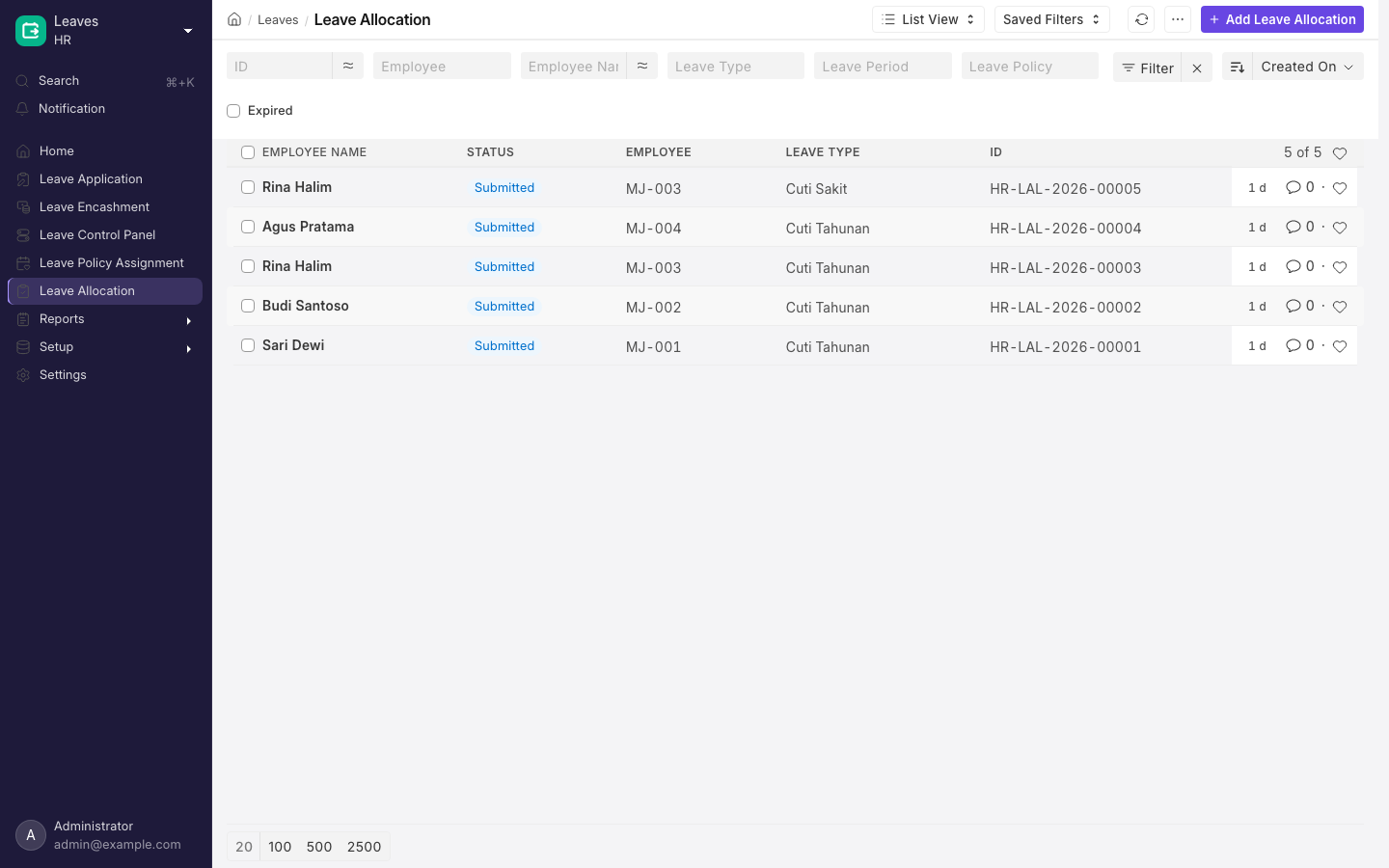
A Leave Allocation. The balance a Leave Application checks against comes from here.
On a submitted allocation that is still inside its date range, the Actions menu offers two things:
- Expire Allocation ends the allocation today.
- Adjust Allocation asks for Adjustment Type (Allocate or Reduce), Leaves To Adjust, Posting Date and Reason for Adjustment, then creates a Leave Adjustment.
Only one adjustment per allocation is allowed. GARP refuses a zero value, an Allocate that breaches the type's maximum, and a Reduce larger than the current balance. When you submit the adjustment it writes one ledger entry across the allocation's own From Date and To Date. Leave Adjustment is not on the Leaves sidebar — reach it from that button, or from /app/leave-adjustment.
The duplicate-adjustment message tells you to amend the existing one, but no role ships with the Amend permission on Leave Adjustment — HR User and HR Manager get create, write, submit, cancel and delete only. Grant Amend in Role Permissions Manager first, or cancel and delete the old adjustment and create a new one.
Changing New Leaves Allocated on a submitted allocation is the other route. It recalculates the total and writes a top-up ledger entry for the difference. It is blocked for earned types created by a policy assignment (Cannot update allocation for Earned Leaves after submission), and when the new total would fall below leaves already approved.
For earned leave, the Earned Leave Schedule table inside the allocation lists every planned accrual — Allocation Date, Number of Leaves, Allocated Via (Scheduler, Leave Policy Assignment, Manually) and any Failure Reason — green for allocated, red for failed. Retry Failed Allocations appears only when a failed row exists and you have write permission.
Leave Allocation, Leave Application, Leave Encashment and Leave Adjustment each carry a View Ledger button once submitted.
Indonesian practice
hrms/regional contains two folders, india and united_arab_emirates, and the only registered regional overrides are Indian HRA exemption and marginal relief. There is no Indonesian regional module, so nothing here is preconfigured for Indonesian law.
- Annual leave. The 12-day minimum after twelve months' continuous service is not modelled. Create a leave type, set Annual Allocation 12 in the policy, and enforce the qualifying period with Allow Leave Application After (Working Days) or by dating the assignment from the anniversary. Nothing checks length of service by itself.
- Working days versus calendar days. Statutory leave counts working days, which is only true here if Include holidays within leaves as leaves is off and the Holiday List contains the weekly offs and national holidays.
- Cuti besar, maternity and miscarriage leave. No shipped type, no shipped duration. Build them as ordinary leave types with your own allocations, and leave the pay flags off so payment days are untouched.
- Cuti bersama. Raise it as an ordinary leave application against annual leave, or put the dates on the Holiday List so nobody is charged.
- BPJS Kesehatan, BPJS Ketenagakerjaan, PPh 21 and THR. Nothing in the leave module touches any of them. Leave reaches payroll only as payment days and, for encashment, as an Additional Salary line against the component you nominate; whether that line is taxable or contributory depends on that component's own configuration. See Tax and benefits.
- PKWT and PKWTT. Contract type lives on the Employee record as Employment Type, and no leave rule reads it. If fixed-term staff get a different entitlement, give them a different Leave Policy.
These rules are configurable, not preset. GARP ERP ships no Indonesian statutory leave entitlement — the annual minimum, long-service leave and maternity leave are leave types you define, with the allocations your own policy sets.
Details, limits and edge cases
Everything below is reference. Look something up when you need it; you do not have to read it through.
The records leave is made of
- Leave Type (
/app/leave-type) — the kind of leave: Annual Leave, Sick Leave, Unpaid Leave. Every rule that governs a leave lives here. - Leave Period (
/app/leave-period) — the leave year, usually 1 January to 31 December, per company. Tick Is Active on the current one. - Leave Policy (
/app/leave-policy) — a list of Leave Type plus Annual Allocation that you submit: Annual Leave 12, Sick Leave 12. - Leave Policy Assignment (
/app/leave-policy-assignment) — attaches a policy to one employee for a period. When you submit it, GARP creates the allocations. - Leave Allocation (
/app/leave-allocation) — one employee, one type, one date range: New Leaves Allocated, Unused leaves carried in, Total Leaves Allocated. - Leave Application (
/app/leave-application) — the request. It can only be submitted once its Status is Approved or Rejected. - Leave Ledger Entry (
/app/leave-ledger-entry) — the ledger every leave record writes to. Balances are read from it, not stored. - Compensatory Leave Request (
/app/compensatory-leave-request) — converts holiday work into leave days. - Leave Encashment (
/app/leave-encashment) — pays out an unused balance through payroll or a payment entry. - Leave Block List (
/app/leave-block-list) — dates on which leave may not be approved. - Leave Adjustment (
/app/leave-adjustment) — a submitted correction to an allocation. - Leave Control Panel (
/app/leave-control-panel) — bulk allocation. A single settings form, not a list of records.
How the pieces connect
Leave Type + Leave Period
  -> Leave Policy (annual allocation per type)
  -> Leave Policy Assignment (employee + period)
  -> Leave Allocation       -> Leave Ledger Entry (+ new, + carry forward)
  -> Leave Application      -> Leave Ledger Entry (- days) + Attendance (On Leave / Half Day)
  -> Leave Encashment       -> Leave Ledger Entry (- days) + Additional Salary or GL Entries
  -> Leave Adjustment       -> Leave Ledger Entry (+/- days)
Leave Type options that change behaviour
Pay behaviour, carry forward, encashment and earned leave sit on the first tab; the caps on Limits.
| Field | Kind | Default | Effect, and what blank means |
|---|---|---|---|
| Is Leave Without Pay | Check | off | Days come off the salary slip's payment days. |
| Is Partially Paid Leave | Check | off | Pays part of the day. Each hides the other. |
| Fraction of Daily Salary per Leave | Float, required with partial pay | — | 0.50 to still pay half the daily salary. Must be 0 to 1. |
| Is Compensatory | Check | off | Only such types appear on a Compensatory Leave Request. |
| Leave for optional holiday | Check | off | Restricts applications to the period's Holiday List for Optional Leave. |
| Allow Negative Balance | Check | off | A short balance warns instead of failing, and applications may span two allocations. |
| Include holidays within leaves as leaves | Check | off | Holidays count as leave days. Blank skips them and deletes Attendance on them. |
| Allow Over Allocation | Check | off | Turns over-allocation from an error into a warning. |
| Carry Forward | Check | off | Balance rolls into the next allocation that ticks Add unused leaves from previous allocations. |
| Maximum Carry Forwarded Leaves | Float | blank | Caps what rolls forward. Blank carries all of it. |
| Expire Carry Forwarded Leaves (Days) | Int | blank | Carried days die this far in. Blank lasts to the allocation's end. |
| Allow Encashment | Check | off | Only such types appear on a Leave Encashment. |
| Earning Component | Link to Salary Component | blank | Where the payout is booked. Blank blocks a payroll-paid encashment. |
| Maximum Encashable Leaves, Non-Encashable Leaves | Int | blank | A ceiling on encashable days, and days subtracted from the balance first. |
| Is Earned Leave | Check | off | The allocation accrues on a schedule instead of up front. |
| Earned Leave Frequency | Monthly, Quarterly, Half-Yearly, Yearly | blank | Divides the annual allocation by 12, 4, 2 or 1. |
| Allocate on Day | First Day, Last Day, Date of Joining | Last Day | Day each accrual lands. Date of Joining is Monthly-only. |
| Rounding | 0.25, 0.5, 1.0 | blank | Rounds each accrual. Blank leaves the raw fraction. |
| Maximum Leave Allocation Allowed per Leave Period | Float | blank | Caps the period total, carried-forward days included. |
| Maximum Consecutive Leaves Allowed | Int | blank | Counts across adjacent applications, not just this one. |
| Allow Leave Application After (Working Days) | Int | blank | Working days since Date of Joining before the type is usable. |
GARP refuses to save a leave type that is:
- both compensatory and earned —
Leave Type can either be compensatory or earned leave. - both unpaid and partially paid —
Leave Type can either be without pay or partial pay - carrying a fraction outside 0 to 1;
- switched to leave-without-pay while an allocation covering today exists.
Maximum Consecutive Leaves Allowed walks backwards and forwards through adjacent applications: three separate two-day applications on consecutive dates count as one six-day run, and the error names the others under a Maximum Consecutive Leaves Exceeded title.
What the leave application form refuses, and the message
| Situation | Message |
|---|---|
| Every day in the range is a holiday | The day(s) on which you are applying for leave are holidays. You need not apply for leave. |
| Balance short, negative balance not allowed | Insufficient leave balance for Leave Type ..., titled Insufficient Balance |
| No allocation covers the dates, or the dates straddle two | Application period cannot be outside leave allocation period / Application period cannot be across two allocation records |
| Overlaps an existing Open or Approved application | Employee ... has already applied for ... between ... and ... |
| Present or Work From Home attendance already submitted | Attendance for employee ... is already marked for the following dates: ... |
| Consecutive-days cap exceeded, or joining-date gate not met | Leave of type ... cannot be longer than ... / ... applicable after ... working days |
| Unpaid leave inside a period already paid | Salary already processed for period between ... and ..., Leave application period cannot be between this date range. |
| Employee approving themselves | Self-approval for leaves is not allowed |
| Submitted with status Open or Cancelled | Only Leave Applications with status 'Approved' and 'Rejected' can be submitted |
| Approving on a block date without being on the allow list | You are not authorized to approve leaves on Block Dates |
What submitting an approved application does
When an approved application is submitted, GARP writes Attendance for every non-holiday date in the range — On Leave, or Half Day with Status for Other Half Present on the half-day date. Existing Absent records are converted in place; new ones are inserted and submitted without running Attendance's own leave-record checks. Attendance on a holiday date is cancelled and deleted when the type does not include holidays.
It then writes a negative Leave Ledger Entry for the total leave days, carrying the holiday list and the leave-without-pay flag. The days split into two entries when the carried-forward portion expires mid-application, or when the type allows a negative balance and the dates straddle two consecutive allocations. Non-consecutive allocations are refused.
It emails the employee from the Leave Status Notification Template if Send Leave Notification and Follow via Email are both on, and raises a notification in the app. Saving a draft with status Open notifies the approver from the Leave Approval Notification Template.
Cancelling forces the status to Cancelled, deletes the ledger entries, cancels Attendance with status On Leave or Half Day in the range, and notifies the employee.
Where the balance comes from
The balance is calculated, not stored: total leaves allocated, plus leaves taken (negative in the ledger), plus anything manually expired, read from Leave Ledger Entry for the allocation covering that date. A second figure, the balance available for consumption, is capped by the days left before the allocation or the carry-forward expiry ends — so someone can hold 10 days but book only 3 if the allocation ends in 3 days.
Carried-forward and new days are separate ledger entries, consumed in that order when an expiry is set. Rina Halim's Annual Leave has Carry Forward, Maximum Carry Forwarded Leaves 6 and Expire Carry Forwarded Leaves (Days) 90:
2026 allocation 12, taken 4      -> 8 unused at 31 Dec 2026
2027 allocation, carry forward on:
  Unused leaves                  = min(8, 6) = 6
  New Leaves Allocated           = 12
  Total Leaves Allocated         = 18
ledger entries written on submit:
  +6  valid 01 Jan 2027 - 31 Mar 2027   (90 days from the start)
  +12 valid 01 Jan 2027 - 31 Dec 2027
On 1 April 2027 whatever is left of that 6 expires. Had the type also carried Maximum Leave Allocation Allowed per Leave Period 15, the total would be trimmed to 15 and Unused leaves silently reduced to 3. Submitting a carry-forward allocation also expires the previous allocation immediately; if that window has already closed, a Leaves Expired dialog offers an Expire Leaves button.
An allocation refuses to submit when:
- To Date is not after From Date, so a one-day allocation is rejected;
- another submitted allocation for the same employee and type overlaps;
- the type is leave without pay;
- the total exceeds the days in the period with Allow Over Allocation off, or exceeds the type's per-period maximum;
- it is zero for a type that is neither earned nor compensatory.
How leave affects pay
A leave type that is neither unpaid nor partially paid has no effect on pay. Payment days only move for Is Leave Without Pay and Is Partially Paid Leave types, and Calculate Payroll Working Days Based On in Payroll Settings (/app/payroll-settings) decides which record drives it: Leave (the default) or Attendance.
Sari Dewi's Basic component is IDR 12,000,000 with Depends on Payment Days ticked. February 2026 has 28 days and four Sundays on her holiday list, Include holidays in Total no. of Working Days is off, and she takes three days of unpaid leave from 16 to 18 February.
Total Working Days = 28 - 4 holidays = 24
Leave Without Pay  = 3
Payment Days       = 24 - 3 = 21
Basic              = 12,000,000 x 21 / 24 = IDR 10,500,000
deduction          = IDR 1,500,000
An Indonesian practitioner prorating on a 30-day divisor would deduct 12,000,000 / 30 x 3 = IDR 1,200,000. GARP deducts IDR 1,500,000, because the divisor is working days excluding holidays. Ticking Include holidays in Total no. of Working Days moves the divisor to 28 and the deduction to IDR 1,285,714.29. Neither gives the /30 result; that is a salary-component formula a developer writes.
Partially paid leave is calculated in opposite directions depending on the payroll basis. Under Leave, a Fraction of Daily Salary per Leave of 0.75 costs 0.25 payment days per leave day, so the employee is paid 75%. Under Attendance, the same fraction costs 0.75 payment days, so the employee is paid 25%. Only 0.50 gives the same answer both ways. On four leave days in a 22-working-day month against an IDR 8,000,000 component: IDR 7,636,364 under Leave, IDR 6,909,091 under Attendance.
Half days are worth Fraction of Daily Salary for Half Day, default 0.5, and under Attendance unmarked days deduct in full when Consider Unmarked Attendance As is Absent. See Payroll.
What runs automatically each night
Three jobs in the daily long queue touch leave.
| Job | What it does |
|---|---|
process_expired_allocation | Writes is-expired ledger entries for the remainder of allocations whose To Date has passed. The Expire Leaves button runs the same routine and needs Submit permission on Leave Allocation. |
allocate_earned_leaves | Finds allocations whose Earned Leave Schedule has an unattempted row dated today and tops up Total Leaves Allocated. Failures land in the row's Failure Reason and are emailed. |
generate_leave_encashment | Runs only when Auto Leave Encashment is on, looking for encashable allocations whose To Date was yesterday. Skips employees with no Salary Structure on that date. |
A failed earned-leave allocation does not retry itself. Fix the cause — usually a maximum on the leave type, or the policy's annual allocation — then use Retry Failed Allocations.
Who can do what
| Record | Create | Submit | Cancel | Amend |
|---|---|---|---|---|
| Leave Type | HR User, HR Manager | — | — | — |
| Leave Period | HR User, HR Manager, System Manager | — | — | — |
| Leave Policy | HR User, HR Manager, System Manager | same three | same three | same three |
| Leave Policy Assignment | HR User, HR Manager, System Manager | same three | same three | none |
| Leave Allocation | HR User, HR Manager | both | both | both |
| Leave Application | Employee, HR User, HR Manager | HR User, HR Manager, Leave Approver | same three | HR User, HR Manager |
| Leave Adjustment | HR User, HR Manager | both | both | none |
| Leave Encashment | Employee, HR User, HR Manager, System Manager | the three non-Employee roles | same three | same three |
| Compensatory Leave Request | Employee, HR User, HR Manager, System Manager | HR User, HR Manager | HR Manager only | none |
| Leave Control Panel | HR User, HR Manager | n/a | n/a | n/a |
Employees have no permission of any kind on Leave Allocation — they cannot open their own. Status on Leave Application is protected at permission level 1: the Employee role reads it but cannot write it, while Leave Approver, HR User and HR Manager can. That is what stops self-approval before Prevent self approval for leaves is even considered. The Leave Approver role is granted automatically when a User is named as Leave Approver on any Employee.
The Employee Self Service user type gets read, write, create and delete on Leave Application and Compensatory Leave Request, read on Leave Type and Holiday List, and a user permission restricting it to that person's own Employee record — but no submit, and no access to Leave Allocation or Leave Encashment. See Employee self-service.