Expense Claims
Expense claims are how you pay people back for money they spent on the company's behalf — a taxi to a client meeting, a hotel on a site visit, office supplies bought with someone's own card. The employee records what they spent and attaches the receipt. An approver decides how much the company will actually pay. The claim then sits as money owed to that employee until you pay it.
The same area also covers cash handed out before the spending happens — kasbon, uang muka perjalanan dinas — which you settle against a claim when the person comes back. All of it lives in the Expenses workspace at /app/expenses. Paying a claim is an ordinary payment, the same as paying any other bill.
What you probably came here to do
- Send in a claim for money someone spent
- Approve a claim, or trim what it pays out
- Actually pay out a claim that has been approved
- Give someone cash up front for a trip, then settle it
- Fix the cost center or project on a claim already submitted
- Set expense claims up for the first time
- Work out who is allowed to approve, and why someone cannot
- See the numbers on a real example
- Check what GARP does not handle for Indonesian rules
- Look up what a field on the form does
- Look up an error message you are stuck on
Worth knowing before you approve anything: an expense claim is an accounting document, not just an HR form. GARP treats it the way it treats an invoice. Submitting it writes entries into the general ledger — each expense line is charged to an expense account, and the total is recorded as owed to the employee. It carries accounting dimensions, it joins bank reconciliation, and its ledger can be rewritten later. The approver is signing off a ledger entry.
Submit a claim with a receipt
- Open
/app/expense-claimand click Add Expense Claim, or use the mobile app at/hrmsand go to Expense Claims. - Pick From Employee. Company and Currency are filled in from the employee record, and Payable Account from the company's Default Expense Claim Payable Account. Set the Posting Date.
- In Expenses, add a row per receipt: Sari Dewi's taxi to a client meeting on 12-03-2026, type Travel, Amount IDR 85,000. Default Account fills in from the claim type, and Sanctioned Amount copies the claimed figure. Cost Center must be set on every row or submission is refused.
- Attach the receipt photo — the Attachments area in the sidebar when you are in the browser, or the attachments section on the mobile form.
- Choose the Expense Approver and save. The approver is notified and the document is shared with them.
Leave Approval Status as Draft. A claim cannot be submitted while it is Draft, so one in that state is simply waiting.
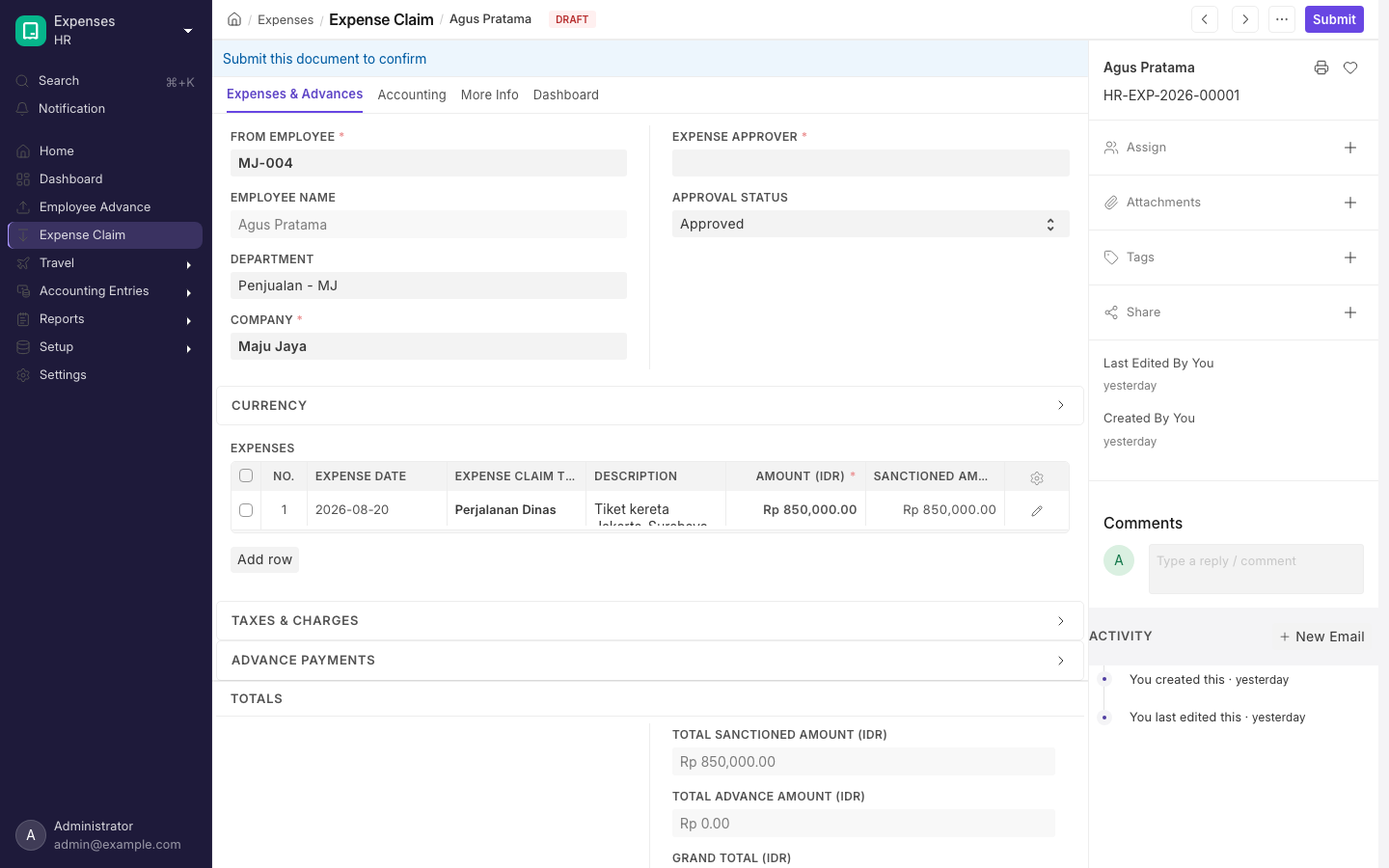
An Expense Claim with one expense row.
Approve a claim
- Open the claim from
/app/expense-claim, or from Team Claims in the mobile app, which lists draft claims from other employees where you are the named approver. - Adjust Sanctioned Amount on any line being trimmed. Check every line, not just the total.
- Set Approval Status to Approved or Rejected and submit.
Two things are refused at this point. Submitting while the claim is still Draft does not work. And Payable Account is mandatory unless Is Paid is ticked.
Pay a reimbursement
- Open the submitted, approved claim and click Create > Payment. This builds a Payment Entry of type Pay, party type Employee, paid to the claim's Payable Account, with the claim as its reference and the outstanding amount already allocated.
- Choose the bank or cash account, check the amount, and submit. Total Amount Reimbursed updates, and Status flips to Paid once the grand total is covered.
- Use View > Accounting Ledger for the postings, and run the Unpaid Expense Claim report from the Expenses workspace to see what is still owed.
A few things worth knowing about payments:
- Partial payments accumulate. The reimbursed figure is recalculated from every submitted Payment Entry and Journal Entry line pointing at the claim. Cancelling one drops the figure back and returns the status to Unpaid.
- If Make Payment via Journal Entry is on in Accounts Settings, the same button builds a Bank Entry Journal Entry instead. That setting is hidden and off by default, so most workspaces get Payment Entries.
- For petty cash, tick Is Paid and pick a Mode of Payment before submitting, and the claim books the payment itself. Claims paid this way are the only ones the Bank Reconciliation Tool will match, and only while Clearance Date is empty and the mode of payment maps to the bank account being reconciled.
Issue an advance and settle it against a claim
- At
/app/employee-advance, pick the employee, write the Purpose ("Site visit to Surabaya"), set Advance Amount and Mode of Payment. Advance Account is filled in from the Employee record's Employee Advance Account; left blank, the company's Default Employee Advance Account is used at submit. - Submit. Only the Employee and Expense Approver roles have any permission on the Employee Advance form, and only Expense Approver can submit — grant that role to whoever releases advances. Submitting posts no accounting entries at all; the advance is only a request until it is paid.
- Click Create > Payment and submit the Payment Entry. That is what debits the advance account. Paid Amount is recomputed from the advance's payment ledger and Status moves from Unpaid to Paid.
- After the trip, click Create > Expense Claim on the advance. The claim opens with the advance already in Advances; choosing the employee on a fresh claim does the same.
- Add the expense lines and submit. The allocated amount credits the Advance Account, clearing the receivable, and reduces the grand total left to reimburse.
- For money left over, use Create > Return to build a Journal Entry crediting the advance account against your cash or bank. Or tick Repay Unclaimed Amount from Salary before submitting the advance, then use Create > Deduction from Salary to raise an Additional Salary that recovers it on the next payslip — see Payroll.
Create > Expense Claim on an advance ticks Is Paid. GARP ticks Is Paid whenever the advance has any paid amount, which then makes Mode of Payment mandatory even when the advance fully covers the claim and there is nothing left to pay. Untick Is Paid before submitting unless you really are handing over more cash.
The Expense Claim button only appears once the advance is fully paid. While Paid Amount is below Advance Amount you see Payment instead — they are the same button slot. Pay the advance in full, or the claim has to be started from /app/expense-claim.
Correct a claim after you have submitted it
Once a claim is submitted, almost nothing on it can be changed. What can:
- Project and Cost Center — on the header, on every expense row and on every tax row
- Account Head — on tax rows
Change any of them and the claim creates and submits a Repost Accounting Ledger document that rewrites its ledger entries. This only works if Expense Claim is listed in the Allowed DocTypes table under the Repost section of Accounts Settings (/app/accounts-settings). Otherwise you will see the message Expense Claim is not allowed to be reposted. You can enable it by adding it 'Allowed Doctype' table in Accounts Settings.
Nothing else can be changed after submit. Cancel and amend the claim instead.
Set up expense claims for the first time
- On the Company record, HR & Payroll tab, set two accounts:
- Default Expense Claim Payable Account — non-group, Payable, balance sheet, in the claim currency. This one is never filled in for you, so set it by hand.
- Default Employee Advance Account — non-group, type Receivable. This is filled in automatically if an account named "Employee Advances" already exists.
- Create your Expense Claim Type records. Five ship with a new workspace — Calls, Food, Medical, Others, Travel — but none of them has an account yet, so for each one:
- Add an Accounts row per company with the Default Account to debit. The list offers non-group Expense accounts of that company.
- Ticking Deferred Expense Account switches that list to Asset accounts and does nothing else.
- Two rows for one company are refused with
Same Company is entered more than once, and a foreign account withAccount {0} does not match with Company {1}. - Fill in Description too. Each expense row's description is taken from it when left empty, in the browser and on mobile.
- Set an Expense Approver on each Employee record, or fill the Expense Approver table on each Department, and give those users the Expense Approver role — setting the field on an Employee does this for you.
- Set Employee Advance Account on employees who need a ledger other than the company default, on the Salary tab of the Employee record.
- Review the Expenses tab of HR Settings, including Unlink Payment on Cancellation of Employee Advance, which you almost certainly want on.
- Make sure cost centers exist, and that every Mode of Payment you will use has a Mode of Payment Account row with a default account for the company.
- To correct cost centers or projects after submission, add
Expense Claimto Allowed DocTypes under Repost in Accounts Settings.
Which modules are available depends on the plan — see Plans and limits.
Who can claim and who approves
Anyone with the Employee role can create and edit a claim. But that role cannot submit one, and it cannot change Approval Status — that field can only be written by HR Manager, HR User and Expense Approver. That split, not a workflow, is what separates claiming from approving.
| Role | Create | Write | Submit, Cancel, Amend, Delete | Set Approval Status |
|---|---|---|---|---|
| Employee | yes | yes | no | no, read only |
| Expense Approver | yes | yes | yes | yes |
| HR User | yes | yes | yes | yes |
| HR Manager | yes | yes | yes | yes |
Only HR Manager can export. Anyone who can open a claim can read its Approval Status; they simply cannot change it.
Sanctioned Amount is not permission-protected. Approval Status is the only field locked to approvers. A claimant with the Employee role can edit the Sanctioned Amount on any row they can write to. What actually stops abuse is that they cannot set Approval Status and cannot submit — so always check the sanctioned column, not just the claimed one, before approving.
The Expense Approver field offers two sources:
- the Expense Approver set on the Employee record, under Approvers
- every user in the Expense Approver table on the employee's Department, walking up the department tree from the employee's own department to the root and skipping disabled departments
If neither source yields anybody, the field errors rather than listing nobody. You will see the title Expense Approver Missing and the message Please set Expense Approver for the Employee: {0}, extended with or for the Employee's Department: {0} when the employee has a department.
Saving shares the claim with that approver, carrying Submit rights, and tells you so: Shared document with the user {0} with 'Submit' permission. That is how a line manager holding no HR role can approve. Change the approver on a saved claim and the previous share is removed. Setting Expense Approver on an Employee record also adds the Expense Approver role to that user automatically.
Two settings on the Expenses tab of HR Settings (/app/hr-settings) affect this:
- Expense Approver Mandatory In Expense Claim is on by default, and makes the field required on a draft.
- Prevent self approval for expense claims even if user has permissions is off by default. Turn it on and the Submit action is hidden on your own draft claim, and if you get past the button GARP refuses the submission with
Self-approval for Expense Claims is not allowed. This check is skipped entirely if you have defined a Workflow on Expense Claim.
Two mobile-app notifications fire, pushed to the device if push notifications are enabled:
- the approver is alerted when the claim is first created
- the claimant is alerted whenever Approval Status changes to Approved or Rejected, unless the approver is the claimant
Drafts also drive the sidebar count in the browser, which tallies every draft Expense Claim you are allowed to see.
The approver alert is sent only when the claim is first saved. Save a claim, then change the approver, and the new approver is never notified — they get the document share but no alert. Set the approver before the first save.
Worked examples
A straightforward reimbursement
Sari Dewi at PT Maju Jaya claims two receipts from 12 March 2026: a taxi at IDR 85,000 under Travel, and a client lunch at IDR 340,000 under Food. Her approver caps client meals at IDR 250,000 and trims the second line.
- Total Claimed Amount: 85,000 + 340,000 = IDR 425,000
- Total Sanctioned Amount: 85,000 + 250,000 = IDR 335,000
- No taxes, no advances, so Grand Total = 335,000 + 0 − 0 = IDR 335,000
On submit with Approval Status Approved:
Dr  Travel Expenses          85,000   (cost center: Head Office)
Dr  Staff Welfare           250,000   (cost center: Head Office)
    Cr  Employee Reimbursements Payable   335,000   party: Sari Dewi
Status becomes Unpaid. Create > Payment builds a Payment Entry for the outstanding 335,000; submitting it debits the payable and credits the bank, sets Total Amount Reimbursed to 335,000 and flips the status to Paid.
An advance for a site visit
Budi Santoso gets an advance for a Surabaya site visit.
- Employee Advance, Advance Amount IDR 5,000,000, purpose "Site visit to Surabaya". Submit: no general ledger entries, status Unpaid.
- Create > Payment, IDR 5,000,000 from Kas Kecil.
Dr Uang Muka Karyawan 5,000,000 (party Budi Santoso) / Cr Kas Kecil 5,000,000. Paid Amount becomes 5,000,000 and status Paid. - He returns and claims: flight 2,150,000 and hotel 1,800,000 under Travel, meals 620,000 under Food. Total claimed and sanctioned: IDR 4,570,000.
- The advance is pulled in with Advance Paid 5,000,000, Unclaimed Amount 5,000,000. GARP needs 4,570,000 and the row can supply more, so Allocated Amount is set to 4,570,000 and Total Advance Amount is 4,570,000.
- Grand Total = 4,570,000 + 0 − 4,570,000 = IDR 0. Untick Is Paid, which GARP set for you, and submit.
Dr  Travel Expenses       3,950,000
Dr  Staff Welfare           620,000
    Cr  Uang Muka Karyawan          4,570,000   party: Budi Santoso
No payable line is written because Grand Total is zero, and for the same reason the claim goes straight to Paid. The advance's Claimed Amount becomes 4,570,000, but its status recomputes to Paid — not "partly claimed" — because Advance Amount still equals Paid Amount. IDR 430,000 is outstanding from Budi.
Create > Return builds a Journal Entry of voucher type Cash Entry (Bank Entry if the Mode of Payment is of type Bank): Cr Uang Muka Karyawan 430,000 (party Budi Santoso) / Dr Kas Kecil 430,000. Submitting it sets Returned Amount to 430,000, and since 4,570,000 + 430,000 equals the 5,000,000 paid, the advance moves to Partly Claimed and Returned. Repay Unclaimed Amount from Salary reaches the same status by carrying the same 430,000 to Budi's next payslip instead.
A tax row, and what it actually does
Rina Halim buys office supplies for IDR 1,000,000 gross, PPN included, and adds a Taxes row with Account Head PPN Masukan and Rate 11.
An Indonesian practitioner expects the gross to be split: DPP of IDR 900,901 and PPN of IDR 99,099. That is not what the product computes. GARP reads the rate as a percentage of the total sanctioned amount and adds it on top:
- Total Sanctioned Amount: IDR 1,000,000
- Tax row Amount: 1,000,000 × 11 ÷ 100 = IDR 110,000
- Tax row Total: 110,000 + 1,000,000 = IDR 1,110,000
- Grand Total: 1,000,000 + 110,000 − 0 = IDR 1,110,000
Rina would be reimbursed IDR 1,110,000 for a IDR 1,000,000 receipt, and PPN Masukan would carry a figure matching no faktur pajak. With what ships, put the gross IDR 1,000,000 in Amount and leave Taxes empty; where the input VAT is creditable, record the vendor's faktur pajak on a Purchase Invoice rather than reimbursing through a claim.
Indonesian practice
There is no Indonesian regional module in the HR app — only India and the United Arab Emirates ship one. Nothing in the expense area knows about BPJS Kesehatan, BPJS Ketenagakerjaan, PPh 21, THR or Kepmenaker rules, and no Indonesian salary components or tax slabs ship. Everything below is configuration you do, not compliance you get.
- Reimbursement versus allowance. An Expense Claim debits an expense account against a receipt and never touches a Salary Slip; a fixed allowance (tunjangan) belongs on a Salary Component or an Additional Salary. If your policy treats an item as remuneration, route it through payroll — see Payroll. Nothing in the product enforces that choice.
- Kasbon and uang muka perjalanan dinas. Employee Advance is the right document and its Receivable account is the Uang Muka Karyawan ledger. Submitting it posts nothing; only the Payment Entry moves money.
- SPPD. Travel Request holds the itinerary and the estimate but is inert. Use it as the record of authorisation and raise the Employee Advance separately, quoting the request number in Purpose.
- PPN. The Taxes table is additive and cannot split a gross receipt into DPP and PPN. Use Purchase Invoices where you need creditable input VAT against a faktur pajak.
- PPh withholding. Nothing withholds on a reimbursement. Add the deduction on the Payment Entry if you must.
- Currency. Set Salary Currency to IDR on each Employee record — that is what a claim's Currency is taken from, and a mismatch against the Advance Account currency blocks the advance.
Field reference
From here down the page is reference: what every field does, what the totals mean, what GARP refuses to save, and the edge cases. You can stop reading before it unless you need the detail.
What each record is for
- Expense Claim (
/app/expense-claim) — the request itself, numberedHR-EXP-.YYYY.-. You save it as a draft and then submit it, and submitting posts accounting entries. - Expense Claim Detail — one row in the Expenses table inside the claim: Expense Date, Expense Claim Type, Default Account, Description, Amount, Sanctioned Amount, Cost Center, Project.
- Expense Claim Type (
/app/expense-claim-type) — the category (Travel, Food, Medical), named after its own Expense Claim Type field and renameable. The Accounts table inside it (Expense Claim Account) holds one Default Account per company, and that is the account the expense line debits. - Expense Taxes and Charges — one row in the Taxes table inside the claim: Account Head, Description, Rate, Amount, Total, Cost Center, Project.
- Employee Advance (
/app/employee-advance) — cash paid up front, numberedHR-EAD-.YYYY.-, booked to a receivable Advance Account. - Expense Claim Advance — one row in the Advances table inside the claim, linking a paid advance to it, with the Allocated Amount offset against it.
- Travel Request (
/app/travel-request) and Purpose of Travel (/app/purpose-of-travel) — a trip request with an itinerary and a costing table. - Vehicle Log (
/app/vehicle-log) — fuel and servicing for a company vehicle, which can raise a claim for the driver.
Header
| Field | Type | Behaviour |
|---|---|---|
| From Employee | Pick from a list, required | Refused if the employee's status is Inactive |
| Department | Pick from a list, filled in from the employee | Limited to the claim's company, and checked against it again on save |
| Expense Approver | Pick a user | Required when the HR Setting is on. See above |
| Approval Status | Dropdown, approver-only | Draft (default), Approved, Rejected, Cancelled |
| Posting Date | Date, required | Defaults to today. Drives the ledger posting date |
| Company | Pick from a list, required | Filled in from the employee |
| Currency | Pick from a list, required | Filled in from the employee's Salary Currency |
| Exchange Rate | Number, required | Filled in live when Currency differs from company currency; forced to 1 and hidden when they match |
| Payable Account | Pick from a list | Filled in from the company's Default Expense Claim Payable Account. Limited to non-group Balance Sheet accounts of type Payable in the claim currency |
| Cost Center | Pick from a list | Filled in from the company's default cost center. Copied down to expense rows that have none |
| Project, Task | Pick from a list | Picking a Task fills Project from it. Task is limited to the chosen Project |
| Is Paid | Tick box | Makes the claim book its own payment. Forces Mode of Payment |
| Mode of Payment | Pick from a list | Shown only when Is Paid is ticked. The account behind it is what gets credited |
| Bank / Cash Account | Pick from a list | Shown when Mode of Payment is set |
| Clearance Date | Date | Only read by the Bank Reconciliation Tool |
| Status | Dropdown, read-only | Draft, Submitted, Unpaid, Paid, Rejected, Cancelled |
Bank / Cash Account does nothing. Nothing in GARP reads it. When Is Paid is ticked the credit goes to the default account on the Mode of Payment Account row for that company — and if that row is missing you get Please set default Cash or Bank account in Mode of Payment {0} with the title Missing Account. Set the account on the Mode of Payment, not on the claim.
Expenses
| Field | Notes |
|---|---|
| Expense Date | Defaults to today. Optional |
| Expense Claim Type | Required. Choosing it fills in Default Account and sets Cost Center to the company default |
| Default Account | Hidden and read-only. Set from the claim type; this is the account the row debits |
| Description | A formatted text box. Fills in from the claim type's Description when left empty, in the browser as well as on mobile |
| Amount | Required. Typing it copies the same figure into Sanctioned Amount |
| Sanctioned Amount | What the approver is willing to pay. May never exceed Amount on the same row |
| Cost Center | Required at submit. Editing it on one row copies the value to every other row |
| Project | Optional, overrides the header Project for that row's ledger entry |
Taxes and charges
The Taxes table adds to a claim rather than withholding from it. Use it only when the employee paid a charge you are reimbursing on top of the sanctioned amount.
- Account Head is limited to accounts in the claim's company with type Tax, Chargeable, Income Account or Expenses Included In Valuation.
- Description is required. In the browser it is pre-filled from the account head's name minus the company abbreviation.
- Amount is worked out per row. If Rate is not zero, Amount = Total Sanctioned Amount × Rate ÷ 100, rounded to the currency's decimal places. Otherwise the Amount you typed stands.
- Total on the row is that row's Amount plus the total sanctioned amount — a per-row figure, not a running total across rows.
A non-zero Rate overwrites any Amount you type, on every save. If you want a fixed tax figure, clear the Rate.
Nothing here calculates Indonesian withholding. If tax must be withheld from a reimbursement, do it on the Payment Entry using the Deductions or Loss section, as you would for any other payable. See Accounting.
Advances
Every field on this table except Employee Advance is read-only in the browser, and Advance Account is hidden entirely. Allocated Amount is calculated, not typed: in the browser GARP works down the table taking as much as each advance can supply until sanctioned plus taxes is covered. The mobile app is different — there you tick advances individually and can edit Allocated Amount by hand, capped at the unclaimed amount.
Choosing an employee on a fresh claim clears the table and refills it with every submitted advance for that employee that has a paid amount above zero and a status that is not Claimed, Returned or Partly Claimed and Returned. Allocated Amount starts at paid minus claimed minus returned.
Changing From Employee on a claim you have already built wipes and rebuilds the Advances table, losing any manual allocation.
How the money flows
Employee Advance --(Payment Entry / Journal Entry)--> money paid to employee
       |
       +--> Advances table on the claim (Expense Claim Advance)
                    |
Expense Claim ------+
  Expenses lines  -----> debit each Expense Claim Type's Default Account
  Taxes lines     -----> debit each Account Head
  Advances lines  -----> credit each Advance Account
  Grand Total     -----> credit Payable Account, party = Employee
       |
       +--> Payment Entry (or Journal Entry) --> status Paid
- Total Claimed Amount sums Amount.
- Total Sanctioned Amount sums Sanctioned Amount, which may never exceed a line's claimed amount.
- Grand Total is sanctioned plus taxes minus Total Advance Amount — what is credited to the payable account, and what is left to reimburse.
- Outstanding for payment purposes is sanctioned plus taxes minus reimbursed minus advances.
What happens when you submit
When you submit a claim, GARP does the following, in order:
- If Approval Status is still Draft, it stops with
Approval Status must be 'Approved' or 'Rejected'. - Recalculates the linked Task's Total Expense Claim as the sum of Total Sanctioned Amount across all submitted claims on that project and task, or with no task, recalculates the linked Project's totals.
- Writes the general ledger entries, but only if Total Sanctioned Amount is above zero.
- Recomputes Total Amount Reimbursed and sets Status.
- Re-derives Claimed Amount and status on every linked Employee Advance, counting only allocations on submitted, Approved claims.
- If any advance was allocated at a different exchange rate, books the difference through a Journal Entry of voucher type Exchange Gain Or Loss and says so:
All Exchange Gain/Loss amount of {0} has been booked through {1}. - Unless Make Payment via Journal Entry is on, writes the claim back into the originating Payment Entry's references so the advance is properly reconciled.
The ledger entries for an Approved claim are:
- One credit to Payable Account for the Grand Total, party type Employee, party the employee, linked back to the claim itself. Skipped entirely when Grand Total is zero.
- One debit per Expenses row to that row's Default Account for its Sanctioned Amount, using the row's Cost Center and Project, falling back to the header's.
- One credit per allocated Advances row to that row's Advance Account, tagged as an advance against the Employee Advance.
- One debit per Taxes row to its Account Head.
- If Is Paid is ticked and Grand Total is non-zero, an extra pair: credit the Mode of Payment's account, debit the Payable Account — so the payable nets to nil and the claim is born Paid.
On Rejected, every row's Sanctioned Amount is forced to zero when the claim is saved. The total is therefore zero, no ledger entries are written and Status becomes Rejected. Nothing is posted, but the claim still occupies a number and still appears in the Rejected Claims card.
On cancel the same entries are reversed, task and project totals recalculated, advances re-derived, and the claim is unlinked from any Payment Entry that referenced it.
An Approved claim whose lines are all sanctioned at zero posts nothing and lands on Status Submitted, not Unpaid and not Paid. If you see a submitted claim sitting on Submitted, that is why.
Error messages and what causes them
| Message | Cause |
|---|---|
Sanctioned Amount cannot be greater than Claim Amount in Row {0}. | A row's sanctioned figure exceeds what was claimed |
Row {0}: Cost Center is required in the expenses table to book an expense claim. | An expense row has no cost center, checked at submit |
Set the default account for the Expense Claim Type {0} | The claim type has no Accounts row for this company |
Payable Account is mandatory to submit an Expense Claim | Submitting without a payable account and without Is Paid |
Mode of payment is required to make a payment | Is Paid ticked with no Mode of Payment |
Approval Status must be 'Approved' or 'Rejected' | Submitting a claim still marked Draft |
Self-approval for Expense Claims is not allowed | The HR Setting is on and you are the claimant |
Department {0} does not belong to company: {1} | Department and Company disagree |
Selected employee advance is not of employee {0} | An advance row belongs to somebody else |
Row {0}# Allocated amount {1} cannot be greater than unclaimed amount {2} | Over-allocating a single advance |
Total advance amount cannot be greater than total sanctioned amount | Advances exceed sanctioned plus taxes |
Transactions cannot be created for an Inactive Employee {0}. | Employee status is Inactive |
Row No {0}: Amount cannot be greater than the Outstanding Amount against Expense Claim {1}. Outstanding Amount is {2} | A Journal Entry tries to overpay a claim |
Employee Advance in detail
| Field | Notes |
|---|---|
| Employee | Required, limited to Active employees |
| Posting Date | Defaults to today |
| Purpose | Required free text. Shown as the card title on mobile |
| Advance Amount | Required. The amount requested |
| Paid Amount | Read-only, summed from the payment ledger entries recorded against the advance |
| Claimed Amount | Read-only, summed from Allocated Amount on submitted, Approved claims |
| Returned Amount | Read-only, from return Journal Entries and submitted Additional Salary deductions |
| Pending Amount | Read-only. Advance Amount minus Paid Amount across this employee's other submitted advances still on Unpaid, dated on or before this one. A warning signal, not a block |
| Advance Account | Must be type Receivable and in the advance's currency |
| Mode of Payment | Decides the default cash or bank account offered on payment and return |
| Repay Unclaimed Amount from Salary | Swaps the Return button for Deduction from Salary |
The Status field is worked out for you, never typed:
Draft                          the advance is still a draft
Claimed                        claimed == paid
Returned                       returned == paid
Partly Claimed and Returned    claimed + returned == paid, both above zero
Paid                           paid == advance amount, or paid and repay-from-salary is on
Unpaid                         anything else once submitted
Cancelled                      the advance has been cancelled
There is no "Partly Claimed" status. An advance of IDR 5,000,000 against which a claim of IDR 4,570,000 has been settled still reads Paid, exactly like an untouched one. Run Employee Advance Summary and compare Paid Amount against Claimed Amount to find advances with money still hanging.
Advance-specific errors:
Employee advance account {0} should be of type Receivable.Advance Account {0} currency should be same as Salary Currency of Employee {1}. Please select same currency Advance Account- At submit with no account and no company default,
Advance Account is mandatory. Please set the Default Employee Advance Account in the Company {0} and submit this document.under the titleMissing Advance Account. - Overpaying gives
Row {0}# Paid Amount cannot be greater than requested advance amount(the placeholder is never filled in with a row number). - Over-returning gives
Return amount cannot be greater than unclaimed amount.
Cancelling an advance that has a Payment Entry against it only works cleanly when Unlink Payment on Cancellation of Employee Advance is ticked on the Expenses tab of HR Settings. It is off by default, so the first cancellation in a fresh workspace usually fails on the payment link.
The Deduction from Salary route creates an Additional Salary for exactly Paid Amount minus Claimed Amount, with Overwrite Salary Structure Amount off and the advance as its reference. It arrives with no Salary Component and no Payroll Date, so pick a deduction component yourself, and it needs a submitted Salary Structure Assignment or you get There is no Salary Structure assigned to {0}. First assign a Salary Structure. Submitting it raises the advance's Returned Amount by the same figure and recomputes its status.
Travel Request
Travel Request records a trip before it happens. You save it as a draft and submit it, and it is numbered HR-TRQ-.YYYY.-.#####. It holds:
- Travel Type — Domestic or International
- Travel Funding — Require Full Funding, Fully Sponsored, or Partially Sponsored, Require Partial Funding
- Purpose of Travel
- Copy of Invitation/Announcement as an attachment
- contact, identification document and passport details
- a Travel Itinerary table — legs, mode of travel from Flight, Train, Taxi or Rented Car, meal preference, lodging, and whether a travel advance is required
- an Event Details section for the organiser
- a Costing table of Travel Request Costing rows, each with an Expense Type, Sponsored Amount, Funded Amount and Total Amount
Travel Request is standalone. The only check it runs is the inactive-employee one. Nothing links it to an Employee Advance or an Expense Claim, so its costing figures flow nowhere and Total Amount on a costing row is not even summed from the other two — you still raise the advance and the claim yourself. It ships with permissions for System Manager only, plus read, write, create and delete for the Employee Self Service user type. If you want approval on it, build a Workflow.
Vehicle Log
Vehicle Log (/app/vehicle-log) records odometer, refuelling and servicing against a Vehicle, and is the one other document that can raise a claim. Submit a log, then Create > Expense Claim: the claim opens for the log's employee with one expense row for Fuel Price × Fuel Qty plus the sum of Expense across the Vehicle Service rows.
It refuses with No additional expenses has been added when that total is zero, and with Expense Claim {0} already exists for the Vehicle Log if you try twice. The generated row has no Expense Claim Type, so pick one or there is no account to debit.
Vehicle Log and the Vehicle Expenses report need the Fleet Manager role, which is separate from anything in HR. Vehicle and Driver are also open to Delivery User and Delivery Manager (and Driver to System Manager).
Delivery Trip also offers Create > Expense Claim on a submitted trip that has an employee, but the mapping carries only the trip's name into the claim's Delivery Trip field — no employee, no lines, no amounts.
Reports and dashboards
| Report | Reads | Roles | Notes |
|---|---|---|---|
| Unpaid Expense Claim | Expense Claim | HR Manager, HR User, Expense Approver | Submitted claims with Is Paid off that still carry a non-zero Payment Ledger balance. Filter: Employee |
| Employee Advance Summary | Employee Advance | Employee, Expense Approver | Filters: Employee, From Date (defaults to fiscal year start), To Date, Company (required), Status |
| Vehicle Expenses | Vehicle | Fleet Manager | Fuel and service spend per log |
Employee Advance Summary is not granted to HR Manager or HR User. Only Employee and Expense Approver are on it. Its Status filter also only offers Draft, Paid, Unpaid, Claimed and Cancelled — you cannot filter for Returned or Partly Claimed and Returned from the dropdown, though those rows still appear when the filter is left blank.
The Expense Claims dashboard, reachable from the Expenses sidebar, carries three number cards — Expense Claims (This Month), Approved Claims (This Month) and Rejected Claims (This Month), each counting submitted claims posted this month — and four charts: a monthly line of sanctioned amounts over the last year, Claims by Type, Employee Advance Status, and Department wise Expense Claims.
Claims by Type counts every expense row ever created, including rows on drafts and cancelled claims — it is the only chart here that ignores whether a claim is a draft, submitted or cancelled. Do not read it as a spend figure.
Scheduled jobs
None. Nothing in the HR app runs automatically on a schedule against Expense Claim, Employee Advance, Travel Request or Vehicle Log. Every status change here is driven by a document being submitted or cancelled — the claim itself, or a Payment Entry, Journal Entry, Unreconcile Payment or Additional Salary referencing it. A stale-looking status means something upstream was never submitted, not a nightly job that failed to run.
Details, limits and edge cases
- Cancel in order. Cancel the claim before you touch the advance it settled, never the other way round, or the advance's claimed amount is left stale.
- The View > Bank Entries button filters the Payment Entry or Journal Entry list by employee and company, not by this claim. Use View > Accounting Ledger for entries that belong to the claim itself.
- Accounting dimensions marked mandatory for balance sheet accounts are stamped onto the claim header when it is saved, and those mandatory for profit-and-loss accounts onto each expense row — but only from dimensions defined for the claim's own company.
- Amending a cancelled claim copies everything except Approval Status, Status, Remark, the claimed and sanctioned totals and Total Amount Reimbursed, which are all left blank on the amendment. Set Approval Status again on the amendment.
- Only one claim per Vehicle Log. GARP checks by name, so a second refuelling on the same log has to be a fresh log.
Related
- HR overview
- Payroll
- Tax and benefits — Employee Benefit Claim is a separate payroll document, not an expense claim
- Employee self-service
- Settings and reports
- Accounting
- Projects