Employees
Every person you pay, roster, approve leave for or reimburse needs one record here: Employee. Attendance, leave, payroll, expense claims, appraisals and the self-service app all read that record, so how carefully you fill it in decides how much of the rest of HR works. This is HR and payroll's area of the system, not the employee's.
You do this work in the People workspace (/app/people) and in HR Setup (/app/hr-setup).
What you probably came here to do
- Add a new employee
- Set up departments, job titles, branches and grades
- Walk a new hire through an onboarding checklist
- Give someone a login for the self-service app
- Record someone's skills or their BPJS Kesehatan number
- Set up HR for a brand-new company, in the right order
- Find out why GARP will not let you save an employee
- Work out why the fingerprint machine does not recognise someone
- Check what GARP does and does not do for BPJS, PPh 21, PKWT and THR
Add a new employee
Check one setting first. Employee Naming By in HR Settings (/app/hr-settings, Employee tab) decides what an employee record is called. The shipped default is Employee Number, which makes that field mandatory on every employee. Changing it later affects new records only, so decide before you import — see Employee numbering, retirement age and working hours.
Then:
- Go to
/app/employeeand click + Add Employee. - Enter First Name and Last Name, Company, Gender, Date of Birth and Date of Joining. The Date of Birth picker will not accept a future date.
- Under Company Details set Department, Designation, Employment Type, Branch and Grade, then Reports to — at PT Maju Jaya, Sari Dewi reports to Budi Santoso. The Reports to picker offers Active employees you are allowed to see, and excludes the record itself.
- On Attendance & Leaves, set the Default Shift and any approvers that differ from the department defaults.
- Save.
If the person also needs to sign in, see Give an employee a login.
What you cannot leave blank. Six fields are mandatory out of the box:
- First Name
- Company
- Gender
- Date of Birth
- Date of Joining
- Status
Employee Number makes a seventh, because the shipped naming setting makes it mandatory. Full Name is assembled from the name parts when you save, and cannot be typed directly.
Where the rest of the fields live. The form is split into tabs:
- Overview — names, company, status, User Details, Company Details
- Address & Contacts
- Attendance & Leaves
- Salary
- Personal Details
- Profile
- Joining — offer, confirmation, contract and retirement dates
- Exit
- Additional Details
- Connections
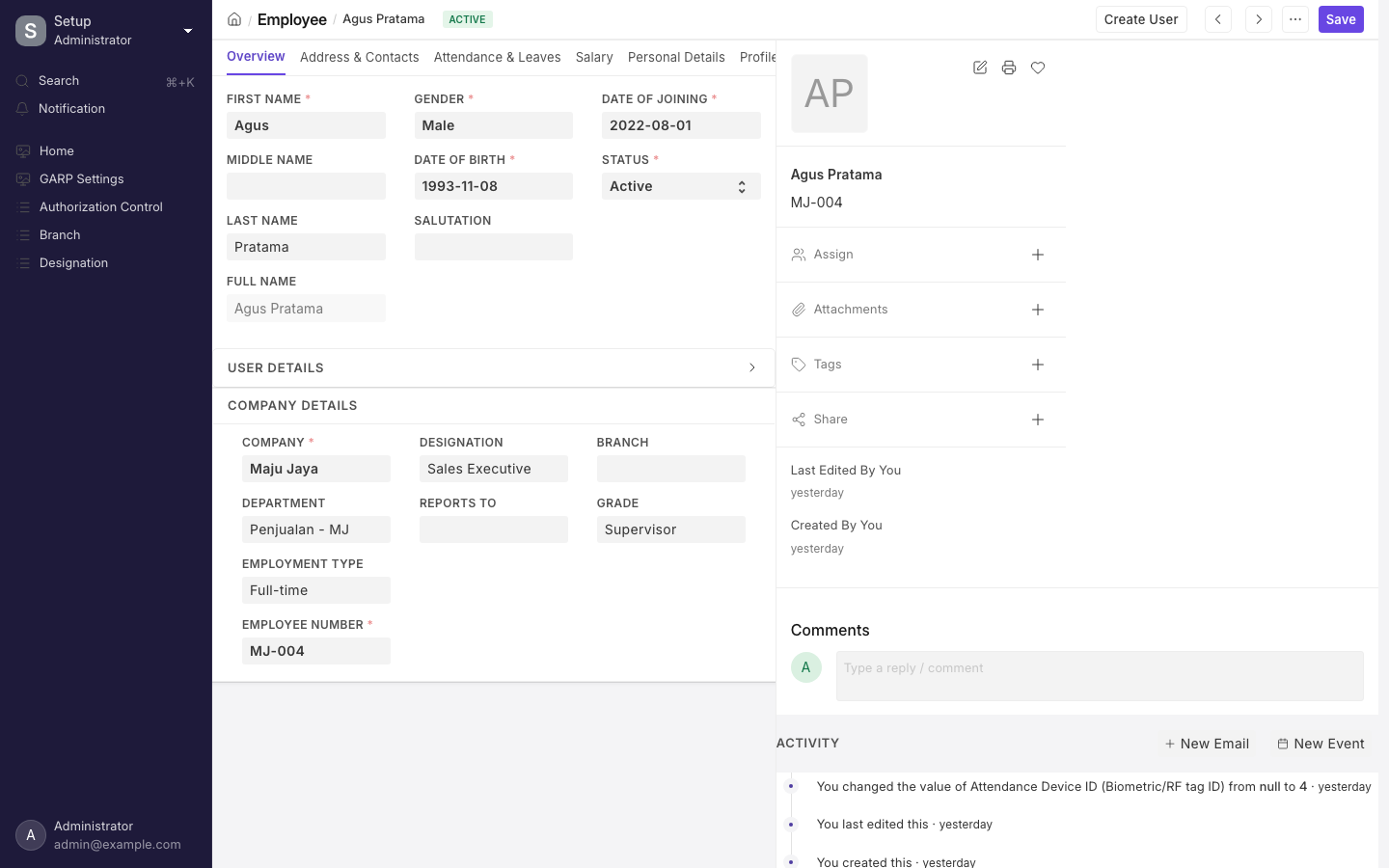
An Employee record. The tabs across the top group personal, company, salary and exit details.
Loading a lot of people at once. Use Data Import (/app/data-import) with Employee as the reference document type. While the employee list is still empty it offers an Import Employees button that starts exactly that.
The list shows Active people by default, and colours the status indicator:
- green for Active
- red for Inactive
- orange for Suspended
- grey for Left
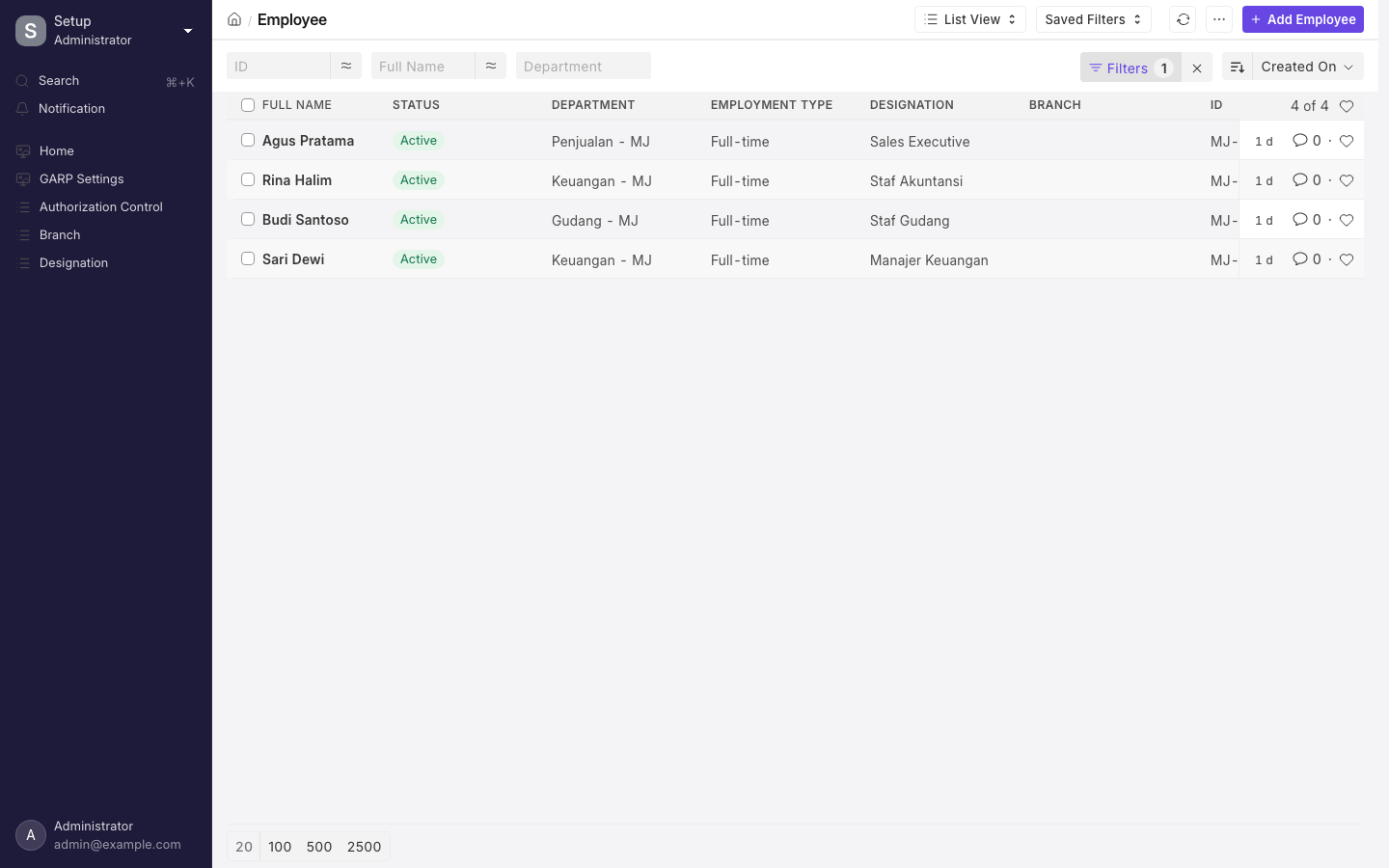
The Employee list for a small company.
Set up departments, job titles, branches and grades
- Build Department as a tree — Keuangan, Operasional, HRD — under one company. On each, set Payroll Cost Center, a Leave Block List if you close dates for that team, and rows under Leave Approver, Expense Approver, Shift Request Approver and Overtime Request Approver. The first row in each of those tables is that department's default.
- Create your Designation records, with the Skills the role expects (each a Skill record,
/app/skill) and an Appraisal Template if you run appraisals. - Create the Employment Type and Branch entries you need. Employment Type appears as a selection filter on Employee Attendance Tool, Leave Control Panel, Shift Assignment Tool and Bulk Salary Structure Assignment, and as a field on Job Opening.
- Create Employee Grade records with a Default Salary Structure and Default Base Pay in IDR, so a Salary Structure Assignment for anyone on that grade fills itself in. See Payroll.
Payroll Entry filters on branch, department, designation and grade — but not on employment type. You cannot run a payroll for "all Kontrak staff" without another handle.
The field-by-field detail for these records is in The company structure records.
Onboard a new hire from a checklist
An onboarding template is a list of steps. Running it turns those steps into a Project with one assigned Task per step. Both Employee Onboarding Template and Employee Onboarding live in Tenure (/app/tenure).
- In Employee Onboarding Template, add a row per step: Activity Name, the User or Role responsible (each hides the other), Begin On (Days) and Duration (Days) counted from the start date, a Task Weight, and a Description that becomes the task body.
- Tick Required for Employee Creation on steps that must finish before the person exists in the system — signed contract, ID documents collected.
- Create an Employee Onboarding. The Job Applicant picker filters to status Accepted and the Job Offer picker to submitted offers for that applicant, so this route is meant for hires that came through Recruitment. Both filters sit on the form only, so a Data Import can still link an applicant who was never accepted. There can be only one onboarding per applicant: on a second one you will see the message
Employee Onboarding: {0} already exists for Job Applicant: {1}. - Pick the template to pull its activities in, set Onboarding Begins On, Date of Joining and a Holiday List, then submit.
- Boarding Status follows the project's percent complete: Pending at zero, In Process in between, Completed at 100. Mark as Completed closes every task and the project at once.
- Once the required tasks are done, use Create > Employee.
When you submit an Employee Onboarding, GARP does all of this in one go:
- Creates a Project named
Employee Onboarding : <job applicant>, with its expected start date set to Date of Joining, and the department and company carried over. - Writes that project back onto the onboarding and sets Boarding Status to Pending.
- Creates one Task in that project per activity row. The subject is
<activity name> : <employee name>. The task runs from Onboarding Begins On plus Begin On (Days), to Onboarding Begins On plus Begin On (Days) plus Duration (Days). Any date landing on a holiday is pushed forward day by day. - Assigns each task to the named User, and to every enabled user holding the named Role (Administrator excluded).
- Emails those assignees only if Notify users by email is ticked.
Cancelling the onboarding deletes the tasks and the project outright and clears the links, and you will see the alert Linked Project ... and Tasks deleted. Adding an activity row after submit and saving creates the missing task on the spot.
The end date is the start offset plus the duration, so an activity with Begin On (Days) 0 and Duration (Days) 1 runs from the start date to the day after. Leave both at zero and the task starts and ends on Onboarding Begins On. If neither the onboarding nor a linked employee gives a holiday list, submit fails with Please set the Holiday List.
The generated Employee draft copies company, department, designation, grade, date of joining, holiday list and the job applicant, and sets Personal Email from the applicant and Status to Active — but First Name arrives empty, because the applicant's name is never split into parts. Type the name parts before saving.
Saving then sets the Job Applicant and the Job Offer to Accepted, leaving a draft offer as a draft — GARP tells you to add any details and submit it yourself — and stamps the new employee back onto the onboarding. Trying to create the employee too early gives All the mandatory tasks for employee creation are not completed yet., and from an onboarding you have not submitted, Submit this to create the Employee record.
Give an employee a login
An Employee is a personnel record; a User is a login. Creating an employee does not create one. Payroll runs perfectly well for people who never sign in.
Your plan's limit counts enabled system users, so the User Type on the account decides who is billable — see Invite your team and Plans and limits.
There are three ways in:
- On a saved employee with no login, click Create User, confirm the email (it defaults to the preferred, then company, then personal address) and leave Create User Permission ticked. GARP creates the User with the Employee role and User Permissions for that employee and that company, so the person sees only their own records. The full name is split on spaces — "Rina Halim Putri" becomes first name Rina, middle name Halim, last name Putri — and gender, date of birth, phone and bio are copied across.
- Or tick Create User Automatically before saving a new employee. The User ID field goes read-only, and a company or personal email becomes mandatory.
- To attach an existing login, set User ID directly. Only one Active employee may hold a given user, so a Left employee holding it does not block a rehire.
Two things then happen on their own:
- Saving an employee who has a User ID pushes the name parts, date of birth, gender and profile image onto that User, and adds the Employee role if it is missing.
- Moving Status away from Active disables the linked user — Suspended and Inactive as well as Left — and setting it back to Active re-enables them. Unticking Create User Permission removes both user permissions.
A user with no employee record cannot keep the Employee or Employee Self Service roles. GARP removes them on save and says User {0}: Removed Employee role as there is no mapped employee.
Clearing User ID on an employee strips those two roles from the old login and removes its Employee user permission, but leaves the Company user permission behind. Delete it by hand at /app/user-permission if the person is meant to lose access to that company's data.
A user created by Create User is a System User with Send Welcome Email on, so it counts against your enabled-user limit and mails the person as soon as it is saved.
GARP HR installs an Employee Self Service user type whose permission list includes read and write on Employee itself, but Create User does not apply that user type. The /hrms app looks up an Active employee whose User ID is the signed-in user, so an inactive employee or a missing link leaves the app with nothing to show. See Employee self-service.
Record skills and health insurance
Skills. Create an Employee Skill Map (/app/employee-skill-map) and pick the employee. Then:
- The record is named after the employee ID, and there is one per person.
- The name and designation are fetched for you and cannot be edited.
- That designation's required skills load in with the Proficiency rating already at the maximum, for you to re-rate.
- Each row carries an Evaluation Date that defaults to today.
- Courses go in Trainings against a Training Event.
Nothing blocks on any of it — this is documentation, not a gate on promotion or assignment.
Health insurance. Two steps:
- Add each provider as an Employee Health Insurance record (
/app/employee-health-insurance, which holds a name and nothing else). - Set Health Insurance Provider and Health Insurance No on the employee's Personal Details tab.
This is record-keeping only. You can note a BPJS Kesehatan membership number, but nothing is calculated from it, and any premium or deduction must exist as a salary component. See Tax and benefits.
Set up HR for a new company in order
- HR Settings — Employee Naming By, Retirement Age, Standard Working Hours, and the reminder switches.
- Department tree, with payroll cost centres and the four approver tables.
- Designation, Employment Type, Branch and Employee Grade.
- A Holiday List and a Holiday List Assignment for the company.
- Employees entered or imported, with Reports to, Default Shift and a numeric Attendance Device ID.
- Logins for the people who need to sign in, and a check that no stale Company user permissions are left behind.
- A saved report on Contract End Date if you run PKWT contracts.
Worked example: PT Maju Jaya
The company abbreviation is PMJ and its country is Indonesia.
- Structure. A department called
Keuangansaves as Keuangan - PMJ, with that cost centre in Payroll Cost Center and Budi Santoso as the first row of both Leave Approver and Expense Approver. Employee GradeStafgets Default Salary Structure "Struktur Gaji Staf 2026" and Default Base Pay IDR 5,500,000. - Employee. Sari Dewi is created with Employee Number
2024-0117, so the record is named2024-0117. Date of Birth 17 April 1990 fills Date Of Retirement as 17 April 2050. Payroll Cost Center fills itself from Keuangan - PMJ. Because Budi was imported with device ID1050, Sari is given1051. - Pay. A new Salary Structure Assignment for Sari shows Grade
Stafas read-only and fills Salary Structure and Base = IDR 5,500,000 from the grade. Raising the grade's Default Base Pay to IDR 6,000,000 next year changes nothing on this assignment — the value is fetched only into an empty field, and only on a new assignment. Sari's Cost to Company (CTC) may read IDR 96,000,000; payroll ignores it and pays from the Base. - Onboarding dates. With Onboarding Begins On Monday 5 January 2026, an activity at Begin On (Days) 2 and Duration (Days) 3 runs Wednesday 7 January to Saturday 10 January. If Saturday and Sunday are weekly offs, the end is pushed to Monday 12 January: six calendar days for a three-day task.
- Exit. Setting Sari to Left while Rina Halim still reports to her is refused with Cannot Relieve Employee and a link to Rina. The same refusal stops an Employee Separation submit, because that document saves the employee record on your behalf. Repoint Rina at Budi first.
Indonesian practice: what ships and what you configure
GARP HR ships country-specific HR setup for exactly two countries: India and the United Arab Emirates. There is no Indonesia module. Setting a Company's country to Indonesia therefore runs no country setup and adds no country-specific salary components — only the four generic ones (Basic, Arrear, Leave Encashment and an Income Tax deduction) if they are missing.
What the Employee master ships for Indonesia:
- The Additional Details tab — data capture only. See The Additional Details tab.
- Contract End Date and Notice (days) on the Joining tab. Contract End Date is checked against Date of Joining; Notice (days) is a plain number with no checking at all. Both are stored, and read by nothing: no PKWT expiry alert, no renewal counter, no status change when the date passes. If you run PKWT contracts, build a saved report or a Notification on Contract End Date and review it monthly.
- Exit Reason and the Blacklist block on the Exit tab, written by Employee Separation when it is submitted and reversed when it is cancelled. Fourteen exit reasons ship — Mengundurkan Diri, Pensiun, Meninggal Dunia, Kontrak Berakhir (PKWT) and ten PHK grounds — each carrying PP 35/2021 severance multipliers, and a blacklisted employee shows a red banner on the form. See Employee lifecycle.
- Health Insurance Provider and Health Insurance No for a BPJS Kesehatan membership number.
What a payroll consultant must build:
- BPJS Ketenagakerjaan. The only thing that ships is a proof-of-concept salary component named
BPJS TKwith the formula(2 * (GP + TMK)) / 100— a flat 2 percent of Gaji Pokok plus Masa Kerja, which is the employee JHT share alone. JP, JKK, JKM and every employer-side contribution have to be added as further components. - BPJS Kesehatan. No component ships at all. The employee field is a text box.
- PPh 21. No TER tables, no PTKP status field, no NPWP field. You build it from an Income Tax Slab and salary components. See Tax and benefits.
- THR. No dedicated document. It is an Additional Salary or a component on the structure.
Do not assume statutory compliance from the presence of a field. Health Insurance No, Marriage Code, Nationality Status and Work Hours Type are all inert. Every rupiah of BPJS or PPh 21 in a payslip comes from a salary component someone configured.
Details, limits and edge cases
Everything below is reference: the records behind the tasks, the exact fields, the rules that stop a save, who is allowed to do what, and the emails GARP sends on its own. If your job is done, you can stop here.
The Employee record has no draft, submitted or cancelled state. It simply saves, and it can be renamed. Change tracking is on, so every field edit is recorded in the record's activity timeline. Its lifecycle is carried by Status and by the separate lifecycle documents described in Employee lifecycle. The Employee record belongs to GARP ERP core rather than to the HR app, which is why the same record also appears on timesheets in Projects.
The records involved
- Employee (
/app/employee) — one record per person: personal and employment details, the reporting line, approvers, and the link to a login. - Department (
/app/department) — a tree scoped to a company, carrying a payroll cost centre, a leave block list and approver tables. - Designation (
/app/designation) — the job title, with an Appraisal Template and a Skills table. - Employment Type (
/app/employment-type) and Branch (/app/branch) — single-field lists used only as filters. Eight employment types ship (Full-time, Part-time, Probation, Contract, Commission, Piecework, Intern, Apprentice), and you can rename them to Tetap, Kontrak and Magang. - Employee Grade (
/app/employee-grade) — a band holding Default Salary Structure and Default Base Pay, which a Salary Structure Assignment fetches through the employee's Grade. - Employee Group (
/app/employee-group) — a named list of employees, linked from HR Setup. Nothing in HR or payroll reads it; treat it as a label. - Employee Onboarding Template and Employee Onboarding, both in Tenure (
/app/tenure) — a checklist of Employee Boarding Activity rows in the table inside the form, which becomes a Project with assigned Tasks. - Employee Skill Map (
/app/employee-skill-map) and Employee Health Insurance (/app/employee-health-insurance) — supporting records.
How the records fit together
Department / Designation / Employment Type / Branch / Employee Grade
                              |
Job Applicant -> Job Offer -> Employee Onboarding -> Employee -> User
                                    |                   |
                              Project + Tasks     Attendance, Leave Application,
                                                  Salary Structure Assignment,
                                                  Expense Claim, Appraisal
Nothing above the Employee is required; recruitment and onboarding are optional routes into the same record.
Fields that change behaviour
| Field | Tab | Accepts | What depends on it |
|---|---|---|---|
| Status | Overview | Active, Inactive, Suspended, Left (default Active) | Anything but Active disables the linked User; Left needs a Relieving Date; Inactive blocks new transactions |
| Reports to | Overview | Active employees, not self | The Tree view of the Employee list and the Organizational Chart page at /app/organizational-chart |
| Employee Number | Overview | Free text | Becomes the record name when Employee Naming By is Employee Number |
| Department | Overview | Department in the same company | Approver fallbacks, payroll cost centre fallback, and filters on Payroll Entry, Leave Control Panel, Shift Assignment Tool and Employee Attendance Tool |
| Grade | Overview | Employee Grade | Fills Salary Structure and Base on a new Salary Structure Assignment |
| Employment Type, Branch | Overview | Employment Type, Branch | Filters only — nothing is calculated from either |
| Preferred Contact Email | Address & Contacts | Company Email, Personal Email, User ID | Sets the read-only Preferred Email, which leave notifications and the salary slip email read first — the birthday, anniversary and holiday reminders ignore it |
| Cost to Company (CTC) | Salary | Currency in Salary Currency | Written by Employee Promotion. Payroll does not read it — pay comes from the Salary Structure Assignment's Base |
| Payroll Cost Center | Salary | Non-group cost centre in the same company | Second in the cost-centre chain used by Payroll Entry; fetched from the Department if left blank |
| Employee Advance Account | Salary | Receivable asset account in Salary Currency | This person's advance account, ahead of the company default |
| Attendance Device ID (Biometric/RF tag ID) | Attendance & Leaves | Free text, auto-filled | The key biometric devices post against; see below |
| Default Shift | Attendance & Leaves | Shift Type | The shift used when no Shift Assignment covers the day, and the shift a Shift Request may not ask for |
| Expense Approver, Leave Approver, Shift Request Approver, Overtime Request Approver | Attendance & Leaves | User | Default approver on the matching request, ahead of the department's first row |
| Salary Mode | Salary | Bank, Cash, Cheque | Bank reveals Bank Name, Bank A/C No. and IBAN. Nothing else branches on it |
Saving an employee grants two roles automatically:
- The named Leave Approver gets the Leave Approver role.
- The named Expense Approver gets the Expense Approver role.
There is no matching role for Shift Request Approver or Overtime Request Approver, so those two fields grant nothing. The request itself only checks that the approver you picked is the one named on the employee or a row in the department's table. Otherwise it refuses with Only Approvers can Approve this Request.
Payroll Entry resolves cost centres in this order, first hit taking 100 percent:
- The Cost Centers table inside the employee's submitted Salary Structure Assignment.
- The employee's Payroll Cost Center.
- The Department's.
- The Cost Center on the Payroll Entry itself.
The Additional Details tab
GARP HR adds an Additional Details tab of optional Indonesian profile fields, installed with the app:
- Personal Details — Nickname, Place of Birth, Religion (Islam, Christian, Catholic, Hindu, Buddhist, Confucian, Other), Citizenship, Nationality Status (Local, Expat), Marriage Code.
- Work Schedule — Work Period Type (Shift, Regular) and Work Hours Type (7 Hours, 8 Hours).
- Identity Document — Identity Type (KTP, E-KTP, KTP (Seasonal), Passport, Other), Identity Number, Identity Valid Until, plus two Driving Licenses slots.
- Residential Address and Origin Address — free text plus Village, District, City, Province, Country; and a Landline Phone.
- Internship (Prakerin) — Internship Class Status, Internship Class, School Name.
Nothing in GARP reads any of these fields. They are searchable, exportable record-keeping. In particular Work Hours Type does not change overtime or payroll arithmetic — that comes from the Shift Type and the salary structure — and Identity Number is not validated as a 16-digit NIK.
What GARP refuses to save
| Message | Cause |
|---|---|
Date of Birth cannot be greater than today. | A future Date of Birth |
Date of Joining must be after Date of Birth | Joined before born |
Relieving Date must be after Date of Joining | Relieving date earlier than joining |
Contract End Date must be after Date of Joining | PKWT end date earlier than joining |
Date Of Retirement must be after Date of Joining | Retirement earlier than joining |
Please enter relieving date. | Status set to Left with Relieving Date empty |
The following employees are currently still reporting to ... | Status set to Left while Active employees still name this person under Reports to. The message lists them as links, under the title Cannot Relieve Employee |
Employee cannot report to himself. | Reports to points at the same record |
User {0} is already assigned to Employee {1} | Another Active employee already holds that User ID |
User {0} does not exist | User ID names a login that has been deleted |
Company or Personal Email is mandatory when 'Create User Automatically' is enabled | Ticking Create User Automatically with no email. Title: Auto User Creation Error. This runs the first time the record is created only |
Please setup Employee Naming System in Human Resource > HR Settings | Employee Naming By is blank |
The order matters when several things are wrong at once: date errors surface first, then the Left checks, then the self-reporting check.
Two things that look like errors are not:
- Choosing a Preferred Contact Email whose field is empty only prints the message
Please enter Company Email. The record still saves, with Preferred Email blank. - The active-employee check that guards Attendance, Leave Application, Expense Claim, Shift Request, Overtime Request, Appraisal and Employee Checkin only rejects status Inactive, with
Transactions cannot be created for an Inactive Employee {0}.A Left or Suspended employee still accepts new transactions.
Employee numbering, retirement age and working hours
Numbering comes from HR Settings (/app/hr-settings), Employee tab, Employee Naming By, with three options and a side effect on the form:
| Setting | Record name | Series field | Employee Number field |
|---|---|---|---|
| Employee Number (shipped default) | Whatever you type in Employee Number | Hidden, not required | Shown, required |
| Naming Series | HR-EMP-00001 onward, from the HR-EMP- series | Shown, required | Hidden, not required |
| Full Name | The assembled Full Name | Hidden, not required | Shown, required |
Saving HR Settings rewrites those field properties and back-fills data:
- Switching to Naming Series writes the default series into every employee whose series is blank.
- Switching away from it copies each employee's record name into a blank Employee Number.
- Blank the setting entirely and saving an employee fails with the message above.
- Changing it later affects new records only.
Under Full Name naming, two people called Sari Dewi cannot both exist — the second save is refused as a duplicate record name. And Employee Number stays mandatory under Full Name naming even though it is not used for the name. Decide the scheme before you import.
Retirement Age (In Years) sits beside it. Changing Date of Birth on the form fills Date Of Retirement as date of birth plus the setting, using 60 when it is empty. Sari Dewi, born 17 April 1990, gets 17 April 2050 — or 17 April 2046 once you set the age to 56. The calculation runs on the form only, so a Data Import leaves the field blank. Nothing acts on the date once it is there.
Standard Working Hours, on the same tab, is read by exactly two reports: Project Profitability and Employee Hours Utilization Based on Timesheet. Both refuse to run while it is zero. Project Profitability says The metrics for this report are calculated based on the Standard Working Hours. Please set Standard Working Hours in HR Settings., and Employee Hours Utilization says the same thing minus the the.
Attendance Device ID and biometric punches
When a new employee is first saved, GARP HR fills Attendance Device ID for you if you left it blank: it takes the highest numeric device ID already in use in that company and adds one. Import Budi Santoso with 1050 and the next new hire at PT Maju Jaya gets 1051.
Biometric hardware posts punches into GARP through an address that looks the person up by this field. When nothing matches, it answers No Employee found for the given employee field value. 'attendance_device_id': 1051. See Attendance and shifts.
The auto-numbering treats the existing IDs as plain whole numbers. If your device IDs are alphanumeric — PMJ-014 — every one of them counts as zero, so the next new hire is given 1, and auto-numbering then runs 2, 3, 4 … in parallel with your alphanumeric IDs instead of continuing them. Either keep device IDs numeric or fill the field yourself on every new record.
The Fingerprint Machine Export report ships in the HR app and reads two fields — an attendance machine PIN and an attendance machine status — that GARP never actually creates, because the step that would add them to the Employee form never runs. Until a developer fixes that, the report errors, and it is not linked from any workspace anyway. Use the Employee Information report or a list-view export of Attendance Device ID instead.
The Holiday List field on the Employee is hidden by GARP HR and is not where holidays are read from. They come from Holiday List Assignment (/app/holiday-list-assignment), a submitted document with a start date, assigned to one employee or a whole company. The latest assignment on or before the day wins, and an employee without one falls back to their company's; with neither you get No Holiday List was found for Employee ... or their company ... for date .... See Leave.
The company structure records
| Record | Named by | Notable fields |
|---|---|---|
| Department | Department name plus the company abbreviation — Keuangan - PMJ | Parent Department, Is Group, Disabled, Payroll Cost Center, Leave Block List, and four approver tables |
| Designation | The designation name | Description, Appraisal Template, Skills |
| Employment Type | The type name | Nothing else |
| Branch | The branch name | Nothing else |
| Employee Grade | Prompted — you type it | Default Salary Structure, Default Base Pay |
| Employee Group | The group name | A table of employees |
| Employee Health Insurance | The provider name | Nothing else |
Department is a tree per company:
- Leave Parent Department blank and the record is re-parented to the tree root, shown as All Departments.
- Rename one and the company abbreviation is re-appended for you.
- The four approver tables — Leave Approver, Expense Approver, Shift Request Approver, Overtime Request Approver — are all Department Approver rows holding a User, and the first row in each is the default.
- Payroll Cost Center is filtered to non-group cost centres in the same company.
Employee Grade hides Default Base Pay until Default Salary Structure is set, and takes its currency from that structure. The structure picker offers only submitted structures with Is Active = Yes.
Employee Grade carries no leave policy. The form contains a filter for a Default Leave Policy field that does not exist on the record, so it does nothing. Leave entitlement comes from a Leave Policy Assignment, which you can create in bulk from the Leave Control Panel filtered by grade. See Leave.
Who can do what
An Employee record is never submitted or cancelled, so the only permissions that matter are create, write and delete.
| Record | HR User | HR Manager | Employee role |
|---|---|---|---|
| Employee | create, write, delete, import, export | create, write, delete, import, export | read, report, print, email |
| Department | create, write, delete, report | the same, plus import and export | select only |
| Designation | create, write (no delete) | create, write, delete | — |
| Employment Type | create, write, delete | the same, plus import and export | — |
| Branch | create, write, delete | the same — no import or export for either role | — |
| Employee Grade | create, write, delete, export | create, write, delete, export | — |
| Employee Group | read, write (no create) | create, write, delete | — |
| Employee Health Insurance | read, export (read-only) | create, write, delete | — |
| Employee Skill Map | create, write, report (no delete) | create, write, delete, export | — |
| Employee Onboarding Template | create, write, report (no delete) | create, write, delete, export | — |
| Employee Onboarding | create, write, report | create, write, submit, cancel, amend | — |
| HR Settings | read only | read and write | read |
The two that catch people out:
- An HR User can draft an Employee Onboarding but cannot submit it, so no project or tasks appear until an HR Manager submits it.
- An HR User cannot add a new health insurance provider.
Four role profiles ship for the Indonesian rollout, alongside a plain HR profile:
- GTHR - HO — HR Manager, HR User, Leave Approver, Expense Approver
- GTHR - SM — HR User, Leave Approver
- GTHR - MR — HR User
- GTHR - KG — Employee
Reminder emails GARP sends on its own
These run automatically, read the Employee master directly, and are switched on from HR Settings, Employee tab, Reminders.
| Reminder | How often | What it does |
|---|---|---|
| Birthdays | Daily | With Birthdays ticked, mails every Active employee in the company about anyone whose Date of Birth matches today's day and month. The birthday people are left off the group mail; when several share a date, each gets a note about the others |
| Work anniversaries | Daily | The same, on Date of Joining, with the completed-years count in the message body — the subject is always Work Anniversary Reminder |
| Holidays, weekly | Weekly | With Holidays ticked and frequency Weekly, mails each Active employee the non-weekly holidays in the next 7 days |
| Holidays, monthly | Monthly | The same for the next month, when frequency is Monthly |
Which address each one uses:
- The group birthday and anniversary mail resolves recipients as User ID, then Company Email, then Personal Email.
- The holiday reminder and the shared-date notes use User ID, then Personal Email, then Company Email — a different order from the Preferred Email used elsewhere.
Two more things to expect:
- Both daily reminders skip anyone whose date falls in the current year, so a person who joined this year gets no first-day anniversary mail.
- Switching the holiday frequency warns you which reminders fall in the gap and asks you to confirm.
Reports
Four reports read the Employee master; Settings and reports lists them. Two things to know here:
- Employee Information is a Report Builder view. Edit its columns and save it as a new report rather than re-filtering it each month.
- Employee Analytics counts Active employees only, and skips anyone whose chosen Parameter (Branch, Grade, Department, Designation or Employment Type) is blank. A missing Grade drops someone from the report rows — the donut chart still counts them, in a Not Set slice.
Related
- HR overview and Employee lifecycle
- Attendance and shifts, Leave, Payroll
- Recruitment — where an Employee Onboarding starts
- Settings and reports for the full HR Settings reference
- Employee self-service and Invite your team