Attendance and Shifts
Attendance in GARP ERP is one line per employee per day, carrying a status: present, absent, on leave, half day or working from home. This is where you set up the work shifts people follow, collect their check-ins, mark the days, and correct the ones that came out wrong. Payroll counts these days, so what you record here is what people get paid.
A day's attendance can arrive five ways: typed by hand, marked in bulk, created from a request the employee raised, generated from check-ins, or written for you when an approved Leave Application is submitted. This page covers the first four and the shift setup behind them; leave is on Leave.
Open Shift & Attendance by name from the HR sidebar — the workspace name contains an ampersand, so use the sidebar rather than typing a URL.
What you probably came here to do
- Set attendance up for the first time — the once-only list, and what breaks if you skip it
- Create a shift, such as Shift Pagi
- Have GARP mark attendance by itself from check-ins — including why it silently marks nothing
- Put people on a shift, or build a roster
- Get punches from a fingerprint machine or the phone app into GARP
- Mark a whole team present for one day
- Fix a day someone was marked absent by mistake
- Look at the month before running payroll
- Know what GARP does and does not do about Indonesian rules
- Look up a field, a rule, or who is allowed to do what
Set attendance up for the first time
Work down this list once, per company. Attendance marking and payroll both stop with errors until it is done.
- A Holiday List for the year, and a submitted Holiday List Assignment per company, plus per-employee ones where people differ. Check the generated list against the official Indonesian calendar including cuti bersama, and set the Weekly Off yourself.
- At least one Shift Type. Add the auto-attendance settings only if check-ins will actually arrive. Both dropdowns — Determine Check-in and Check-out and Working Hours Calculation Based On — must be set, not left blank.
- Shift Assignments, or a Default Shift on each Employee.
- Attendance Device ID on employees, if you use biometrics. Confirm the auto-generated numbers match what the device holds.
- HR Settings (
/app/hr-settings, Shift and Attendance tab) for multiple assignments, mobile check-in and geolocation. - Shift Request Approver on the Employee record or on the Department, if staff will raise requests.
- Payroll Settings, Calculate Payroll Working Days Based On. Decide this before the first payroll run, because it changes what an Absent record costs.
To check the result afterwards, run Monthly Attendance Sheet, Shift Attendance, or Employees working on a holiday — see Reports you can run.
The Holiday List field on the Employee form is hidden by GARP HR and is not where holidays are read from. They come from Holiday List Assignment: the employee's own assignment first, then their company's, each resolved as the latest assignment whose Assignment Starts From is on or before the date being checked. Its Assignment Starts From date must fall inside the list's own From Date and To Date, or you get "Assignment start date cannot be outside holiday list dates". Without any assignment you hit "No Holiday List was found for Employee X or their company Y for date Z. Please assign through Holiday List Assignment" when marking attendance or running payroll.
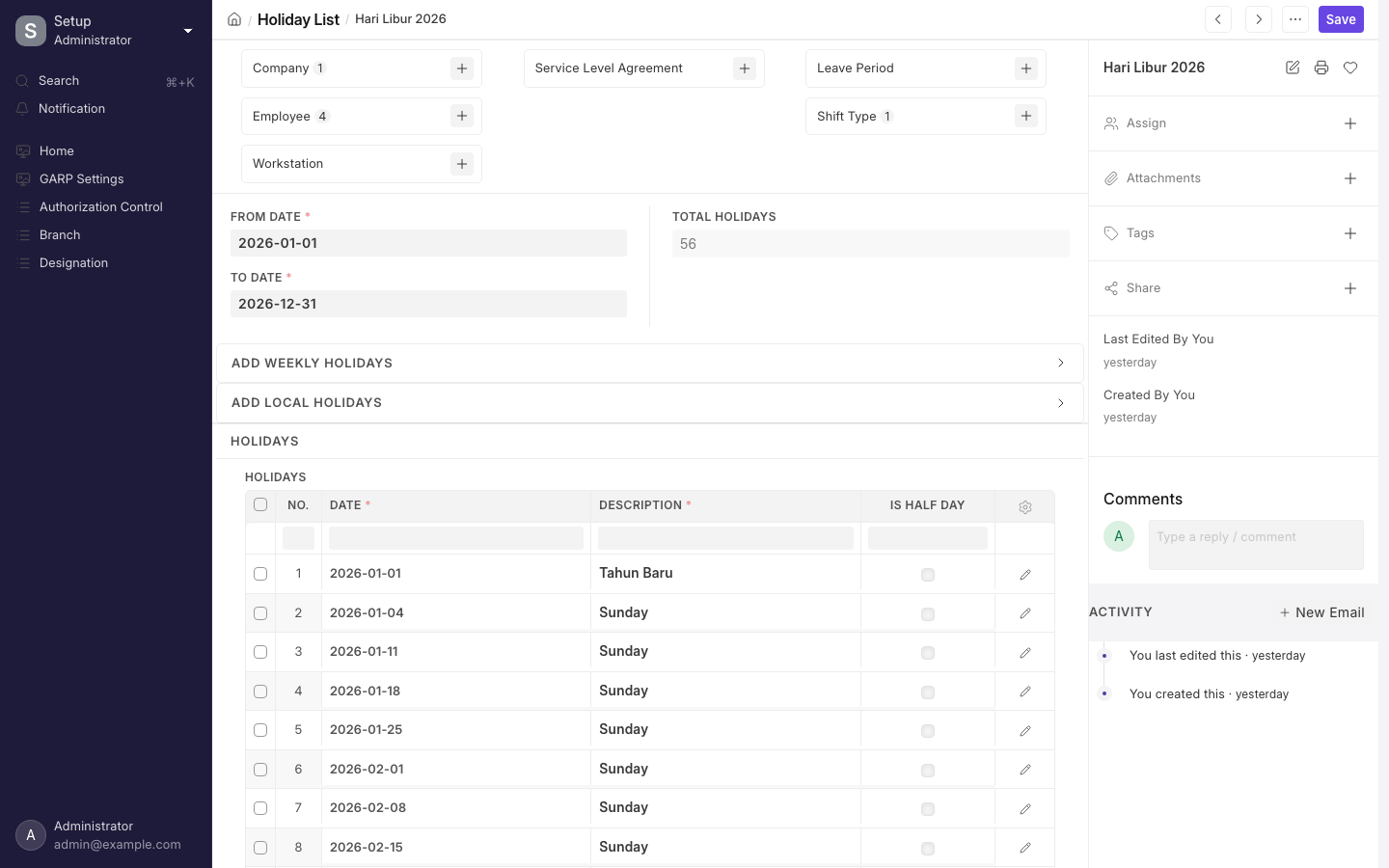
A Holiday List with weekly offs and Indonesian public holidays.
Define a shift
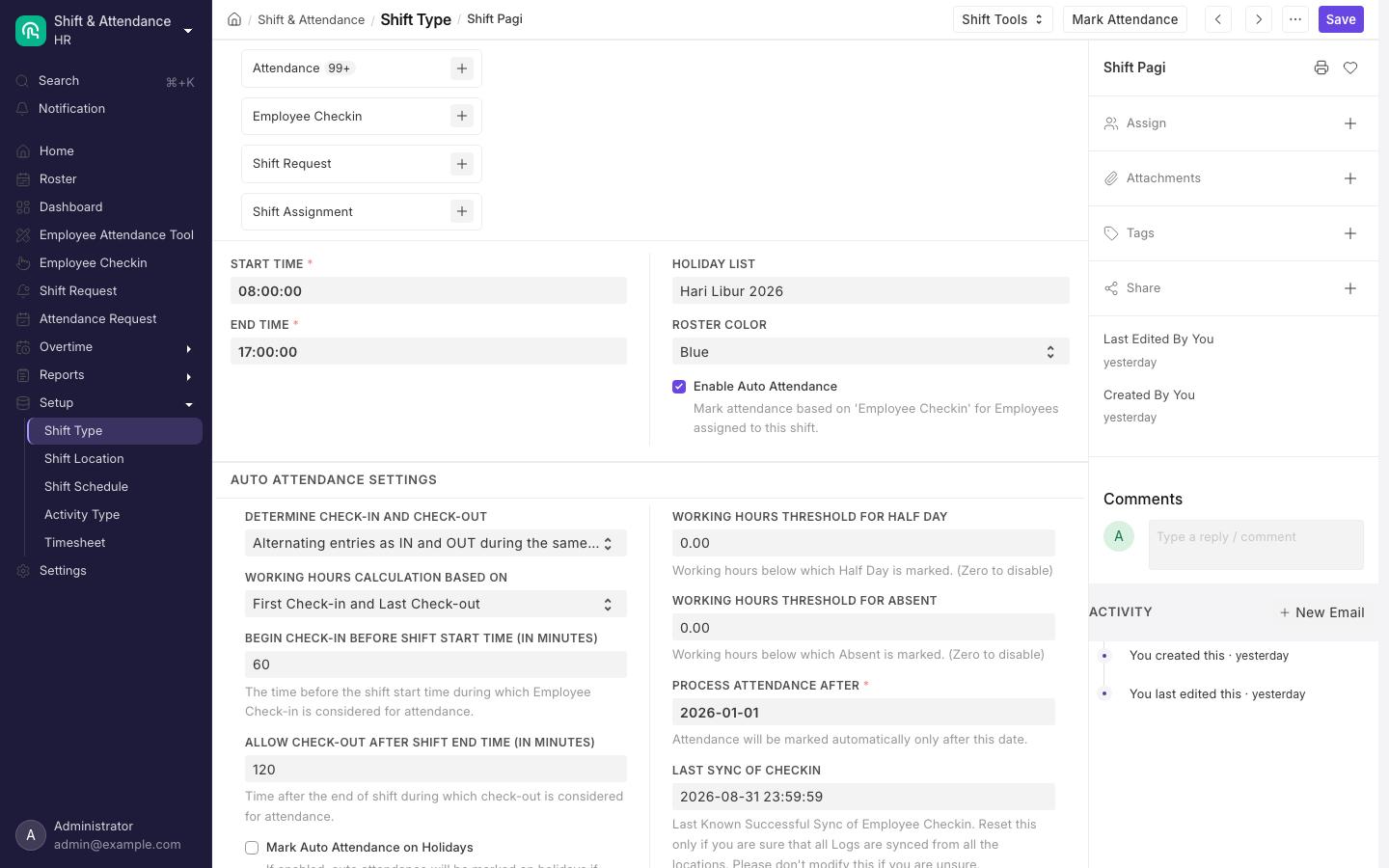
A Shift Type with auto attendance switched on.
- Go to
/app/shift-typeand click Add Shift Type. Name it for what people call it, for exampleShift Pagi. - Set Start Time and End Time. Overnight shifts work, but the window including both buffer fields must stay under 24 hours or saving fails.
- A Holiday List set here overrides the employee's own for this shift.
- For automatic marking, tick Enable Auto Attendance, then choose both dropdowns and fill Process Attendance After, the two thresholds and Last Sync of Checkin.
- Save. Allow Overtime and Overtime Type sit lower on the same form — see Overtime.
Every field on the form, and the three cases where GARP refuses to save, are listed under Shift Type field reference.
Check /app/shift-type before building your own. A shipped update creates a shift named office_hour at 08:00 to 16:00 with auto attendance already on, two-hour buffers either side, and thresholds of 4 and 1 hours. If it exists on your site it still marks nothing: Last Sync of Checkin is left blank, so nothing is ever processed. It also puts an invalid value into Determine Check-in and Check-out, so re-pick that field before setting Last Sync of Checkin.
Turn on automatic attendance
Nothing is automatic until you switch it on for a specific Shift Type. GARP only processes check-ins when all three of these hold on that shift:
- Enable Auto Attendance is ticked.
- Process Attendance After has a date.
- Last Sync of Checkin has a date and time.
If any one is missing, nothing happens at all — no attendance, and no error message telling you why.
Keeping Last Sync of Checkin moving forward is the usual sticking point. Either tick Automatically update Last Sync of Checkin, which lets GARP advance it by itself to one minute past each completed shift end, or have whoever built your device integration write the value after every pull from the machine.
Ticking Automatically update Last Sync of Checkin immediately blanks Last Sync of Checkin on the form. Until GARP refills it after the next shift ends, the Mark Attendance button refuses to run and the automatic run skips the shift.
To process what has already arrived without waiting, use the Mark Attendance button on a saved Shift Type. It runs the routine now, and refuses with "Please Enable Auto Attendance and complete the setup first.", "Please set Process Attendance After." or "Please set Last Sync of Checkin." if the setup is incomplete. With more than 1,000 eligible check-ins it runs in the background instead and gives you a link to follow the job. The same form has a Shift Tools group holding Shift Assignment Tool, pre-filled with this shift, and Roster.
For exactly which punches get picked up, how working hours turn into a status, and what happens on the days nobody punched, see How check-ins become attendance.
Assign a shift
- One employee: create a Shift Assignment for, say, Budi Santoso with the Shift Type and dates, then Submit.
- Many employees: open
/app/shift-assignment-toolwith Action on Assign Shift, set Shift Type and dates, narrow by company, branch, department, designation, grade or employment type, tick the rows and click Assign Shift. It only lists Active employees whose date of joining is on or before Start Date and whose relieving date, if any, covers the whole period. People with an overlapping Active assignment are excluded; turning on Allow Multiple Shift Assignments for Same Date in HR Settings narrows that to people whose existing shift's clock times actually overlap the one you are assigning. Setting the tool's Status to Inactive drops the exclusion altogether. Up to 30 employees are processed straight away; beyond that it runs in the background. - A repeating roster: create a Shift Schedule with a Frequency from Every Week to Every 4 Weeks and the days it repeats on, then run the tool with Action on Assign Shift Schedule. GARP extends the generated assignments about 90 days ahead by itself.
- Visually: open Roster from the sidebar, or
/hr/roster. Employees are rows, days are columns, and you must pick a company or the grid shows "Please select a company." Hover a cell to add a shift and drag a block to move it; holidays and approved leave show in the cells. Only the month view exists today. - From a request: the employee raises a Shift Request naming an Approver. Set it to Approved and submit, or handle a batch with Process Shift Requests, which lists only Draft requests.
Default Shift on the Employee record covers dates no assignment reaches, and nobody may request their own default shift. An assignment cannot be cancelled once a check-in or attendance record points at it.
If you give the Shift Assignment Tool an End Date while assigning a Shift Schedule, the resulting Shift Schedule Assignment is created with Enabled off. It generates the assignments for the period you asked for and then never extends again. Leave End Date blank for a rolling roster.
Import or record check-ins
- Attendance Device ID (Biometric/RF tag ID) on the Employee record is filled automatically when the employee is created: the highest numeric device ID already used in that company, plus one. Set it yourself only if the device holds a different number, and do it before saving the new employee, because an existing value is left alone.
- Your device or middleware has to send each punch to GARP itself. No driver ships for any biometric brand, so something on your side must do the sending. Whoever sets that up needs this address —
hrms.hr.doctype.employee_checkin.employee_checkin.add_log_based_on_employee_field— and passes the device value, the timestamp and optionally log type, device id, latitude and longitude. It answers "'employee_field_value' and 'timestamp' are required." or "No Employee found for the given employee field value." when the lookup fails. - For a backfill, open the Employee Checkin list and use Import from the menu.
- Staff can punch from the self-service app when Allow Employee Checkin from Mobile App is on — it ships on. The app always sets Log Type, alternating IN and OUT from the person's last punch, and leaves Location / Device ID empty. Allow Geolocation Tracking then makes coordinates mandatory and reveals Latitude, Longitude, Geolocation and Fetch Geolocation on the desk form. Both settings sit in HR Settings, Shift and Attendance tab, which holds only these two plus Allow Multiple Shift Assignments for Same Date.
The Checkin Radius is only enforced when the employee's active Shift Assignment names a Shift Location whose Checkin Radius is above zero. With geolocation on but no Shift Location on the assignment, coordinates stay mandatory but any coordinates are accepted. Out of range gives "You must be within N meters of your shift location to check in."
Mark attendance in bulk
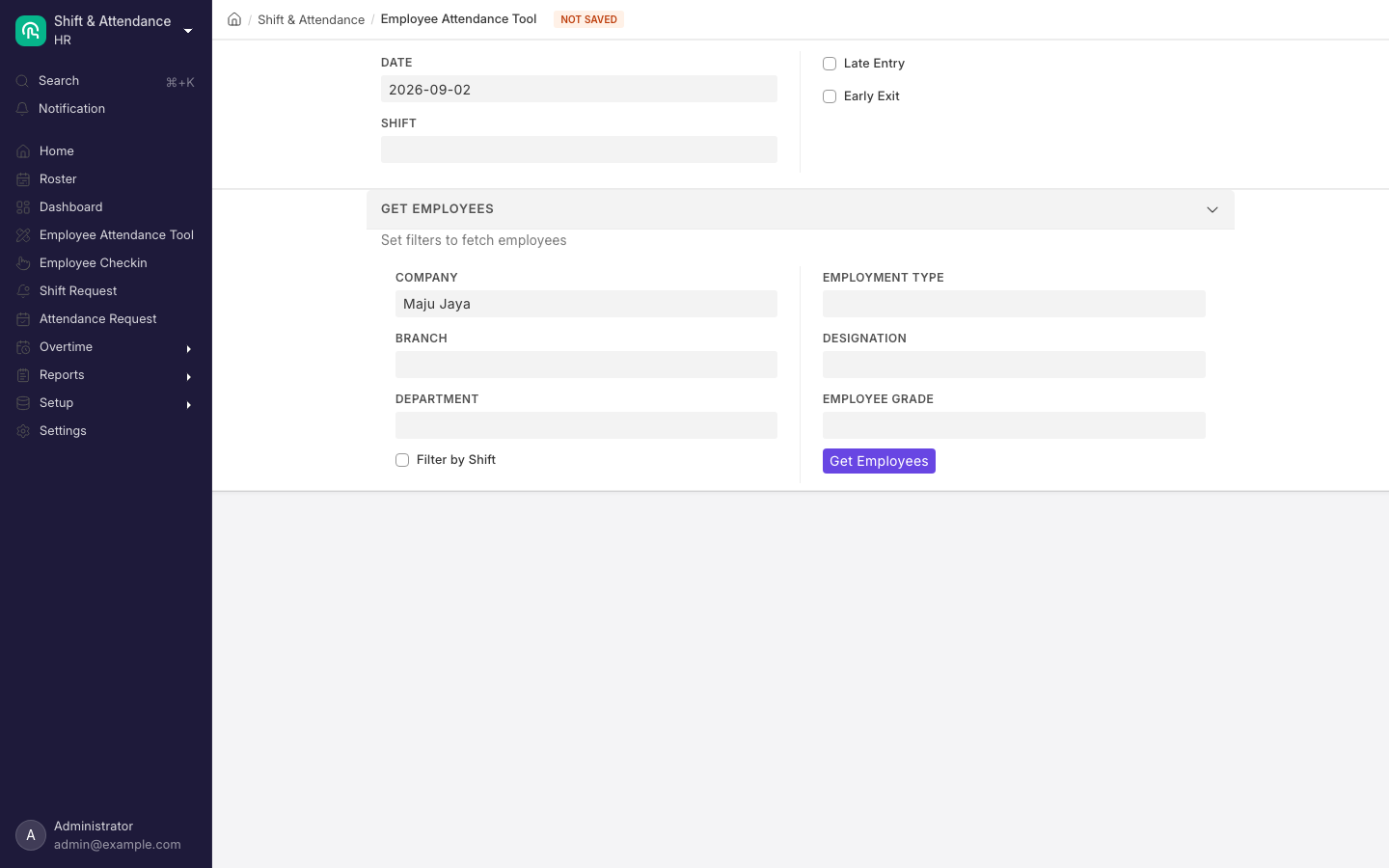
The Employee Attendance Tool marks a whole group present or absent for one date.
- One date, many people: open
/app/employee-attendance-tool, set the Date and filters, click Get Employees, tick names under Unmarked Employees, choose a Status and click Mark Attendance. Only Present, Absent, Half Day and Work From Home are offered; On Leave comes from approved leave. A second list, Employees on Half Day, sets Status for Other Half for people already on half-day leave. Only an HR Manager can open this tool. - One person, many dates: from the Attendance list click Mark Attendance in the toolbar, pick the employee, a date range, a status and optionally a Shift, tick Exclude Holidays, then confirm the dates. Start defaults to the first of the current month, End to today, and the End picker will not go past today. More than ten dates runs in the background, and a Half Day marked here always sets Status for Other Half to Absent.
- A spreadsheet: open
/app/upload-attendance, set the two dates, click Get Template for a CSV pre-filled with employees and dates, complete the Status column and upload it. Keep the ID column when overwriting records. Rows the template stamped as Holiday are dropped on import. Files under 200 rows import while you wait.
The attendance upload is all-or-nothing. If any row raises an error, the entire import is rolled back and you get a per-row error list, not a partial import.
Correct a day
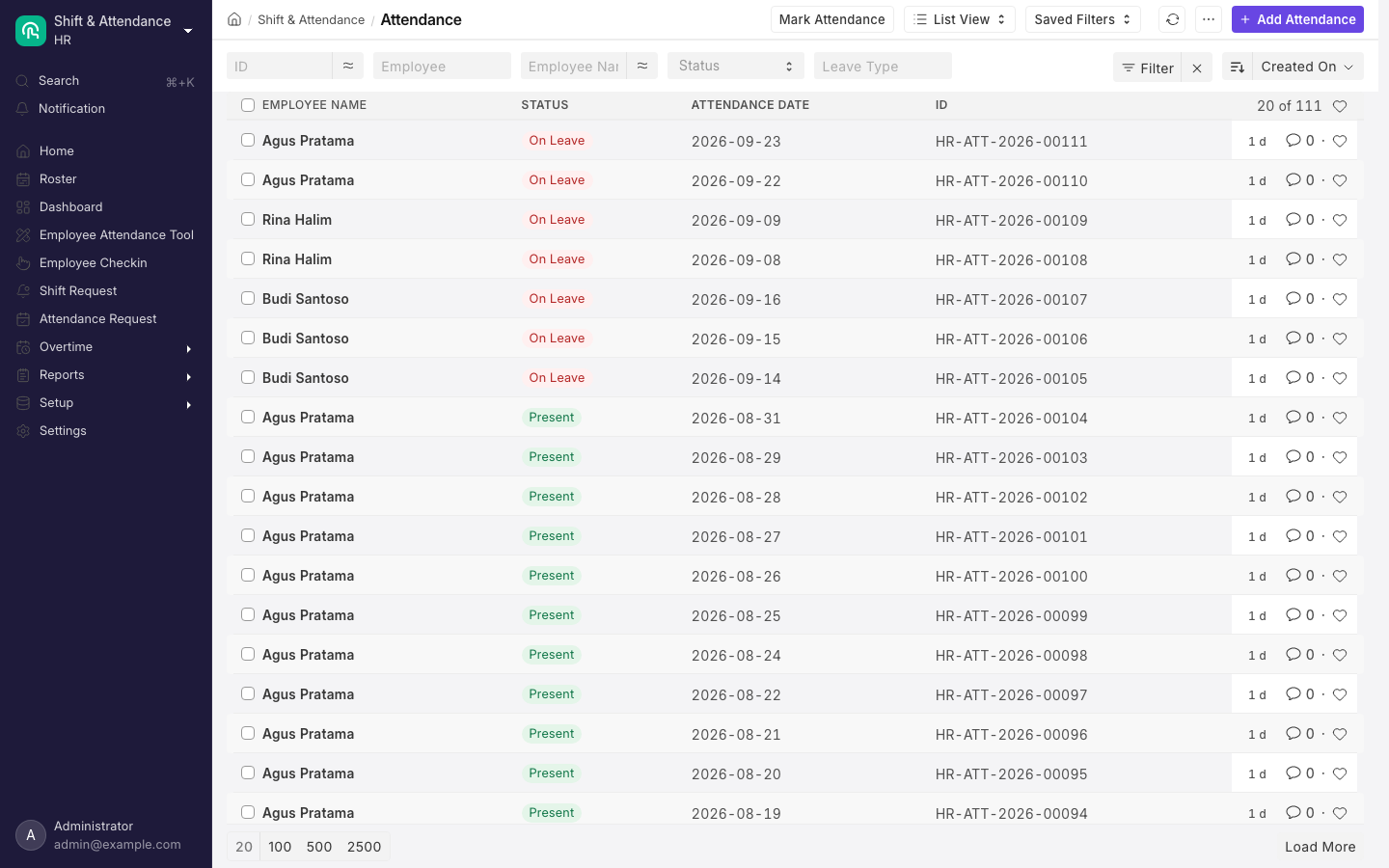
Attendance records for one month, one row per employee per day.
- They were working, not absent: raise an Attendance Request with Reason set to Work From Home or On Duty. When you submit it, GARP creates the missing Attendance and overwrites the status where a record already exists, skipping holidays unless Include Holidays is ticked, and always skipping days on approved leave. From an Absent record, Create > Attendance Request pre-fills it. A saved draft shows an Attendance Warnings panel listing, per date, whether the request will Skip or Overwrite and why.
- The status is wrong: cancel the Attendance and create a fresh one for the same date — a cancelled record no longer counts as a duplicate. No role ships with the Amend right on Attendance, so the Amend button is not there. Cancelling unlinks the check-ins, with an "Unlinked logs" message naming each one, so they become eligible again.
- The check-in time is wrong: it cannot be edited while an Attendance is linked. Cancel the Attendance first, or you get "Cannot Modify Time — An attendance record is linked to this checkin. Please cancel the attendance before modifying time."
- The punch was ignored: look for Off-shift or Skip Auto Attendance, widen the shift window, then run Fetch Shift.
- The day shows On Leave: that is deliberate. Approved leave covering the date forces On Leave, or Half Day on the half-day date, and stamps Leave Type and Leave Application on the record. Correct the leave, not the attendance.
Reports you can run
| Report | Roles | Notes |
|---|---|---|
| Monthly Attendance Sheet | HR User, HR Manager, System Manager | Company mandatory. Filter Based On Month or Date Range; a range wider than 90 days is refused. Day cells use P, A, HD/P, HD/A, WFH, L, H and WO. Summarized View swaps the day grid for totals plus one column per Leave Type. |
| Shift Attendance | HR User, HR Manager, System Manager, Employee, Employee Self Service | Company and dates mandatory, defaulting to the current month. Joins Attendance to Employee Checkin, so days without check-ins are missing until you tick Include Shift Attendance Without Checkins. Untick Consider Grace Period to see every minute of lateness, not only flagged days. |
| Employees working on a holiday | HR User, HR Manager, System Manager | Company mandatory; dates default to the start and end of the calendar year. |
| Fingerprint Machine Export | HR User, HR Manager | Lists Active employees with PIN Fingerprint and Status Mesin Absensi for loading into a device. |
Fingerprint Machine Export reads two Employee custom fields, PIN Fingerprint and Status Mesin Absensi, created by an update that is not registered to run — on a site where nobody added them by hand the report has nothing to read. The auto-generated number described above goes into Attendance Device ID, a different field; export that from an Employee list view instead.
Indonesian practice
There is no Indonesian regional module in the HR app: its regional folder holds only India and United Arab Emirates. What exists for Indonesia is a set of shipped updates, and it is worth knowing exactly what they do to this area.
- Holidays. Holiday List gives you a Country and Subdivision plus an Add to Holidays button that pulls from a general public-holiday library. Check the result against the official SKB calendar — cuti bersama is a policy decision, not a fixed public holiday, so add those rows yourself. Set Weekly Off and press the other Add to Holidays to generate Sundays, ticking Is Half Day first if you want half-day rows. A half-day row is not treated as a holiday at all; it halves the thresholds instead of skipping the day.
- Overtime on holidays. The Indonesian overtime update ticks Mark Auto Attendance on Holidays on every Shift Type with auto attendance enabled, alongside Allow Overtime and the
Lembur GARPOvertime Type. Where it has run, holidays are no longer skipped and anyone punching in on a libur nasional gets a Present record — right for lembur counting, wrong if you expected holidays to stay blank. Check the field on each shift. - Absence and pay. Marking someone Absent does not by itself dock pay. Payroll Settings > Calculate Payroll Working Days Based On defaults to
Leave; only onAttendancedo Absent days reduce Payment Days, and Consider Unmarked Attendance As then decides what an unmarked day means. The shipped Potongan component deducts one twenty-fifth of Gaji Pokok per mangkir day regardless. Choose one mechanism, not both. - BPJS, PPh 21 and THR. Nothing on this page touches them. Attendance feeds day counts into salary formulas and nothing more; contribution and tax components are configured in Tax and benefits.
- PKWT and PKWTT. Contract type lives on the Employee record as Employment Type and has no effect on shifts, check-ins or attendance marking.
Details, limits and edge cases
Everything below is reference. You do not need it to run attendance day to day — come here when a field, a rule, an error message or a permission needs looking up.
The records involved
- Shift Type (
/app/shift-type) — a named work window: Start Time, End Time, an optional Holiday List, and the auto-attendance settings. You type the name yourself. - Shift Assignment (
/app/shift-assignment) — you submit it; it puts one employee on one Shift Type from a Start Date, optionally to an End Date, with a Status of Active or Inactive, a Shift Location and an Overtime Type. - Shift Schedule with Shift Schedule Assignment (
/app/shift-schedule) — a repeating weekly pattern that generates Shift Assignments. Shift Location (/app/shift-location) holds a coordinate and a Checkin Radius. - Shift Request (
/app/shift-request) — an employee asks for a different shift; submitting it as Approved creates the Shift Assignment. Shift Assignment Tool (/app/shift-assignment-tool) does Assign Shift, Assign Shift Schedule or Process Shift Requests in bulk. - Employee Checkin (
/app/employee-checkin) — one punch: Time, an optional Log Type of IN or OUT, and a Location / Device ID. - Attendance (
/app/attendance) — the day record: Present, Absent, On Leave, Half Day or Work From Home, with Working Hours, In Time, Out Time, Late Entry, Early Exit and Status for Other Half. - Attendance Request (
/app/attendance-request) — Work From Home or On Duty over a date range; submitting it writes the Attendance. - Employee Attendance Tool (
/app/employee-attendance-tool) — mark many employees for one date. - Holiday List (
/app/holiday-list) and Holiday List Assignment (/app/holiday-list-assignment) — non-working days, and who they apply to. Both sit under Setup in the Leaves workspace sidebar; Holiday List also has a card link on the workspace itself.
How it fits together
Shift Type ─▶ Shift Assignment ─▶ Employee Checkin ─▶ Attendance
     │              ▲                                     ▲
     │              └── Shift Request / Shift Schedule     │
     └── auto attendance settings ────────────────────────┘

Attendance Request ─▶ Attendance      Employee Attendance Tool ─▶ Attendance
Shift Type field reference
Start Time and End Time are always mandatory. Process Attendance After becomes mandatory once Enable Auto Attendance is ticked, and Overtime Type once Allow Overtime is ticked. Every other field has a default that decides what happens when you leave it alone.
| Field | Accepts | Default | What depends on it |
|---|---|---|---|
| Start Time, End Time | A time | none, both required | Define the shift window. End before start means an overnight shift. |
| Holiday List | Pick a Holiday List | blank | Overrides the employee's own list for every holiday check this shift makes. Blank falls back to Holiday List Assignment. |
| Roster Color | One of ten colours | Blue | Colour of the block in Roster. Nothing else. |
| Enable Auto Attendance | Tick box | off | Master switch. Off means check-ins are still recorded and matched to the shift, but never become Attendance. |
| Determine Check-in and Check-out | Alternating entries as IN and OUT during the same shift / Strictly based on Log Type in Employee Checkin | blank | Blank matches neither branch and yields zero working hours. Set it. |
| Working Hours Calculation Based On | First Check-in and Last Check-out / Every Valid Check-in and Check-out | blank | With First/Last, a lunch break is paid time. With Every Valid, unpaired punches are discarded. |
| Begin check-in before shift start time (in minutes) | Whole number of minutes | 60 | Extends the punch window backwards. A punch before it is stored Off-shift. |
| Allow check-out after shift end time (in minutes) | Whole number of minutes | 60 | Extends it forwards, and sets the boundary that Last Sync of Checkin is compared against. |
| Working Hours Threshold for Half Day | Hours, decimals allowed | 0 | Below this, Half Day. Zero disables. |
| Working Hours Threshold for Absent | Hours, decimals allowed | 0 | Below this, Absent — checked first, so it wins over Half Day. Zero disables. |
| Process Attendance After | A date | Today | Nothing before this date is ever processed. |
| Last Sync of Checkin | A date and time | blank | Only shifts whose actual end is strictly earlier than this are eligible. |
| Automatically update Last Sync of Checkin | Tick box | off | Lets GARP advance the value by itself as each shift ends. |
| Mark Auto Attendance on Holidays | Tick box | off | When on, the holiday check is skipped and attendance is marked on any day with check-ins. |
| Enable Late Entry Marking / Late Entry Grace Period | Tick box / minutes | off / blank | Grace blank counts as zero minutes. |
| Enable Early Exit Marking / Early Exit Grace Period | Tick box / minutes | off / blank | Same. |
| Allow Overtime, Overtime Type | Tick box, then pick an Overtime Type | off | Writes Standard Working Hours and Actual Overtime Duration onto the Attendance. See Overtime. |
GARP refuses to save the shift in three cases:
- Identical Start Time and End Time gives "Invalid Shift Times — Start time and end time cannot be same."
- A window that reaches 24 hours once both buffers are added gives "Please reduce X to avoid shift time overlapping with itself", naming whichever buffer field is larger.
- Changing Start Time while unlinked check-ins still point at the shift gives "Unmarked Check-in Logs Found — Mark attendance for existing check-in/out logs before changing shift settings". A punch counts as unlinked when it has no Attendance, no Skip Auto Attendance and no Off-shift flag.
How check-ins become attendance
Which check-ins are eligible
Once an hour, GARP picks up check-ins that are unlinked to an Attendance, not flagged Skip Auto Attendance, not Off-shift, dated on or after Process Attendance After, carrying this Shift, and whose shift end plus the check-out buffer is strictly earlier than Last Sync of Checkin.
That last condition is the usual point of failure: if Last Sync of Checkin never moves forward, no punch is ever eligible. Either tick Automatically update Last Sync of Checkin, which lets GARP advance it hourly to one minute past each completed shift end, or have your integration write the value after every device pull.
Eligible punches are grouped by employee and shift start, so one person's punches for one shift are evaluated together.
How working hours become a status
Working hours are computed from the two dropdowns, then compared against the thresholds:
- Alternating entries plus First Check-in and Last Check-out: last punch minus first punch, whatever the Log Types say. One punch alone gives zero hours.
- Alternating entries plus Every Valid Check-in and Check-out: punches are paired 1-2, 3-4 and so on; an odd trailing punch is discarded.
- Strictly based on Log Type plus First Check-in and Last Check-out: first IN to last OUT. Missing either gives zero.
- Strictly based on Log Type plus Every Valid Check-in and Check-out: each IN paired with the next OUT, summed.
Every result is rounded to two decimals. Below Working Hours Threshold for Absent gives Absent, below Working Hours Threshold for Half Day gives Half Day, otherwise Present. Zero disables a threshold, and both halve on a date the holiday list marks Is Half Day.
Late Entry and Early Exit are stamped only if you tick Enable Late Entry Marking or Enable Early Exit Marking. They are measured against the scheduled start and end plus or minus the grace period, not against the buffered window.
The Attendance is created and submitted in one step with Working Hours, In Time, Out Time, Late Entry, Early Exit and Shift filled in, and every contributing check-in gets Attendance Marked set to it. An Absent produced this way carries the comment "Employee was marked Absent for not meeting the working hours threshold."
Marking absent, and the one-day lag
After the punches, the run sweeps assigned employees — anyone with an Active submitted assignment to this shift that has not ended, plus anyone whose Employee record names it as Default Shift, minus employees whose status is Inactive — and marks Absent on working days with no attendance at all, with the comment "Employee was marked Absent due to missing Employee Checkins."
The sweep starts at the later of Process Attendance After and the date of joining, and stops at the shift that started one day before Last Sync of Checkin, deliberately, to leave a day for manual entry. Holidays and dates that already have a non-cancelled Attendance are skipped. A final pass sets Status for Other Half to Absent on unresolved half-day-leave records.
When the routine gives up on a punch
If GARP refuses to create the Attendance — most often because an Attendance already exists for that employee and date — the attempt is rolled back, every punch in the group is flagged Skip Auto Attendance, and each gets a comment beginning "Reason for skipping auto attendance:" with the error text. Those punches are now permanently excluded; untick the flag to give them another chance.
Off-shift punches
A punch outside the window set by Begin check-in before shift start time and Allow check-out after shift end time is saved with Off-shift ticked, shows a yellow Off-Shift indicator in the list and a headline on the form, and is ignored. Widen the shift window, then use Fetch Shift on the form — hidden once an Attendance is linked — or Actions > Fetch Shifts on the list for a batch.
If Determine Check-in and Check-out is "Strictly based on Log Type in Employee Checkin", saving a check-in inside that shift without a Log Type is rejected with "Log Type is required for check-ins falling in the shift: X." Skip Auto Attendance bypasses that check.
What GARP runs on its own
The first three run in the same background queue, in this order, so Last Sync of Checkin is advanced before attendance is processed in the same pass.
| What runs | How often | What it does |
|---|---|---|
Advance Last Sync of Checkin (update_last_sync_of_checkin) | hourly | For every Shift Type with both Enable Auto Attendance and Automatically update Last Sync of Checkin, sets Last Sync of Checkin to one minute past the most recently completed shift end. |
Process auto attendance (process_auto_attendance_for_all_shifts) | hourly | Runs the routine above for every Shift Type with Enable Auto Attendance ticked. |
Create shifts from schedules (process_auto_shift_creation) | hourly | For every enabled Shift Schedule Assignment whose Create Shifts After is today or earlier, generates Shift Assignments for the next 90 days and logs a comment on the assignment. |
Retire expired assignments (mark_expired_shift_assignments_as_inactive) | daily | Sets Status to Inactive on submitted Active Shift Assignments whose End Date is earlier than yesterday. |
What each form refuses, and what submitting does
Attendance refuses four things when you save:
- a date before the employee's date of joining ("Attendance date X can not be less than employee Y's joining date: Z");
- a second record for the same employee and date, unless the existing one is an unresolved half day ("Duplicate Attendance");
- a record whose Shift overlaps in clock time with another shift already marked that day ("Overlapping Shift Attendance");
- an employee whose status is Inactive ("Transactions cannot be created for an Inactive Employee X.").
Submitting an Attendance creates nothing else and posts no ledger entry — the record is simply what Monthly Attendance Sheet, Shift Attendance and Salary Slip read. Cancelling unlinks the check-ins. Nothing on the record blocks a future date; only the bulk dialog caps you at today.
Employee Checkin refuses a second punch with the same employee, timestamp and Log Type, refuses a time change while an Attendance is linked, and works out the shift every time you save. Time is protected: HR User, HR Manager and System Manager can change it, while someone with only the Employee role can read it and not write it, so a punch an employee creates is always stamped at the moment of saving and cannot be backdated by them.
Attendance Request refuses a To Date before the From Date, a Half Day Date outside the range ("Half day date should be in between from date and to date"), an overlapping request for the same employee and shift, and a request where every date would be skipped — it shows a table of dates, reasons and actions and stops. With exactly one active Shift Assignment covering the period, Shift is filled in for you; with more you get "There are multiple shifts assigned to the employee for the same period. Please mention the shift". When you submit it, GARP walks each date and either creates and submits a new Attendance or updates the existing one's status in place with an audit comment, linking both back through the Attendance Request field. Cancelling the request cancels every Attendance it created.
Shift Request refuses an approver who is neither the employee's Shift Request Approver nor listed on their Department ("Only Approvers can Approve this Request."), refuses the employee's own Default Shift, and refuses overlapping requests for shifts whose clock times overlap. It submits only with Status Approved or Rejected. Submitting an Approved request creates and submits a Shift Assignment and names it; cancelling the request cancels that assignment. Saving shares the document with the approver with Submit rights and raises an in-app notification; approving or rejecting notifies the employee the same way. The document itself sends no email.
Shift Assignment refuses overlaps with another Active submitted assignment whose shift times overlap ("Overlapping Shifts"), and re-checks this when you change it after submitting, so widening dates on a submitted assignment can still fail.
Who can do what
| Record | Create | Submit | Cancel | Amend |
|---|---|---|---|---|
| Attendance | HR User, HR Manager, System Manager | same | same | nobody — no role has the amend right |
| Employee Checkin | HR User, HR Manager, System Manager, Employee | not submittable | — | — |
| Attendance Request | HR User, HR Manager, System Manager, Employee | HR User, HR Manager, System Manager | same | same |
| Shift Assignment | HR User, HR Manager | HR User, HR Manager | HR Manager only | HR Manager only |
| Shift Request | HR User, HR Manager, Employee | HR User, HR Manager | HR Manager only | HR Manager only |
| Shift Type, Shift Location | HR User, HR Manager | not submittable | — | — |
| Shift Schedule | HR User, HR Manager | HR Manager | HR Manager | HR Manager |
| Holiday List | HR Manager (HR User has select only) | not submittable | — | — |
| Holiday List Assignment | HR Manager, System Manager | same | same | — |
| Employee Attendance Tool | HR Manager only | — | — | — |
| Upload Attendance | HR User, HR Manager | — | — | — |
| Shift Assignment Tool | HR User only | — | — | — |
Two consequences catch people out: an HR Manager without HR User cannot open the Shift Assignment Tool, and an HR User without HR Manager cannot cancel a Shift Assignment or open the Employee Attendance Tool. Grant both roles to anyone running a roster.
The Employee role can read Attendance, Shift Assignment, Shift Type and Shift Schedule but not write them. What an employee sees is narrowed by Create User Permission on their Employee record, which ships ticked and adds User Permissions on both Employee and Company for their login. Nothing else narrows what they see on any of the records on this page. Of the four shipped Role Profiles, GTHR - KG carries only the Employee role, so despite its intent it cannot create or submit Shift Assignments.
Worked examples
PT Maju Jaya runs Shift Pagi from 08:00 to 16:00, buffers left at 60 minutes each side, Determine Check-in and Check-out on Alternating entries as IN and OUT during the same shift, Working Hours Calculation on First Check-in and Last Check-out, Half Day threshold 4, Absent threshold 1, both grace periods 15 minutes with marking enabled. The eligible punch window is therefore 07:00 to 17:00.
Sari Dewi punches 07:52 and 16:34. Hours are last minus first: 8 hours 42 minutes, stored as 8.7, which clears 4, so Present. In Time 07:52 is not after 08:15, so no Late Entry; Out Time 16:34 is not before 15:45, so no Early Exit.
Had she punched 08:00, 12:00, 13:00 and 17:00, this mode would give 9.0. Under Every Valid Check-in and Check-out the same four punches pair as 08:00 to 12:00 and 13:00 to 17:00 and give 8.0, because the lunch hour stops counting. Nothing on the Attendance record says which mode produced the number, so decide once, per shift.
Budi Santoso punches 08:20 and forgets to punch out. With one punch, In Time is 08:20, Out Time is empty, and hours are 08:20 minus 08:20, which is 0.0. Zero is below the Absent threshold of 1, so the day is marked Absent with Working Hours 0 — and because 08:20 is later than 08:15, Late Entry is ticked on that Absent record too. The fix is a second punch or an Attendance Request.
Rina Halim works a cuti bersama recorded as a half-day holiday. Because the Holiday row has Is Half Day ticked, both thresholds halve for that date: Half Day becomes 2 and Absent 0.5. She punches 08:05 and 11:30, which is 3.42 hours — on a normal day that falls under the 4-hour threshold and gives Half Day; here it clears 2 and gives Present.
What the month adds up to. Sari has 19 Present, 1 Half Day and 1 Absent in August. Monthly Attendance Sheet in Summarized View reports Total Present 19.5, Total Leaves 0.5 and Total Absent 1 — a half day is counted as half a present day and half a leave day, in both columns. Work From Home days are added to Total Present, not shown separately.
What payroll reads. The Salary Slip section Hari Kehadiran is filled from submitted Attendance for the payroll period, and the same values reach salary formulas under both their full field names and their abbreviations. For Sari that is HM 20, HS 0, HI 0, HMK 1, and HD equal to the number of days with Late Entry ticked — Hari Masuk counts a Half Day as a whole day.
With Gaji Pokok of Rp 8.000.000 and the shipped Potongan component, formula GP / 25 * (HS + HI + HMK), the deduction is 8.000.000 / 25 x 1 = Rp 320.000. The shipped Kehadiran component, 50000 if (HS == 0 and HI == 0 and HMK == 0 and HD == 0) else 0, pays Rp 50.000 only in a month with no sick day, no izin, no mangkir and no late arrival — one late punch zeroes it.
HS is counted by testing whether the Leave Type name contains the English string "sick", lower-cased. A leave type named Cuti Sakit does not match, so sick leave taken under an Indonesian-named leave type lands in HI instead. Either name the leave type so it contains "Sick", or have your consultant change the component formulas.