Invite your team
Each person who works in GARP ERP needs their own User. Users are counted against your plan's user limit; see Plans and limits.
Add a user
- Go to
/app/userand click + Add User. - Enter the email address (it becomes the login), first and last name.
- Leave Send Welcome Email ticked. The person receives a link to set their own password. Untick it if you prefer to set a password yourself under Change Password.
- Save.
The new user is a System User — someone who logs in to the desk. The other type, Website User, is for customers or suppliers who only use portal pages such as their own invoices or support tickets; website users do not count against the user limit.
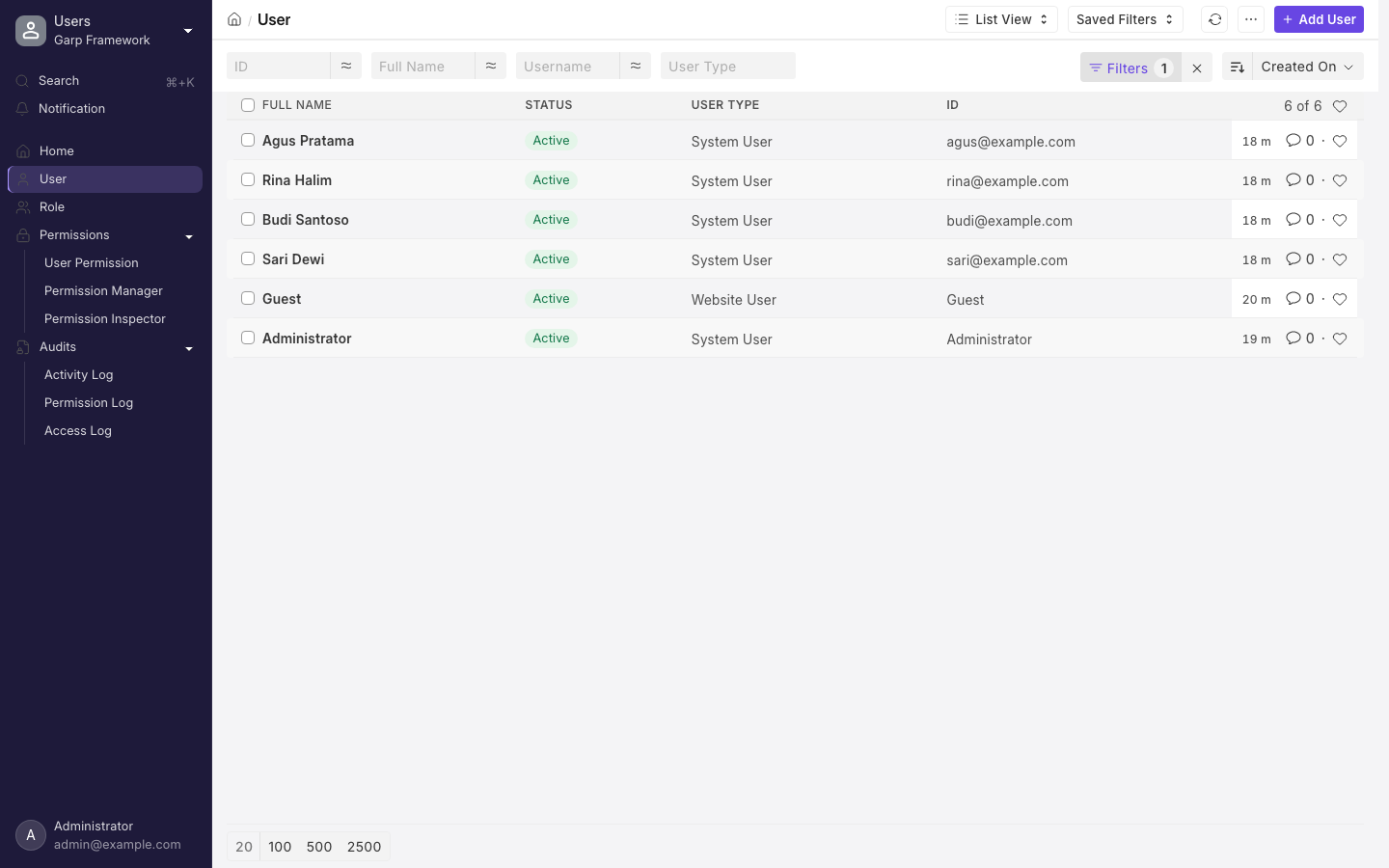
The user list at /app/user. Website users, like the built-in Guest, do not count against your plan's user limit.
Give them roles
What a user can see and do is decided by the roles ticked on their user record, under Roles. Each role grants a set of permissions on document types — for example Accounts User can create invoices and journal entries, Accounts Manager can also submit and cancel them and change accounting settings.
The roles you will use most:
| Role | Typical person |
|---|---|
| System Manager | The administrator: users, settings, customisation |
| Accounts Manager / Accounts User | Finance team |
| Sales Manager / Sales User | Sales team |
| Purchase Manager / Purchase User | Procurement |
| Stock Manager / Stock User | Warehouse |
| HR Manager / HR User | Human resources |
| Employee | Everyone: their own leave, expense claims, attendance |
To see exactly what a role can do, open Role Permissions Manager at /app/permission-manager, pick a document type and inspect the rows per role.
Create a Role Profile (/app/role-profile) for each job in your company — "Cashier", "Warehouse staff" — and assign the profile to new users instead of ticking roles one by one. Changing the profile later updates everyone who has it.
Limit what they see
- Module Profile (
/app/module-profile) hides whole modules from a user's sidebar. Useful for keeping HR or Accounting out of the way of someone who never uses them. - User Permissions (
/app/user-permission) restrict a user to specific records — one company, one warehouse, one cost centre — across every document that references it. - Allowed Modules on the user record does the same as a module profile for a single user.
Disable, don't delete
When someone leaves, open their user record and untick Enabled. The account can no longer log in, its documents and history stay intact, and it no longer counts against your user limit. Deleting a user who has created documents is refused for exactly that reason.
At the user limit
When the workspace has as many enabled system users as the plan allows, creating another one is refused with a message that says so. You can disable a user you no longer need, or add users to your plan from My account. See Plans and limits.