First login
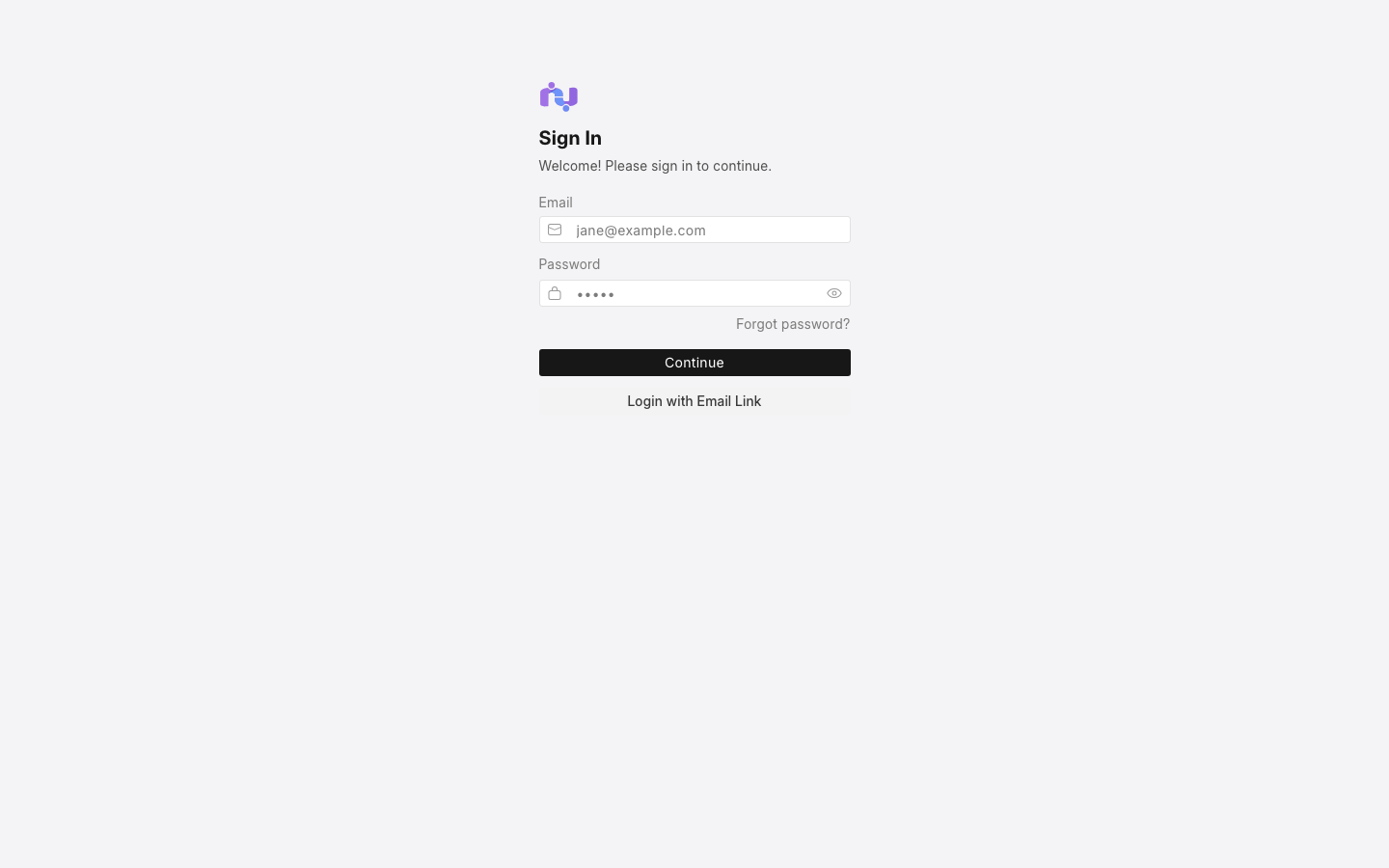
Your welcome email contains your workspace address and initial credentials. Open https://<workspace>.garp.aiconec.com and sign in.
Change the administrator password
The first account is Administrator, which can do anything in the workspace. Change its password before you do anything else:
- Click your avatar in the top-right corner and choose My Settings.
- Under Change Password, enter a new password and save.
Keep the Administrator account for administration. For day-to-day work, everyone — including you — should use a personal user with the roles they need; see Invite your team.
Run the setup wizard
On first login the setup wizard opens automatically. It creates the records everything else depends on, so answer it carefully — some of these are awkward to change later.
- Language, country, time zone and currency. The country drives the default chart of accounts and tax templates; the currency becomes the default for every company and price list. For an Indonesian company that is Indonesia, Asia/Jakarta and IDR.
- Your user. The name and email of the first real user. This account gets the System Manager role.
- Company. The legal name, a short abbreviation (used as a suffix on account and warehouse names, so keep it to two to five characters), the fiscal year start and end, and the chart of accounts to start from. The standard chart for your country is the right default unless your accountant has a specific one to import.
The wizard takes a moment to finish. When it is done you land on the desk at /app, with a sidebar of workspaces — Accounting, Selling, Buying, Stock and so on — one per module in your plan.
Fill in the essentials
Most documents reference a handful of master records. Create these before entering transactions:
| Record | Where | Why it matters |
|---|---|---|
| Company details: address, tax ID, logo | /app/company | Printed on every invoice and quotation |
| Bank accounts | /app/bank-account | Needed to record payments |
| Customers and suppliers | /app/customer, /app/supplier | Every sale or purchase names one |
| Items | /app/item | Products and services you buy, sell or stock |
| Warehouses | /app/warehouse | Where stock lives; the wizard creates a default set |
| Price lists | /app/price-list | Selling and buying prices by list |
| Tax templates | /app/sales-taxes-and-charges-template | PPN and other taxes applied to transactions |
If you have this data in spreadsheets, the Data Import tool at /app/data-import loads it from CSV or Excel with a downloadable template per document type.
Find your way around
- Search at the top of the sidebar, or Cmd/Ctrl + K anywhere: type a document type ("Sales Invoice"), a record ("ACC-SINV-2026-00001") or a report name and press Enter.
- Workspace sidebar on the left: shortcuts and reports grouped by module.
- List view for any document type shows filters, saved views and bulk actions; the + Add button, labelled with the document type, creates a new record.
This documentation writes desk addresses as /app/.... GARP serves the desk from /desk, and /app/... redirects there, so both work — your browser will just show /desk/... once the page loads.
What next
- Invite your team
- Learn the modules you will use first: Accounting, Sales and purchasing, Inventory